<?xml version="1.0" encoding="UTF-8"?><rss version="2.0"
	xmlns:content="http://purl.org/rss/1.0/modules/content/"
	xmlns:wfw="http://wellformedweb.org/CommentAPI/"
	xmlns:dc="http://purl.org/dc/elements/1.1/"
	xmlns:atom="http://www.w3.org/2005/Atom"
	xmlns:sy="http://purl.org/rss/1.0/modules/syndication/"
	xmlns:slash="http://purl.org/rss/1.0/modules/slash/"
	>

<channel>
	<title>ZGTECO &#8211; UseManuals</title>
	<atom:link href="http://usemanuals.com/zgteco/feed/" rel="self" type="application/rss+xml" />
	<link>https://usemanuals.com</link>
	<description>Owner&#039;s manuals for all sorts of products</description>
	<lastBuildDate>Mon, 04 Sep 2023 13:40:22 +0000</lastBuildDate>
	<language>en-US</language>
	<sy:updatePeriod>
	hourly	</sy:updatePeriod>
	<sy:updateFrequency>
	1	</sy:updateFrequency>
	<generator>https://wordpress.org/?v=6.7.2</generator>

<image>
	<url>https://usemanuals.com/wp-content/uploads/2025/02/favicon-32x32-2.png</url>
	<title>ZGTECO &#8211; UseManuals</title>
	<link>https://usemanuals.com</link>
	<width>32</width>
	<height>32</height>
</image> 
	<item>
		<title>ZGTECO Fingerprint Time Attendance System KF460 Manual</title>
		<link>https://usemanuals.com/zgteco/kf460-attendance-system/</link>
		
		<dc:creator><![CDATA[ItsManual]]></dc:creator>
		<pubDate>Mon, 04 Sep 2023 13:40:22 +0000</pubDate>
				<category><![CDATA[ZGTECO]]></category>
		<guid isPermaLink="false">https://usemanuals.com/?p=214415</guid>

					<description><![CDATA[ZGTECO Fingerprint Time Attendance System Installation Guide 1. Components 2. Installation Installation Environment Install the device indoor at least 10 feet (3ml away from the window and 6.5 feet (2ml from any light source. It is not recommended to install the device outdoor or on windows. 2. Installation Steps a. Drill holes on the wall and fix the mounting plate as shown in the above image. Note: The distance between the mounting plate and ground must be 1.1m when the user’s height range is between 1.55m to 1.85m. If the user’s height is above 1.65m, then the distance between the mounting plate and ground must be 1.2m. b. Pass the power cable through the hole at the bottom of the mounting plate. Then, fix the upper hooks to the mounting plate. c. Finally, tighten the screw at the bottom of the device. 3. Face Recognition Recommended standing position The distance between the user and device should be O.Sm for the user’s height range of 1.55m to 1.85m which can be adjusted as per the requirements. The distance between the user and the device should be same while enrolling and verifying. Also, the distance between the device and the ground must be same while enrolling and verifying. 2. Recommended Facial Expression Please move your eyes to fit into the green box by moving forward or backward during enrollment. Please move your face to fit inside the green box to make it at the center of the screen during verification. 4. Add a New User on Clock Long press the &#60;M/OK&#62; key to enter the menu. Go to [Users] and then [Add User]. Enter the First Name, Last Name ofthe user. Select Face to enroll the face. (Note: Every time the user registers the face, he/she needs to agree with the privacy policy.) Select Password to enroll the password. Set the User Role as Employee/Admin. (J) Press the &#60;ESC&#62; key to exit and save the data. 5. Enroll Users in Batch through USB Go to [Users] then select [Upload Users].  Insert the USB drive to the clock, then select [Download users template file]. Add the user details to the template file ecuser.txt on PC and save. Insert the USB drive back to the clock and select [Upload users file] on the same screen. Then go to [User List], select the user and enroll the face. 6. Reset Date and Time Go to [System] and then [Date and Time]. Set the Date, Time and the Format. Enable Daylight Saving Time if required. Press the &#60;ESC&#62; key to exit. 7. Setup Pay Period Go to [Pay Period]. You can choose Weekly, Biweekly, Semi-monthly or Monthly pay period type according to the payroll policy. The Time Report will be generated based on the selected pay period type. 8. Configure Attendance Rule Go to [Rule]. Maximum Work Hours: Verifies if there is a missing punch when the total worked hours exceeds this value. Day Cutoff Time: It is the time that determines whether to count the worked hours to the previous day or next day. Duplicate Punch Interval: Avoids multiple checkin/ out within the specified time. Auto Punch Mode: When this mode is turned off, the users need to select the check-in/out status manually after verification. If it is turned on, the clock will automatically determine the attendance status based on the last recorded attendance status of the same user. View Punch Record: When this option is turned on, the users can verify their attendance records by themselves. 9. Face Verification for Check-in/out When the Auto Punch Mode is turned on, after successful verification, the clock will create an attendance record immediately. The user can press the &#60;M/OK&#62; key to view the record or press &#60;ESC&#62; key to quit. When the Auto Punch Mode is turned off, the user should select the desired key after verification. Then, the attendance record will be created. 10. Download Time Report Insert the USB drive to the clock. Go to [Time Report] and select the required time period.  Select the time format to be displayed on the report. Press &#60;M/OK&#62; key to download the report. 11. Add Missing Punch Go to [Time Data], then select [Add Missing Punch]. Select the User, then enter the Date, Time and Punch state. Press &#60;M/OK&#62; key to save. 12. Backup User Data Insert a USB drive to the clock. Go to [Users] and then [Download users]. When you need to recover the data, rename the downloaded file to ecuser.txt and upload it. 13. Delete Data CD Go to [Data Mgt.] and click [Delete All Data] to clean all the clock data. Go to [Data Mgt.] and click [Delete Attendance Data] to clean all the attendance data. 14. Upgrade Firmware Initially, download the firmware from the website and save it to the root folder of the USB drive. Plug the USB drive to the clock. Go to [System] and then [USB Upgrade]. Then press, &#60;M/OK&#62; to start upgrading the Firmware. 15. Setup 15. Setup Wi-Fi Manually Go to [Comm.] then [Wireless Network]. Select the required Wi-Fi connection. Navigate to [Password] and then enter the correct password. Press the &#60;M/OK&#62; key to connect. 16. Setup Wi-Fi through USB CD Go to [Comm.] then [Wireless Network] and then select [WIFI Setup by USB]. Cg) Insert the USB drive to the clock then select [Download] to save the config file as ecwifi.txt. Open ecwifi.txt on PC, enter the Wi-Fi Name(SSID) and Password then save.  Insert the USB drive back to the clock, then navigate to [Upload] on the same screen to upload the Wi-Fi details. 17. Connect to Mobile App Download the “NGTeco Time” App from the Google Play store or Apple store from your mobile. Connect your mobile to the same Wi-Fi network of the clock. Go to [Comm.] then click [App Connection] to view the QR code. Open the Mobile App and press the ~ icon to scan the QR code from the clock. Then the mobile app connects to the clock automatically. After successful connection, you can setup the clock options from the App. 18. Register users from App Go to Users menu Click the Add User icon to add a new user. The User ID can be auto-generated or manually assigned. Enter the First Name, Last Name and Password. Set the permission. Click Save &#38; Sync to sync the user details to the time clock. Open User List on the clock to enroll user’s face. 19. Add Missing Punch from App Go to Attendance menu. Click the Add Punch icon. Select the user to add the missing check-in/out. Select the Punch Date (on the Attendance page). The default date is today, which can be selected manually. Select the Punch Time and Punch State. Click Save &#38; Sync to sync the attendance details to the clock. 20. Edit Punch from App Go to Attendance menu. Select the user and click the Edit Punch icon. Select the Punch Date (on the Attendance page). The default date is today, which can be selected manually. Select the Punch Time and Punch State. Click Save &#38; Sync to sync the attendance details to the clock. 22. Setup Pay Period and Attendance Rule from App Go to Setup menu. Pay Set the Pay Period. Set the Start Day of the week. Set the Day Cutoff Time. Set the Duplicate Punch Interval. Set the Maximum Work Hours. Set the Time format for report generation. Click Save &#38; Sync to sync the settings to the clock. 23. Help and Support For further details, scan the QR code from the Help menu of the device or package box to visit the on line help center. Website : www.ngteco.com Email : ngtime@ngteco.com Phone: (770) 800-2321 Support: www.ngteco.com/support For more product information, please scan and visit our website . [...]<p><a class="btn btn-secondary understrap-read-more-link" href="https://usemanuals.com/zgteco/kf460-attendance-system/">Read More...</a></p>]]></description>
										<content:encoded><![CDATA[<h4>ZGTECO Fingerprint Time Attendance System Installation Guide</h4>
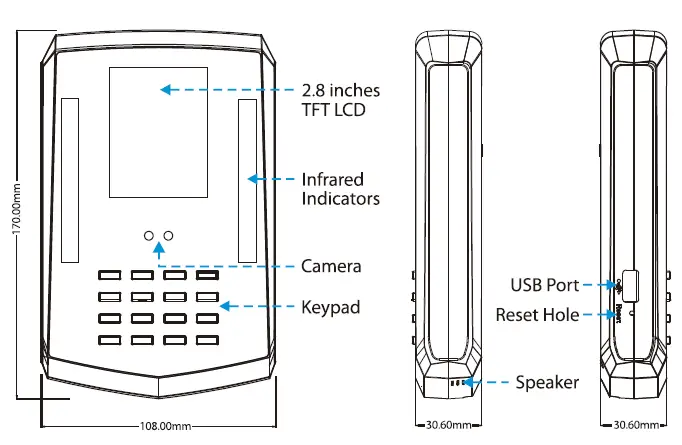
<h4>1. Components</h4>
<p><img decoding="async" src="https://usemanuals.com/wp-content/uploads/2023/09/ZGTECO-Fingerprint-Time-Attendance-System-Installation-Guide_1-300x196-1.webp" /></p>
<h4>2. Installation</h4>
<ol>
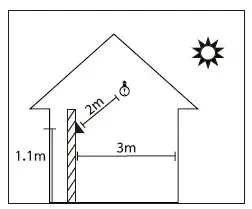
<li>Installation Environment<br />
<img fetchpriority="high" decoding="async" class="alignnone wp-image-315984 ezlazyloaded" src="images/6.webp" alt="diagram" width="441" height="366" data-ezsrc="https://manuals.plus/wp-content/uploads/2021/07/ZGTECO-Fingerprint-Time-Attendance-System-Installation-Guide_2.png?ezimgfmt=rs:441x366/rscb1/ng:webp/ngcb1" /></li>
</ol>
<ul>
<li>Install the device indoor at least 10 feet (3ml away from the window and 6.5 feet (2ml from any light source.</li>
<li>It is not recommended to install the device outdoor or on windows.</li>
</ul>
<h4>2. Installation Steps</h4>
<p><img decoding="async" src="https://usemanuals.com/wp-content/uploads/2023/09/ZGTECO-Fingerprint-Time-Attendance-System-Installation-Guide_3-300x96-1.webp" /></p>
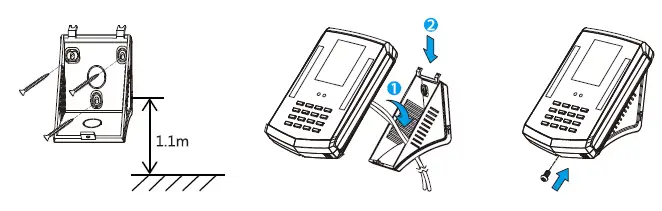
<p><strong>a.</strong> Drill holes on the wall and fix the mounting plate as shown in the above image.<br />
Note: The distance between the mounting plate and ground must be 1.1m when the user’s height range is between 1.55m to 1.85m. If the user’s height is above 1.65m, then the distance between the mounting plate and ground must be 1.2m.<br />
<strong>b.</strong> Pass the power cable through the hole at the bottom of the mounting plate. Then, fix the upper hooks to the mounting plate.<br />
<strong>c.</strong> Finally, tighten the screw at the bottom of the device.</p>
<h4>3. Face Recognition</h4>
<ol>
<li>Recommended standing position</li>
</ol>
<ul>
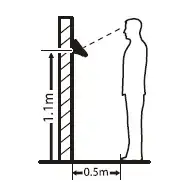
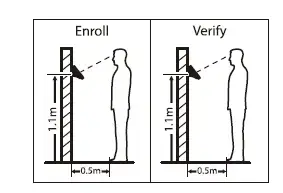
<li>The distance between the user and device should be O.Sm for the user’s height range of 1.55m to 1.85m which can be adjusted as per the requirements.<br />
<img decoding="async" src="https://usemanuals.com/wp-content/uploads/2023/09/ZGTECO-Fingerprint-Time-Attendance-System-Installation-Guide_4.webp" /></li>
<li>The distance between the user and the device should be same while enrolling and verifying. Also, the distance between the device and the ground must be same while enrolling and verifying.<br />
<img decoding="async" src="https://usemanuals.com/wp-content/uploads/2023/09/ZGTECO-Fingerprint-Time-Attendance-System-Installation-Guide_5.webp" /></li>
</ul>
<h4>2. Recommended Facial Expression</h4>
<ul>
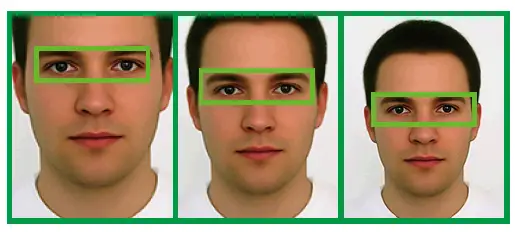
<li>Please move your eyes to fit into the green box by moving forward or backward during enrollment.<br />
<img decoding="async" src="https://usemanuals.com/wp-content/uploads/2023/09/ZGTECO-Fingerprint-Time-Attendance-System-Installation-Guide_6-300x135-1.webp" /></li>
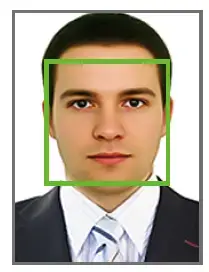
<li>Please move your face to fit inside the green box to make it at the center of the screen during verification.<br />
<img decoding="async" src="https://usemanuals.com/wp-content/uploads/2023/09/ZGTECO-Fingerprint-Time-Attendance-System-Installation-Guide_7.webp" /></li>
</ul>
<h4>4. Add a New User on Clock</h4>
<ol>
<li>Long press the &lt;M/OK&gt; key to enter the menu.</li>
<li>Go to [Users] and then [Add User].</li>
<li>Enter the First Name, Last Name ofthe user.</li>
<li>Select Face to enroll the face. (Note: Every time the user registers the face, he/she needs to agree with the privacy policy.)</li>
<li>Select Password to enroll the password.</li>
<li>Set the User Role as Employee/Admin. (J) Press the &lt;ESC&gt; key to exit and save the data.</li>
</ol>
<h4>5. Enroll Users in Batch through USB</h4>
<p><img decoding="async" src="https://usemanuals.com/wp-content/uploads/2023/09/ZGTECO-Fingerprint-Time-Attendance-System-Installation-Guide_9-300x196-1.webp" /></p>
<ol>
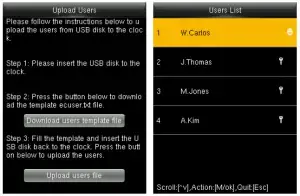
<li>Go to [Users] then select [Upload Users].</li>
<li> Insert the USB drive to the clock, then select [Download users template file].</li>
<li>Add the user details to the template file ecuser.txt on PC and save.</li>
<li>Insert the USB drive back to the clock and select [Upload users file] on the same screen.</li>
<li>Then go to [User List], select the user and enroll the face.</li>
</ol>
<h4>6. Reset Date and Time</h4>
<p><img decoding="async" src="https://usemanuals.com/wp-content/uploads/2023/09/ZGTECO-Fingerprint-Time-Attendance-System-Installation-Guide_10-231x300-1.webp" /></p>
<ol>
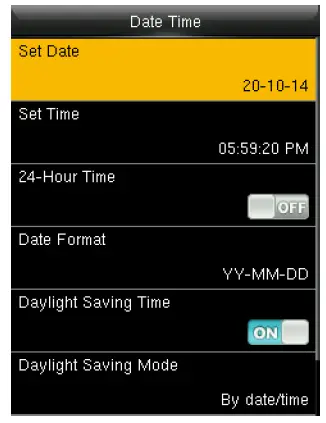
<li>Go to [System] and then [Date and Time].</li>
<li>Set the Date, Time and the Format.</li>
<li>Enable Daylight Saving Time if required.</li>
<li>Press the &lt;ESC&gt; key to exit.</li>
</ol>
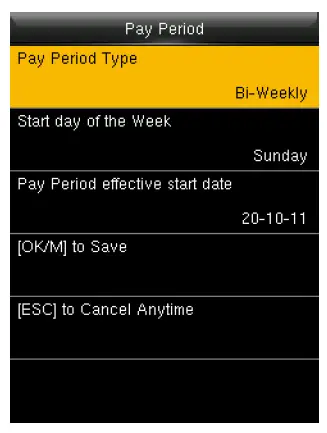
<h4>7. Setup Pay Period</h4>
<p><img decoding="async" src="https://usemanuals.com/wp-content/uploads/2023/09/ZGTECO-Fingerprint-Time-Attendance-System-Installation-Guide_11-227x300-1.webp" /></p>
<ol>
<li>Go to [Pay Period].</li>
<li>You can choose Weekly, Biweekly, Semi-monthly or Monthly pay period type according to the payroll policy.</li>
<li>The Time Report will be generated based on the selected pay period type.</li>
</ol>
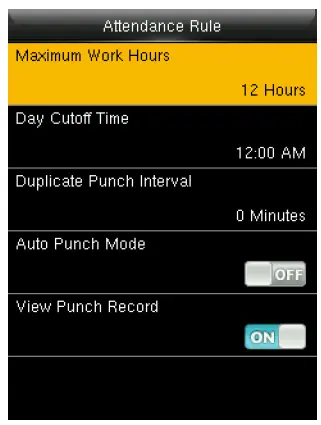
<h4>8. Configure Attendance Rule</h4>
<p><img decoding="async" src="https://usemanuals.com/wp-content/uploads/2023/09/ZGTECO-Fingerprint-Time-Attendance-System-Installation-Guide_12-227x300-1.webp" /></p>
<ol>
<li>Go to [Rule].</li>
<li>Maximum Work Hours: Verifies if there is a missing punch when the total worked hours exceeds this value.</li>
<li>Day Cutoff Time: It is the time that determines whether to count the worked hours to the previous day or next day.</li>
<li>Duplicate Punch Interval: Avoids multiple checkin/ out within the specified time.</li>
<li>Auto Punch Mode: When this mode is turned off, the users need to select the check-in/out status manually after verification. If it is turned on, the clock will<br />
automatically determine the attendance status based on the last recorded attendance status of the same user.</li>
<li>View Punch Record: When this option is turned on, the users can verify their attendance records by themselves.</li>
</ol>
<h4>9. Face Verification for Check-in/out</h4>
<p><img decoding="async" src="https://usemanuals.com/wp-content/uploads/2023/09/ZGTECO-Fingerprint-Time-Attendance-System-Installation-Guide_13-300x198-1.webp" /></p>
<ol>
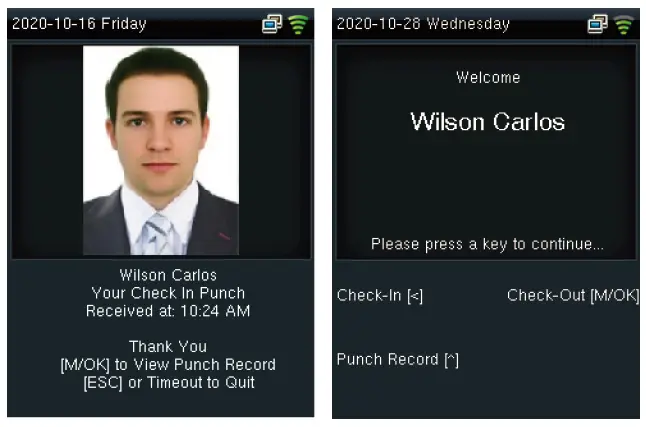
<li>When the Auto Punch Mode is turned on, after successful verification, the clock will create an attendance record<br />
immediately. The user can press the &lt;M/OK&gt; key to view the record or press &lt;ESC&gt; key to quit.</li>
<li>When the Auto Punch Mode is turned off, the user should select the desired key after verification. Then, the attendance record will be created.</li>
</ol>
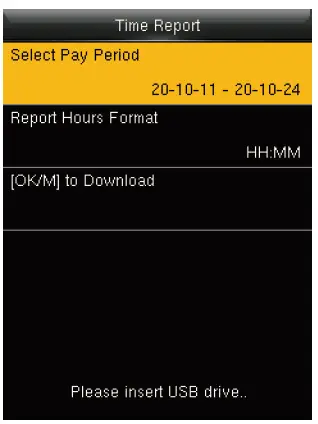
<h4>10. Download Time Report</h4>
<p><img decoding="async" src="https://usemanuals.com/wp-content/uploads/2023/09/ZGTECO-Fingerprint-Time-Attendance-System-Installation-Guide_14-225x300-1.webp" /></p>
<ol>
<li>Insert the USB drive to the clock.</li>
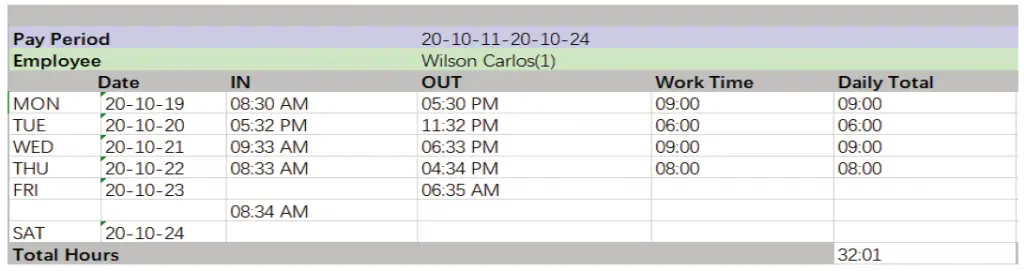
<li>Go to [Time Report] and select the required time period.</li>
<li> Select the time format to be displayed on the report.</li>
<li>Press &lt;M/OK&gt; key to download the report.</li>
</ol>
<p><img decoding="async" src="https://usemanuals.com/wp-content/uploads/2023/09/ZGTECO-Fingerprint-Time-Attendance-System-Installation-Guide_15-300x79-1.webp" /></p>
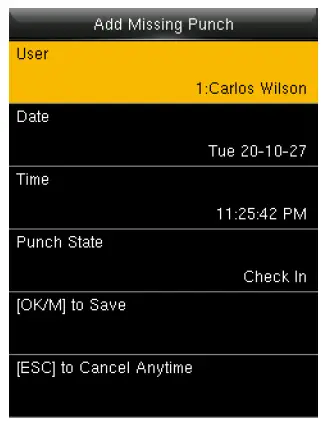
<h4>11. Add Missing Punch</h4>
<p><img decoding="async" src="https://usemanuals.com/wp-content/uploads/2023/09/ZGTECO-Fingerprint-Time-Attendance-System-Installation-Guide_16-229x300-1.webp" /></p>
<ol>
<li>Go to [Time Data], then select [Add Missing Punch].</li>
<li>Select the User, then enter the Date, Time and Punch state.</li>
<li>Press &lt;M/OK&gt; key to save.</li>
</ol>
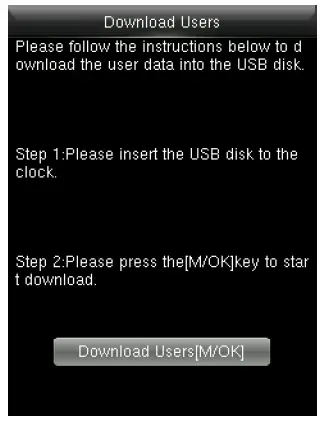
<h4>12. Backup User Data</h4>
<p><img decoding="async" src="https://usemanuals.com/wp-content/uploads/2023/09/ZGTECO-Fingerprint-Time-Attendance-System-Installation-Guide_17-231x300-1.webp" /></p>
<ol>
<li>Insert a USB drive to the clock.</li>
<li>Go to [Users] and then [Download users].</li>
<li>When you need to recover the data, rename the downloaded file to ecuser.txt and upload it.</li>
</ol>
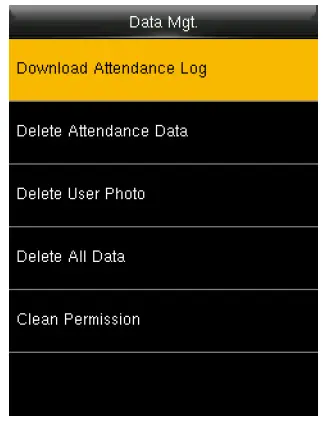
<h4>13. Delete Data</h4>
<p><img decoding="async" src="https://usemanuals.com/wp-content/uploads/2023/09/ZGTECO-Fingerprint-Time-Attendance-System-Installation-Guide_18-229x300-1.webp" /></p>
<ol>
<li>CD Go to [Data Mgt.] and click [Delete All Data] to clean all the clock data.</li>
<li>Go to [Data Mgt.] and click [Delete Attendance Data] to clean all the attendance data.</li>
</ol>
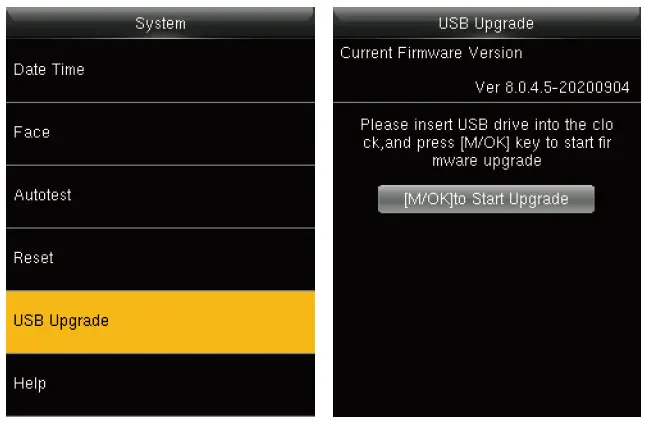
<h4>14. Upgrade Firmware</h4>
<p><img decoding="async" src="https://usemanuals.com/wp-content/uploads/2023/09/ZGTECO-Fingerprint-Time-Attendance-System-Installation-Guide_19-300x196-1.webp" /></p>
<ol>
<li>Initially, download the firmware from the website and save it to the root folder of the USB drive.</li>
<li>Plug the USB drive to the clock.</li>
<li>Go to [System] and then [USB Upgrade].</li>
<li>Then press, &lt;M/OK&gt; to start upgrading the Firmware. 15. Setup</li>
</ol>
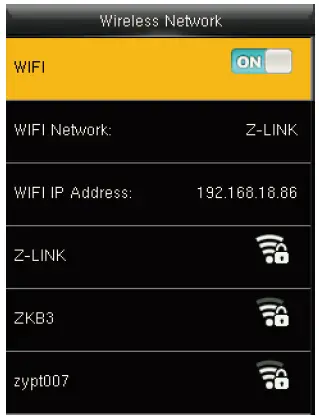
<h4>15. Setup Wi-Fi Manually</h4>
<p><img decoding="async" src="https://usemanuals.com/wp-content/uploads/2023/09/ZGTECO-Fingerprint-Time-Attendance-System-Installation-Guide_20-228x300-1.webp" /></p>
<ol>
<li>Go to [Comm.] then [Wireless Network].</li>
<li>Select the required Wi-Fi connection.</li>
<li>Navigate to [Password] and then enter the correct password.</li>
<li>Press the &lt;M/OK&gt; key to connect.</li>
</ol>
<h4>16. Setup Wi-Fi through USB</h4>
<p><img decoding="async" src="https://usemanuals.com/wp-content/uploads/2023/09/ZGTECO-Fingerprint-Time-Attendance-System-Installation-Guide_21-227x300-1.webp" /></p>
<ol>
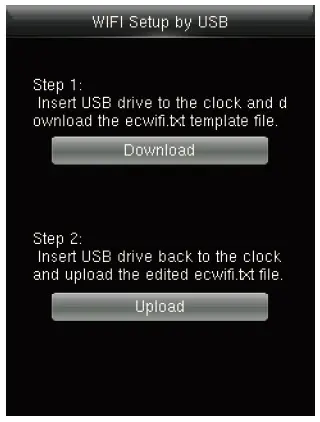
<li>CD Go to [Comm.] then [Wireless Network] and then select [WIFI Setup by USB]. Cg) Insert the USB drive to the clock then select [Download] to save the config file as ecwifi.txt.</li>
<li>Open ecwifi.txt on PC, enter the Wi-Fi Name(SSID) and Password then save.</li>
<li> Insert the USB drive back to the clock, then navigate to [Upload] on the same screen to upload the Wi-Fi details.</li>
</ol>
<h4>17. Connect to Mobile App</h4>
<p>Download the “NGTeco Time” App from the Google Play store or Apple store from your mobile.<br />
<img decoding="async" src="https://usemanuals.com/wp-content/uploads/2023/09/ZGTECO-Fingerprint-Time-Attendance-System-Installation-Guide_22-231x300-1.webp" /></p>
<ol>
<li>Connect your mobile to the same Wi-Fi network of the clock.</li>
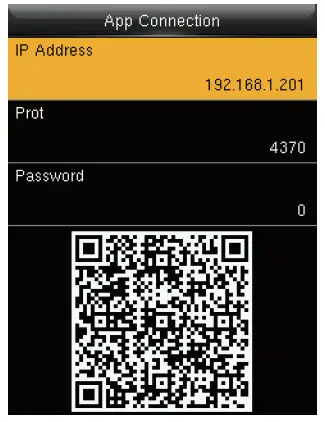
<li>Go to [Comm.] then click [App Connection] to view the QR code.<br />
<img decoding="async" src="https://usemanuals.com/wp-content/uploads/2023/09/ZGTECO-Fingerprint-Time-Attendance-System-Installation-Guide_23-177x300-1.webp" /></li>
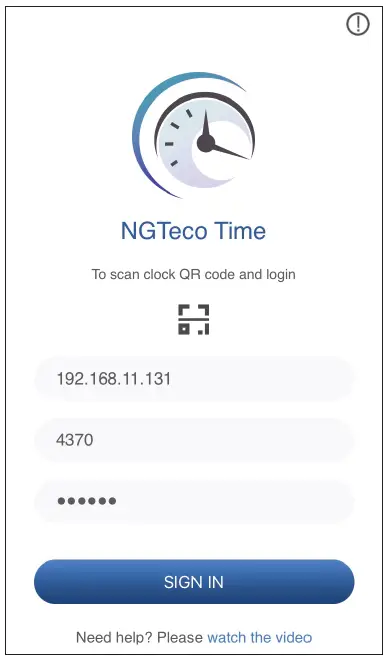
<li>Open the Mobile App and press the ~ icon to scan the QR code from the clock.</li>
<li>Then the mobile app connects to the clock automatically.</li>
<li>After successful connection, you can setup the clock options from the App.</li>
</ol>
<h4>18. Register users from App</h4>
<p><img decoding="async" src="https://usemanuals.com/wp-content/uploads/2023/09/ZGTECO-Fingerprint-Time-Attendance-System-Installation-Guide_24-175x300-1.webp" /></p>
<ol>
<li>Go to Users menu</li>
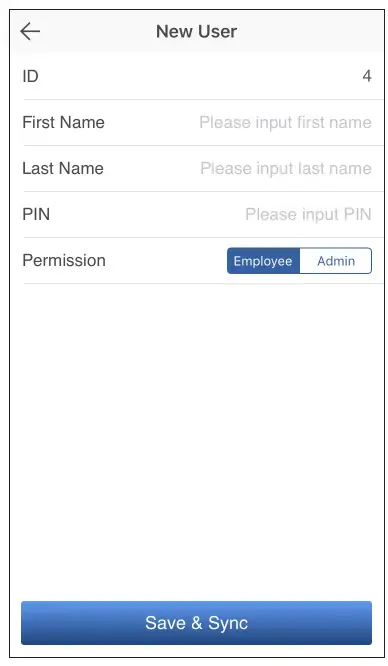
<li>Click the Add User icon to add a new user.</li>
<li>The User ID can be auto-generated or manually assigned.</li>
<li>Enter the First Name, Last Name and Password.</li>
<li>Set the permission.</li>
<li>Click Save &amp; Sync to sync the user details to the time clock.</li>
<li>Open User List on the clock to enroll user’s face.</li>
</ol>
<h4>19. Add Missing Punch from App</h4>
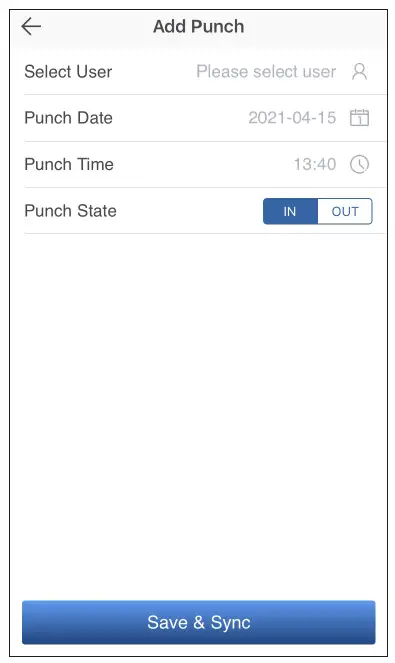
<p><img decoding="async" src="https://usemanuals.com/wp-content/uploads/2023/09/ZGTECO-Fingerprint-Time-Attendance-System-Installation-Guide_25-179x300-1.webp" /></p>
<ol>
<li>Go to Attendance menu.</li>
<li>Click the Add Punch icon.</li>
<li>Select the user to add the missing check-in/out.</li>
<li>Select the Punch Date (on the Attendance page). The default date is today, which can be selected manually.</li>
<li>Select the Punch Time and Punch State.</li>
<li>Click Save &amp; Sync to sync the attendance details to the clock.</li>
</ol>
<h4>20. Edit Punch from App</h4>
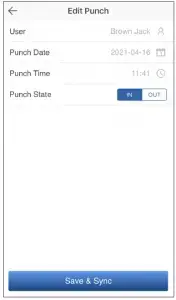
<p><img decoding="async" src="https://usemanuals.com/wp-content/uploads/2023/09/ZGTECO-Fingerprint-Time-Attendance-System-Installation-Guide_26-176x300-1.webp" /></p>
<ol>
<li>Go to Attendance menu.</li>
<li>Select the user and click the Edit Punch icon.</li>
<li>Select the Punch Date (on the Attendance page). The default date is today, which can be selected manually.</li>
<li>Select the Punch Time and Punch State.</li>
<li>Click Save &amp; Sync to sync the attendance details to the clock.<br />
<img decoding="async" src="https://usemanuals.com/wp-content/uploads/2023/09/ZGTECO-Fingerprint-Time-Attendance-System-Installation-Guide_27-176x300-1.webp" /></li>
</ol>
<h4>22. Setup Pay Period and Attendance Rule from App</h4>
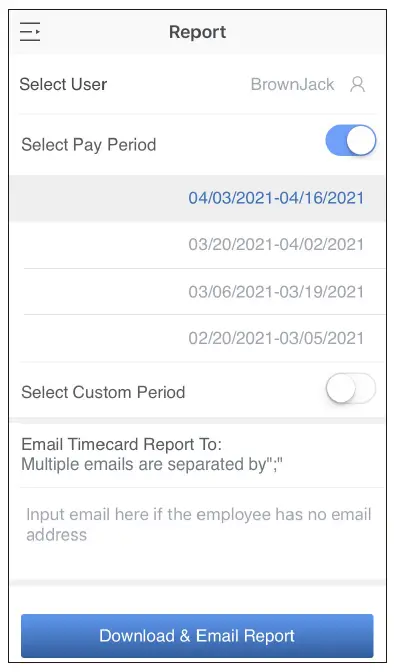
<p><img decoding="async" src="https://usemanuals.com/wp-content/uploads/2023/09/ZGTECO-Fingerprint-Time-Attendance-System-Installation-Guide_28-177x300-1.webp" /></p>
<ol>
<li>Go to Setup menu. Pay</li>
<li>Set the Pay Period.</li>
<li>Set the Start Day of the week.</li>
<li>Set the Day Cutoff Time.</li>
<li>Set the Duplicate Punch Interval.</li>
<li>Set the Maximum Work Hours.</li>
<li>Set the Time format for report generation.</li>
<li>Click Save &amp; Sync to sync the settings to the clock.</li>
</ol>
<h4>23. Help and Support</h4>
<p>For further details, scan the QR code from the Help menu of the device or package box to visit the on line help center.</p>
<p>Website : www.ngteco.com<br />
Email : ngtime@ngteco.com<br />
Phone: (770) 800-2321<br />
Support: www.ngteco.com/support<br />
For more product information, please scan and visit our website .</p>
<p><img decoding="async" src="https://usemanuals.com/wp-content/uploads/2023/09/ZGTECO-Fingerprint-Time-Attendance-System-Installation-Guide_30.webp" /></p>
<h4></h4>
<form id="commentform" class="comment-form" action="https://manuals.plus/wp-comments-post.php" method="post" novalidate="">
<p class="form-submit">
</form>
]]></content:encoded>


			</item>
	</channel>
</rss>

<!--
Performance optimized by W3 Total Cache. Learn more: https://www.boldgrid.com/w3-total-cache/

Page Caching using Disk: Enhanced 

Served from: usemanuals.com @ 2026-06-12 19:55:10 by W3 Total Cache
-->