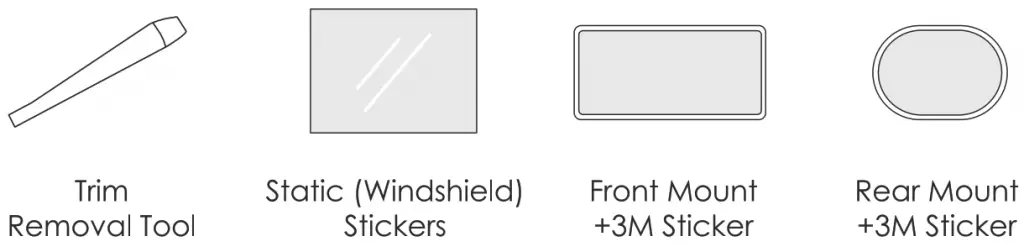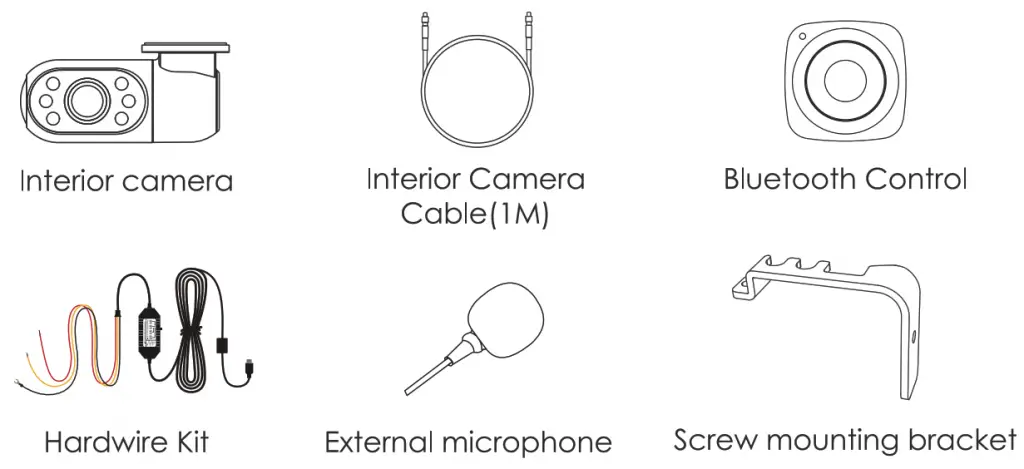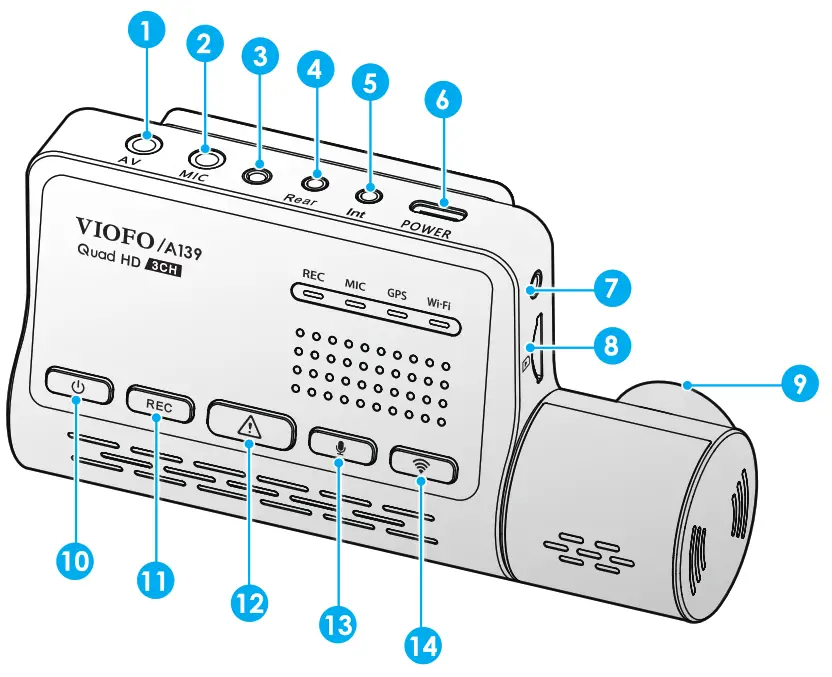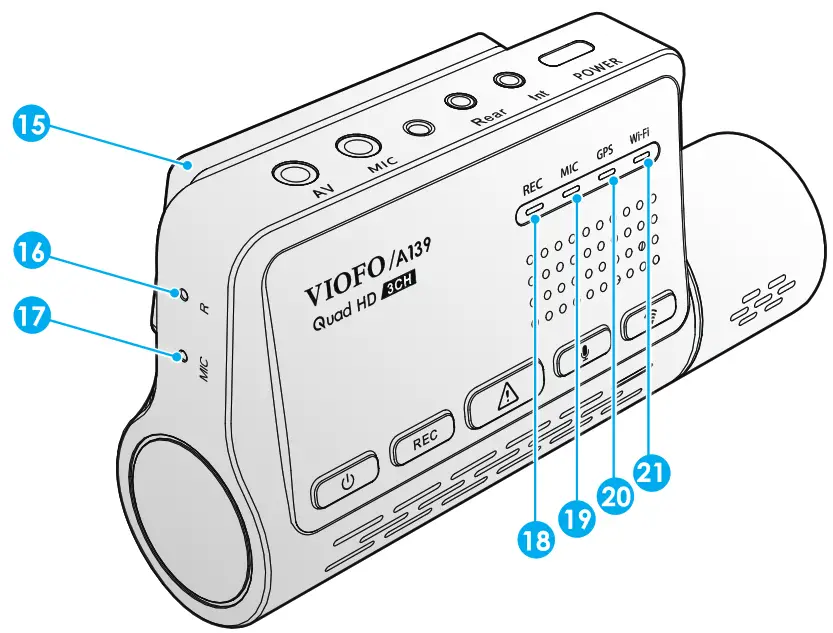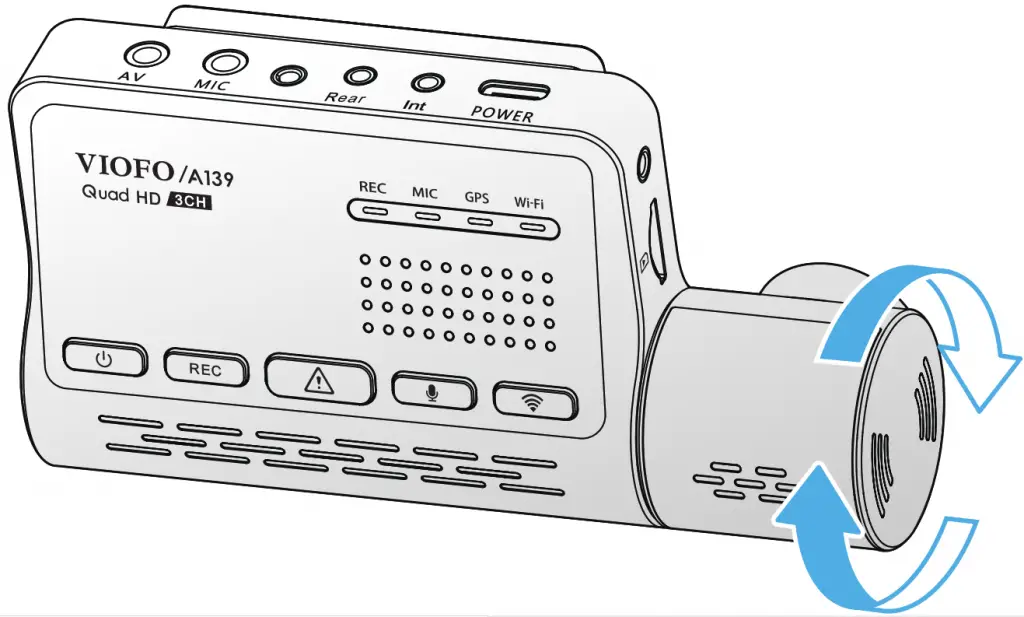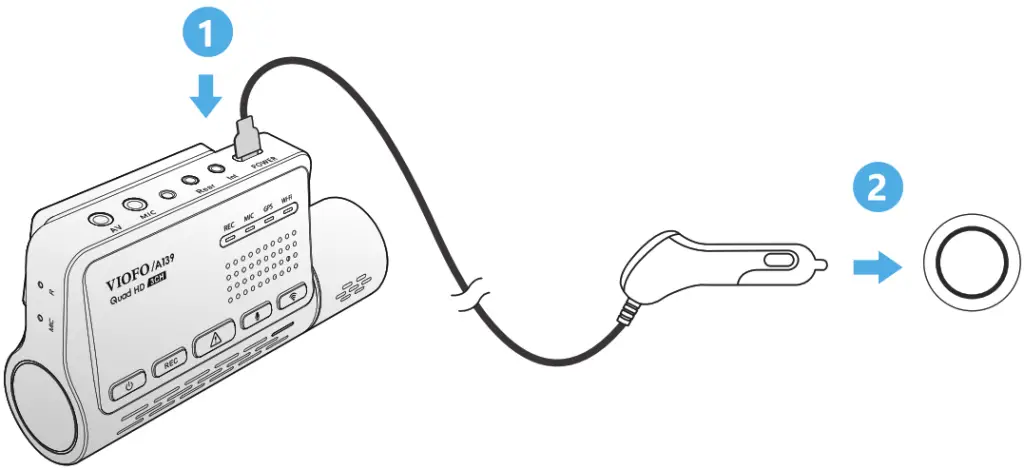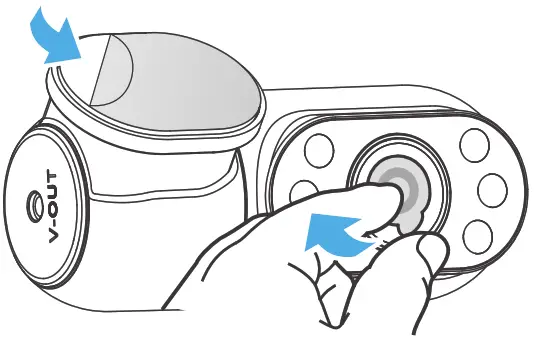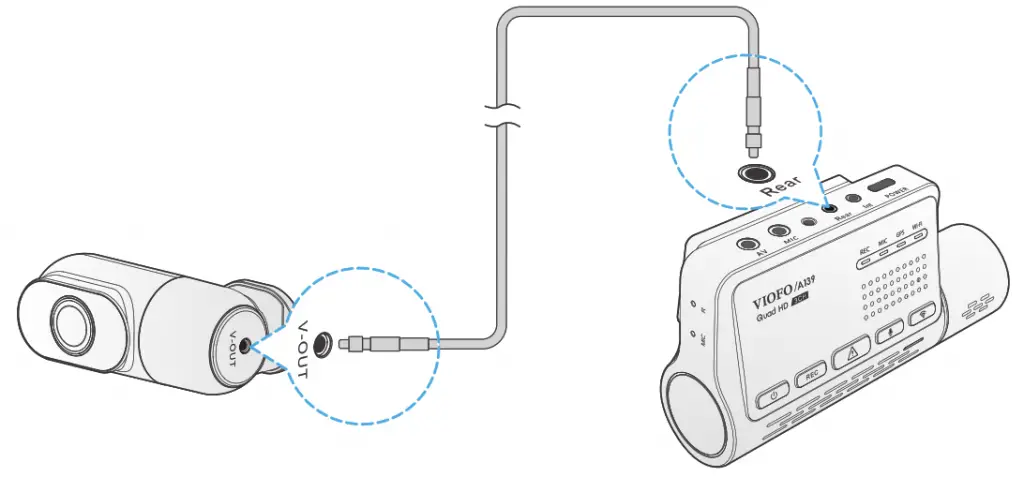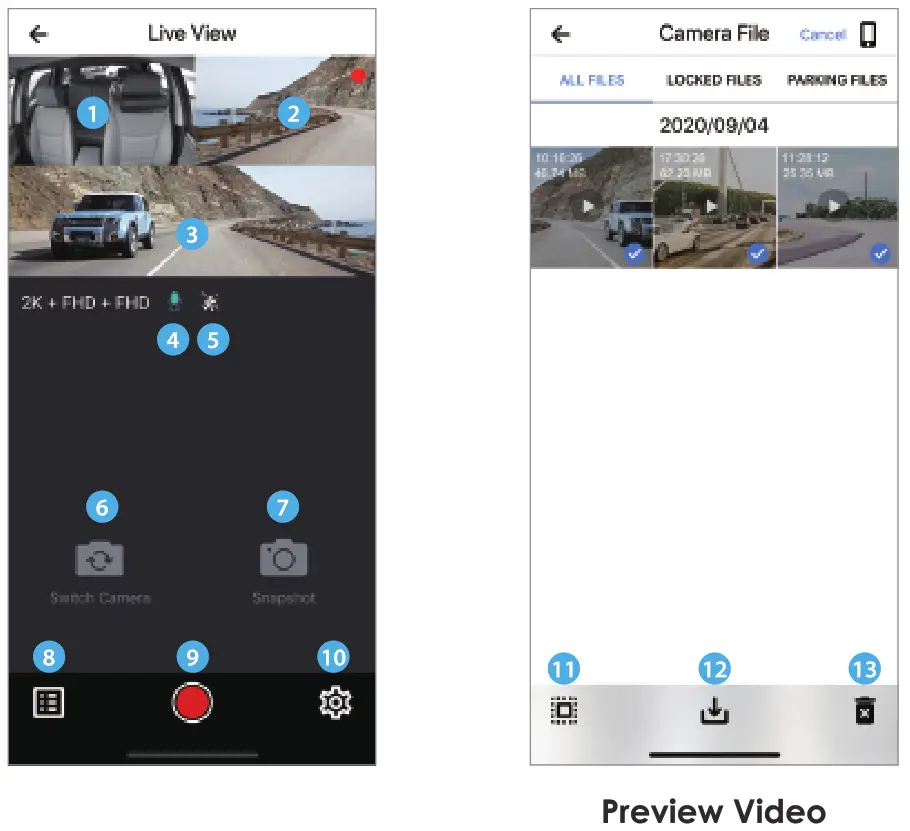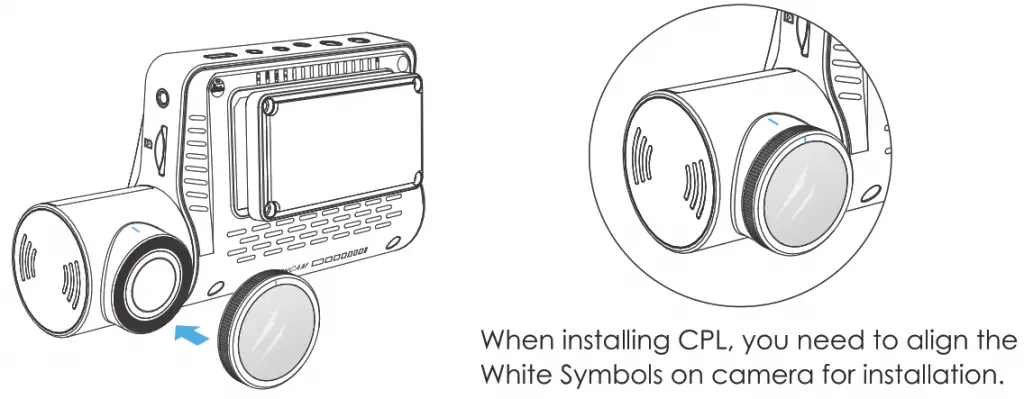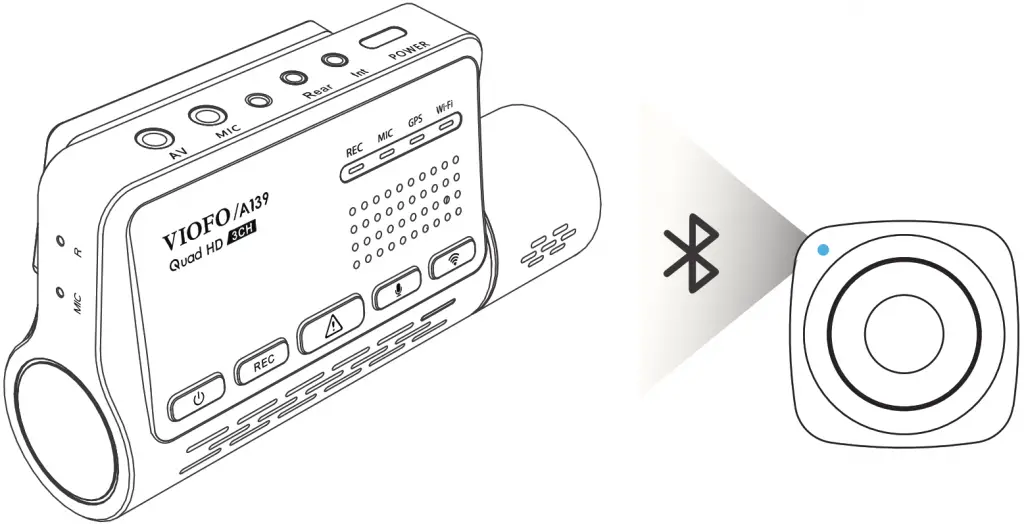

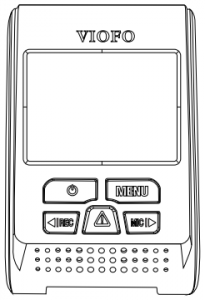
<?xml version="1.0" encoding="UTF-8"?><rss version="2.0"
	xmlns:content="http://purl.org/rss/1.0/modules/content/"
	xmlns:wfw="http://wellformedweb.org/CommentAPI/"
	xmlns:dc="http://purl.org/dc/elements/1.1/"
	xmlns:atom="http://www.w3.org/2005/Atom"
	xmlns:sy="http://purl.org/rss/1.0/modules/syndication/"
	xmlns:slash="http://purl.org/rss/1.0/modules/slash/"
	>

<channel>
	<title>VIOFO &#8211; UseManuals</title>
	<atom:link href="http://usemanuals.com/viofo/feed/" rel="self" type="application/rss+xml" />
	<link>https://usemanuals.com</link>
	<description>Owner&#039;s manuals for all sorts of products</description>
	<lastBuildDate>Tue, 08 Aug 2023 04:47:02 +0000</lastBuildDate>
	<language>en-US</language>
	<sy:updatePeriod>
	hourly	</sy:updatePeriod>
	<sy:updateFrequency>
	1	</sy:updateFrequency>
	<generator>https://wordpress.org/?v=6.7.2</generator>

<image>
	<url>https://usemanuals.com/wp-content/uploads/2025/02/favicon-32x32-2.png</url>
	<title>VIOFO &#8211; UseManuals</title>
	<link>https://usemanuals.com</link>
	<width>32</width>
	<height>32</height>
</image> 
	<item>
		<title>VIOFO Dashcam A119 V3 Manual</title>
		<link>https://usemanuals.com/viofo/a119-v3-dashcam/</link>
		
		<dc:creator><![CDATA[ItsManual]]></dc:creator>
		<pubDate>Mon, 21 Nov 2022 11:38:42 +0000</pubDate>
				<category><![CDATA[VIOFO]]></category>
		<guid isPermaLink="false">https://usemanuals.com/?p=6840</guid>

					<description><![CDATA[Inside this VIOFO Dashcam A119 V3 manual you can learn how to correctly install and then setup the device. The dashcam has features such as motion detection and temporary muting of sound. [...]<p><a class="btn btn-secondary understrap-read-more-link" href="https://usemanuals.com/viofo/a119-v3-dashcam/">Read More...</a></p>]]></description>
										<content:encoded><![CDATA[<p><img decoding="async" class="alignnone" src="https://usemanuals.com/wp-content/uploads/2022/11/VIOFO-Logo.png" alt="VIOFO logo" width="172" height="98" /></p>
<p><img decoding="async" class="alignnone" src="https://usemanuals.com/wp-content/uploads/2022/11/A119-V3-300x69-1.png" alt="A119 V3 logo" width="300" height="69" /></p>
<p>User Manual</p>
<p><img fetchpriority="high" decoding="async" class="alignnone" src="https://usemanuals.com/wp-content/uploads/2022/11/VIOFO-A119-V3-205x300-1.png" alt="VIOFO Dashcam A119 V3 diagram" width="205" height="300" /></p>
<p>Copyright (c) <strong>2019,VIOFO Inc.,</strong> All rights reserved.</p>
<hr />
<h2>Warnings</h2>
<ul>
<li>Do not install or operate the camera with wet hands.</li>
<li>Do not install the camera in a humid location or anywhere near liquids and inflammable gases. The camera should be installed/mounted in a location that does not compromise the driver’s visibility and safety.</li>
<li>Do not leave the camera installed/mounted inside an airtight vehicle being exposed to extreme heat.</li>
<li>Do not use the power that exceeds the rated voltage.</li>
<li>Only use the original charging cable. The manufacturer is not liable for damage resulting from the use of other charging cables.</li>
<li>Do not disassemble the camera or its charging cable. Do not cut the charging cable. Damage caused will not be covered under warranty.</li>
<li>Do not press the lens forcefully.</li>
<li>Do not use any sharp objects on the camera or its accessories.</li>
<li>Do not remove the Micro SD card when the camera is recording or shutting down (avoids file damage).</li>
<li>It is recommended to use a class 10 Micro SD card with a capacity of 8GB or more (maximum supported capacity is 128G).</li>
<li>To ensure stable read and write operations, it is necessary to format the Micro SD card in-camera before initial use.</li>
<li>Do not interrupt the power supply during a system upgrade, or else the camera may not boot</li>
<li>Product features/functions and content of this manual may change without further notice.</li>
</ul>
<h2>Installation</h2>
<h3><strong>Accessories</strong></h3>
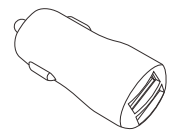
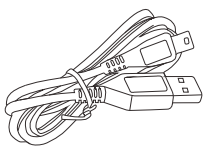
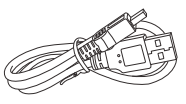
<p><img loading="lazy" decoding="async" class="alignnone" src="https://usemanuals.com/wp-content/uploads/2022/11/Car-Adapter.png" alt="Car power adaptor" width="176" height="139" />    <img loading="lazy" decoding="async" class="alignnone" src="https://usemanuals.com/wp-content/uploads/2022/11/4m-Car-Charger-USB-Cable.png" alt="USB cable" width="211" height="155" />          <img loading="lazy" decoding="async" class="alignnone" src="https://usemanuals.com/wp-content/uploads/2022/11/USB-Data-Cable.png" alt="Data cable" width="186" height="104" /></p>
<p>Car Adapter                 4m Car Charger USB Cable        USB Data Cable</p>
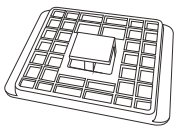
<p><img loading="lazy" decoding="async" class="alignnone" src="https://usemanuals.com/wp-content/uploads/2022/11/Non-GPS-Mount.png" alt="Non-GPS mount" width="182" height="133" />    <img loading="lazy" decoding="async" class="alignnone" src="https://usemanuals.com/wp-content/uploads/2022/11/Clips.png" alt="Clips" width="180" height="158" />  <img loading="lazy" decoding="async" class="alignnone" src="https://usemanuals.com/wp-content/uploads/2022/11/GPS-Mount.png" alt="GPS-mount" width="193" height="158" /></p>
<p>Non-GPS Mount                   Clips                       GPS Mount (optional)</p>
<p><strong>Note: </strong>The long mini USB cable is for charging, the short USB cable is for transferring files while connecting the camera with computer.</p>
<h3>Optional Accessories</h3>
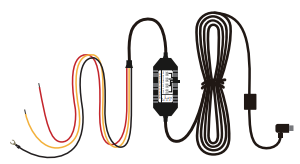
<p><img loading="lazy" decoding="async" class="alignnone" src="https://usemanuals.com/wp-content/uploads/2022/11/GPS-Mount-1.png" alt="GPS Module" width="193" height="158" />  <img loading="lazy" decoding="async" class="alignnone" src="https://usemanuals.com/wp-content/uploads/2022/11/Circular-Polarizer-Filter.png" alt="Polarized filter" width="161" height="146" />                      <img loading="lazy" decoding="async" class="alignnone" src="https://usemanuals.com/wp-content/uploads/2022/11/Hardwire-Kit.png" alt="Wiring" width="300" height="164" /><br />
GPS module         Circular Polarizer Filter       Hardwire Kit</p>
]]></content:encoded>


			</item>
		<item>
		<title>VIOFO A129 Duo IR Manual</title>
		<link>https://usemanuals.com/viofo/a129-duo-ir/</link>
		
		<dc:creator><![CDATA[ItsManual]]></dc:creator>
		<pubDate>Wed, 26 Apr 2023 12:09:07 +0000</pubDate>
				<category><![CDATA[VIOFO]]></category>
		<guid isPermaLink="false">https://usemanuals.com/?p=89634</guid>

					<description><![CDATA[&#160; USER MANUAL Copyright (c) 2019,Viofo Ltd, All rights reserved. Product Overview Standard Items *Note: The USB data cable is only for connecting the camera with computer to transfer video files or upgrade firmware, not for charging the camera. Optional Accessory Product Diagram 1) Front Camera 2) Interior Camera (Optional) 3) Bluetooth Remote Control (Optional)Inserting / Removing the memory card Inserting the memory card Push the memory card into the card slot until you hear a click, with the card label facing the forward (away from the screen). Removing the memory card  Ensure that the camera is turned off/ not recording, and then push the edge of the memory card with your fingernail. The card will spring out far enough to be removed. Note: The Micro SD card is sold separately. The microSD card must have a Class-10 or UHS-I rating and the capacity up to 256GB. 64GB,128GB and 256GB micro SD cards must be formatted with the FAT32 file system, either on a computer or in the camera. We recommend you buy the VIOFO brand memory card which are manufactured with top-tier MLC NAND flash, making them durable and reliable. Formatting the card Format the card (`Format’ option in Dash Camera `System settings’) to prepare for first use in the dash camera. Formatting will permanently erase any data on the micro SD card. For best performance, format periodically (after backing up any important files). LED Indicators LED LED Status Behavior REC Solid Red Recording Flashing Red Not recording; Updating Firmware Wi-Fi Solid Red Wi-Fi Enabled O­ff Wi-Fi Disabled MIC Solid Red Microphone enabled  O­ff Microphone disabled Buttons and Icons Mode Buttons Behavior Standby Mode (Not Recording) Click once to enter the menu Click once to start recording To enter playlist Click once to enable/disable audio recording Long press to enable the Wi-Fi Mode Buttons Behavior Recording Mode Click once to take a video snapshot *Note: To enter the menu settings, please stop recording first. Click once to stop recording Click once to lock the file being recorded Click once to enable/disable audio recording Click once to toggle screen view Mode Buttons Behavior Playlist Mode Back to previous menu / Stop playback Menu up / Change playback speed /Delete the video Select the current / Play / Pause Menu down / Change playback speed / Lock current / Unlock current N / A Mode Buttons Behavior Setting Menu Mode Return to previous menu / Exit setting menu Menu up Enter / Confirm Menu down N / A Installation Front camera installation Insert the clips, then slide the mount horizontally into the slot on the back of camera. Select a location on the windshield rear of the rear-view mirror. Wipe clean the installation surface of the windscreen with a dry cloth, it must be grease-free for the sticky pad to stick firmly. Peel the protection film off the sticky pad and camera lens. Fix the front camera on the selected location. Adjust the lens angle – Look at the live view on the LCD. – Adjust the angle of the lens up / down if necessary. Interior camera installation Select an installation location Select a location on the windscreen, without defrost grid wires, and where the camera can record the entire Interior view.  Wipe clean the installation surface of the windscreen with a dry cloth. Peel the protection film off the sticky pad and camera lens. Fix the Interior camera on the selected location. Cable Connection Connecting to Power Plug the USB power adapter into your vehicle’s 12V / 24V female power socket. Insert the 4M USB cable’s male port into the camera’s mount USB port. Note: Both GPS mount and non-GPS mount can be used for power. Connecting with Interior Camera Use the Interior camera USB Cable (with a L-shaped connector at both end) to connect the two cameras. Power off the product and connect the interior camera cable to the front camera (main unit). Cable routing should be as shown in the following two diagrams. Use the cable clips to help fix the two cables conveniently and safely. Tips Do not install/mount the camera in a location that interferes with the driver’s visibility and safety. Install/mount the camera close to the rearview mirror so that both sides of the scene being recorded are equally covered by the camera’s FOV (field of view). To ensure a clear view on rainy days, the lens should be positioned within the windshield wiper’s sweeping range. Do not install/mount the camera on or near airbag panels. Installation / mounting location should not be affected by sun control film (window tint). There should not be any other electronic equipment close to the camera for optimal performance. Note: Do not install/mount the camera or cables near an airbag panel or within the airbag’s working range. The manufacturer is not liable for any injury or death caused by the deployment of the airbag. Display Overview Recording Mode Recording Time Video Resolution Recording Status Emergency Lock Microphone Wi-Fi S D Card Operation Power On / Off When you start the engine, the camera will turn on and begin recording automatically. When you turn off the engine or unplug the charging cable from the power adapter, the camera will stop recording and turn off. Long press [] button to power on or off the camera. Loop Recording Insert a micro SD card into the camera’s card slot and automatic loop recording will begin once the camera detects power. Time frame for each video file is 1 / 2 / 3 / 5 / 10 minutes. When there is insufficient space on the Micro SD card, loop recording will automatically overwrite the oldest files (one by one). Loop recording files are saved to SD card: DCIM MOVIE folder. Emergency Recording Automatic emergency recording When the G-sensor is activated by a collision, the current footage will be locked automatically to avoid being overwritten by loop recording. Manual emergency recording Pressing the [] button during a recording will lock the current file being recorded. Once locked, the file will not be overwritten by the loop recording feature. Note: Collision sensing feature can be adjusted in settings under the “G-sensor” option. Locked files are saved to SD card: DCIM Movie RO Playback Videos Under standby mode (not recording), press [] button to enter the playlist. Use the arrow buttons [] to select the desired video and press the button [] to play. Press the [] button to exit. Note: Separate files are created for the recordings of front and Interior camera. The file name of front camera is Year_Date_Time_***F, and Year_Date_Time_***R for Interior camera. The video resolution of front and Interior camera are 1080P/30fps. After unplugging the Interior camera, the resolution of front camera will switch to 1080P @60fps automatically. Motion Detection If turned ON, the camera will start recording on detecting any movement within its FOV (field of view). Once the camera does not detect any movement for 60 seconds, it will stop recording and return to `Motion-Detection’ mode. Recording will resume if any new movement is detected. Note: Do not turn on `Motion Detection’ unless your vehicle is parked. If `Motion Detection’ is enabled while driving, the camera may not record continuously. PC Mode Connect the camera to a computer by using the included short Mini USB cable. The camera will automatically turn on and “microSD Card Reader Mode” will be displayed on its LCD screen . The computer will detect “removable disk” . There will be two folders under DCIM folder: • Movie (loop recording video files) Contains subfolder: RO (Protected / Locked video files) Photo (Video snapshot files) Copy the files needed to your computer drive. View on a TV The camera has an AV out port for connecting an external display such as a monitor or TV. Please note that the product doesn’t come supplied a 3.5mm male to 3 RCA AUX cable. PIP Mode There are four modes for live preview on the A129 LCD screen and via Wi-Fi while the Interior camera is attached. Note: Picture in picture (PIP) mode is available only while the Interior camera is attached. Mode Description Front + Interior (Interior overlaid) Show preview video for front and Interior camera on the LCD screen, the Interior camera preview is on the top left side. Interior+ Front (Front overlaid) Show preview video for front and Interior camera on the LCD screen, the front camera preview is on the top left side. Front Only Show preview video for front camera only on the LCD screen. Interior Only Show preview video for Interior camera only on the LCD screen. Mute During a private conversation, pressing the [] button will mutethe audio (Disable the microphone). Firmware Upgrade Follow the instructions on this website to upgrade the firmware: (https://support.viofo.com/a/solutions/articles/19000097350 ) Note: Before using a Micro SD card to upgrade the firmware, formatting the card in camera is necessary to ensure stable read and write operation. Do not unplug or power off the camera during a firmware upgrade, it may cause the camera to subsequently fail to boot. System Settings You can set the product features according to your needs and preferences using the camera button or the VIOFO app. To enter the menu settings, please stop recording first. Resolution: Setting video resolution of footage recorded, Front camera only: 1920*1080P 60FPS, 1920*1080P 30FPS Front + Interior Camera: 1920*1080P 30FPS Bitrate: You can set the bitrate for video. High bitrate may improve the quality and smoothness of the video, especially when recording fast motion or high contrast scenes. Using high bitrate mode may decrease the amount of recording time available on your memory card. Using low bitrate will save space and record for longer time. Live Video Source: Front camera / Interior camera / PIP mode 1 / PIP mode 2. · Loop Recording: Off / 1 / 2 / 3 / 5 / 10 minutes. Recording will begin automatically after powering on with a micro SD card in the device. Each recorded file is up to three minutes long, with old footage being replaced when micro SD card storage is full. WDR (Wide Dynamic Range): Dynamic range is the ratio of the brightest portion of the image to the darkest portion of the image. WDR enables the camera to deliver video with near perfect exposure in varying lighting situations. Exposure: Adjusting the value of the EV (Exposure Value) properly can create better footage under different light sources. It ranges from -2.0 to +2.0. You can adjust the EV for front and Interior camera separately. Default is set at 0.0. IR Camera Color: Mono /Auto /IR Color Mono means the IR light is always on and the interior camera video color is black and white, “IR Color” means the IR light is always off. Parking Mode: There are 3 options under parking mode: Auto Event Detection The camera will automatically record for 1 minute while a moving object is detected while car is parked and will stop recording if no new movement. Time Lapse recording Time lapse record a video at low frames at 1 / 2 / 3 / 5 / 10 / 15 fps, It keeps recording continuously without audio recorded. Low Bitrate Recording This mode record video in low bitrate 4MB/s for both front and Interior. It keeps recording continuously in mini file size with audio recorded. Note: We recommend to buy VIOFO HK3 ACC hardwire kit cable for parking mode recording. Time-lapse Recording: Record video from frames captured at specific time intervals to conserve memory and reduce the time it takes to review video. The default is off. Motion Detection: When activated, the camera will start recording if there is movement in front of the camera. Once the camera does not detect movement for 60 seconds, it stops recording and returns to “Motion Detection” mode. The camera will record again in the time of detecting a new movement. GPS: Turn on / off GPS logger. A GPS module is used to include the location data in the recorded videos. If disabled, your camera will no longer measure your speed and position; nor synchronize the time / date. (Only available when connect with GPS signal) Please use “Dashcam Viewer” to playback videos and to visualize your position and speed on your computer. Speed Unit: Kilometer per hour (KMH) and miles per hour (MPH) are available for speed unit. G-Sensor: The G-sensor measures shock forces and locks the video recorded at the time. The settings from “low to high” determine the amount of force needed to lock the file from being overwritten. We recommend that you set it at low. Wi-Fi: Set it On / Off. Press the [] button for 3 or 5 seconds to enable Wi-Fi quickly. We recommend to choose 5GHz Wi-Fi mode Date Stamp: Imprint the time and date on the recorded video. GPS Info Stamp: Imprint the GPS information on the recorded video. Camera Model Stamp: Imprint the camera model on the recorded video. Record Audio: Turn on and off the microphone. This can also be changed during recording by pressing the microphone button []. Screen Saver: The screen goes black by default after 3 minutes while recording. You can set it by adjusting different time intervals on menu. Boot delay: The camera will boot seconds later when powered on. The settings are Off / 5s / 10s. Date / Time: Set system date / time. Time Zone: Set the current time zone for GPS time and date calibration. Note: the time zone must be manually adjusted for daylight savings. Language: Set the on-screen display to English, Traditional Chinese, and French, etc. Beep Sound: Turn all notification sounds On / Off. Frequency: Set it to minimize flickering and banding in the recorded video. Image Rotation: Turn the screen upside down. It’s fit for both front and Interior camera. Rear Camera Mirror: Rear Camera Mirror can make the image of the rear camera to be displayed and recorded as reversed compared to the actual view, the settings are On/Off. Format: The operation will delete all data on the Micro SD card. Note: Once you format the card, all information will be deleted and unrecoverable. Make sure to back up all files that you needed before formatting. Format Warning: Set the number of days between format warnings. Default Setting: Restore device to factory settings. Car Number: Imprint the car number on the recorded video. Custom Text Stamp: Imprint the customize text on the recorded video. Firmware Version: Check the current firmware version of the camera. Review and Control on Smartphone The VIOFO app allows you to control your camera remotely by using a smartphone. Features include full camera control, live preview, playback and video recording. While the Wi-Fi enabled, the camera can be only controlled by VIOFO app. Turn on the Wi-Fi in the menu or long press the [] button. When the Wi-Fi is on, a Wi-Fi status icon and the password appear on the camera LCD screen. Connecting the camera to a smartphone Open the Google play store on an Android device or Apple app store on an iOS device. Download and install VIOFO APP. Run VIOFO APP. Turn on the Wi-Fi in the menu or long press the [] button. On VIOFO app, follow app instruction to connect with camera. Bluetooth Remote Control With the Bluetooth remote control (Optional) mounted in a convenient location on your dashboard, you can safely protect important videos from being overwritten, without needing to take your eyes off the road. When you press the bluethooth remote, the camera will lock the current video file and take a video snapshot. Pairing with dash camera Power on the camera. Press and hold the video lock button on remote control for 3 seconds to pair with camera. If get paired successfully, the LED indicator of the remote turns blue. Notice FCC Statement This equipment has been tested and found to comply with the limits for a Class B digital device, pursuant to part 15 of the FCC Rules. These limits are designed to provide reasonable protection against harmful interference in a residential installation. This equipment generates, uses and can radiate radio frequency energy and, if not installed and used in accordance with the instructions, may cause harmful interference to radio communications. However, there is no guarantee that interference will not occur in a particular installation. If this equipment does cause harmful interference to radio or television reception, which can be determined by turning the equipment off and on, the user is encouraged to try to correct the interference by one or more of the following measures: Reorient or relocate the receiving antenna. Increase the separation between the equipment and receiver. Connect the equipment into an outlet on a circuit different from that to which the receiver is connected. Consult the dealer or an experienced radio / TV technician for help. Caution: Any changes or modifications to this device not explicitly approved by manufacturer could void your authority to operate this equipment. This device complies with part 15 of the FCC Rules. Operation is subject to the following two conditions: (1) This device may not cause harmful interference, and (2) this device must accept any interference received, including interference that may cause undesired operation. Shenzhen Viofo Technology Co.,Ltd, declares that this Radio Frequency peripheral is in compliance with the essential requirements and other relevant provisions of Directive 1999/5/EC. Customer Service Customer Service 12-month Limited warranty Lifetime technical support support@viofo.com www.facebook.com/viofo.world +86 755 8526 8909 (CN) Mon-Fri 9am-6pm [...]<p><a class="btn btn-secondary understrap-read-more-link" href="https://usemanuals.com/viofo/a129-duo-ir/">Read More...</a></p>]]></description>
										<content:encoded><![CDATA[<p>&nbsp;</p>
<p><img decoding="async" src="https://usemanuals.com/wp-content/uploads/2023/04/VIOFO-Logo.webp" /></p>
<p><img decoding="async" src="https://usemanuals.com/wp-content/uploads/2023/04/VIOFO-Logo2.webp" /></p>
<p><strong>USER MANUAL</strong></p>
<p><img decoding="async" src="https://usemanuals.com/wp-content/uploads/2023/04/VIOFO-A129-Duo-IR-Cover.webp" /></p>
<p>Copyright (c) <strong>2019,Viofo Ltd,</strong> All rights reserved.</p>
<h4>Product Overview</h4>
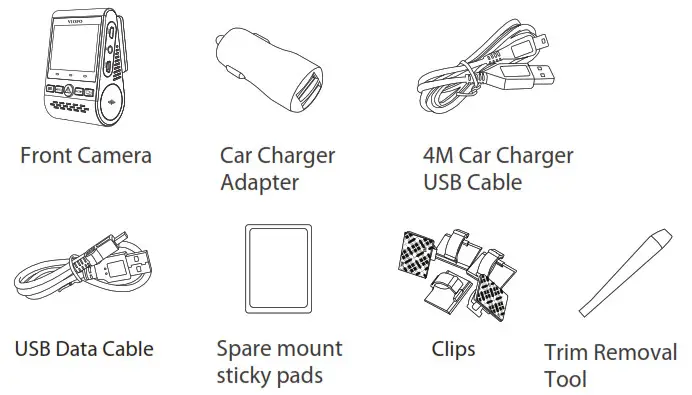
<p><strong>Standard Items<br />
<img decoding="async" src="https://usemanuals.com/wp-content/uploads/2023/04/VIOFO-A129-Duo-IR-Product-Overview.webp" /></strong></p>
<p>*Note: The USB data cable is only for connecting the camera with computer to transfer video files or upgrade firmware, not for charging the camera.</p>
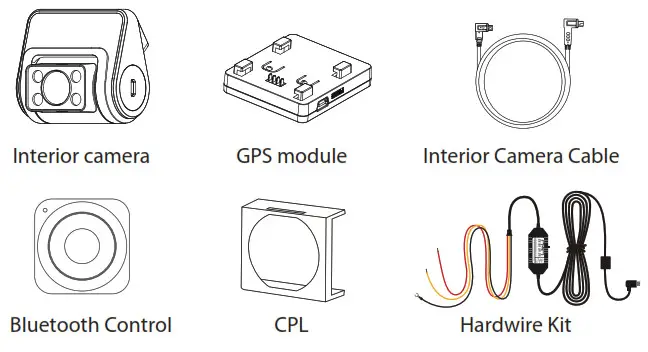
<p><strong>Optional Accessory<br />
<img decoding="async" src="https://usemanuals.com/wp-content/uploads/2023/04/VIOFO-A129-Duo-IR-Product-Overview-Optional-Accessory.webp" /></strong></p>
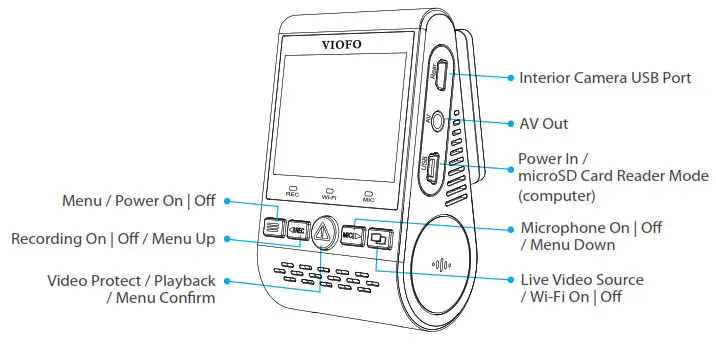
<p><strong>Product Diagram</strong><br />
<strong>1) Front Camera<br />
</strong><img decoding="async" src="https://usemanuals.com/wp-content/uploads/2023/04/VIOFO-A129-Duo-IR-Product-Diagram-1.webp" /></p>
<p><img decoding="async" src="https://usemanuals.com/wp-content/uploads/2023/04/VIOFO-A129-Duo-IR-Product-Diagram-2.webp" /><img decoding="async" src="https://usemanuals.com/wp-content/uploads/2023/04/VIOFO-A129-Duo-IR-Product-Diagram-3.webp" /><strong>2) Interior Camera</strong> (Optional)<br />
<img decoding="async" src="https://usemanuals.com/wp-content/uploads/2023/04/VIOFO-A129-Duo-IR-Product-Diagram-4.webp" /></p>
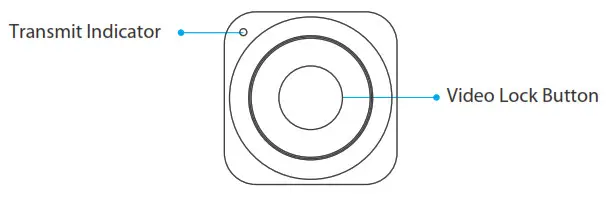
<p><strong>3) Bluetooth Remote Control (</strong>Optional)<img decoding="async" src="https://usemanuals.com/wp-content/uploads/2023/04/VIOFO-A129-Duo-IR-Product-Diagram-5.webp" /><strong>Inserting / Removing the memory card</strong><br />
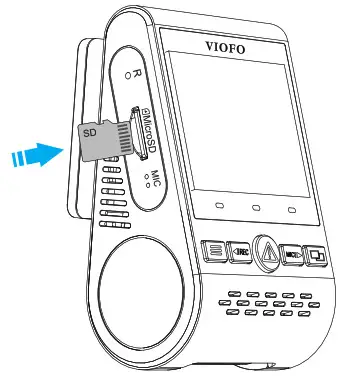
<strong>Inserting the memory card</strong><br />
Push the memory card into the card slot until you hear a click, with the card label facing the forward (away from the screen).<br />
<img decoding="async" src="https://usemanuals.com/wp-content/uploads/2023/04/VIOFO-A129-Duo-IR-Product-Diagram-6.webp" /><strong>Removing the memory card </strong><br />
Ensure that the camera is turned off/ not recording, and then push the edge of the memory card with your fingernail.<br />
The card will spring out far enough to be removed.</p>
<p><strong>Note:</strong><br />
The Micro SD card is sold separately. The microSD card must have a Class-10 or UHS-I rating and the capacity up to 256GB. 64GB,128GB and 256GB micro SD cards must be formatted with the FAT32 file system, either on a computer or in the camera.<br />
We recommend you buy the VIOFO brand memory card which are manufactured with top-tier MLC NAND flash, making them durable and reliable.</p>
<p><strong>Formatting the card<br />
</strong>Format the card (`Format’ option in Dash Camera `System settings’) to prepare for first use in the dash camera. Formatting will permanently erase any data on the micro SD card. For best performance, format periodically (after backing up any important files).</p>
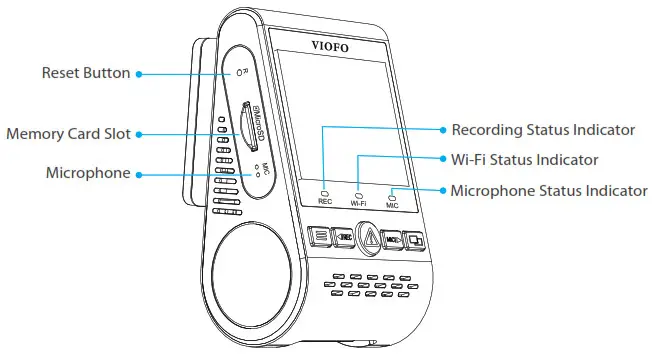
<p><strong>LED Indicators<br />
</strong></p>
<table width="967">
<tbody>
<tr>
<td width="96"><strong>LED</strong></td>
<td width="87"><strong>LED Status</strong></td>
<td width="225"><strong>Behavior</strong></td>
</tr>
<tr>
<td rowspan="2" width="96">REC</td>
<td width="87">Solid Red</td>
<td width="225">Recording</td>
</tr>
<tr>
<td width="87">Flashing Red</td>
<td width="225">Not recording; Updating Firmware</td>
</tr>
<tr>
<td rowspan="2" width="96">Wi-Fi</td>
<td width="87">Solid Red</td>
<td width="225">Wi-Fi Enabled</td>
</tr>
<tr>
<td width="87">O­ff</td>
<td width="225">Wi-Fi Disabled</td>
</tr>
<tr>
<td rowspan="2" width="96">MIC</td>
<td width="87">Solid Red</td>
<td width="225">Microphone enabled</td>
</tr>
<tr>
<td width="87"> O­ff</td>
<td width="225">Microphone disabled</td>
</tr>
</tbody>
</table>
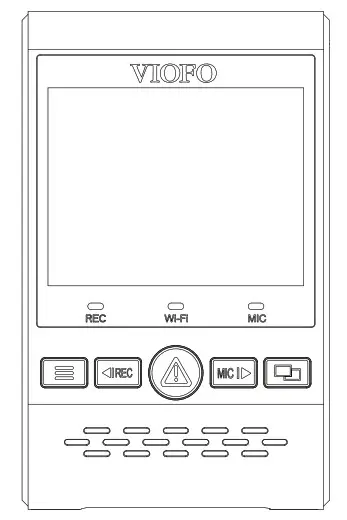
<p><strong>Buttons and Icons</strong></p>
<table width="1064">
<tbody>
<tr>
<td width="102"><strong>Mode</strong></td>
<td width="108"><strong>Buttons</strong></td>
<td width="336"><strong>Behavior</strong></td>
</tr>
<tr>
<td rowspan="5" width="102">Standby Mode<br />
(Not Recording)</td>
<td width="108"><strong><img decoding="async" src="https://usemanuals.com/wp-content/uploads/2023/04/VIOFO-icon-1.webp" /></strong></td>
<td width="336">Click once to enter the menu</td>
</tr>
<tr>
<td width="108"><strong><img decoding="async" src="https://usemanuals.com/wp-content/uploads/2023/04/VIOFO-icon-2.webp" /></strong></td>
<td width="336">Click once to start recording</td>
</tr>
<tr>
<td width="108"><strong><img decoding="async" src="https://usemanuals.com/wp-content/uploads/2023/04/VIOFO-icon-3.webp" /></strong></td>
<td width="336">To enter playlist</td>
</tr>
<tr>
<td width="108"><strong><img decoding="async" src="https://usemanuals.com/wp-content/uploads/2023/04/VIOFO-icon-4.webp" /></strong></td>
<td width="336">Click once to enable/disable audio recording</td>
</tr>
<tr>
<td width="108"><strong><img decoding="async" src="https://usemanuals.com/wp-content/uploads/2023/04/VIOFO-icon-5.webp" /></strong></td>
<td width="336">Long press to enable the Wi-Fi</td>
</tr>
</tbody>
</table>
<table width="1035">
<tbody>
<tr>
<td width="102"><strong>Mode</strong></td>
<td width="108"><strong>Buttons</strong></td>
<td width="336"><strong>Behavior</strong></td>
</tr>
<tr>
<td rowspan="5" width="102">Recording Mode</td>
<td width="108"><strong><img decoding="async" src="https://usemanuals.com/wp-content/uploads/2023/04/VIOFO-icon-1.webp" /></strong></td>
<td width="336">Click once to take a video snapshot<br />
*Note: To enter the menu settings, please stop recording first.</td>
</tr>
<tr>
<td width="108"><strong><img decoding="async" src="https://usemanuals.com/wp-content/uploads/2023/04/VIOFO-icon-2.webp" /></strong></td>
<td width="336">Click once to stop recording</td>
</tr>
<tr>
<td width="108"><strong><img decoding="async" src="https://usemanuals.com/wp-content/uploads/2023/04/VIOFO-icon-3.webp" /></strong></td>
<td width="336">Click once to lock the file being recorded</td>
</tr>
<tr>
<td width="108"><strong><img decoding="async" src="https://usemanuals.com/wp-content/uploads/2023/04/VIOFO-icon-4.webp" /></strong></td>
<td width="336">Click once to enable/disable audio recording</td>
</tr>
<tr>
<td width="108"><strong><img decoding="async" src="https://usemanuals.com/wp-content/uploads/2023/04/VIOFO-icon-5.webp" /></strong></td>
<td width="336">Click once to toggle screen view</td>
</tr>
</tbody>
</table>
<table width="1057">
<tbody>
<tr>
<td width="102"><strong>Mode</strong></td>
<td width="108"><strong>Buttons</strong></td>
<td width="336"><strong>Behavior</strong></td>
</tr>
<tr>
<td rowspan="5" width="102">Playlist Mode</td>
<td width="108"><strong><img decoding="async" src="https://usemanuals.com/wp-content/uploads/2023/04/VIOFO-icon-1.webp" /></strong></td>
<td width="336">Back to previous menu / Stop playback</td>
</tr>
<tr>
<td width="108"><strong><img decoding="async" src="https://usemanuals.com/wp-content/uploads/2023/04/VIOFO-icon-2.webp" /></strong></td>
<td width="336">Menu up / Change playback speed /Delete the video</td>
</tr>
<tr>
<td width="108"><strong><img decoding="async" src="https://usemanuals.com/wp-content/uploads/2023/04/VIOFO-icon-3.webp" /></strong></td>
<td width="336">Select the current / Play / Pause</td>
</tr>
<tr>
<td width="108"><strong><img decoding="async" src="https://usemanuals.com/wp-content/uploads/2023/04/VIOFO-icon-4.webp" /></strong></td>
<td width="336">Menu down / Change playback speed / Lock current / Unlock current</td>
</tr>
<tr>
<td width="108"><strong><img decoding="async" src="https://usemanuals.com/wp-content/uploads/2023/04/VIOFO-icon-5.webp" /></strong></td>
<td width="336">N / A</td>
</tr>
</tbody>
</table>
<table width="1111">
<tbody>
<tr>
<td width="102"><strong>Mode</strong></td>
<td width="108"><strong>Buttons</strong></td>
<td width="336"><strong>Behavior</strong></td>
</tr>
<tr>
<td rowspan="5" width="102">Setting Menu Mode</td>
<td width="108"><strong><img decoding="async" src="https://usemanuals.com/wp-content/uploads/2023/04/VIOFO-icon-1.webp" /></strong></td>
<td width="336">Return to previous menu / Exit setting menu</td>
</tr>
<tr>
<td width="108"><strong><img decoding="async" src="https://usemanuals.com/wp-content/uploads/2023/04/VIOFO-icon-2.webp" /></strong></td>
<td width="336">Menu up</td>
</tr>
<tr>
<td width="108"><strong><img decoding="async" src="https://usemanuals.com/wp-content/uploads/2023/04/VIOFO-icon-3.webp" /></strong></td>
<td width="336">Enter / Confirm</td>
</tr>
<tr>
<td width="108"><strong><img decoding="async" src="https://usemanuals.com/wp-content/uploads/2023/04/VIOFO-icon-4.webp" /></strong></td>
<td width="336">Menu down</td>
</tr>
<tr>
<td width="108"><strong><img decoding="async" src="https://usemanuals.com/wp-content/uploads/2023/04/VIOFO-icon-5.webp" /></strong></td>
<td width="336">N / A</td>
</tr>
</tbody>
</table>
<h4>Installation</h4>
<p><strong>Front camera installation</strong></p>
<ol>
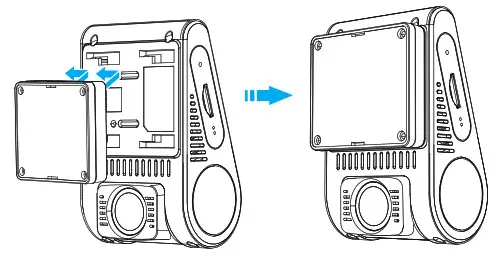
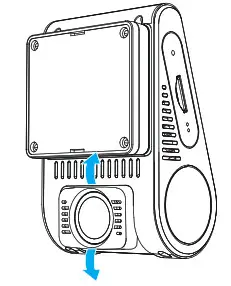
<li>Insert the clips, then slide the mount horizontally into the slot on the back of camera.<br />
<img decoding="async" src="https://usemanuals.com/wp-content/uploads/2023/04/VIOFO-A129-Duo-IR-Installation-1.webp" /></li>
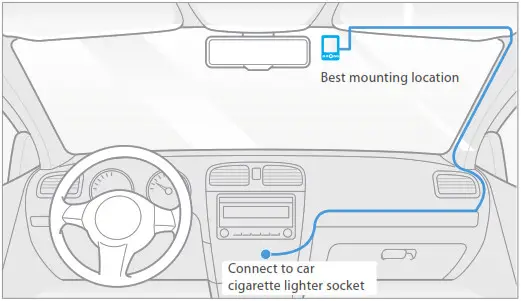
<li>Select a location on the windshield rear of the rear-view mirror.<br />
<img decoding="async" src="https://usemanuals.com/wp-content/uploads/2023/04/VIOFO-A129-Duo-IR-Installation-2.webp" /></li>
<li>Wipe clean the installation surface of the windscreen with a dry cloth, it must be grease-free for the sticky pad to stick firmly.</li>
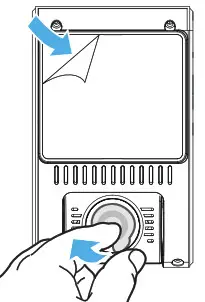
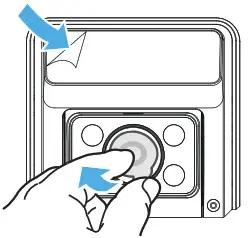
<li>Peel the protection film off the sticky pad and camera lens.<br />
<img decoding="async" src="https://usemanuals.com/wp-content/uploads/2023/04/VIOFO-A129-Duo-IR-Installation-3.webp" /></li>
<li>Fix the front camera on the selected location.</li>
<li>Adjust the lens angle<br />
– Look at the live view on the LCD.<br />
– Adjust the angle of the lens up / down if necessary.<br />
<img decoding="async" src="https://usemanuals.com/wp-content/uploads/2023/04/VIOFO-A129-Duo-IR-Installation-4.webp" /></li>
</ol>
<p><strong>Interior camera installation</strong></p>
<ol>
<li>Select an installation location Select a location on the windscreen, without defrost grid wires, and where the camera can record the entire Interior view.</li>
<li> Wipe clean the installation surface of the windscreen with a dry cloth.<br />
<img decoding="async" src="https://usemanuals.com/wp-content/uploads/2023/04/VIOFO-A129-Duo-IR-Installation-5.webp" /></li>
<li>Peel the protection film off the sticky pad and camera lens.</li>
<li>Fix the Interior camera on the selected location.</li>
</ol>
<p><strong>Cable Connection</strong></p>
<ol>
<li><strong>Connecting to Power<br />
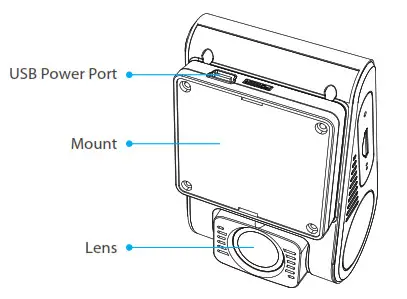
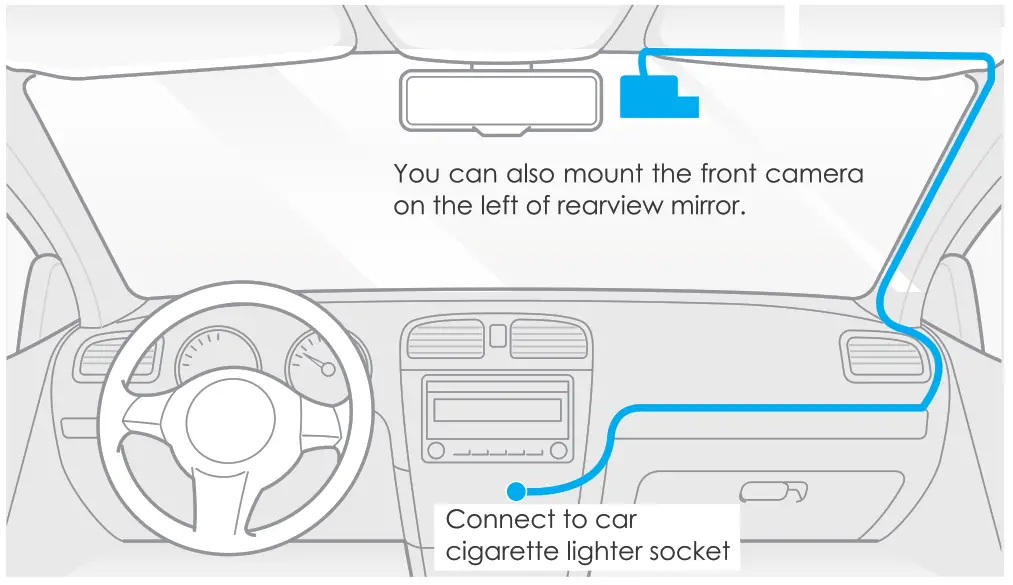
<img decoding="async" src="https://usemanuals.com/wp-content/uploads/2023/04/VIOFO-A129-Duo-IR-Cable-Connection-1.webp" /></strong>Plug the USB power adapter into your vehicle’s 12V / 24V female power socket. Insert the 4M USB cable’s male port into the camera’s mount USB port.<br />
<strong>Note:</strong><br />
Both GPS mount and non-GPS mount can be used for power.</li>
<li><strong>Connecting with Interior Camera</strong><br />
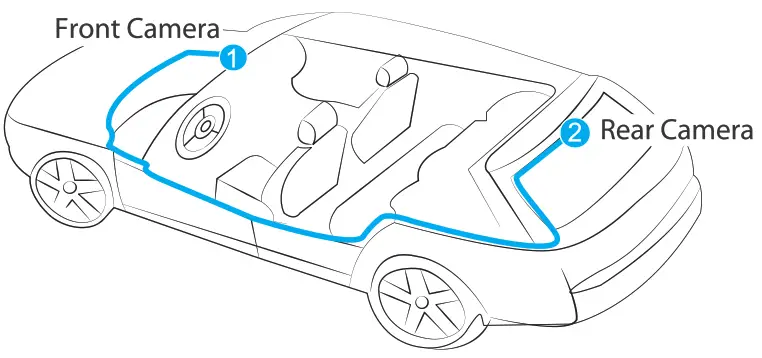
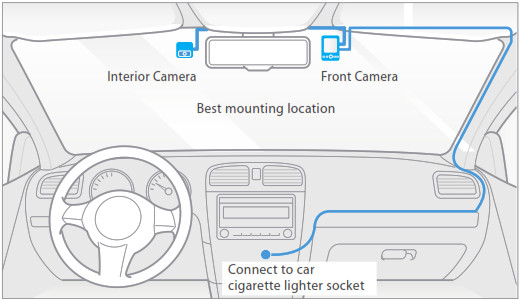
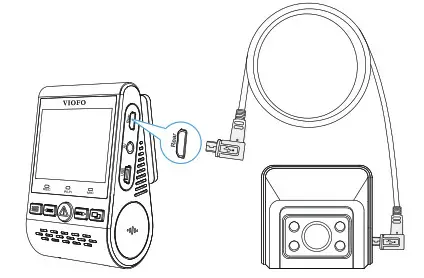
Use the Interior camera USB Cable (with a L-shaped connector at both end) to connect the two cameras. Power off the product and connect the interior camera cable to the front camera (main unit). Cable routing should be as shown in the following two diagrams. Use the cable clips to help fix the two cables conveniently and safely.<br />
<img decoding="async" src="https://usemanuals.com/wp-content/uploads/2023/04/VIOFO-A129-Duo-IR-Cable-Connection-2.jpg" /><img decoding="async" src="https://usemanuals.com/wp-content/uploads/2023/04/VIOFO-A129-Duo-IR-Cable-Connection-3.webp" /></li>
</ol>
<p><strong>Tips</strong></p>
<ol>
<li>Do not install/mount the camera in a location that interferes with the driver’s visibility and safety.</li>
<li>Install/mount the camera close to the rearview mirror so that both sides of the scene being recorded are equally covered by the camera’s FOV (field of view).</li>
<li>To ensure a clear view on rainy days, the lens should be positioned within the windshield wiper’s sweeping range.</li>
<li>Do not install/mount the camera on or near airbag panels.</li>
<li>Installation / mounting location should not be affected by sun control film (window tint). There should not be any other electronic equipment close to the camera for optimal performance.<br />
<strong>Note:</strong> Do not install/mount the camera or cables near an airbag panel or within the airbag’s working range. The manufacturer is not liable for any injury or death caused by the deployment of the airbag.</li>
</ol>
<p><strong>Display Overview</strong></p>
<p><img decoding="async" src="https://usemanuals.com/wp-content/uploads/2023/04/VIOFO-A129-Duo-IR-Display-Overview.webp" /></p>
<table width="657">
<tbody>
<tr>
<td width="66"><img decoding="async" src="https://usemanuals.com/wp-content/uploads/2023/04/VIOFO-icon-6.webp" /></td>
<td width="336">Recording Mode</td>
</tr>
<tr>
<td width="66"><img decoding="async" src="https://usemanuals.com/wp-content/uploads/2023/04/VIOFO-icon-7.webp" /></td>
<td width="336">Recording Time</td>
</tr>
<tr>
<td width="66"><img decoding="async" src="https://usemanuals.com/wp-content/uploads/2023/04/VIOFO-icon-8.webp" /></td>
<td width="336">Video Resolution</td>
</tr>
<tr>
<td width="66"><img decoding="async" src="https://usemanuals.com/wp-content/uploads/2023/04/VIOFO-icon-9.webp" /></td>
<td width="336">Recording Status</td>
</tr>
<tr>
<td width="66"><img decoding="async" src="https://usemanuals.com/wp-content/uploads/2023/04/VIOFO-icon-10.webp" /></td>
<td width="336">Emergency Lock</td>
</tr>
<tr>
<td width="66"><img decoding="async" src="https://usemanuals.com/wp-content/uploads/2023/04/VIOFO-icon-11.webp" /></td>
<td width="336">Microphone</td>
</tr>
<tr>
<td width="66"><img decoding="async" src="https://usemanuals.com/wp-content/uploads/2023/04/VIOFO-icon-12.webp" /></td>
<td width="336">Wi-Fi</td>
</tr>
<tr>
<td width="66"><img decoding="async" src="https://usemanuals.com/wp-content/uploads/2023/04/VIOFO-icon-13.webp" /></td>
<td width="336">S D Card</td>
</tr>
</tbody>
</table>
<h4>Operation</h4>
<p><strong>Power On / Off</strong></p>
<ol>
<li>When you start the engine, the camera will turn on and begin recording automatically.</li>
<li>When you turn off the engine or unplug the charging cable from the power adapter, the camera will stop recording and turn off.</li>
<li>Long press [<img decoding="async" src="https://usemanuals.com/wp-content/uploads/2023/04/VIOFO-icon-1.webp" />] button to power on or off the camera.</li>
</ol>
<p><strong>Loop Recording</strong></p>
<ol>
<li>Insert a micro SD card into the camera’s card slot and automatic loop recording will begin once the camera detects power.</li>
<li>Time frame for each video file is 1 / 2 / 3 / 5 / 10 minutes.</li>
<li>When there is insufficient space on the Micro SD card, loop recording will automatically overwrite the oldest files (one by one).</li>
<li>Loop recording files are saved to SD card: DCIM MOVIE folder.</li>
</ol>
<p><strong>Emergency Recording</strong></p>
<ol>
<li>Automatic emergency recording When the G-sensor is activated by a collision, the current footage will be locked automatically to avoid being overwritten by loop recording.</li>
<li>Manual emergency recording Pressing the [<img decoding="async" src="https://usemanuals.com/wp-content/uploads/2023/04/VIOFO-icon-3.webp" />] button during a recording will lock the current file being recorded. Once locked, the file will not be overwritten by the loop recording feature.<br />
<strong>Note:</strong> Collision sensing feature can be adjusted in settings under the “G-sensor” option. Locked files are saved to SD card: DCIM Movie RO</li>
</ol>
<p><strong>Playback Videos</strong></p>
<ol>
<li>Under standby mode (not recording), press [<img decoding="async" src="https://usemanuals.com/wp-content/uploads/2023/04/VIOFO-icon-3.webp" />] button to enter the playlist.</li>
<li>Use the arrow buttons [<img decoding="async" src="https://usemanuals.com/wp-content/uploads/2023/04/VIOFO-icon-16.webp" />] to select the desired video and press the button [<img decoding="async" src="https://usemanuals.com/wp-content/uploads/2023/04/VIOFO-icon-3.webp" />] to play.</li>
<li>Press the [<img decoding="async" src="https://usemanuals.com/wp-content/uploads/2023/04/VIOFO-icon-1.webp" />] button to exit.</li>
</ol>
<p><strong>Note:</strong></p>
<ol>
<li>Separate files are created for the recordings of front and Interior camera.</li>
<li>The file name of front camera is Year_Date_Time_***<code>F</code>, and Year_Date_Time_***<code>R</code> for Interior camera.</li>
<li>The video resolution of front and Interior camera are 1080P/30fps.</li>
<li>After unplugging the Interior camera, the resolution of front camera will switch to 1080P @60fps automatically.</li>
</ol>
<p><strong>Motion Detection</strong><br />
If turned ON, the camera will start recording on detecting any movement within its FOV (field of view). Once the camera does not detect any movement for 60 seconds, it will stop recording and return to `Motion-Detection’ mode. Recording will resume if any new movement is detected.</p>
<p><strong>Note:</strong> Do not turn on `Motion Detection’ unless your vehicle is parked. If `Motion Detection’ is enabled while driving, the camera may not record continuously.</p>
<p><strong>PC Mode</strong></p>
<ol>
<li>Connect the camera to a computer by using the included short Mini USB cable.</li>
<li>The camera will automatically turn on and “microSD Card Reader Mode” will be displayed on its LCD screen .</li>
<li>The computer will detect “removable disk” .</li>
<li>There will be two folders under DCIM folder:<br />
• Movie (loop recording video files) Contains subfolder: RO (Protected / Locked video files) Photo (Video snapshot files)</li>
<li>Copy the files needed to your computer drive.</li>
</ol>
<p><strong>View on a TV</strong><br />
The camera has an AV out port for connecting an external display such as a monitor or TV. Please note that the product doesn’t come supplied a 3.5mm male to 3 RCA AUX cable.</p>
<p><strong>PIP Mode</strong><br />
There are four modes for live preview on the A129 LCD screen and via Wi-Fi while the Interior camera is attached.</p>
<p><strong>Note:</strong> Picture in picture (PIP) mode is available only while the Interior camera is attached.</p>
<table width="1068">
<tbody>
<tr>
<td width="180"><strong>Mode</strong></td>
<td width="444"><strong>Description</strong></td>
</tr>
<tr>
<td width="180">Front + Interior (Interior overlaid)</td>
<td width="444">Show preview video for front and Interior camera on the LCD screen, the Interior camera preview is on the top left side.</td>
</tr>
<tr>
<td width="180">Interior+ Front (Front overlaid)</td>
<td width="444">Show preview video for front and Interior camera on the LCD screen, the front camera preview is on the top left side.</td>
</tr>
<tr>
<td width="180">Front Only</td>
<td width="444">Show preview video for front camera only on the LCD screen.</td>
</tr>
<tr>
<td width="180">Interior Only</td>
<td width="444">Show preview video for Interior camera only on the LCD screen.</td>
</tr>
</tbody>
</table>
<p><strong>Mute</strong><br />
During a private conversation, pressing the [<img decoding="async" src="https://usemanuals.com/wp-content/uploads/2023/04/VIOFO-icon-17.webp" />] button will mutethe audio (Disable the microphone).</p>
<p><strong>Firmware Upgrade</strong><br />
Follow the instructions on this website to upgrade the firmware: (<a href="https://support.viofo.com/a/solutions/articles/19000097350" target="_blank" rel="noopener">https://support.viofo.com/a/solutions/articles/19000097350</a> )</p>
<p><strong>Note</strong>:</p>
<ul>
<li>Before using a Micro SD card to upgrade the firmware, formatting the card in camera is necessary to ensure stable read and write operation.</li>
<li>Do not unplug or power off the camera during a firmware upgrade, it may cause the camera to subsequently fail to boot.</li>
</ul>
<h4>System Settings</h4>
<p>You can set the product features according to your needs and preferences using the camera button or the VIOFO app. To enter the menu settings, please stop recording first.</p>
<ul>
<li><strong>Resolution:</strong> Setting video resolution of footage recorded, Front camera only: 1920*1080P 60FPS, 1920*1080P 30FPS Front + Interior Camera: 1920*1080P 30FPS</li>
<li><strong>Bitrate:</strong> You can set the bitrate for video. High bitrate may improve the quality and smoothness of the video, especially when recording fast motion or high contrast scenes. Using high bitrate mode may decrease the amount of recording time available on your memory card. Using low bitrate will save space and record for longer time.</li>
<li><strong>Live Video Source:</strong> Front camera / Interior camera / PIP mode 1 / PIP mode 2. · Loop Recording: Off / 1 / 2 / 3 / 5 / 10 minutes. Recording will begin automatically after powering on with a micro SD card in the device. Each recorded file is up to three minutes long, with old footage being replaced when micro SD card storage is full.</li>
<li><strong>WDR (Wide Dynamic Range):</strong> Dynamic range is the ratio of the brightest portion of the image to the darkest portion of the image. WDR enables the camera to deliver video with near perfect exposure in varying lighting situations.</li>
<li><strong>Exposure:</strong> Adjusting the value of the EV (Exposure Value) properly can create better footage under different light sources. It ranges from -2.0 to +2.0. You can adjust the EV for front and Interior camera separately. Default is set at 0.0.</li>
<li><strong>IR Camera Color:</strong> Mono /Auto /IR Color Mono means the IR light is always on and the interior camera video color is black and white, “IR Color” means the IR light is always off.</li>
<li><strong>Parking Mode:</strong> There are 3 options under parking mode:</li>
</ul>
<ol>
<li>Auto Event Detection<br />
The camera will automatically record for 1 minute while a moving object is detected while car is parked and will stop recording if no new movement.</li>
<li>Time Lapse recording<br />
Time lapse record a video at low frames at 1 / 2 / 3 / 5 / 10 / 15 fps, It keeps recording continuously without audio recorded.</li>
<li>Low Bitrate Recording<br />
This mode record video in low bitrate 4MB/s for both front and Interior. It keeps recording continuously in mini file size with audio recorded. <strong>Note:</strong> We recommend to buy VIOFO HK3 ACC hardwire kit cable for parking mode recording.</li>
</ol>
<ul>
<li><strong>Time-lapse Recording:</strong> Record video from frames captured at specific time intervals to conserve memory and reduce the time it takes to review video. The default is off.</li>
<li><strong>Motion Detection:</strong> When activated, the camera will start recording if there is movement in front of the camera. Once the camera does not detect movement for 60 seconds, it stops recording and returns to “Motion Detection” mode. The camera will record again in the time of detecting a new movement.</li>
<li><strong>GPS:</strong> Turn on / off GPS logger. A GPS module is used to include the location data in the recorded videos. If disabled, your camera will no longer measure your speed and position; nor synchronize the time / date. (Only available when connect with GPS signal) Please use “Dashcam Viewer” to playback videos and to visualize your position and speed on your computer.</li>
<li><strong>Speed Unit:</strong> Kilometer per hour (KMH) and miles per hour (MPH) are available for speed unit.</li>
<li><strong>G-Sensor:</strong> The G-sensor measures shock forces and locks the video recorded at the time. The settings from “low to high” determine the amount of force needed to lock the file from being overwritten. We recommend that you set it at low.</li>
<li><strong>Wi-Fi:</strong> Set it On / Off. Press the [<img decoding="async" src="https://usemanuals.com/wp-content/uploads/2023/04/VIOFO-icon-5.webp" />] button for 3 or 5 seconds to enable Wi-Fi quickly. We recommend to choose 5GHz Wi-Fi mode</li>
<li><strong>Date Stamp:</strong> Imprint the time and date on the recorded video.</li>
<li><strong>GPS Info Stamp:</strong> Imprint the GPS information on the recorded video.</li>
<li><strong>Camera Model Stamp:</strong> Imprint the camera model on the recorded video.</li>
<li><strong>Record Audio:</strong> Turn on and off the microphone. This can also be changed during recording by pressing the microphone button [<img decoding="async" src="https://usemanuals.com/wp-content/uploads/2023/04/VIOFO-icon-17.webp" />].</li>
<li><strong>Screen Saver:</strong> The screen goes black by default after 3 minutes while recording. You can set it by adjusting different time intervals on menu.</li>
<li>Boot delay: The camera will boot seconds later when powered on. The settings are Off / 5s / 10s.</li>
<li><strong>Date / Time:</strong> Set system date / time.</li>
<li><strong>Time Zone:</strong> Set the current time zone for GPS time and date calibration.<br />
<strong>Note:</strong> the time zone must be manually adjusted for daylight savings.</li>
<li><strong>Language:</strong> Set the on-screen display to English, Traditional Chinese, and French, etc.</li>
<li><strong>Beep Sound:</strong> Turn all notification sounds On / Off.</li>
<li><strong>Frequency:</strong> Set it to minimize flickering and banding in the recorded video.</li>
<li><strong>Image Rotation:</strong> Turn the screen upside down. It’s fit for both front and Interior camera.</li>
<li><strong>Rear Camera Mirror:</strong> Rear Camera Mirror can make the image of the rear camera to be displayed and recorded as reversed compared to the actual view, the settings are On/Off.</li>
<li><strong>Format:</strong> The operation will delete all data on the Micro SD card.<br />
<strong>Note:</strong> Once you format the card, all information will be deleted and unrecoverable. Make sure to back up all files that you needed before formatting.</li>
<li><strong>Format Warning:</strong> Set the number of days between format warnings.</li>
<li><strong>Default Setting:</strong> Restore device to factory settings.</li>
<li><strong>Car Number:</strong> Imprint the car number on the recorded video.</li>
<li><strong>Custom Text Stamp:</strong> Imprint the customize text on the recorded video.</li>
<li><strong>Firmware Version:</strong> Check the current firmware version of the camera.</li>
</ul>
<h4>Review and Control on Smartphone</h4>
<p>The VIOFO app allows you to control your camera remotely by using a smartphone. Features include full camera control, live preview, playback and video recording. While the Wi-Fi enabled, the camera can be only controlled by VIOFO app.<br />
Turn on the Wi-Fi in the menu or long press the <img decoding="async" src="https://usemanuals.com/wp-content/uploads/2023/04/VIOFO-icon-5.webp" />[] button. When the Wi-Fi is on, a Wi-Fi status icon and the password appear on the camera LCD screen.<br />
<img decoding="async" src="https://usemanuals.com/wp-content/uploads/2023/04/VIOFO-A129-Duo-IR-Review-and-Control-on-Smartphone.webp" /></p>
<p><strong>Connecting the camera to a smartphone</strong></p>
<ul>
<li>Open the Google play store on an Android device or Apple app store on an iOS device.</li>
<li>Download and install VIOFO APP.</li>
<li>Run VIOFO APP.</li>
<li>Turn on the Wi-Fi in the menu or long press the [<img decoding="async" src="https://usemanuals.com/wp-content/uploads/2023/04/VIOFO-icon-5.webp" />] button.</li>
<li>On VIOFO app, follow app instruction to connect with camera.</li>
</ul>
<h4>Bluetooth Remote Control</h4>
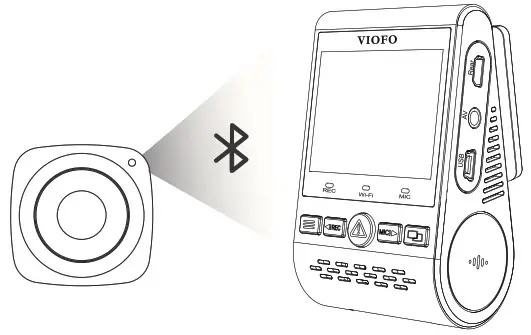
<p>With the Bluetooth remote control (Optional) mounted in a convenient location on your dashboard, you can safely protect important videos from being overwritten, without needing to take your eyes off the road. When you press the bluethooth remote, the camera will lock the current video file and take a video snapshot.</p>
<p><strong>Pairing with dash camera</strong></p>
<ul>
<li>Power on the camera.</li>
<li>Press and hold the video lock button on remote control for 3 seconds to pair with camera.</li>
<li>If get paired successfully, the LED indicator of the remote turns blue.<br />
<img decoding="async" src="https://usemanuals.com/wp-content/uploads/2023/04/VIOFO-A129-Duo-IR-Bluetooth-Remote-Control.webp" /></li>
</ul>
<h4>Notice</h4>
<p><strong>FCC Statement</strong><br />
This equipment has been tested and found to comply with the limits for a Class B digital device, pursuant to part 15 of the FCC Rules. These limits are designed to provide reasonable protection against harmful interference in a residential installation. This equipment generates, uses and can radiate radio frequency energy and, if not installed and used in accordance with the instructions, may cause harmful interference to radio communications. However, there is no guarantee that interference will not occur in a particular installation. If this equipment does cause harmful interference to radio or television reception, which can be determined by turning the equipment off and on, the user is encouraged to try to correct the interference by one or more of the following measures:</p>
<ul>
<li>Reorient or relocate the receiving antenna.</li>
<li>Increase the separation between the equipment and receiver.</li>
<li>Connect the equipment into an outlet on a circuit different from that to which the receiver is connected.</li>
<li>Consult the dealer or an experienced radio / TV technician for help.</li>
</ul>
<p><strong>Caution:</strong><br />
Any changes or modifications to this device not explicitly approved by manufacturer could void your authority to operate this equipment.</p>
<p>This device complies with part 15 of the FCC Rules. Operation is subject to the following two conditions:<br />
(1) This device may not cause harmful interference, and<br />
(2) this device must accept any interference received, including interference that may cause undesired operation.<br />
Shenzhen Viofo Technology Co.,Ltd, declares that this Radio Frequency peripheral is in compliance with the essential requirements and other relevant provisions of Directive 1999/5/EC.</p>
<h4><strong>Customer Service</strong></h4>
<p><strong>Customer Service</strong><br />
12-month Limited warranty<br />
Lifetime technical support<br />
<a href="mailto:support@viofo.com">support@viofo.com</a><br />
<a href="https://www.facebook.com/viofo.world" target="_blank" rel="noopener">www.facebook.com/viofo.world</a><br />
+86 755 8526 8909 (CN) Mon-Fri 9am-6pm</p>
<form id="commentform" class="comment-form" action="https://manuals.plus/wp-comments-post.php" method="post" novalidate="">
<p class="form-submit"><input id="comment_post_ID" name="comment_post_ID" type="hidden" value="397816" /><br />
<input id="comment_parent" name="comment_parent" type="hidden" value="0" /></p>
</form>
]]></content:encoded>


			</item>
		<item>
		<title>VIOFO A139 Dash Camera Manual</title>
		<link>https://usemanuals.com/viofo/a139-camera/</link>
		
		<dc:creator><![CDATA[ItsManual]]></dc:creator>
		<pubDate>Tue, 08 Aug 2023 04:47:02 +0000</pubDate>
				<category><![CDATA[VIOFO]]></category>
		<guid isPermaLink="false">https://usemanuals.com/?p=190802</guid>

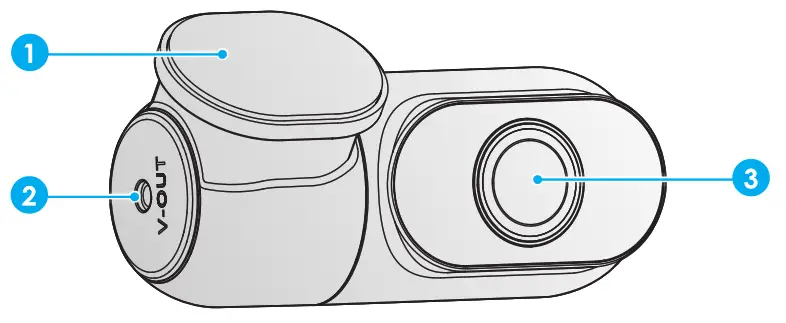
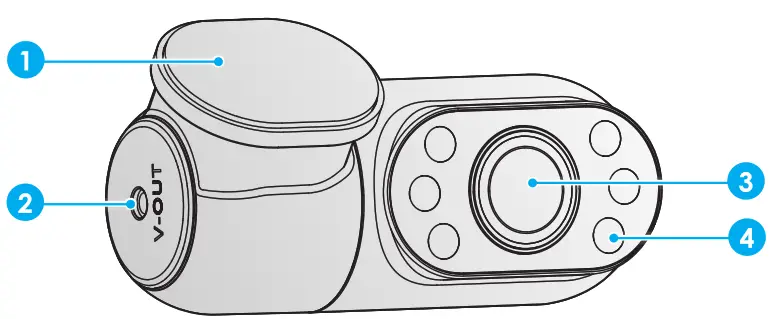
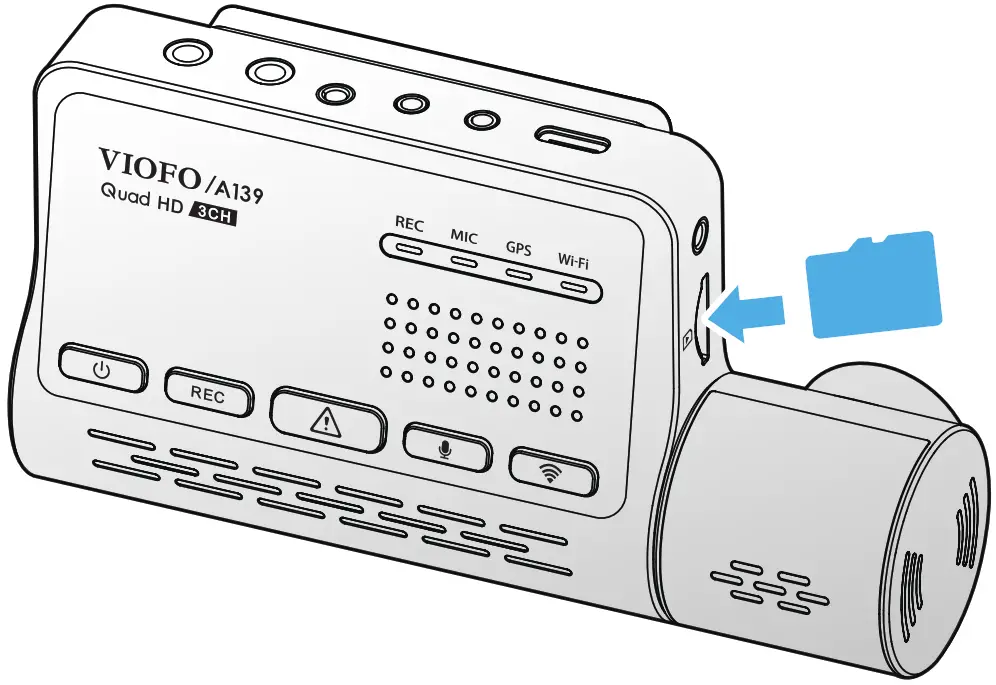
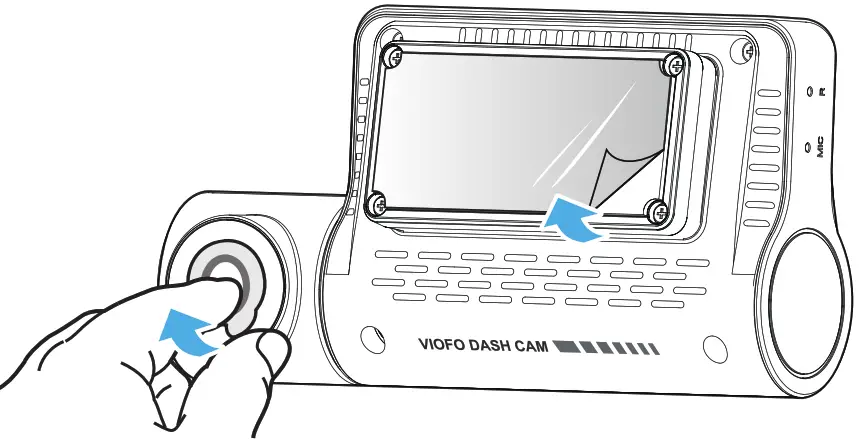
					<description><![CDATA[A139 Dash Camera USER MANUAL The user manual is available on https://supportviofo.com Copyright (c) 2021,Vloto Ltd, All rights reserved Product Overview Standard Items Optional Accessories Product Diagram ■ Front Camera (Main Unit) 1. AV out 1. Video Protect 2. External Microphone Port 2. Microphone On I OFF 3. Screw Hole 3. Wi-Fi On I OFF 4. Rear Camera Port 4. GPS module 5. Interior Camera Port 5. Reset Hole 6. Power In / microSD Card Reader Mode (computer) 6. Microphone 7. Screw Hole 7. Recording Status Indicator 8. Micro SD Card Slot 8. Microphone Status Indicator 9. Rotatable lens 9. GPS Status Indicator 10. Power On I OFF 10. Wi-Fi Status Indicator 11. Recording Start I Stop ■ Rear Camera Bracket Power In + Video Out Lens ■ Interior Camera (Optional) Bracket Power In + Video Out Lens 4. Infrared LED LED Indicators LED light LED Status Behavior REC Solid Red Recording Flashing Red 1.Not Recording 2.Updating Firmware MIC Solid Red Audio Recording On Red Off Audio Recording Off GPS Solid Blue GPS Signal Received Flashing Blue GPS Singal Receiving Blue off No GPS WI–Ft Solid Blue Wi-Fi connected Flashing Blue Wi-Fi on and waiting connecting Blue off Wi-Fi disabled Buttons and Icons Buttons Behavior Long press to Power ON / OFF REC Click once to start / stop recording Click once can lock the file being recorded Click once to disable / enable audio recording Long press to turn on / off Wi-Fi Installation Inserting / Removing the Memory Card Insert the Memory Card Make sure the metal contacts on the memory card facing away the VIOFO logo side of the main unit. Ensure the camera is turned off and push the memory card into the card slot until you hear a click. Remove the Memory Card Ensure that the camera is turned off, and then push the edge of the memory card with your fingernail. The card will spring out far enough to be removed. Note: When using the memory card for the first time, it must be formatted as FAT32, other formats are not supported. The Micro SD card is sold separately. The microSD card must be High Endurance type, have a UHS-U1/U3 or above rating and the capacity up to 256GB. We recommend you buy the VIOFO brand memory cards which are manufactured with top-tier MLC NAND flash, making them durable and reliable. Formatting will permanently erase any data on the microSD card. For best performance, format periodically (after backing up any important files). Warning: Please turn off the A139 before inserting or removing the microSD card. Inserting or removing the microSD card while recording may destroy the files. ■ Format the Memory Card Format the Memory Card on Camera Format the card in the camera, you can open viofo app to Format the Memory Card. Format the Memory Card on Computer You can format the memory card on your computer. Please format the card as FAT32 system. 2. Install Front Camera Install the Mount Slide the mount horizontally into the slot on the back of camera. Select a location on the windshield rear of the rear-view mirror. Wipe clean the installation surface of the windscreen with a Wet cloth, it must be grease free for the sticky pad to stick firmly. Keep the windshield with water and attach static stickers. Peel the protection film off the sticky pad and camera lens. Fix the front camera on the static stickers. ( Static stickers can be reused. You can change the position of the camera by moving the Static stickers. ) Adjust the angle of the lens ONLY up / down if necessary.   Never try to rotate the lens completely. Cameras destroyed by too much rotation of the lens are out of warranty. Connecting to Power. Plug the USB power adapter into your vehicle’s 12V / 24V female power socket. Insert the 4 meters power USB cable’s male port into the camera’s mount Type-c port. The whole look after front camera installation and power connection. 3. Install Rear Camera Select an installation location. Wipe clean the installation surface of the windscreen with a dry cloth. Select a location on the windscreen, without defrost grid wires, and where the camera can record the entire rearview. Peel the protection film OFF the sticky pad and camera lens. Fix the rear camera on the selected location. Connecting with Rear Camera. Power off the product and connect the rear camera cable to the front camera (main unit). Cable routing should be as shown in the following two diagrams. 4. Install Interior Camera (Optional) Select an installation location. Wipe clean the installation surface of the windscreen with a dry cloth. Select a location on the windscreen, without defrost grid wires, and where the camera can record the entire Interior view. Peel the protection film off the sticky pad and camera lens. camera cable to the front camera (main unit). Cable routing should be as shown in the following two diagrams. Use the cable clips to help fix the two cables conveniently and safely. 5. Remove Cameras Removing Cameras To remove cameras from its bracket, you should unplug of cables before removing the camera. Note: When you want to plug and unplug the rear or interior camera, please turn off the power first. Tips Do not install/mount the camera in a location that interferes with the driver’s visibility and safety. Install/mount the camera close to the rearview mirror so that both sides of the scene being recorded are equally covered by the camera’s FOV (field of view). To ensure a clear view on rainy days, the lens should be positioned within the windshield wiper’s sweeping range. Do not install/mount the camera on or near airbag panels. Installation / mounting location should not be affected by sun control film (window tint). There should not be any other electronic equipment close to the camera for optimal performance. Dash Cam Recording Operation Power On/Off When you start the engine, the camera will turn on and begin recording automatically. When you turn off the engine or unplug the charging cable from the power adapter, the camera will stop recording and turn off. Loop Recording Insert a micro SD card into the camera’s card slot and automatic loop recording will begin once the camera detects power. Time frame for each video file is 1 / 2 / 3 / 5 / 10 minutes. When there is insufficient space on the Micro SD card, loop recording will automatically overwrite the oldest files (one by one). Loop recording files are saved to SD card: DCIM MOVIE folder. Emergency Recording Automatic emergency recording When the G-sensor is activated and a collision occurs, current footage will be locked automatically to avoid being overwritten by loop recording. Manual emergency recording Pressing the [ ] button during footage recording will lock current footage to avoid being overwritten by loop recording. Note: Collision sensing feature can be adjusted in settings under the “G-sensor” option via VIOFO App. Locked files are saved to SD card: DCIM Movie RO Disable / Enable Audio Recording Pressing the [ f button once to turn off / on audio recording, [ MIC ] LED light will be off / solid Red. Parking Mode There are three options for parking mode. Auto Event Detection Including buffered parking mode, the camera will automatically record a video sequence (from 15 seconds before the event to 30 seconds after the event) while a moving object is detected during parking. It will stop recording without new movements. Time Lapse recording Time lapse record a video at low frames at 1 / 2 / 3 / 5 / 10 / 15 fps, it keeps recording continuously without audio recorded. Note: Audio cannot be recorded in time-lapse mode. Low Bitrate Recording This mode record video in low bitrate for both front, interior, and rear. It keeps recording continuously in mini file size with audio recorded. Note: Parking mode provides surveillance on your parked vehicle. When the engine is off, Hardwire Kit is used to providing continuous power and protect your car battery from being drained. We recommend buying VIOFO ACC hardwire kit cable for parking mode recording. View on a TV The camera has an AV out port for connecting an external display such as a monitor or TV. The product doesn’t come supplied a 3.5mm male to 3 RCA AUX cable Play and Manage Videos Playback Video on VIOFO app Long press the Wi-Fi button to enable Wi-Fi. Open VIOFO app and choose “Connect your camera” to use your phone to control the dashcam. You can play and manage files through the APP. You can check the app introduction refer to [Review and Control on Smartphone. Playback Video on PC Remove Memory card from Dashcam Before removing the memory card, make sure you have switched off the Dashcam. Insert the memory card into a memory card reader connected to your PC. Open the DCIM folder, using VLC or another video player to playback the video. Video File Storage Location Buttons Behavior Loop recording ( including Motion Detection ) DCIM Movie Emergency recoding ( Locked Video) DCIMRO Poking recording ( Auto Event Detection/ Time-lapse Recording / Low Bitrate Recording ) DCIM Movie Snapshot DCIM Photo File Format Definition Files recorded by front camera, interior and rear camera are saved saperately. Review and Control on Smartphone Connect to Smartphone The VIOFO app allows you to control your camera remotely by using a smartphone. Features include full camera control, live preview, and video playback. Android Device Android users could download it on Google Play or download APK directly from our official website https://www.viofo.com/content/13-app. IOS Device IOS users could download it on the APP store Connect VIOFO APP Long press the [  ] button to turn on the Wi-Fi. Wi-Fi name (SSID) of Wi-Fi is VIOFO_A139_XXXX, Wi-Fi default password is 12345678. When the Wi-Fi is on, Wi-H Status LED will be flashing blue. Step 1: Use the phone to connect A139 Wi-Fi. When the phone is connected with the dashcam, the LED lights on the camera shows solid blue. Step 2: Open VIOFO app and choose “Connect your camera” to use your phone to control the dashcam. Step3: Now you can see the live view of both or three cameras. You can change the settings and check the files on the app. APP Layout Overview Choosing “Connect your camera” to use your phone to control the dashcam.  – MENU – Downloaded video – VIOFO official Facebook page  – Official support – Firmware update  – Interior Camera Live Video – Rear Camera Live Video – Front Camera Live Video – Audio Recording status – Motion detection status – Switch Camera Video Source – Take a Video Snapshot – Go to Video File lists – Start / Stop Recording – Go to System Settings – Video file lists – Download Video Files – Delete Video Files Install Accessories Install CPL The CPL (Circular Polarizing Lens) can be used to reduce reflections and glare from the window glass and road surfaces that can otherwise damage image quality, this works in the same way as polarized sunglasses, getting more saturated and beautiful video. Install Bluetooth Remote Control (Optional) The remote control with the 3M adhesive on the back, you can choose to stick it on a suitable location on your dashboard, power on the camera and then press the video lock button on the remote control for 3 seconds to pair the camera, the LED indicator on the remote will turns blue if get paired successfully. Install External Microphone (Optional) For VIOFO A139, it supports an external microphone, with a 3.5mm jack plug design, you can plug it into your dashcam directly, no adapter cable is needed. Using the external microphone, you will obtain improved recorded sound quality when compared with the built-in microphone of the camera. Systems Setting To enter the menu settings, please stop recording first. Video Setting Resolution: Setting video resolution of footage recorded. Front Camera + Rear camera: 2560 * 1440P 30fps / 60fps + 1920*1080P 30fps Front Camera + Interior camera: 2560 * 1440P 30fps / 60fps + 1920*1080P 30fps Front Camera + Interior camera + Rear camera: 2560 * 1440P 30fps / 60fps + 1920* 1080P 30fps + 1920* 1080P 30fps Time-lapse Recording: Record video from frames captured at specific time intervals to conserve memory and reduce the time it takes to review video. The default is off. Loop Recording: Off / 1 / 2 / 3 / 5 / 10 Recording will begin automatically after powering on with a micro SD card in the device. Each recorded file is up to three minutes long, with old footage being replaced when micro SD card storage is full. Recording Audio: Turn on and off the microphone. This can also be changed during recording by pressing the [ button. Exposure: Adjusting the value of the EV (Exposure Value) properly can create better footage under different light sources. It ranges from -2.0 to +2.0. You can adjust the EV for the front, interior and rear camera separately. The default is set at 0.0. WDR (Wide Dynamic Range): On / Off. The dynamic range is the ratio of the brightest portion of the image to the darkest portion of the image. WDR enables the camera to deliver video with a near perfect exposure in varying lighting situations. G-Sensor: The G-sensor measures shock forces and locks the video recorded at the time. The settings from “low to high” determine the amount of force needed to lock the file from being overwritten. We recommend that you set it at low. Date Stamp: On / Off. Imprint the time and date on the recorded video. Bitrate: You can set the bitrate for video. High bitrate may improve the quality and smoothness of the video, especially when recording fast motion or high contrast scenes. Using a high bitrate mode may decrease the amount of recording time available on your memory card. Using a low bitrate will save space and record for longer time. WDR (Wide Dynamic Range): On / Off. The dynamic range is the ratio of the brightest portion of the image to the darkest portion of the image. WDR enables the camera to deliver video with a near-perfect exposure in varying lighting situations. G-Sensor: The G-sensor measures shock forces and locks the video recorded at the time. The settings from “low to high” determine the amount of force needed to lock the file from being overwritten. We recommend that you set it at low. Date Stamp: On / Off. Imprint the time and date on the recorded video. Bitrate: You can set the bitrate for video. High bitrate may improve the quality and smoothness of the video, especially when recording fast motion or high contrast scenes. Using a high bitrate mode may decrease the amount of recording time available on your memory card. Using a low bitrate will save space and record for longer time. System Setting Wi-Fi Channel: Off / 2.4GHz / 5GHz We recommend choosing the 5GHz Wi-Fi mode. Time Zone: Set the current time zone for GPS time and date calibration. Note: the time zone must be manually adjusted for daylight savings. Time Synchronization: Time synchronization with mobile phone. Date Format You can choose the date format of the camera Boot delay: The camera will boot seconds later when powered on. The settings are off / 5s / 10s. IR LED: Off / On / Auto On means IR lights are always on, so the video color is black and white. Auto means the dashcam will decide to turn on/off infrared lights with different light conditions. Off means the IR lights are all turned off. You can also short press[] button to enable/disable the IR LED. Parking Mode: There are 3 options under parking mode: (1) Auto Event Detection Including buffered parking mode, the camera will automatically record a video sequence ( from 15 seconds before the event to 30 seconds after the event ) while a moving object is detected during parking. It will stop recording without new movements. (2) Time Lapse recording Time lapse record a video at low frames at 1 / 2 / 3 / 5 / 10 / 15 fps, It keeps recording continuously without audio recorded. (3) Low Bitrate Recording This mode record video in low bitrate for both front and rear. It keeps recording continuously in mini file size with audio recorded. Note: We recommend to buy VIOFO ACC hardwire kit cable for parking mode recording.The parking recording files name of front camera is Year_Date_-Time_**PF, and Year_Date_Time_**PR for rear camera. Enter Parking Mode Timer: Set the timer for entering parking mode. (Only for hardwire cable, if you use external battery, this function won’t work.) “OFF’ means the camera will enter parking mode right away when the engine is off. “90s” means the camera will enter parking mode 90 seconds after engine is off. Parking Recording Timer: (Only for hardwire cable, if you use external battery, this function won’t work.) Off timer feature is designed to automatically turn off the dash cam after a period of time to prevent potential car battery drainage. Set the maximum amount of time you would like the dash cam to record for while parked. “On” means the camera will keep recording until the hardwire kits cut the power supply. “1 hour means the camera will shut down after it gets into parking mode for 1 hour. Parking G-sensor: The G-sensor detects significant or sudden movement (such as an impact or collision), it will trigger an event recording. We suggest setting it to High sensitivity in parking mode recording. Parking Motion Detection: Adjusts the sensitivity of the motion detection so minor motion caused by wind or rain doesn’t trigger a recording. Image Rotation: Off, Front Only, Interior Only, Rear Only, Both. Notification Sounds: Turn on/off. Turn on / off the beep warning and startup sounds. Live Video Source: Front camera / Interior camera/ Rear camera / All camera. GPS: Turn on / off GPS logger. A GPS module is used to include the location data in the recorded videos. If disabled, your camera will no longer measure your speed and position; nor synchronize the time / date. (Only available when connecting with GPS signal) Please use “Dashcam Viewer” to playback videos and to visualize your position and speed on your computer. Speed Unit: Kilometer per hour (KMH) and miles per hour (MPH) are available for speed unit. GPS Info Stamp: Imprint the GPS information on the recorded video. Camera Model Stamp: Imprint the camera model on the recorded video. Frequency: Set it to minimize flickering and banding in the recorded video. Format SD Card: The operation will delete all data on the Micro SD card. Note: Once you format the card, all information will be deleted and unrecoverable. Make sure to back up all files that you needed before formatting. Reset Camera Setting: Reset setting of device. Wi-Fi Name (SSID): Change Wi-Fi name. Wi-Fi Password: Change Wi-Fi Password. Wi-Fi default password is 12345678. Custom Text Stamp: Imprint the customize text on the recorded video. Car License Number: Imprint the car number on the recorded video. Free Space on Card: SD card remaining storage space. Other App Version: Check the current firmware version of the APP. Firmware: Check the current firmware version of the camera. Firmware Upgrade Follow the instructions on this website to upgrade the firmware: (https://support.viofo.com/support/solutions/19000101567) Note: Before using a microSD card to upgrade the firmware, formatting the card in the camera is necessary to ensure stable read and write Do not unplug or power off the camera during a firmware upgrade, it may cause the camera to subsequently fail to boot. Notice FCC Statement This equipment has been tested and found to comply with the limits for a Class B digital device, pursuant to part 15 of the FCC Rules. These limits are designed to provide reasonable protection against harmful interference in a residential installation. This equipment generates, uses, and can radiate radio frequency energy and, if not installed and used in accordance with the instructions, may cause harmful interference to radio communications. However, there is no guarantee that interference will not occur in a particular installation. If this equipment does cause harmful interference to radio or television reception, which can be determined by turning the equipment o and on, the user is encouraged to try to correct the interference by one or more of the following measures: Reorient or relocate the receiving antenna. Increase the separation between the equipment and receiver. Connect the equipment into an outlet on a circuit di-‘erent from that to which the receiver is connected. Consult the dealer or an experienced radio / TV technician for help. Caution: Any changes or modifications to this device not explicitly approved by the manufacturer could void your authority to operate this equipment. This device complies with part 15 of the FCC Rules. Operation is subject to the following two conditions: This device may not cause harmful interference. this device must accept any interference received, including interference that may cause undesired operation. Shenzhen Viofo Technology Co., Ltd, declares that this Radio Frequency peripheral is in compliance with the essential requirements and other relevant provisions of Directive 1999/5/EC. Customer Service 12-month Limited warranty , Lifetime technical support support@viofo.com facebook.com/viofo.world +86 755 8526 8909 (CN) Mon-Fri 9am-6pm [...]<p><a class="btn btn-secondary understrap-read-more-link" href="https://usemanuals.com/viofo/a139-camera/">Read More...</a></p>]]></description>

										<content:encoded><![CDATA[<p><img decoding="async" src="https://usemanuals.com/wp-content/uploads/2023/08/VIOFO-A139-Dash-Camera-logo.webp" /></p>
<p><strong>A139</strong><br />
<strong>Dash Camera</strong><br />
<strong>USER MANUAL</strong></p>
<p><img decoding="async" src="https://usemanuals.com/wp-content/uploads/2023/08/VIOFO-A139-Dash-Camera-Dash-Camera.webp" />The user manual is available on <a href="https://support.viofo.com/support/home" target="_blank" rel="noopener">https://supportviofo.com</a><br />
Copyright (c) 2021,Vloto Ltd, All rights reserved</p>
<h4><strong>Product Overview</strong></h4>
<h5><strong>Standard Items</strong></h5>
<p><img decoding="async" src="https://usemanuals.com/wp-content/uploads/2023/08/VIOFO-A139-Dash-Camera-Dash-Camera-item.webp" /></p>
<p><img loading="lazy" decoding="async" class="attachment-post-thumbnail aligncenter ezlazyloaded" src="images/8.webp" sizes="auto, " srcset="" alt="VIOFO A139 Dash Camera -Dash Camera- item-" width="856" height="206" data-ezsrcset="https://manuals.plus/wp-content/uploads/2021/08/VIOFO-A139-Dash-Camera-Dash-Camera-item-.png?ezimgfmt=ng:webp/ngcb1 1220w,https://manuals.plus/wp-content/uploads/2021/08/VIOFO-A139-Dash-Camera-Dash-Camera-item--300x72.png?ezimgfmt=ng:webp/ngcb1 300w,https://manuals.plus/wp-content/uploads/2021/08/VIOFO-A139-Dash-Camera-Dash-Camera-item--1024x247.png?ezimgfmt=ng:webp/ngcb1 1024w,https://manuals.plus/wp-content/uploads/2021/08/VIOFO-A139-Dash-Camera-Dash-Camera-item--768x185.png?ezimgfmt=ng:webp/ngcb1 768w" data-ezsrc="https://manuals.plus/wp-content/uploads/2021/08/VIOFO-A139-Dash-Camera-Dash-Camera-item-.png?ezimgfmt=rs:612x147/rscb1/ng:webp/ngcb1" /></p>
<h5><strong>Optional Accessories</strong></h5>
<p><img decoding="async" src="https://usemanuals.com/wp-content/uploads/2023/08/VIOFO-A139-Dash-Camera-Dash-Camera-optional.webp" /></p>
<h5>Product Diagram</h5>
<p><strong>■ Front Camera (Main Unit)</strong></p>
<p><img decoding="async" src="https://usemanuals.com/wp-content/uploads/2023/08/VIOFO-A139-Dash-Camera-Dash-front-Camera.webp" /><img decoding="async" src="https://usemanuals.com/wp-content/uploads/2023/08/VIOFO-A139-Dash-Camera-Dash-backCamera.webp" /></p>
<table width="900">
<tbody>
<tr>
<td width="218">1. AV out</td>
<td width="227">1. Video Protect</td>
</tr>
<tr>
<td width="218">2. External Microphone Port</td>
<td>2. Microphone On I OFF</td>
</tr>
<tr>
<td width="218">3. Screw Hole</td>
<td>3. Wi-Fi On I OFF</td>
</tr>
<tr>
<td width="218">4. Rear Camera Port</td>
<td>4. GPS module</td>
</tr>
<tr>
<td width="218">5. Interior Camera Port</td>
<td>5. Reset Hole</td>
</tr>
<tr>
<td width="218">6. Power In / microSD Card Reader Mode (computer)</td>
<td>6. Microphone</td>
</tr>
<tr>
<td width="218">7. Screw Hole</td>
<td>7. Recording Status Indicator</td>
</tr>
<tr>
<td width="218">8. Micro SD Card Slot</td>
<td>8. Microphone Status Indicator</td>
</tr>
<tr>
<td width="218">9. Rotatable lens</td>
<td>9. GPS Status Indicator</td>
</tr>
<tr>
<td width="218">10. Power On I OFF</td>
<td>10. Wi-Fi Status Indicator</td>
</tr>
<tr>
<td width="218">11. Recording Start I Stop</td>
<td width="227"></td>
</tr>
</tbody>
</table>
<p>■ Rear Camera</p>
<p><img decoding="async" src="https://usemanuals.com/wp-content/uploads/2023/08/VIOFO-A139-Dash-Camera-Dash-Camera-rear.webp" /></p>
<ol>
<li>Bracket</li>
<li>Power In + Video Out</li>
<li>Lens</li>
</ol>
<p>■ Interior Camera (Optional)</p>
<p><img decoding="async" src="https://usemanuals.com/wp-content/uploads/2023/08/VIOFO-A139-Dash-Camera-Dash-Camera-reaar.webp" /></p>
<ol>
<li>Bracket</li>
<li>Power In + Video Out</li>
<li>Lens 4. Infrared LED</li>
</ol>
<p><strong>LED Indicators</strong></p>
<table width="1028">
<tbody>
<tr>
<td width="120"><strong>LED light</strong></td>
<td width="160"><strong>LED Status</strong></td>
<td width="336"><strong>Behavior</strong></td>
</tr>
<tr>
<td rowspan="2" width="120"><strong>REC</strong></td>
<td width="160">Solid Red</td>
<td width="336">Recording</td>
</tr>
<tr>
<td width="160">Flashing Red</td>
<td width="336">1.Not Recording 2.Updating Firmware</td>
</tr>
<tr>
<td rowspan="2" width="120">MIC</td>
<td width="160">Solid Red</td>
<td width="336">Audio Recording On</td>
</tr>
<tr>
<td width="160">Red Off</td>
<td width="336">Audio Recording Off</td>
</tr>
<tr>
<td rowspan="3" width="120"><strong>GPS</strong></td>
<td width="160">Solid Blue</td>
<td width="336">GPS Signal Received</td>
</tr>
<tr>
<td width="160">Flashing Blue</td>
<td width="336">GPS Singal Receiving</td>
</tr>
<tr>
<td width="160">Blue off</td>
<td width="336">No GPS</td>
</tr>
<tr>
<td rowspan="3" width="120"><strong>WI</strong><strong>–</strong><strong>Ft</strong></td>
<td width="160">Solid Blue</td>
<td width="336">Wi-Fi connected</td>
</tr>
<tr>
<td width="160">Flashing Blue</td>
<td width="336">Wi-Fi on and waiting connecting</td>
</tr>
<tr>
<td width="160">Blue off</td>
<td width="336">Wi-Fi disabled</td>
</tr>
</tbody>
</table>
<p><strong>Buttons and Icons</strong></p>
<table width="973">
<tbody>
<tr>
<td width="125"><strong>Buttons</strong></td>
<td width="405"><strong>Behavior</strong></td>
</tr>
<tr>
<td width="125"><img decoding="async" src="https://usemanuals.com/wp-content/uploads/2023/08/VIOFO-A139-Dash-Camera-icon-.webp" /></td>
<td width="405">Long press to Power ON / OFF</td>
</tr>
<tr>
<td width="125"><strong>REC</strong></td>
<td width="405">Click once to start / stop recording</td>
</tr>
<tr>
<td width="125"><img decoding="async" src="https://usemanuals.com/wp-content/uploads/2023/08/VIOFO-A139-Dash-Camera-icon-a.webp" /></td>
<td width="405">Click once can lock the file being recorded</td>
</tr>
<tr>
<td width="125"><img decoding="async" src="https://usemanuals.com/wp-content/uploads/2023/08/VIOFO-A139-Dash-Camera-icon-b.webp" /></td>
<td width="405">Click once to disable /<br />
enable audio recording</td>
</tr>
<tr>
<td width="125"><img decoding="async" src="https://usemanuals.com/wp-content/uploads/2023/08/VIOFO-A139-Dash-Camera-Dash-Camera-.webp" /></td>
<td width="405">Long press to turn on / off Wi-Fi</td>
</tr>
</tbody>
</table>
<h4><strong>Installation</strong></h4>
<ol>
<li><strong>Inserting / Removing the Memory Card</strong></li>
</ol>
<ul>
<li><strong>Insert the Memory Card</strong></li>
</ul>
<p>Make sure the metal contacts on the memory card facing away the VIOFO logo side of the main unit. Ensure the camera is turned off and push the memory card into the card slot until you hear a click.<br />
<img decoding="async" src="https://usemanuals.com/wp-content/uploads/2023/08/VIOFO-A139-Dash-Camera-Dash-backCamera-.webp" /></p>
<ul>
<li><strong>Remove the Memory Card</strong></li>
</ul>
<p>Ensure that the camera is turned off, and then push the edge of the memory card with your fingernail. The card will spring out far enough to be removed.</p>
<p><strong>Note:</strong></p>
<ul>
<li>When using the memory card for the first time, it must be formatted as FAT32, other formats are not supported.</li>
<li>The Micro SD card is sold separately. The microSD card must be High Endurance type, have a UHS-U1/U3 or above rating and the capacity up to 256GB.</li>
<li>We recommend you buy the VIOFO brand memory cards which are manufactured with top-tier MLC NAND flash, making them durable and reliable.</li>
<li>Formatting will permanently erase any data on the microSD card. For best performance, format periodically (after backing up any important files).</li>
</ul>
<p>Warning:</p>
<ul>
<li>Please turn off the A139 before inserting or removing the microSD card.</li>
<li>Inserting or removing the microSD card while recording may destroy the files.</li>
</ul>
<p><strong>■ Format the Memory Card</strong><br />
<strong>Format the Memory Card on Camera</strong><br />
Format the card in the camera, you can open viofo app to Format the Memory Card.</p>
<p><strong>Format the Memory Card on Computer</strong><br />
You can format the memory card on your computer. Please format the card as FAT32 system.</p>
<p><strong>2. Install Front Camera</strong><br />
<strong>Install the Mount</strong></p>
<ol>
<li>Slide the mount horizontally into the slot on the back of camera.<br />
<img decoding="async" src="https://usemanuals.com/wp-content/uploads/2023/08/VIOFO-A139-Dash-Camera-Dash-Camera-saount.webp" /></li>
<li>Select a location on the windshield rear of the rear-view mirror.</li>
<li>Wipe clean the installation surface of the windscreen with a Wet cloth, it must be grease free for the sticky pad to stick firmly.</li>
<li>Keep the windshield with water and attach static stickers.</li>
<li>Peel the protection film off the sticky pad and camera lens.<br />
<img decoding="async" src="https://usemanuals.com/wp-content/uploads/2023/08/VIOFO-A139-Dash-Camera-Dash-backCamerab-.webp" /></li>
<li>Fix the front camera on the static stickers. ( Static stickers can be reused. You can change the position of the camera by moving the Static stickers. )</li>
<li>Adjust the angle of the lens ONLY up / down if necessary.<br />
<img decoding="async" src="https://usemanuals.com/wp-content/uploads/2023/08/VIOFO-A139-Dash-Camera-icon-a-1.webp" />  Never try to rotate the lens completely. Cameras destroyed by too much rotation of the lens are out of warranty.<br />
<img decoding="async" src="https://usemanuals.com/wp-content/uploads/2023/08/VIOFO-A139-Dash-Camera-never.webp" /></li>
<li>Connecting to Power.<br />
Plug the USB power adapter into your vehicle’s 12V / 24V female power socket. Insert the 4 meters power USB cable’s male port into the camera’s mount Type-c port.<br />
<img decoding="async" src="https://usemanuals.com/wp-content/uploads/2023/08/VIOFO-A139-Dash-Camera-p.webp" /></li>
<li>The whole look after front camera installation and power connection.<br />
<img decoding="async" src="https://usemanuals.com/wp-content/uploads/2023/08/VIOFO-A139-Dash-Camera-Dash-Camera-i.webp" /><strong>3. Install Rear Camera</strong></li>
</ol>
<ol>
<li>Select an installation location.</li>
<li>Wipe clean the installation surface of the windscreen with a dry cloth. Select a location on the windscreen, without defrost grid wires, and where the camera can record the entire rearview.</li>
<li>Peel the protection film OFF the sticky pad and camera lens.<br />
<img decoding="async" src="https://usemanuals.com/wp-content/uploads/2023/08/VIOFO-A139-Dash-Camera-option.webp" /></li>
<li>Fix the rear camera on the selected location.</li>
<li>Connecting with Rear Camera. Power off the product and connect the rear camera cable to the front camera (main unit). Cable routing should be as shown in the following two diagrams.<br />
<img decoding="async" src="https://usemanuals.com/wp-content/uploads/2023/08/VIOFO-A139-Dash-Camera-rear-2.webp" /><img decoding="async" src="https://usemanuals.com/wp-content/uploads/2023/08/VIOFO-A139-Dash-Camera-frond.webp" /></li>
</ol>
<p><strong>4. Install Interior Camera (Optional)</strong></p>
<ol>
<li>Select an installation location.</li>
<li>Wipe clean the installation surface of the windscreen with a dry cloth. Select a location on the windscreen, without defrost grid wires, and where the camera can record the entire Interior view.</li>
<li>Peel the protection film off the sticky pad and camera lens.<br />
<img decoding="async" src="https://usemanuals.com/wp-content/uploads/2023/08/VIOFO-A139-Dash-Camera-Dash-Camera-reare.webp" /></li>
</ol>
<p>camera cable to the front camera (main unit). Cable routing should be as shown in the following two diagrams. Use the cable clips to help fix the two cables conveniently and safely.</p>
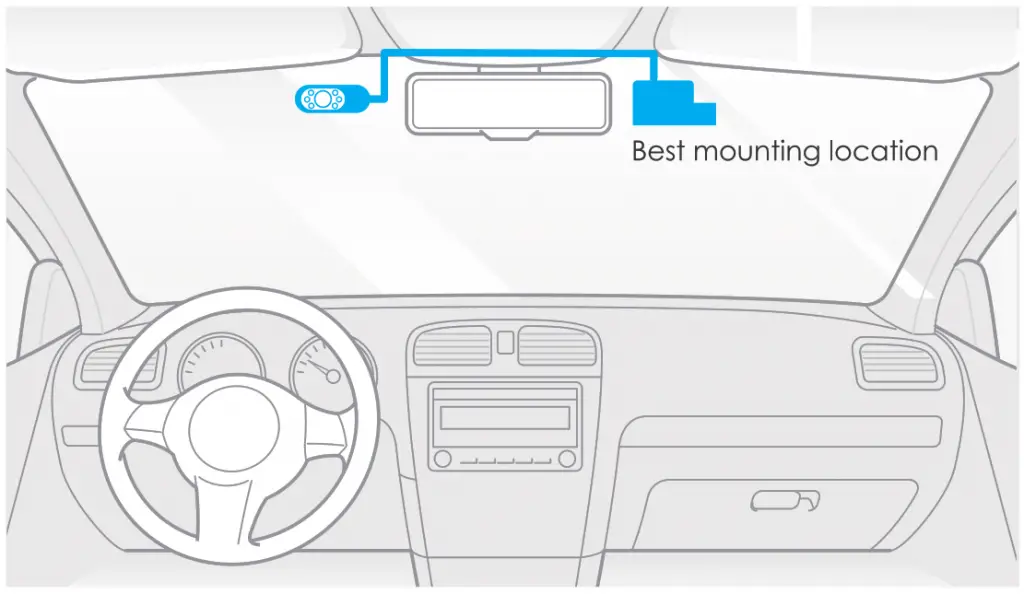
<p><img decoding="async" src="https://usemanuals.com/wp-content/uploads/2023/08/VIOFO-A139-Dash-Camera-Dash-backh.webp" /><img decoding="async" src="https://usemanuals.com/wp-content/uploads/2023/08/VIOFO-A139-Dash-Camera-Dash-Camera-item-o.webp" /></p>
<p><strong>5. Remove Cameras</strong><br />
<strong>Removing Cameras</strong><br />
To remove cameras from its bracket, you should unplug of cables before removing the camera.<br />
<strong>Note:</strong> When you want to plug and unplug the rear or interior camera, please turn off the power first.</p>
<p>Tips</p>
<ol>
<li>Do not install/mount the camera in a location that interferes with the driver’s visibility and safety.</li>
<li>Install/mount the camera close to the rearview mirror so that both sides of the scene being recorded are equally covered by the camera’s FOV (field of view).</li>
<li>To ensure a clear view on rainy days, the lens should be positioned within the windshield wiper’s sweeping range.</li>
<li>Do not install/mount the camera on or near airbag panels.</li>
<li>Installation / mounting location should not be affected by sun control film (window tint). There should not be any other electronic equipment close to the camera for optimal performance.</li>
</ol>
<h4>Dash Cam Recording Operation</h4>
<p><strong>Power On/Off</strong></p>
<ol>
<li>When you start the engine, the camera will turn on and begin recording automatically.</li>
<li>When you turn off the engine or unplug the charging cable from the power adapter, the camera will stop recording and turn off.</li>
</ol>
<p><strong>Loop Recording</strong></p>
<ol>
<li>Insert a micro SD card into the camera’s card slot and automatic loop recording will begin once the camera detects power.</li>
<li>Time frame for each video file is 1 / 2 / 3 / 5 / 10 minutes.</li>
<li>When there is insufficient space on the Micro SD card, loop recording will automatically overwrite the oldest files (one by one).</li>
<li>Loop recording files are saved to SD card: DCIM MOVIE folder.</li>
</ol>
<p><strong>Emergency Recording</strong></p>
<ol>
<li>Automatic emergency recording<br />
When the G-sensor is activated and a collision occurs, current footage will be locked automatically to avoid being overwritten by loop recording.</li>
<li>Manual emergency recording<br />
Pressing the [ <img decoding="async" src="https://usemanuals.com/wp-content/uploads/2023/08/VIOFO-A139-Dash-Camera-icon-a-1.webp" /> ] button during footage recording will lock current footage to avoid being overwritten by loop recording.</li>
</ol>
<p><strong>Note:</strong><br />
Collision sensing feature can be adjusted in settings under the “G-sensor” option via VIOFO App. Locked files are saved to SD card: DCIM Movie RO</p>
<p><strong>Disable / Enable Audio Recording<br />
</strong>Pressing the [ <strong>f </strong>button once to turn off / on audio recording, [ MIC ] LED light will be off / solid Red.</p>
<p><strong>Parking Mode<br />
</strong>There are three options for parking mode.</p>
<ol>
<li><strong>Auto Event Detection<br />
</strong>Including buffered parking mode, the camera will automatically record a video sequence (from 15 seconds before the event to 30 seconds after the event) while a moving object is detected during parking. It will stop recording without new movements.</li>
<li><strong>Time Lapse recording<br />
</strong>Time lapse record a video at low frames at 1 / 2 / 3 / 5 / 10 / 15 fps, it keeps recording continuously without audio recorded.<br />
<strong>Note:</strong> Audio cannot be recorded in time-lapse mode.</li>
<li><strong>Low Bitrate Recording<br />
</strong>This mode record video in low bitrate for both front, interior, and rear. It keeps recording continuously in mini file size with audio recorded.</li>
</ol>
<p><strong>Note: </strong>Parking mode provides surveillance on your parked vehicle. When the engine is off, Hardwire Kit is used to providing continuous power and protect your car battery from being drained. We recommend buying VIOFO ACC hardwire kit cable for parking mode recording.</p>
<p><strong>View </strong><strong>on a TV<br />
</strong>The camera has an AV out port for connecting an external display such as a monitor or TV. The product doesn’t come supplied a 3.5mm male to 3 RCA AUX cable</p>
<h4><strong>Play and Manage Videos</strong></h4>
<p><strong>Playback Video on VIOFO app<br />
</strong>Long press the Wi-Fi button to enable Wi-Fi. Open VIOFO app and choose “Connect your camera” to use your phone to control the dashcam. You can play and manage files through the APP. You can check the app introduction refer to <strong>[Review and Control on Smartphone.</strong></p>
<p><strong>Playback Video on PC</strong></p>
<ol>
<li>Remove Memory card from Dashcam<br />
Before removing the memory card, make sure you have switched off the Dashcam.</li>
<li>Insert the memory card into a memory card reader connected to your PC.</li>
<li>Open the DCIM folder, using VLC or another video player to playback the video.</li>
</ol>
<p><strong>Video File Storage Location</strong></p>
<table width="888">
<tbody>
<tr>
<td width="318"><strong>Buttons</strong></td>
<td width="252"><strong>Behavior</strong></td>
</tr>
<tr>
<td width="318">Loop recording<br />
( including Motion Detection )</td>
<td width="252">DCIM Movie</td>
</tr>
<tr>
<td width="318">Emergency recoding<br />
( Locked Video)</td>
<td width="252">DCIMRO</td>
</tr>
<tr>
<td width="318">Poking recording ( Auto Event<br />
Detection/ Time-lapse Recording<br />
/ Low Bitrate Recording )</td>
<td width="252">DCIM Movie</td>
</tr>
<tr>
<td width="318">Snapshot</td>
<td width="252">DCIM Photo</td>
</tr>
</tbody>
</table>
<p><strong>File Format Definition<br />
</strong>Files recorded by front camera, interior and rear camera are saved saperately.</p>
<h4><strong>Review and Control on Smartphone</strong></h4>
<p><strong>Connect to Smartphone</strong></p>
<p>The VIOFO app allows you to control your camera remotely by using a smartphone. Features include full camera control, live preview, and video playback.</p>
<ul>
<li><strong>Android Device<br />
</strong>Android users could download it on Google Play or download APK directly from our official website <a href="https://www.viofo.com/content/13-app." target="_blank" rel="noopener">https://www.viofo.com/content/13-app.</a><br />
<strong>IOS Device </strong>IOS users could download it on the APP store<br />
<img decoding="async" src="https://usemanuals.com/wp-content/uploads/2023/08/VIOFO-A139-Dash-Camera-Device.webp" /></li>
<li><strong>Connect VIOFO APP</strong></li>
</ul>
<p>Long press the [ <img decoding="async" src="https://usemanuals.com/wp-content/uploads/2023/08/brother-Compact-Color-Printer-User-Guide-WIFI-icon.webp" /> ] button to turn on the Wi-Fi. Wi-Fi name (SSID) of Wi-Fi is VIOFO_A139_XXXX, Wi-Fi default password is 12345678. When the Wi-Fi is on, Wi-H Status LED will be flashing blue.</p>
<ul>
<li><strong>Step 1: </strong>Use the phone to connect A139 Wi-Fi. When the phone is connected with the dashcam, the LED lights on the camera shows solid blue.</li>
<li><strong>Step 2: </strong>Open VIOFO app and choose “Connect your camera” to use your phone to control the dashcam.</li>
<li><strong>Step3: </strong>Now you can see the live view of both or three cameras. You can change the settings and check the files on the app.</li>
</ul>
<p><strong>APP Layout Overview</strong><br />
Choosing “Connect your camera” to use your phone to control the dashcam.<br />
<img decoding="async" src="https://usemanuals.com/wp-content/uploads/2023/08/VIOFO-A139-Dash-Camera-leaout.webp" /></p>
<ol>
<li> – MENU</li>
<li>– Downloaded video</li>
<li>– VIOFO official Facebook page</li>
<li> – Official support</li>
<li>– Firmware update</li>
</ol>
<p><img decoding="async" src="https://usemanuals.com/wp-content/uploads/2023/08/VIOFO-A139-Dash-Camera-Dash-Camera-out.webp" /></p>
<ol>
<li> – Interior Camera Live Video</li>
<li>– Rear Camera Live Video</li>
<li>– Front Camera Live Video</li>
<li>– Audio Recording status</li>
<li>– Motion detection status</li>
<li>– Switch Camera Video Source</li>
<li>– Take a Video Snapshot</li>
<li>– Go to Video File lists</li>
<li>– Start / Stop Recording</li>
<li>– Go to System Settings</li>
<li>– Video file lists</li>
<li>– Download Video Files</li>
<li>– Delete Video Files</li>
</ol>
<h4><strong>Install Accessories</strong></h4>
<p><strong>Install CPL</strong></p>
<p>The CPL (Circular Polarizing Lens) can be used to reduce reflections and glare from the window glass and road surfaces that can otherwise damage image quality, this works in the same way as polarized sunglasses, getting more saturated and beautiful video.</p>
<p><img decoding="async" src="https://usemanuals.com/wp-content/uploads/2023/08/VIOFO-A139-Dash-Camera-cpl.webp" /></p>
<p><strong>Install Bluetooth Remote Control (Optional)</strong></p>
<p>The remote control with the 3M adhesive on the back, you can choose to stick it on a suitable location on your dashboard, power on the camera and then press the video lock button on the remote control for 3 seconds to pair the camera, the LED indicator on the remote will turns blue if get paired successfully.</p>
<p><img decoding="async" src="https://usemanuals.com/wp-content/uploads/2023/08/VIOFO-A139-Dash-Camera-Dash-Camera-cpl.webp" /></p>
<p>Install External Microphone (Optional)</p>
<p>For VIOFO A139, it supports an external microphone, with a 3.5mm jack plug design, you can plug it into your dashcam directly, no adapter cable is needed. Using the external microphone, you will obtain improved recorded sound quality when compared with the built-in microphone of the camera.<br />
<img decoding="async" src="https://usemanuals.com/wp-content/uploads/2023/08/VIOFO-A139-Dash-Camera-cpl-.webp" /></p>
<h4><strong>Systems Setting</strong></h4>
<p>To enter the menu settings, please stop recording first.</p>
<p><strong>Video Setting</strong></p>
<ul>
<li><strong>Resolution: Setting video resolution of footage recorded.<br />
</strong>Front Camera + Rear camera: 2560 * 1440P 30fps / 60fps + 1920*1080P 30fps Front Camera + Interior camera: 2560 * 1440P 30fps / 60fps + 1920*1080P 30fps Front Camera + Interior camera + Rear camera: 2560 * 1440P 30fps / 60fps + 1920* 1080P 30fps + 1920* 1080P 30fps</li>
<li><strong>Time-lapse Recording:<br />
</strong>Record video from frames captured at specific time intervals to conserve memory and reduce the time it takes to review video. The default is off.<strong><br />
</strong></li>
<li><strong>Loop Recording: </strong>Off / 1 / 2 / 3 / 5 / 10<br />
Recording will begin automatically after powering on with a micro SD card in the device. Each recorded file is up to three minutes long, with old footage being replaced when micro SD card storage is full.</li>
<li><strong>Recording Audio:<br />
</strong>Turn on and off the microphone. This can also be changed during recording by pressing the [<img decoding="async" src="https://usemanuals.com/wp-content/uploads/2023/08/Audio-Button.webp" /><strong> </strong>button.</li>
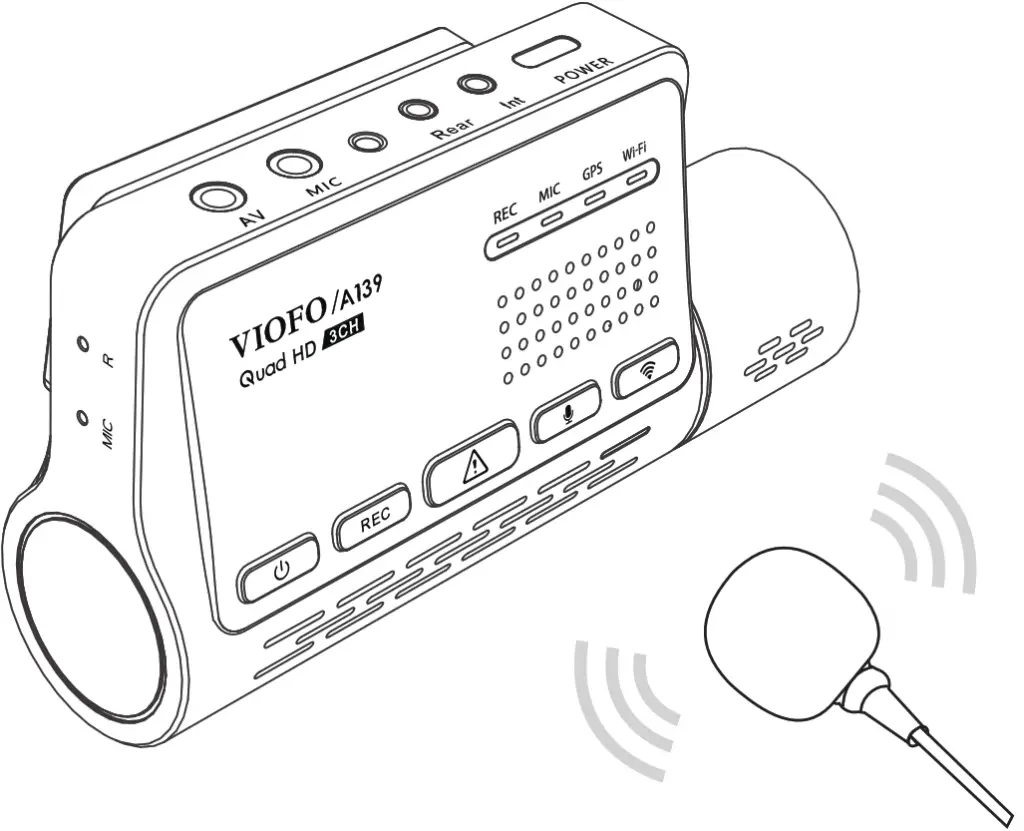
<li><strong>Exposure:<br />
</strong>Adjusting the value of the EV (Exposure Value) properly can create better footage under different light sources. It ranges from -2.0 to +2.0. You can adjust the EV for the front, interior and rear camera separately. The default is set at 0.0.</li>
<li><strong>WDR (Wide Dynamic Range):<br />
</strong>On / Off. The dynamic range is the ratio of the brightest portion of the image to the darkest portion of the image. WDR enables the camera to deliver video with a near perfect exposure in varying lighting situations.</li>
<li><strong>G-Sensor:<br />
</strong>The G-sensor measures shock forces and locks the video recorded at the time. The settings from “low to high” determine the amount of force needed to lock the file from being overwritten. We recommend that you set it at low.<strong><br />
</strong></li>
<li><strong>Date Stamp:<br />
</strong>On / Off. Imprint the time and date on the recorded video.</li>
<li><strong>Bitrate:<br />
</strong>You can set the bitrate for video. High bitrate may improve the quality and smoothness of the video, especially when recording fast motion or high contrast scenes. Using a high bitrate mode may decrease the amount of recording time available on your memory card. Using a low bitrate will save space and record for longer time.</li>
<li><strong><strong>WDR (Wide Dynamic Range):<br />
</strong></strong>On / Off. The dynamic range is the ratio of the brightest portion of the image to the darkest portion of the image. WDR enables the camera to deliver video with a near-perfect exposure in varying lighting situations.</li>
<li><strong>G-Sensor:<br />
</strong>The G-sensor measures shock forces and locks the video recorded at the time. The settings from “low to high” determine the amount of force needed to lock the file from being overwritten. We recommend that you set it at low.</li>
<li><strong>Date Stamp:<br />
</strong>On / Off. Imprint the time and date on the recorded video.</li>
<li><strong>Bitrate:<br />
</strong>You can set the bitrate for video. High bitrate may improve the quality and smoothness of the video, especially when recording fast motion or high contrast scenes. Using a high bitrate mode may decrease the amount of recording time available on your memory card. Using a low bitrate will save space and record for longer time.</li>
</ul>
<p><strong>System Setting</strong></p>
<ul>
<li><strong>Wi-Fi Channel:</strong> Off / 2.4GHz / 5GHz We recommend choosing the 5GHz Wi-Fi mode.</li>
<li><strong>Time Zone:</strong> Set the current time zone for GPS time and date calibration. Note: the time zone must be manually adjusted for daylight savings.</li>
<li><strong>Time Synchronization: </strong>Time synchronization with mobile phone.</li>
<li><strong>Date Format </strong>You can choose the date format of the camera</li>
<li><strong>Boot delay: </strong>The camera will boot seconds later when powered on. The settings are off / 5s / 10s.</li>
<li><strong>IR LED: </strong>Off / On / Auto<br />
On means IR lights are always on, so the video color is black and white. Auto means the dashcam will decide to turn on/off infrared lights with different light conditions. Off means the IR lights are all turned off.<br />
You can also short press[<img decoding="async" src="https://usemanuals.com/wp-content/uploads/2023/08/VIOFO-A139-Dash-Camera-icon-1-1.webp" />] button to enable/disable the IR LED.</li>
<li><strong>Parking Mode: </strong>There are 3 options under parking mode:<br />
(1) Auto Event Detection<br />
Including buffered parking mode, the camera will automatically record a video sequence ( from 15 seconds before the event to 30 seconds after the event ) while a moving object is detected during parking. It will stop recording without new movements.<br />
(2) Time Lapse recording<br />
Time lapse record a video at low frames at 1 / 2 / 3 / 5 / 10 / 15 fps, It keeps recording continuously without audio recorded.<br />
(3) Low Bitrate Recording<br />
This mode record video in low bitrate for both front and rear. It keeps recording continuously in mini file size with audio recorded.</li>
</ul>
<p><strong>Note: </strong>We recommend to buy VIOFO ACC hardwire kit cable for parking mode recording.The parking recording files name of front camera is Year_Date_-Time_**PF, and Year_Date_Time_**PR for rear camera.</p>
<ul>
<li><strong>Enter Parking Mode Timer:<br />
</strong>Set the timer for entering parking mode. (Only for hardwire cable, if you use external battery, this function won’t work.) “OFF’ means the camera will enter parking mode right away when the engine is off. “90s” means the camera will enter parking mode 90 seconds after engine is off.</li>
<li><strong>Parking Recording Timer:</strong><br />
(Only for hardwire cable, if you use external battery, this function won’t work.)<br />
Off timer feature is designed to automatically turn off the dash cam after a period of time to prevent potential car battery drainage. Set the maximum amount of time you would like the dash cam to record for while parked.<br />
“On” means the camera will keep recording until the hardwire kits cut the power supply.<br />
“1 hour means the camera will shut down after it gets into parking mode for 1 hour.</li>
<li><strong>Parking G-sensor:<br />
</strong>The G-sensor detects significant or sudden movement (such as an impact or collision), it will trigger an event recording. We suggest setting it to High sensitivity in parking mode recording.</li>
<li><strong>Parking Motion Detection:<br />
</strong>Adjusts the sensitivity of the motion detection so minor motion caused by wind or rain doesn’t trigger a recording.</li>
<li><strong>Image Rotation:<br />
</strong>Off, Front Only, Interior Only, Rear Only, Both.</li>
<li><strong>Notification Sounds:<br />
</strong>Turn on/off. Turn on / off the beep warning and startup sounds.</li>
<li><strong>Live Video Source:<br />
</strong>Front camera / Interior camera/ Rear camera / All camera.</li>
<li><strong>GPS:<br />
</strong>Turn on / off GPS logger. A GPS module is used to include the location data in the recorded videos. If disabled, your camera will no longer measure your speed and position; nor synchronize the time / date. (Only available when connecting with GPS signal) Please use “Dashcam Viewer” to playback videos and to visualize your position and speed on your computer.</li>
<li><strong>Speed Unit:<br />
</strong>Kilometer per hour (KMH) and miles per hour (MPH) are available for speed unit.</li>
<li><strong>GPS Info Stamp:<br />
</strong>Imprint the GPS information on the recorded video.</li>
<li><strong>Camera Model Stamp:<br />
</strong>Imprint the camera model on the recorded video.</li>
<li><strong>Frequency:<br />
</strong>Set it to minimize flickering and banding in the recorded video.</li>
<li><strong>Format SD Card:<br />
</strong>The operation will delete all data on the Micro SD card.<br />
Note: Once you format the card, all information will be deleted and unrecoverable. Make sure to back up all files that you needed before formatting.</li>
<li><strong>Reset Camera Setting: </strong>Reset setting of device.</li>
<li><strong>Wi-Fi Name (SSID): </strong>Change Wi-Fi name.</li>
<li><strong>Wi-Fi Password: </strong>Change Wi-Fi Password. Wi-Fi default password is 12345678.</li>
<li><strong>Custom Text Stamp: </strong>Imprint the customize text on the recorded video.</li>
<li><strong>Car License Number: </strong>Imprint the car number on the recorded video.</li>
<li><strong>Free Space on Card: </strong>SD card remaining storage space.</li>
</ul>
<p><strong>Other</strong></p>
<ul>
<li><strong>App </strong>Version: Check the current firmware version of the APP.</li>
<li><strong>Firmware: </strong>Check the current firmware version of the camera.</li>
</ul>
<h4>Firmware Upgrade</h4>
<p>Follow the instructions on this website to upgrade the firmware: (<a href="https://support.viofo.com/support/solutions/19000101567" target="_blank" rel="noopener">https://support.viofo.com/support/solutions/19000101567</a>)</p>
<p><strong>Note:</strong></p>
<ul>
<li>Before using a microSD card to upgrade the firmware, formatting the card in the camera is necessary to ensure stable read and write</li>
<li>Do not unplug or power off the camera during a firmware upgrade, it may cause the camera to subsequently fail to boot.</li>
</ul>
<h4><strong>Notice</strong></h4>
<p><strong>FCC Statement</strong><br />
This equipment has been tested and found to comply with the limits for a Class B digital device, pursuant to part 15 of the FCC Rules. These limits are designed to provide reasonable protection against harmful interference in a residential installation. This equipment generates, uses, and can radiate radio frequency energy and, if not installed and used in accordance with the instructions, may cause harmful interference to radio communications. However, there is no guarantee that interference will not occur in a particular installation. If this equipment does cause harmful interference to radio or television reception, which can be determined by turning the equipment o and on, the user is encouraged to try to correct the interference by one or more of the following measures:</p>
<ul>
<li>Reorient or relocate the receiving antenna.</li>
<li>Increase the separation between the equipment and receiver.</li>
<li>Connect the equipment into an outlet on a circuit di-‘erent from that to which the receiver is connected.</li>
<li>Consult the dealer or an experienced radio / TV technician for help.</li>
</ul>
<p><strong>Caution:</strong></p>
<p>Any changes or modifications to this device not explicitly approved by the manufacturer could void your authority to operate this equipment.<br />
This device complies with part 15 of the FCC Rules. Operation is subject to the following two conditions:</p>
<ol>
<li>This device may not cause harmful interference.</li>
<li>this device must accept any interference received, including interference that may cause undesired operation.</li>
</ol>
<p>Shenzhen Viofo Technology Co., Ltd, declares that this Radio Frequency peripheral is in compliance with the essential requirements and other relevant provisions of Directive 1999/5/EC.</p>
<h4><strong>Customer Service</strong></h4>
<p>12-month Limited warranty , Lifetime technical support <a href="mailto:support@viofo.com">support@viofo.com</a></p>
<ul>
<li><a href="https://www.facebook.com/viofo.world" target="_blank" rel="noopener">facebook.com/viofo.world</a></li>
<li>+86 755 8526 8909 (CN)</li>
</ul>
<p>Mon-Fri 9am-6pm</p>
<form id="commentform" class="comment-form" action="https://manuals.plus/wp-comments-post.php" method="post" novalidate="">
<p class="form-submit">
</form>
]]></content:encoded>


			</item>
	</channel>
</rss>

<!--
Performance optimized by W3 Total Cache. Learn more: https://www.boldgrid.com/w3-total-cache/

Page Caching using Disk: Enhanced 

Served from: usemanuals.com @ 2026-06-14 20:54:39 by W3 Total Cache
-->