<?xml version="1.0" encoding="UTF-8"?><rss version="2.0"
	xmlns:content="http://purl.org/rss/1.0/modules/content/"
	xmlns:wfw="http://wellformedweb.org/CommentAPI/"
	xmlns:dc="http://purl.org/dc/elements/1.1/"
	xmlns:atom="http://www.w3.org/2005/Atom"
	xmlns:sy="http://purl.org/rss/1.0/modules/syndication/"
	xmlns:slash="http://purl.org/rss/1.0/modules/slash/"
	>

<channel>
	<title>VEIKK &#8211; UseManuals</title>
	<atom:link href="http://usemanuals.com/veikk/feed/" rel="self" type="application/rss+xml" />
	<link>https://usemanuals.com</link>
	<description>Owner&#039;s manuals for all sorts of products</description>
	<lastBuildDate>Sat, 24 Jun 2023 12:34:31 +0000</lastBuildDate>
	<language>en-US</language>
	<sy:updatePeriod>
	hourly	</sy:updatePeriod>
	<sy:updateFrequency>
	1	</sy:updateFrequency>
	<generator>https://wordpress.org/?v=6.7.2</generator>

<image>
	<url>https://usemanuals.com/wp-content/uploads/2025/02/favicon-32x32-2.png</url>
	<title>VEIKK &#8211; UseManuals</title>
	<link>https://usemanuals.com</link>
	<width>32</width>
	<height>32</height>
</image> 
	<item>
		<title>VEIKK A50 Graphic Pen Tablet Manual</title>
		<link>https://usemanuals.com/veikk/a50-graphic-tablet/</link>
		
		<dc:creator><![CDATA[ItsManual]]></dc:creator>
		<pubDate>Sun, 09 Apr 2023 14:28:40 +0000</pubDate>
				<category><![CDATA[VEIKK]]></category>
		<guid isPermaLink="false">https://usemanuals.com/?p=65804</guid>

					<description><![CDATA[&#160; VEIKK A50 Graphic Pen Tablet Safety Precautions WARNING Do not use this product in a control system that requires a high degree of safety and reliability. In such a system, this product could negatively affect other electronic devices and could malfunction due to the effect of those devices. Turn the power off in areas where use of electronic devices is prohibited. On board an aircraft or in any other location where use of electronic  devices is prohibited, this product, if left on, could negatively affect  other electronic devices. Do not use this product in a location frequented by little children. Make sure that a child does not put the pen or pen tip in his/her  mouth. The pen tip or side switch cover could be detached and be accidentally swallowed. CAUTION Do not place this product on an unstable surface. Placing this product or an unstable or tilted surface or in a location exposed to excessive vibrations could cause it to fall off resulting  in injury. Do not place heavy objects on top of this product. Do not step or place heavy objects on this product as this could damage it. WARNING Avoid high or low-temperature locations for storage. Do not store this product in a location where the temperature drops below 5℃ or goes above 40℃ and in locations subject to excessive temperature fluctuations. Failure to heed this caution could result in damage to the product and its components. Do not disassemble. Do not disassemble or modify this product as this could expose you to heat, fire, electric shock and injury. Disassembling the product will also void your warranty. Do not use alcohol for cleaning. Never use alcohol, thinner, benzene or other mineral solvents as they could discolor or cause deterioration to the product. Do not expose to water. Do not place glasses or vases filled with water or other liquids near this product. Exposure to water or liquid could damage the product. CAUTION Do not place metal objects on this product during operation. Placing metal objects on this product during operation could cause it to malfunction or damage it. Do not strike the pen against hard objects. Striking the pen against hard object could damage it. Do not handle the pen with soiled hands. The pen is a high-precision instrument. Handling it with soiled hands or using it in locations exposed to dust or strong odors may cause the entry of foreign matter which will result in breakdown. Limitation of Liability VEIKK shall in no event be liable for damages resulting from fires or earthquakes, those caused by third parties and those arising from  user misuse, abuse or neglect. VEIKK shall in no event be liable for incidental damages-including but not limited to loss of business income, interruption of business  activities, corruption or loss of data-that arise out of the use or failure  to use this product. VEIKK shall in no event be liable for damages resulting from uses not documented in this manual. VEIKK shall in no event be liable for damages from malfunction caused by connection to other devices or use of third party software. Product Overview LED Indicator USB Port Switch for Gesture Touch Area Gesture Touch Area Shortcut Keys Active Area PenNote: The passive pen requires neither battery nor charging. Packing List Installing Driver OS Support Windows 11/10/8/7(32/64 bits) / Mac OS 10.12 or later Linux OS / Chrome 88 or later Android 6.0 or later (Except Samsung Android device) Installation For Mac OS, Windows and Linux OS computer:  Before installing the driver, please uninstall all tablet drivers from your computer and keep all antivirus programs and the drawing software closed.  Connect the tablet to your computer before installation (Please refer to 4.Tablet Connection).  Please download the driver from www.veikk.com.  Click Set up.exe and follow onscreen instructions.  Restart your computer after installation. For Chrome OS computer and the Android mobile phone: No need to install VEIKK driver on the Chrome OS computer and the Android mobile phone. Tablet Connection For Mac OS, Windows and Linux OS computer:  Connect the tablet to your computer with USB cable.  Open the driver interface. If the product model shows at the upper left corner, this indicates that the tablet has been connected successfully. You can start using your tablet. For Chrome OS computer: Connect the tablet to your Chrome OS computer with the USB cable, then you can start using your tablet. Note: The shortcut keys of the pen and tablet can’t work on the Chrome OS computer. For Android mobile phone:   Please connect the tablet to your mobile phone with the OTG adapter.  Choose the most comfortable way you like to use the tablet.  By default, the working area of the tablet is 10*6 inch, but you need to rotate the tablet as shown in Figure 1.  Press K1 and K8 at the same time, the working area of the tablet is 3*6 inch, but you can use the tablet in the normal direction as shown in Figure 2. Note1: Works in mobile phone vertical screen mode only. Note2: For some mobile phones, you need to enable the OTG function manually in the phone’s settings. Note3: The shortcut keys of the pen and tablet can’t work on Android mobile phone. Replacing the Nibs When the pen nib is heavily worn, please replace the nib with the removal. Specifications Driver Settings Windows:  Pen:  Pen Function Settings You may customize the functions of pen buttons. Use the “Pen” option to program custom keystrokes. Current Pen Pressure Current Pen Pressure shows the current pressure level being exerted on your tablet and can be used to test pen pressure. Click Sensitivity You can adjust pen pressure to “Output” or “Press” sensitivity on here. Mapping Define the tablet area that will be mapped to the screen area. Screen Mapping All Area: the entire active area of the tablet. This is the default setting. Part Area: Click Part Then go to the next page, select one of the following three ways to define the screen range. Monitor1: If more than one monitor is in use and you are in extended mode, you need to choose the related monitor on the driver interface which you are going to map to. If your monitors are in mirror mode(All monitors display the same content), the tablet maps to the entire space on each monitor and the screen cursor is displayed on each monitor simultaneously. Working Area All Area:the entire active area of the tablet.This is the default setting. Part Area:Click Part Then go to the next page, select one of the following three ways to define the pen tablet partial. Enable Windows Ink Function Microsoft Windows provides extensive support for pen input.Pen features are supported in such as Microsoft Office,Adobe Photoshop CC,AI and so on. Function Customize the Keys and Smart Gesture Touch  Application List：You can add or remove software by “+”or “-” “+”: Click “+” to add softwares, you have two ways to select an application. Choose from the dropdown Choose from the browser “-”: Click “-” to remove the softwares you added before. Hotkey Redefine Hotkey: Click on the title of the button. A dropdown menu will appear with a list of tool options. Choose the one you want to use. Touch Click on the title of the button. A dropdown menu will appear with a list of tool options. Choose the one you want to use. About Us Check for updating:If you want to install the newest driver,click”Check for updating”, if there is no response,that means the driver you installed is the newest;if you find newest driver in the list,you just need to update. Diagnostic Tools:Check for missing key files Mac: Note:Driver settings in Mac system are the same in Windows system. Users who use Mac system can take reference to Windows system. Any question, please contact us   Beijing Veikk E-commerce Co., Ltd. Email : service@veikk.com Skype : veikk service Website : www.veikk.com [...]<p><a class="btn btn-secondary understrap-read-more-link" href="https://usemanuals.com/veikk/a50-graphic-tablet/">Read More...</a></p>]]></description>
										<content:encoded><![CDATA[<p>&nbsp;</p>
<h4><img decoding="async" src="https://usemanuals.com/wp-content/uploads/2023/03/VEIKK-logo-1.webp" /></h4>
<h4>VEIKK A50 Graphic Pen Tablet</h4>
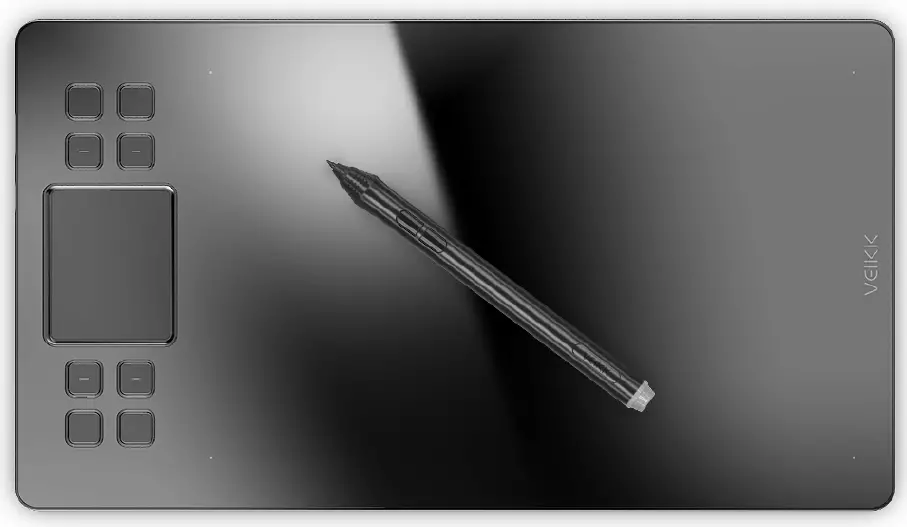
<p><img decoding="async" src="https://usemanuals.com/wp-content/uploads/2023/03/VEIKK-A50-Graphic-Pen-Tablet-product.webp" /></p>
<h4>Safety Precautions</h4>
<p><strong>WARNING</strong></p>
<ul>
<li>Do not use this product in a control system that requires a high degree of safety and reliability.</li>
<li>In such a system, this product could negatively affect other electronic devices and could malfunction due to the effect of those devices.</li>
<li>Turn the power off in areas where use of electronic devices is prohibited.</li>
<li>On board an aircraft or in any other location where use of electronic  devices is prohibited, this product, if left on, could negatively affect  other electronic devices.</li>
<li>Do not use this product in a location frequented by little children.</li>
<li>Make sure that a child does not put the pen or pen tip in his/her  mouth.</li>
<li>The pen tip or side switch cover could be detached and be accidentally swallowed.</li>
</ul>
<p><strong>CAUTION</strong></p>
<ul>
<li>Do not place this product on an unstable surface.</li>
<li>Placing this product or an unstable or tilted surface or in a location exposed to excessive vibrations could cause it to fall off resulting  in injury.</li>
<li>Do not place heavy objects on top of this product.</li>
<li>Do not step or place heavy objects on this product as this could damage it.</li>
</ul>
<p><strong>WARNING</strong></p>
<p><strong>Avoid high or low-temperature locations for storage.</strong><br />
Do not store this product in a location where the temperature drops below 5℃ or goes above 40℃ and in locations subject to excessive temperature fluctuations. Failure to heed this caution could result in damage to the product and its components.</p>
<p><strong>Do not disassemble.</strong><br />
Do not disassemble or modify this product as this could expose you to heat, fire, electric shock and injury. Disassembling the product will also void your warranty.</p>
<p><strong>Do not use alcohol for cleaning.</strong><br />
Never use alcohol, thinner, benzene or other mineral solvents as they could discolor or cause deterioration to the product.</p>
<p><strong>Do not expose to water.</strong><br />
Do not place glasses or vases filled with water or other liquids near this product. Exposure to water or liquid could damage the product.</p>
<p><strong>CAUTION</strong></p>
<p><strong>Do not place metal objects on this product during operation.</strong><br />
Placing metal objects on this product during operation could cause it to malfunction or damage it.<br />
<strong>Do not strike the pen against hard objects.</strong><br />
Striking the pen against hard object could damage it.<br />
<strong>Do not handle the pen with soiled hands.</strong><br />
The pen is a high-precision instrument. Handling it with soiled hands or using it in locations exposed to dust or strong odors may cause the entry of foreign matter which will result in breakdown.</p>
<p><strong>Limitation of Liability</strong></p>
<p>VEIKK shall in no event be liable for damages resulting from fires or earthquakes, those caused by third parties and those arising from  user misuse, abuse or neglect.<br />
VEIKK shall in no event be liable for incidental damages-including but not limited to loss of business income, interruption of business  activities, corruption or loss of data-that arise out of the use or failure  to use this product.<br />
VEIKK shall in no event be liable for damages resulting from uses not documented in this manual.<br />
VEIKK shall in no event be liable for damages from malfunction caused by connection to other devices or use of third party software.</p>
<h4>Product Overview</h4>
<p><img decoding="async" src="https://usemanuals.com/wp-content/uploads/2023/03/VEIKK-A50-Graphic-Pen-Tablet-fig1.webp" /></p>
<ol>
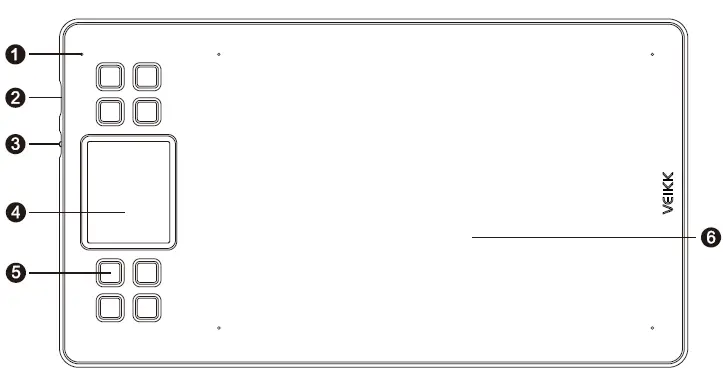
<li>LED Indicator</li>
<li>USB Port</li>
<li>Switch for Gesture Touch Area</li>
<li>Gesture Touch Area</li>
<li>Shortcut Keys</li>
<li>Active Area</li>
</ol>
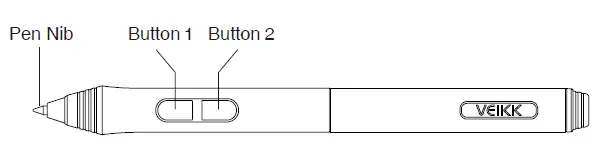
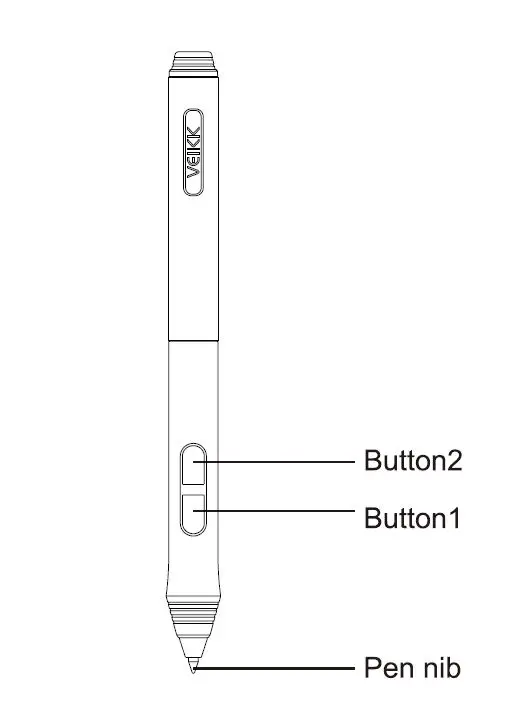
<p><strong>Pen<img decoding="async" src="https://usemanuals.com/wp-content/uploads/2023/03/VEIKK-A50-Graphic-Pen-Tablet-fig2.webp" /></strong>Note: The passive pen requires neither battery nor charging.</p>
<h4><strong>Packing List</strong></h4>
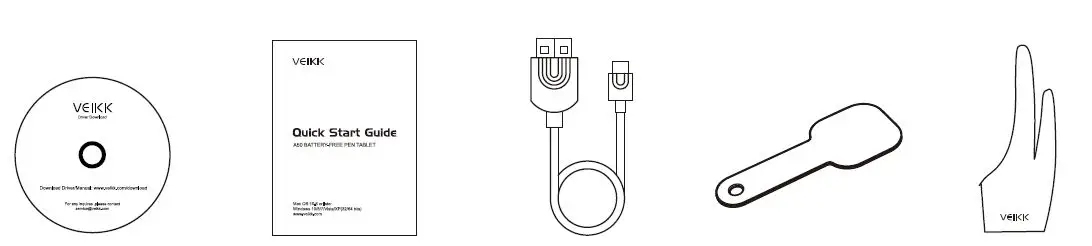
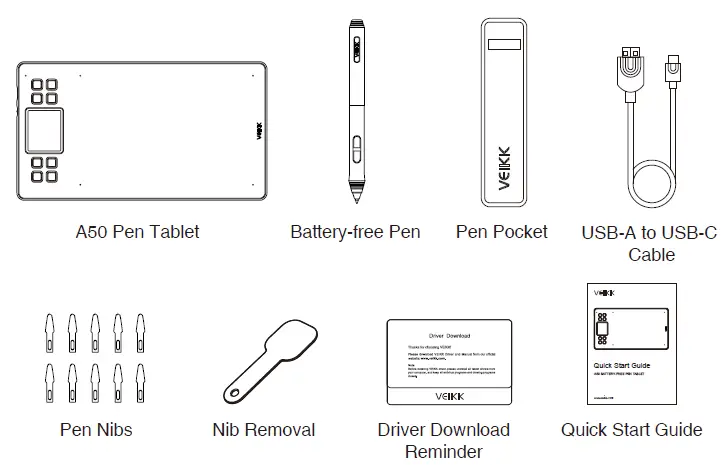
<p><img decoding="async" src="https://usemanuals.com/wp-content/uploads/2023/03/VEIKK-A50-Graphic-Pen-Tablet-fig3.webp" /></p>
<h4>Installing Driver</h4>
<p><strong>OS Support</strong><br />
Windows 11/10/8/7(32/64 bits) / Mac OS 10.12 or later Linux OS / Chrome 88 or later<br />
Android 6.0 or later (Except Samsung Android device)</p>
<p><strong>Installation</strong><br />
For Mac OS, Windows and Linux OS computer:</p>
<ol>
<li> Before installing the driver, please uninstall all tablet drivers from your computer and keep all antivirus programs and the drawing software closed.</li>
<li> Connect the tablet to your computer before installation (Please refer to 4.Tablet Connection).</li>
<li> Please download the driver from <a href="http://www.veikk.com." target="_blank" rel="noopener">www.veikk.com.</a></li>
<li> Click Set up.exe and follow onscreen instructions.</li>
<li> Restart your computer after installation.<br />
For Chrome OS computer and the Android mobile phone:<br />
No need to install VEIKK driver on the Chrome OS computer and the Android mobile phone.</li>
</ol>
<h4>Tablet Connection</h4>
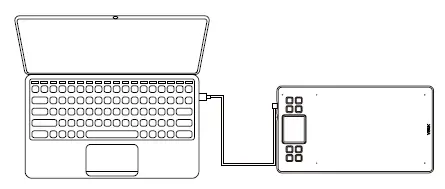
<p>For Mac OS, Windows and Linux OS computer: <img decoding="async" src="https://usemanuals.com/wp-content/uploads/2023/03/VEIKK-A50-Graphic-Pen-Tablet-fig4.webp" /></p>
<ol>
<li> Connect the tablet to your computer with USB cable.</li>
<li> Open the driver interface. If the product model shows at the upper left corner, this indicates that the tablet has been connected successfully. You can start using your tablet.</li>
</ol>
<p><strong>For Chrome OS computer:</strong><br />
Connect the tablet to your Chrome OS computer with the USB cable, then you can start using your tablet.<br />
Note: The shortcut keys of the pen and tablet can’t work on the Chrome OS computer.</p>
<p><strong>For Android mobile phone: </strong></p>
<ol>
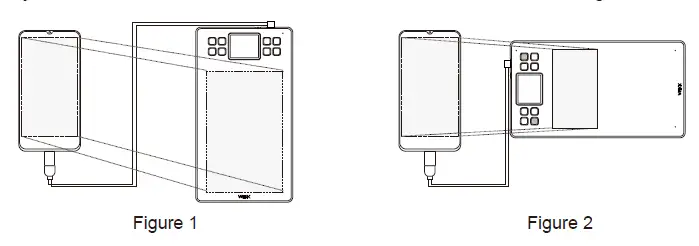
<li> Please connect the tablet to your mobile phone with the OTG adapter.</li>
<li> Choose the most comfortable way you like to use the tablet.
<ol>
<li> By default, the working area of the tablet is 10*6 inch, but you need to rotate the tablet as shown in Figure 1.</li>
<li> Press K1 and K8 at the same time, the working area of the tablet is 3*6 inch, but you can use the tablet in the normal direction as shown in Figure 2. <img decoding="async" src="https://usemanuals.com/wp-content/uploads/2023/03/VEIKK-A50-Graphic-Pen-Tablet-fig5.webp" /></li>
</ol>
</li>
</ol>
<p><strong>Note1:</strong> Works in mobile phone vertical screen mode only.<br />
<strong>Note2:</strong> For some mobile phones, you need to enable the OTG function manually in the phone’s settings.<br />
<strong>Note3:</strong> The shortcut keys of the pen and tablet can’t work on Android mobile phone.</p>
<h4>Replacing the Nibs</h4>
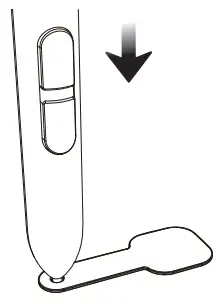
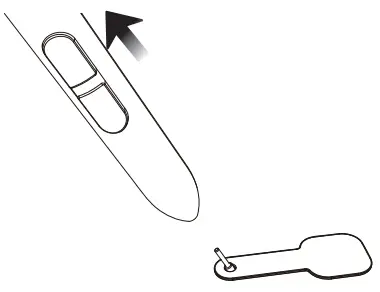
<p>When the pen nib is heavily worn, please replace the nib with the removal.</p>
<h4>Specifications</h4>
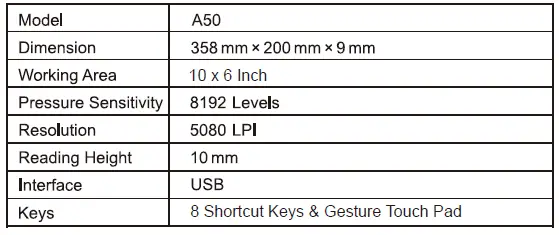
<p><img decoding="async" src="https://usemanuals.com/wp-content/uploads/2023/03/VEIKK-A50-Graphic-Pen-Tablet-fig26.webp" /></p>
<h4>Driver Settings</h4>
<p><strong>Windows:</strong></p>
<p><strong> Pen: </strong></p>
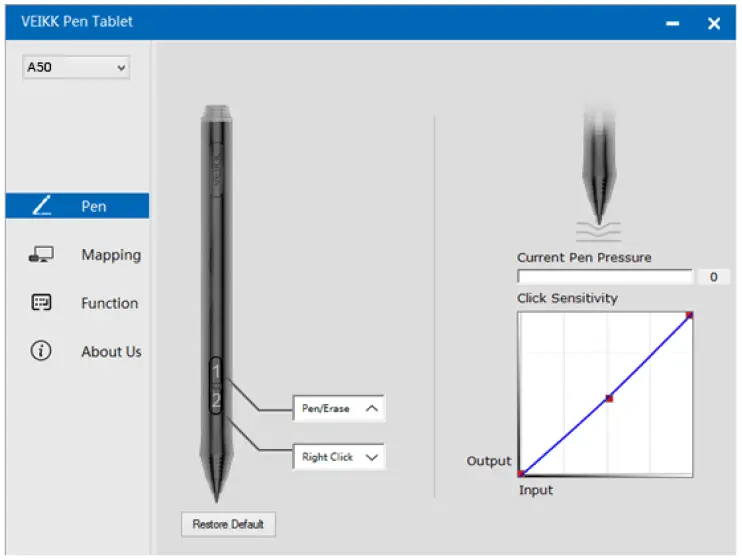
<p><img decoding="async" src="https://usemanuals.com/wp-content/uploads/2023/03/VEIKK-A50-Graphic-Pen-Tablet-fig7.webp" /><img decoding="async" src="https://usemanuals.com/wp-content/uploads/2023/03/VEIKK-A50-Graphic-Pen-Tablet-fig8.webp" /></p>
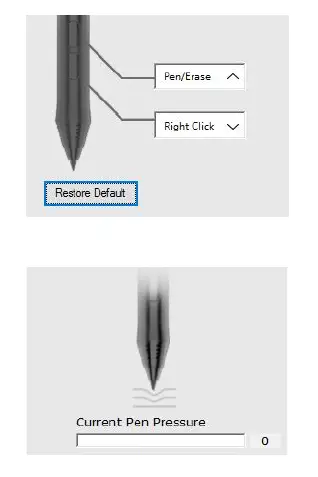
<p><strong>Pen Function Settings</strong><br />
You may customize the functions of pen buttons. Use the “Pen” option to program custom keystrokes.<br />
<strong>Current Pen Pressure</strong><br />
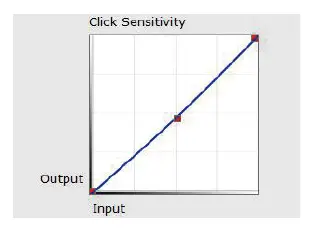
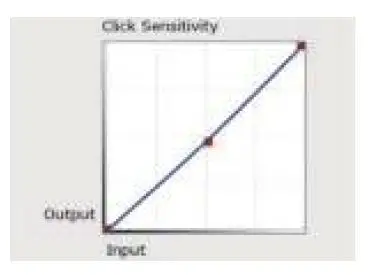
Current Pen Pressure shows the current pressure level being exerted on your tablet and can be used to test pen pressure.<img decoding="async" src="https://usemanuals.com/wp-content/uploads/2023/03/VEIKK-A50-Graphic-Pen-Tablet-fig9.webp" /><strong> Click Sensitivity</strong><br />
You can adjust pen pressure to “Output” or “Press” sensitivity on here.</p>
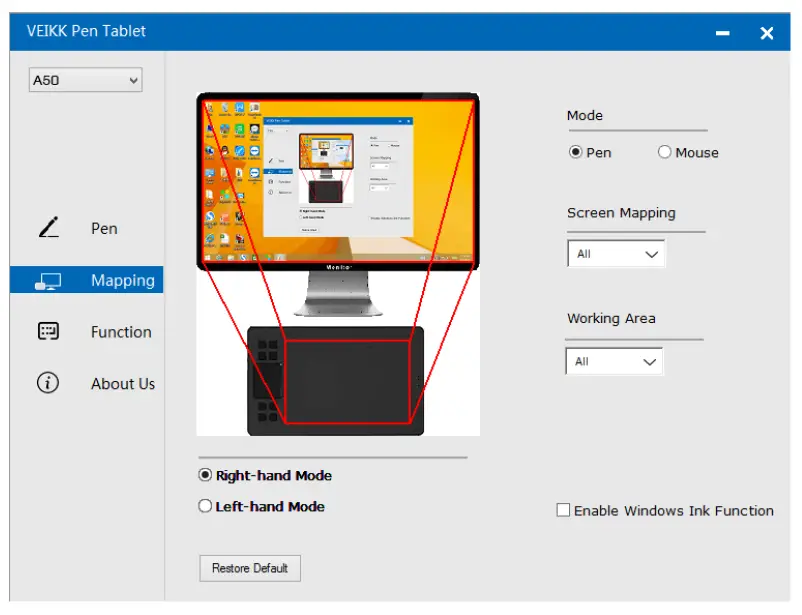
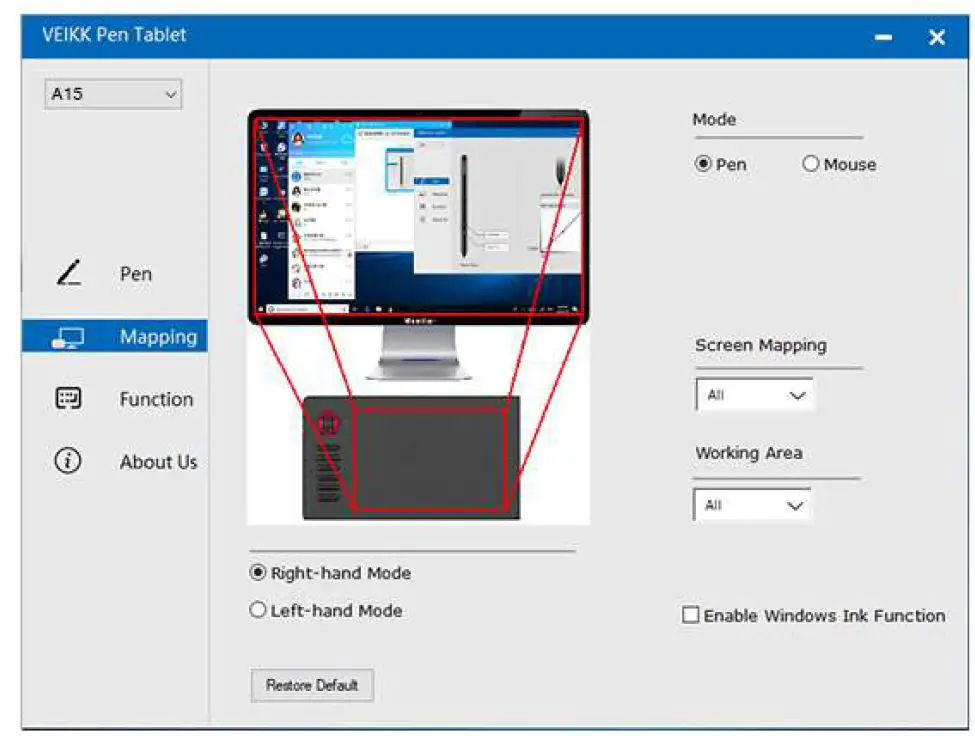
<p><strong>Mapping</strong><br />
Define the tablet area that will be mapped to the screen area. <img decoding="async" src="https://usemanuals.com/wp-content/uploads/2023/03/VEIKK-A50-Graphic-Pen-Tablet-fig10.webp" /></p>
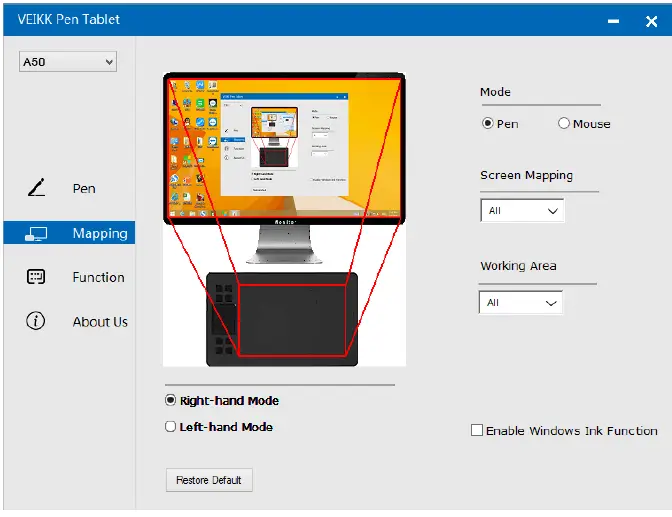
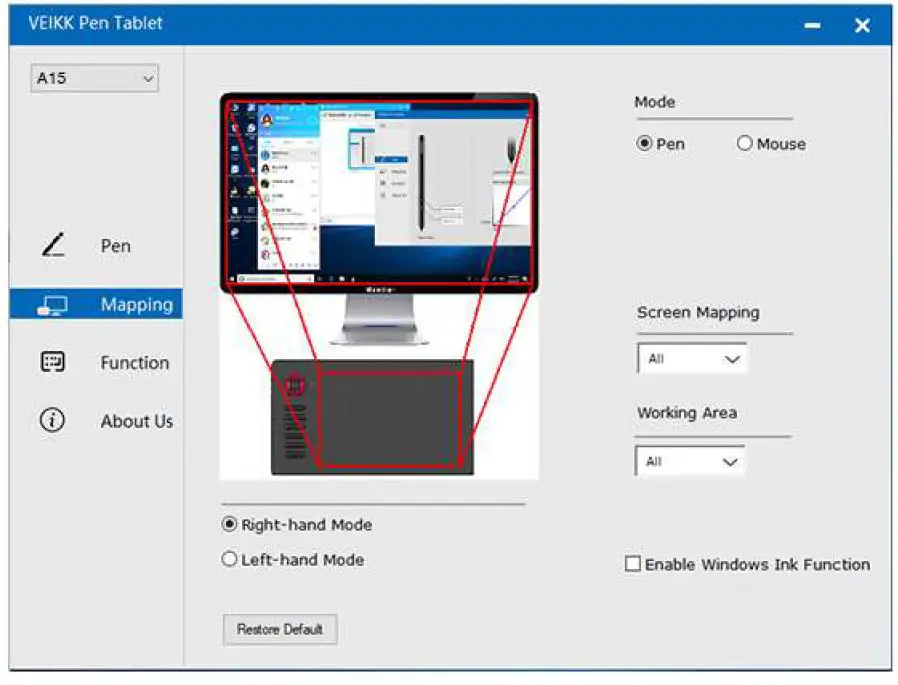
<p><strong>Screen Mapping</strong><br />
All Area: the entire active area of the tablet. This is the default setting.</p>
<p><img decoding="async" src="https://usemanuals.com/wp-content/uploads/2023/03/VEIKK-A50-Graphic-Pen-Tablet-fig11.webp" /></p>
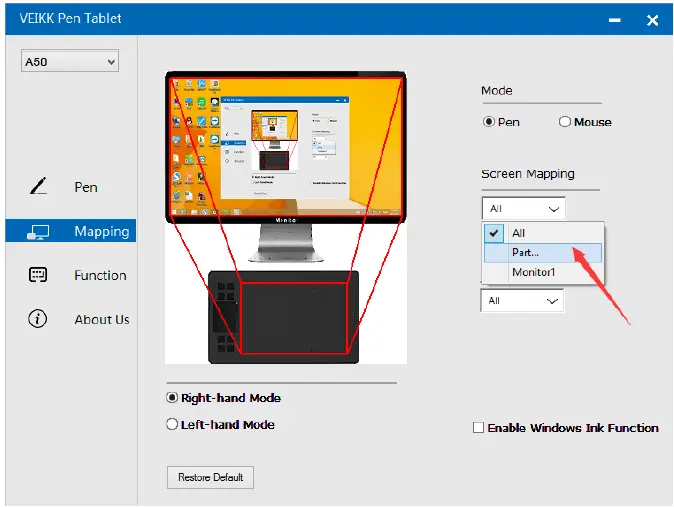
<p>Part Area: Click Part</p>
<p><img decoding="async" src="https://usemanuals.com/wp-content/uploads/2023/03/VEIKK-A50-Graphic-Pen-Tablet-fig12.webp" /></p>
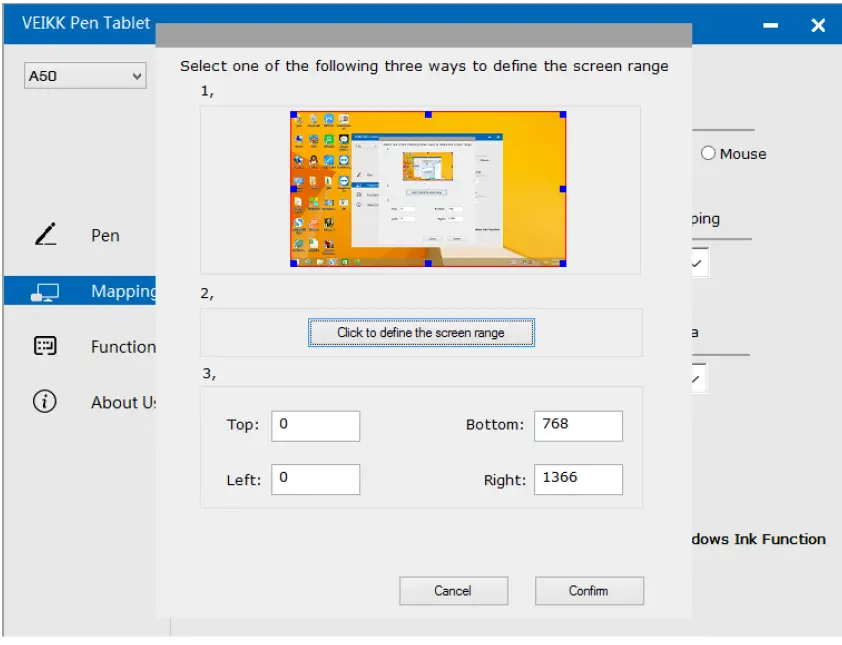
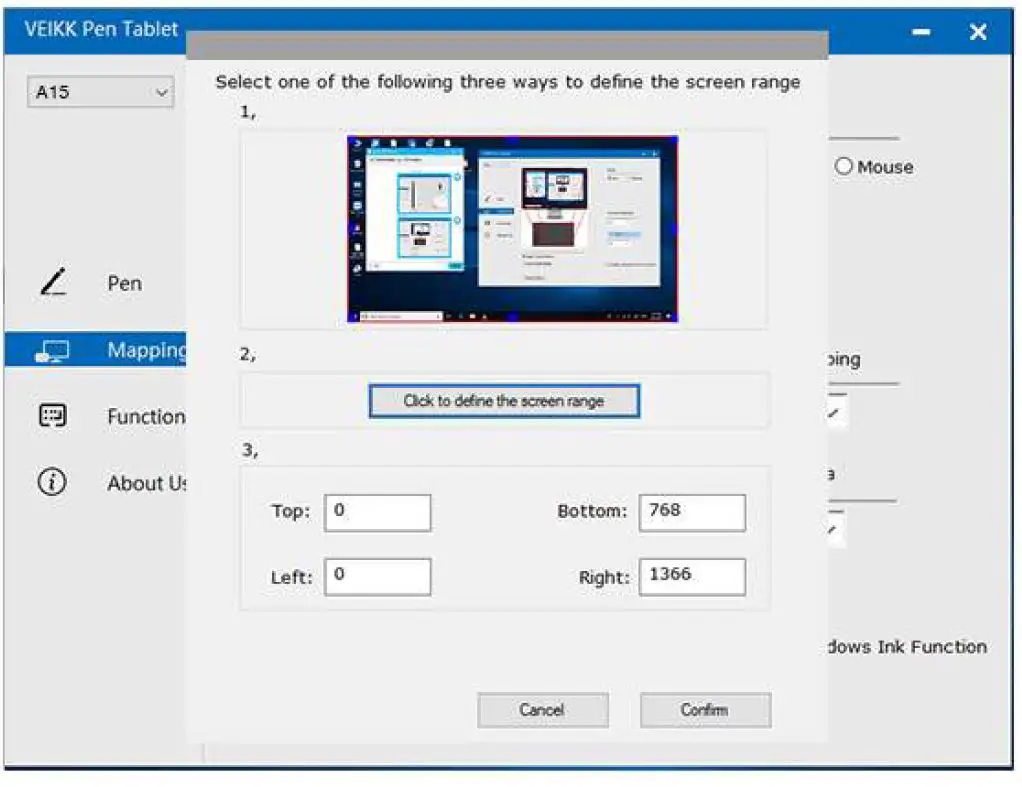
<p>Then go to the next page, select one of the following three ways to define the screen range. <img decoding="async" src="https://usemanuals.com/wp-content/uploads/2023/03/VEIKK-A50-Graphic-Pen-Tablet-fig13.webp" /></p>
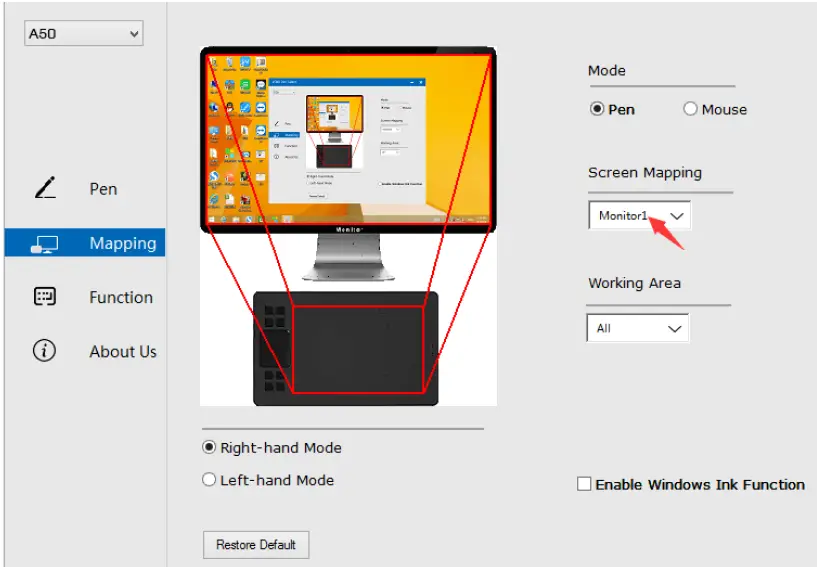
<p>Monitor1: If more than one monitor is in use and you are in extended mode, you need to choose the related monitor on the driver interface which you are going to map to. If your monitors are in mirror mode(All monitors display the same content), the tablet maps to the entire space on each monitor and the screen cursor is displayed on each monitor simultaneously. <img decoding="async" src="https://usemanuals.com/wp-content/uploads/2023/03/VEIKK-A50-Graphic-Pen-Tablet-fig14.webp" /></p>
<p><strong>Working Area</strong><br />
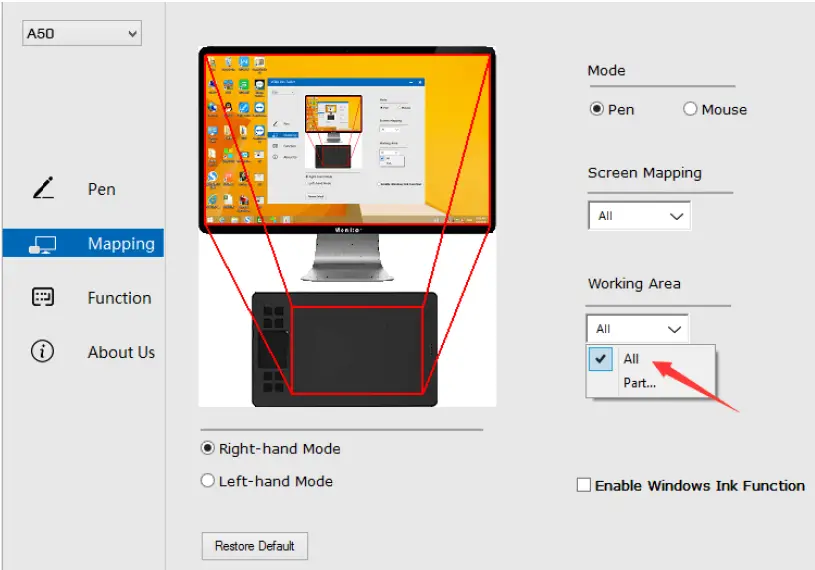
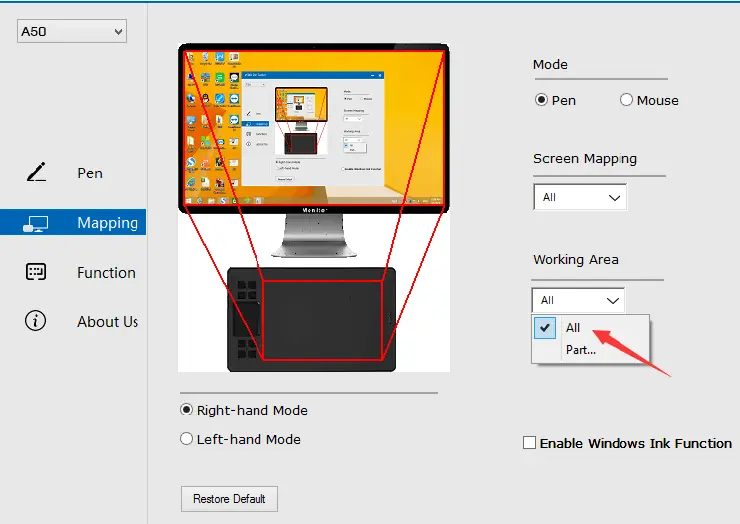
All Area:the entire active area of the tablet.This is the default setting.</p>
<p><img decoding="async" src="https://usemanuals.com/wp-content/uploads/2023/03/VEIKK-A50-Graphic-Pen-Tablet-fig15.webp" /></p>
<p>Part Area:Click Part <img decoding="async" src="https://usemanuals.com/wp-content/uploads/2023/03/VEIKK-A50-Graphic-Pen-Tablet-fig16.webp" /></p>
<p>Then go to the next page, select one of the following three ways to define the pen tablet partial. <img decoding="async" src="https://usemanuals.com/wp-content/uploads/2023/03/VEIKK-A50-Graphic-Pen-Tablet-fig17.webp" /></p>
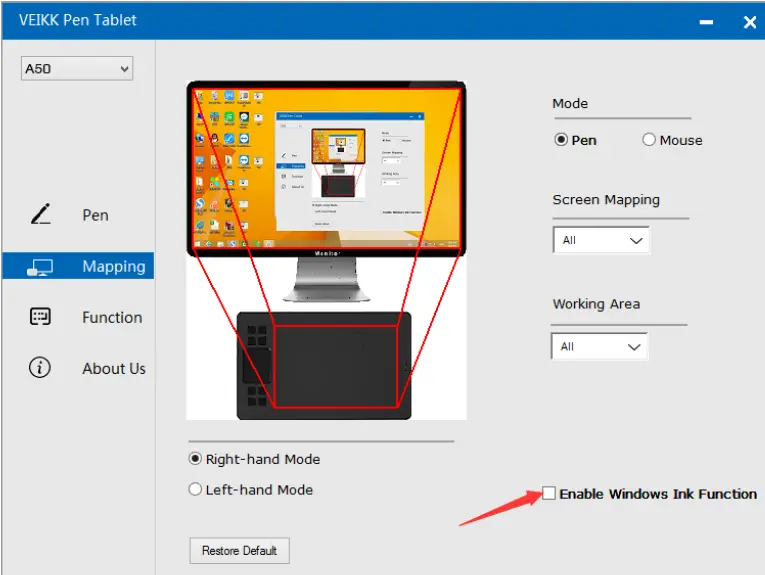
<p><strong>Enable Windows Ink Function</strong><br />
Microsoft Windows provides extensive support for pen input.Pen features are supported in such as Microsoft Office,Adobe Photoshop CC,AI and so on. <img decoding="async" src="https://usemanuals.com/wp-content/uploads/2023/03/VEIKK-A50-Graphic-Pen-Tablet-fig18.webp" /></p>
<p><strong>Function</strong><br />
Customize the Keys and Smart Gesture Touch<br />
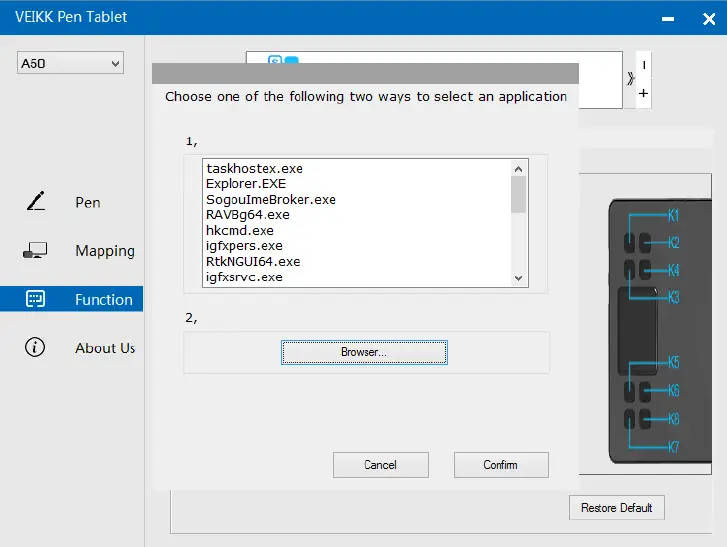
<strong> Application List：</strong>You can add or remove software by “+”or “-” <img decoding="async" src="https://usemanuals.com/wp-content/uploads/2023/03/VEIKK-A50-Graphic-Pen-Tablet-fig19.webp" /></p>
<p>“+”: Click “+” to add softwares, you have two ways to select an application.</p>
<ol>
<li>Choose from the dropdown</li>
<li>Choose from the browser</li>
</ol>
<p><img decoding="async" src="https://usemanuals.com/wp-content/uploads/2023/03/VEIKK-A50-Graphic-Pen-Tablet-fig20.webp" /></p>
<p>“-”: Click “-” to remove the softwares you added before.<br />
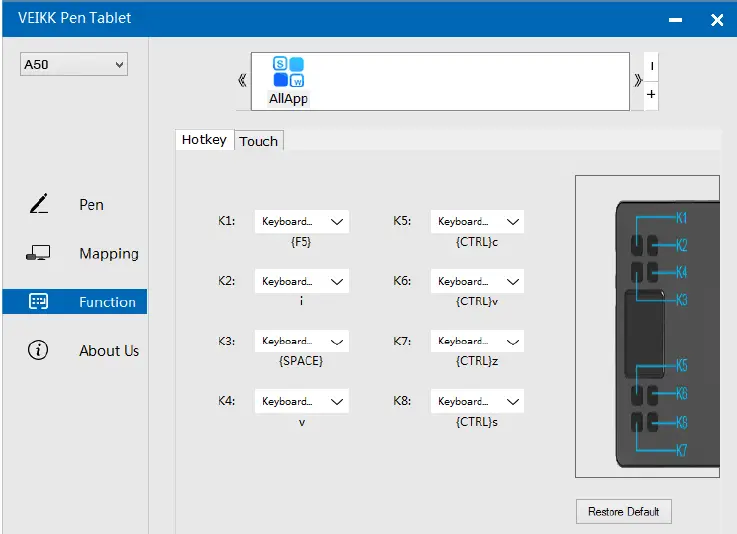
<strong>Hotkey</strong><br />
Redefine Hotkey: Click on the title of the button. A dropdown menu will appear with a list of tool options. Choose the one you want to use.<img decoding="async" src="https://usemanuals.com/wp-content/uploads/2023/03/VEIKK-A50-Graphic-Pen-Tablet-fig21.webp" /></p>
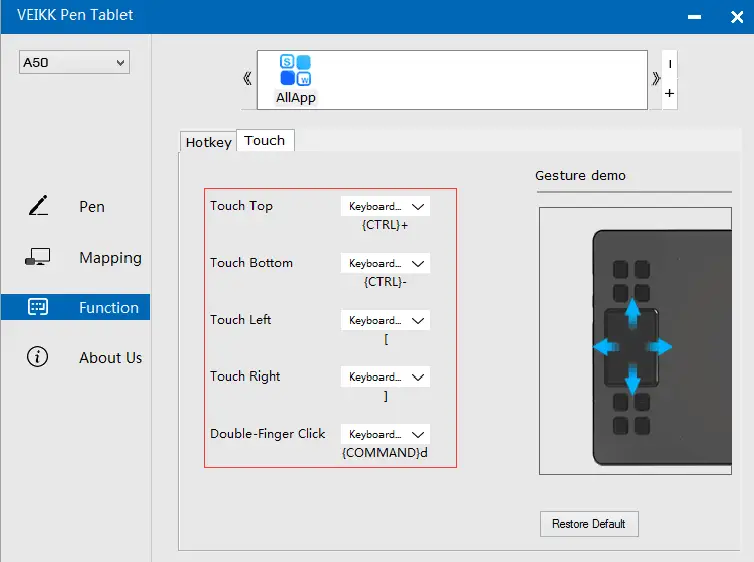
<p><strong>Touch</strong><br />
Click on the title of the button. A dropdown menu will appear with a list of tool options. Choose the one you want to use.</p>
<p><img decoding="async" src="https://usemanuals.com/wp-content/uploads/2023/03/VEIKK-A50-Graphic-Pen-Tablet-fig22.webp" /></p>
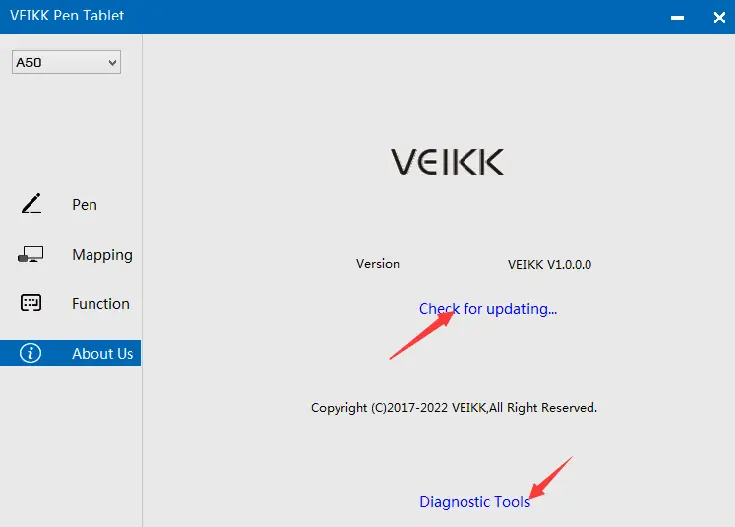
<p><strong>About Us <img decoding="async" src="https://usemanuals.com/wp-content/uploads/2023/03/VEIKK-A50-Graphic-Pen-Tablet-fig23.webp" /></strong></p>
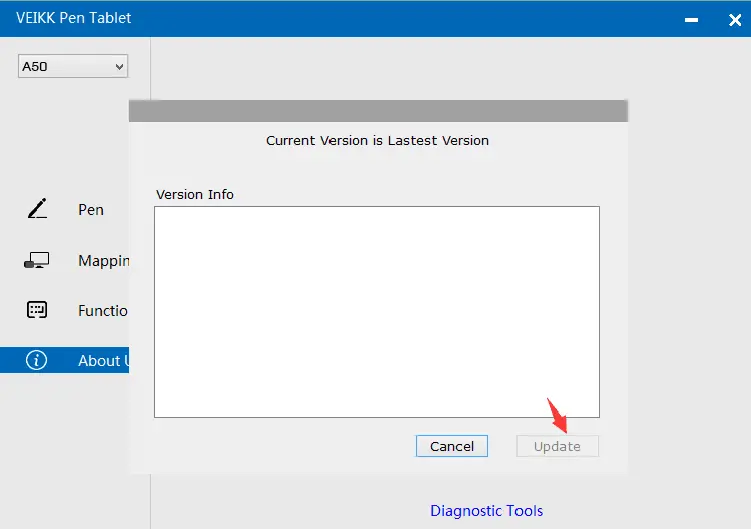
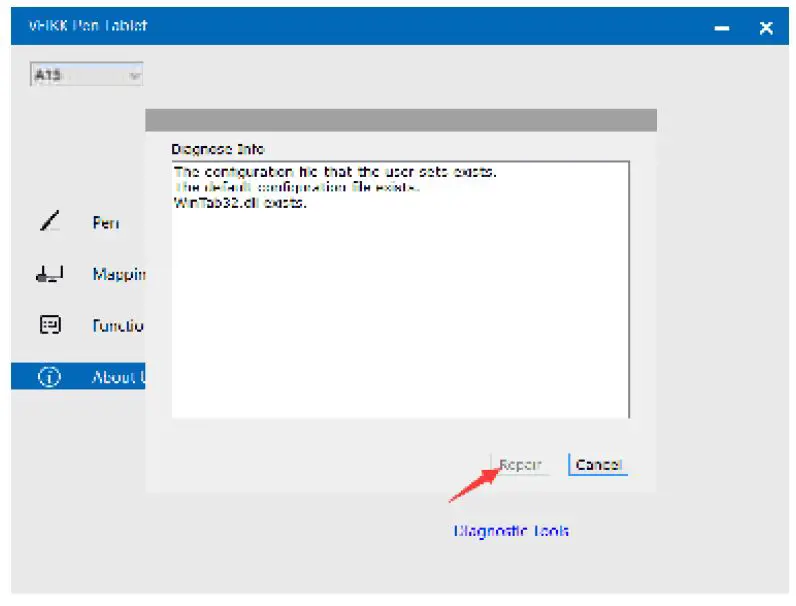
<p>Check for updating:If you want to install the newest driver,click”Check for updating”, if there is no response,that means the driver you installed is the newest;if you find newest driver in the list,you just need to update. <img decoding="async" src="https://usemanuals.com/wp-content/uploads/2023/03/VEIKK-A50-Graphic-Pen-Tablet-fig24.webp" /></p>
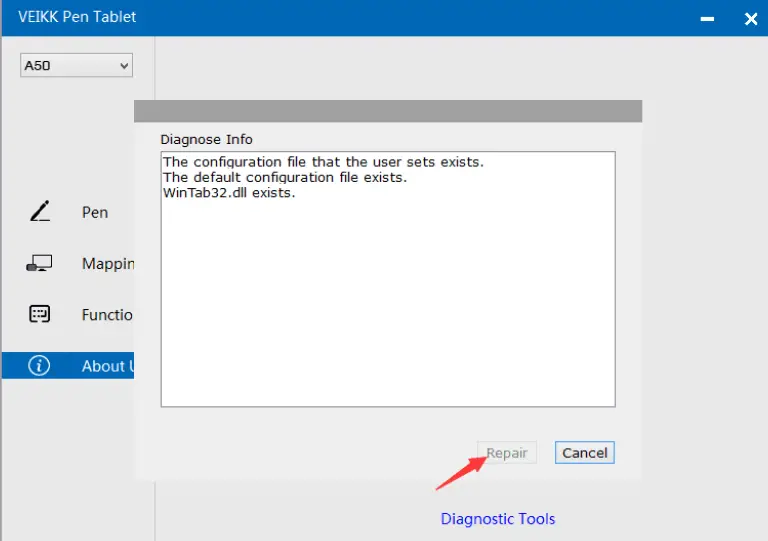
<p>Diagnostic Tools:Check for missing key files</p>
<p><img decoding="async" src="https://usemanuals.com/wp-content/uploads/2023/03/VEIKK-A50-Graphic-Pen-Tablet-fig25.webp" /></p>
<p><strong>Mac:</strong><br />
Note:Driver settings in Mac system are the same in Windows system. Users who use Mac system can take reference to Windows system.</p>
<p><strong>Any question, please contact us  </strong></p>
<p>Beijing Veikk E-commerce Co., Ltd.<br />
Email : <a href="service@veikk.com">service@veikk.com</a><br />
Skype : veikk service<br />
Website : <a href="http://www.veikk.com" target="_blank" rel="noopener">www.veikk.com</a></p>
<form id="commentform" class="comment-form" action="https://manuals.plus/wp-comments-post.php" method="post" novalidate="">
<p class="form-submit"><input id="comment_post_ID" name="comment_post_ID" type="hidden" value="3495986" /><br />
<input id="comment_parent" name="comment_parent" type="hidden" value="0" /></p>
</form>
]]></content:encoded>


			</item>
		<item>
		<title>VEIKK S640 Battery-Free Pen Tablet manual</title>
		<link>https://usemanuals.com/veikk/s640-battery-tablet/</link>
		
		<dc:creator><![CDATA[ItsManual]]></dc:creator>
		<pubDate>Thu, 27 Apr 2023 04:34:18 +0000</pubDate>
				<category><![CDATA[VEIKK]]></category>
		<guid isPermaLink="false">https://usemanuals.com/?p=91172</guid>

					<description><![CDATA[&#160; VEIKK S640 Battery-Free Pen Tablet User Guide PRODUCT OVERVIEW LED Indicator Upper Marking Line Active Area Lower Marking Line Tips: During the normal working state, when the pressure pen is suspended in the active area of the S640 tablet, the indicator light flashes; when the pen touches the tablet, the indicator light is always on. PEN NOTE: The stylus pen is battery-free, no need to charge or battery. PACKING LIST S640 Pen Tablet Battery-free Pen Pen Pocket Pen Nibs Nib Removal Driver Download Reminder Quick Start Guide Installing Driver OS Support Windows 10/8/7(32/64 bits) Mac OS 10.12 or later Android 6.0 or later (Except Samsung Android device) Installation For a PC/laptop: Before installing driver, please uninstall all tablet drivers from your computer and keep all antivirus program and drawing software closed Connect the tablet to your computer before installation(Please refer to 4.Tablet Connection) Please download updated driver from www.veikk.com Click Set up.exe and follow onscreen instructions After installation then restart your computer. For an Android mobile phone: No need to install VEIKK driver on your phone. Tablet Connection For a PC/laptop: Connect the tablet to your computer with USB cable. Open the driver interface, if the upper left corner shows the product model, indicating that the tablet has been connected successfully, you can start using your tablet now. For an Android mobile phone: Please connect the tablet to your phone with the OTG adapter. Rotate the tablet as shown in Figure1,then you can start using your tablet. Note1: Works in mobile phone vertical screen mode only. Note2: For some mobile phones, you need to enable the OTG function manually in the phone’s Settings. Note3: The shortcut keys on the pen can’t work on Android mobile phone Replacing the nibs When the pen nib is heavily worn,please replace the nib with the nib removal. Insert the pen nib into the pen holder hole Tilt the pen so that the pen holder can fully catch the pen nib Pull out the nib Insert a new nib into the pen and push it straightly until it stops Specifications Model S640 Dimension 218mm x 130mm x 9mm Working Area 6 x 4 inch Pressure Sensitivity 8192 levels Resolution 5080 LPI Reading Height 10 mm Interface USB Any questions, please contact us Beijing Veikk E-commerce Co., Ltd. Email : service@veikk.com Skype : veikk service Website : www.veikk.com [...]<p><a class="btn btn-secondary understrap-read-more-link" href="https://usemanuals.com/veikk/s640-battery-tablet/">Read More...</a></p>]]></description>
										<content:encoded><![CDATA[<p>&nbsp;</p>
<p><strong>VEIKK S640 Battery-Free Pen Tablet User Guide<br />
<img decoding="async" src="https://usemanuals.com/wp-content/uploads/2023/04/Screenshot_1-846-550x397-1.webp" /><br />
</strong></p>
<h4>PRODUCT OVERVIEW</h4>
<p><img decoding="async" src="https://usemanuals.com/wp-content/uploads/2023/04/Screenshot_3-789-550x283-1.webp" /></p>
<ol>
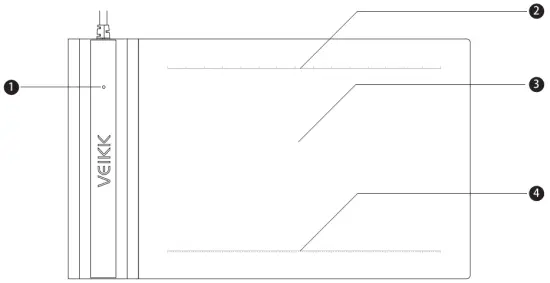
<li>LED Indicator</li>
<li>Upper Marking Line</li>
<li>Active Area</li>
<li>Lower Marking Line</li>
</ol>
<p><strong>Tips:</strong> During the normal working state, when the pressure pen is suspended in the active area of the S640 tablet, the indicator light flashes; when the pen touches the tablet, the indicator light is always on.</p>
<h5>PEN</h5>
<p><img decoding="async" src="https://usemanuals.com/wp-content/uploads/2023/04/Screenshot_4-566-550x101-1.webp" /></p>
<p><strong>NOTE:</strong> The stylus pen is battery-free, no need to charge or battery.</p>
<h4>PACKING LIST</h4>
<ul>
<li>S640 Pen Tablet<br />
<img decoding="async" src="https://usemanuals.com/wp-content/uploads/2023/04/Screenshot_5-700.webp" /></li>
<li>Battery-free Pen<br />
<img decoding="async" class="alignnone size-full wp-image-2446339" src="https://manuals.plus/wp-content/uploads/2022/03/Screenshot_6-639.png" alt="PACKING LIST" width="40" height="335" /></li>
<li>Pen Pocket<br />
<img decoding="async" src="https://usemanuals.com/wp-content/uploads/2023/04/Screenshot_7-581.webp" /></li>
<li>Pen Nibs<br />
<img decoding="async" src="https://usemanuals.com/wp-content/uploads/2023/04/21-64.webp" /></li>
<li>Nib Removal<br />
<img decoding="async" src="https://usemanuals.com/wp-content/uploads/2023/04/12-171.webp" /></li>
<li>Driver Download Reminder<br />
<img decoding="async" src="https://usemanuals.com/wp-content/uploads/2023/04/31-18.webp" /></li>
<li>Quick Start Guide<br />
<img decoding="async" src="https://usemanuals.com/wp-content/uploads/2023/04/Screenshot_11-442.webp" /></li>
</ul>
<h4>Installing Driver</h4>
<ol>
<li>OS Support Windows 10/8/7(32/64 bits) Mac OS 10.12 or later Android 6.0 or later (Except Samsung Android device)</li>
<li>Installation For a PC/laptop:
<ol>
<li>Before installing driver, please uninstall all tablet drivers from your computer and keep all antivirus program and drawing software closed</li>
<li>Connect the tablet to your computer before installation(Please refer to 4.Tablet Connection)</li>
<li>Please download updated driver from <a href="http://www.veikk.com" target="_blank" rel="noopener">www.veikk.com</a></li>
<li>Click Set up.exe and follow onscreen instructions</li>
<li>After installation then restart your computer. For an Android mobile phone:<br />
No need to install VEIKK driver on your phone.</li>
</ol>
</li>
</ol>
<h4>Tablet Connection</h4>
<p>For a PC/laptop:</p>
<ol>
<li>Connect the tablet to your computer with USB cable.</li>
<li>Open the driver interface, if the upper left corner shows the product model, indicating that the tablet has been connected successfully, you can start using your tablet now.<br />
<img decoding="async" src="https://usemanuals.com/wp-content/uploads/2023/04/Screenshot_12-423.webp" /></li>
</ol>
<p>For an Android mobile phone:</p>
<ol>
<li>Please connect the tablet to your phone with the OTG adapter.</li>
<li>Rotate the tablet as shown in Figure1,then you can start using your tablet.<br />
<img decoding="async" src="https://usemanuals.com/wp-content/uploads/2023/04/Screenshot_13-395-550x355-1.webp" /></li>
</ol>
<p><strong>Note1:</strong> Works in mobile phone vertical screen mode only.<br />
<strong>Note2:</strong> For some mobile phones, you need to enable the OTG function manually in the phone’s Settings.<br />
<strong>Note3:</strong> The shortcut keys on the pen can’t work on Android mobile phone</p>
<h4>Replacing the nibs</h4>
<p>When the pen nib is heavily worn,please replace the nib with the nib removal.</p>
<ol>
<li>Insert the pen nib into the pen holder hole<br />
<img decoding="async" src="https://usemanuals.com/wp-content/uploads/2023/04/Screenshot_14-366.webp" /></li>
<li>Tilt the pen so that the pen holder can fully catch the pen nib<br />
<img decoding="async" src="https://usemanuals.com/wp-content/uploads/2023/04/Screenshot_15-328.webp" /></li>
<li>Pull out the nib<br />
<img decoding="async" src="https://usemanuals.com/wp-content/uploads/2023/04/Screenshot_16-318.webp" /></li>
<li>Insert a new nib into the pen and push it straightly until it stops<br />
<img decoding="async" src="https://usemanuals.com/wp-content/uploads/2023/04/Screenshot_17-283.webp" /></li>
</ol>
<h4>Specifications</h4>
<table width="542">
<tbody>
<tr>
<td>Model</td>
<td>S640</td>
</tr>
<tr>
<td>Dimension</td>
<td>218mm x 130mm x 9mm</td>
</tr>
<tr>
<td>Working Area</td>
<td>6 x 4 inch</td>
</tr>
<tr>
<td>Pressure Sensitivity</td>
<td>8192 levels</td>
</tr>
<tr>
<td>Resolution</td>
<td>5080 LPI</td>
</tr>
<tr>
<td>Reading Height</td>
<td>10 mm</td>
</tr>
<tr>
<td>Interface</td>
<td>USB</td>
</tr>
</tbody>
</table>
<h4>Any questions, please contact us</h4>
<p>Beijing Veikk E-commerce Co., Ltd.<br />
Email : <a href="mailto:service@veikk.com">service@veikk.com</a><br />
Skype : veikk service<br />
Website : <a href="http://www.veikk.com" target="_blank" rel="noopener">www.veikk.com</a></p>
<p><img decoding="async" src="https://usemanuals.com/wp-content/uploads/2023/04/Screenshot_2-817.webp" /></p>
<form id="commentform" class="comment-form" action="https://manuals.plus/wp-comments-post.php" method="post" novalidate="">
<p class="form-submit"><input id="comment_post_ID" name="comment_post_ID" type="hidden" value="2445363" /><br />
<input id="comment_parent" name="comment_parent" type="hidden" value="0" /></p>
</form>
]]></content:encoded>


			</item>
		<item>
		<title>VEIKK A15 Graphic Pen Tablet Manual</title>
		<link>https://usemanuals.com/veikk/a15-pen-tablet/</link>
		
		<dc:creator><![CDATA[ItsManual]]></dc:creator>
		<pubDate>Mon, 08 May 2023 06:17:29 +0000</pubDate>
				<category><![CDATA[VEIKK]]></category>
		<guid isPermaLink="false">https://usemanuals.com/?p=100206</guid>

					<description><![CDATA[&#160; VEIKK A15 Graphic Pen Tablet Do not use this product in a control system that requires a high degree of safety and reliability. In such a system, this product could negatively affect other electronic devices and could malfunction due to the effect on those devices. Turn the power off in areas where the use of electronic devices is prohibited. Onboard an aircraft or in any other location where the use of electronic devices is prohibited, this product, if left on, could negatively affect other electronic devices. Do not use this product in a location frequented by little children. Make sure that a child does not put the pen or pen tip in his/her mouth. The pen tip or side switch cover could be detached and be accidentally swallowed. Do not place this product on an unstable surface. Placing this product on an unstable or tilted surface or in a location exposed to excessive vibrations could cause it to fall off resulting in injury. Do not place heavy objects on top of this product. Do not step or place heavy objects on this product as this could damage it. Avoid high or low-temperature locations for storage. Do not store this product in a location where the temperature drops below 5℃ or goes above 40℃ and in locations subject to excessive temperature fluctuations. Failure to heed this caution could result in damage to the product and its components. Do not disassemble. Do not disassemble or modify this product as this could expose you to heat, fire, electric shock, and injury. Disassembling the product will also void your warranty. Do not use alcohol for cleaning. Never use alcohol, thinner, benzene, or other mineral solvents as they could discolor or cause deterioration to the product. Do not expose to water. Do not place glasses or vases filled with water or other liquids near this product. Exposure to water or liquid could damage the product. Do not place metal objects on this product during operation. Placing metal objects on this product during operation could cause it to malfunction or damage it. Do not strike the pen against hard objects. Striking the pen against a hard object could damage it. Do not handle the pen with soiled hands. The pen is a high-precision instrument. Handling it with soiled hands or using it in locations exposed to dust or strong odors may cause the entry of foreign matter which will result in a breakdown. Limitation of Liability VEIKK shall in no event be liable for damages resulting from fires or earthquakes, those caused by third parties, and those arising from user misuse, abuse, or neglect. VEIKK shall in no event be liable for incidental damages-including but not limited to loss of business income, interruption of business activities, corruption, or loss of data-that arising out of the use or failure to use this product. VEIKK shall in no event be liable for damages resulting from uses not documented in this manual. VEIKK shall in no event be liable for damages from malfunction caused by connection to other devices or use of third-party software. Product Overview Product Brand TYPE-C Port LED Indicators Hotkeys Active Area During the normal working state, when tablet connected with the computer, power indicator flashes, then always on; when pen suspended in the reading height, pen indicator flashes, then always on when pen touches the active area; when hotkeys being pressed, key indicator always on. Pen(P002) Note: The stylus pen is battery-free, no need to charge or battery. Packing List A15 Pen Tablet Battery-free Pen Pen Pocket Pen Nibs Driver Download Reminder Quick Start Guide Type-C Cable Nib Removal Artist Glove Installing Driver OS Support Windows 10/8/7/Vista/XP(32/64 bits) or later Mac OS 10.6 or later Installation Before installing the driver, please uninstall all tablet drivers from your computer, and keep all antivirus programs closed. Connect the tablet to your computer before installation(Please refer to 4. Tablet Connection). Please download the updated driver from www.veikk.com. Unzip the downloaded file to the desktop, and open it. Click Set up.exe and follow onscreen instructions. After installation then restarts your computer. Tablet Connection Take out the A15 from the package, and connect the tablet to your computer with a USB cable. Open the driver interface, the upper left corner shows the device is connected, indicating that the tablet has been successfully mounted to the driver, you can start using your tablet now. Replacing the Nibs When the pen nib is heavily worn, please replace the nib with the nib removal. Insert the pen nib into the pen holder hole Tilt the pan so that the pen holder can fully catch the pen nib Pull out the nib Insert a new nib into the pen and push it straightly until it stops Specifications Model A15 Dimension 358mm x 200mm x 9mm Working Area 10 x 6 inch Pressure Sensitivity 8192 levels Report Rate 250 PPS Resolution 5080 LPI Reading Height 10 mm Interface Type-C Keys 12 Hotkeys Driver Settings Windows: Pen: Pen Function Settings You may customize the functions of your tablet pen’s barrel buttons here. Use the “Function Key” option to program custom keystrokes. Current Pen Pressure Current Pen Pressure shows the current pressure level being exerted on your tablet and can be used to test pen pressure. Click Sensitivity You can adjust pen pressure to “Output” or “Press” sensitivity on here. Mapping Define the tablet area that will be mapped to the screen area. Screen Mapping All Area: the entire active area of the tablet. This is the default setting Part Area: Click Part Then go to the next page, select one of the following three ways to define the screen range. Monitor1: If more than one monitor is in use and you are in extended mode, you need to choose the related monitor on the driver interface which you are going to map to. If your monitors are in mirror mode(All monitors display the same content), the tablet maps to the entire space on each monitor and the screen cursor is displayed on each monitor simultaneously. Working Area All Area:the entire active area of the tablet.This is the default setting Part Area:Click Part Then go to the next page, select one of the following three ways to define the pen tablet partial. Enable Windows Ink Function Microsoft Windows provides extensive support for pen input.Pen features are supported in such as Microsoft Office,Adobe Photoshop CC,AI and so on. Function Customize the Touch Keys Application List：You can add or remove software by “+”or “-” “+”: Click “+” to add softwares, you have two ways to select an application, 1、Choose from the dropdown 2、Choose from the browser “-”: Click “-” to remove the software you added before. Hotkey Redefine Hotkey: Click on the title of the button. A dropdown menu will appear with a list of tool options. Choose the one you want to use. [...]<p><a class="btn btn-secondary understrap-read-more-link" href="https://usemanuals.com/veikk/a15-pen-tablet/">Read More...</a></p>]]></description>
										<content:encoded><![CDATA[<p>&nbsp;</p>
<h3><img decoding="async" src="https://usemanuals.com/wp-content/uploads/2023/04/VEIKK-LOGO.webp" /></h3>
<h4>VEIKK A15 Graphic Pen Tablet</h4>
<ul>
<li>Do not use this product in a control system that requires a high degree of safety and reliability.
<ul>
<li>In such a system, this product could negatively affect other electronic devices and could malfunction due to the effect on those devices.</li>
</ul>
</li>
<li>Turn the power off in areas where the use of electronic devices is prohibited.
<ul>
<li>Onboard an aircraft or in any other location where the use of electronic devices is prohibited, this product, if left on, could negatively affect other electronic devices.</li>
</ul>
</li>
<li>Do not use this product in a location frequented by little children.
<ul>
<li>Make sure that a child does not put the pen or pen tip in his/her mouth.<br />
The pen tip or side switch cover could be detached and be accidentally swallowed.</li>
</ul>
</li>
<li>Do not place this product on an unstable surface.
<ul>
<li>Placing this product on an unstable or tilted surface or in a location exposed to excessive vibrations could cause it to fall off resulting<br />
in injury.</li>
</ul>
</li>
<li>Do not place heavy objects on top of this product.
<ul>
<li>Do not step or place heavy objects on this product as this could damage it.</li>
</ul>
</li>
<li>Avoid high or low-temperature locations for storage.
<ul>
<li>Do not store this product in a location where the temperature drops below 5℃ or goes above 40℃ and in locations subject to excessive temperature fluctuations. Failure to heed this caution could result in damage to the product and its components.</li>
</ul>
</li>
<li>Do not disassemble.
<ul>
<li>Do not disassemble or modify this product as this could expose you to heat, fire, electric shock, and injury. Disassembling the product will also void your warranty.</li>
</ul>
</li>
<li>Do not use alcohol for cleaning.
<ul>
<li>Never use alcohol, thinner, benzene, or other mineral solvents as they could discolor or cause deterioration to the product.</li>
</ul>
</li>
<li>Do not expose to water.
<ul>
<li>Do not place glasses or vases filled with water or other liquids near this product. Exposure to water or liquid could damage the product.</li>
</ul>
</li>
<li>Do not place metal objects on this product during operation.
<ul>
<li>Placing metal objects on this product during operation could cause it to malfunction or damage it.</li>
</ul>
</li>
<li>Do not strike the pen against hard objects.
<ul>
<li>Striking the pen against a hard object could damage it.</li>
</ul>
</li>
<li>Do not handle the pen with soiled hands.<br />
The pen is a high-precision instrument. Handling it with soiled hands or using it in locations exposed to dust or strong odors may cause the entry of foreign matter which will result in a breakdown.</li>
</ul>
<p><strong>Limitation of Liability</strong></p>
<ul>
<li>VEIKK shall in no event be liable for damages resulting from fires or earthquakes, those caused by third parties, and those arising from user misuse, abuse, or neglect.</li>
<li>VEIKK shall in no event be liable for incidental damages-including but not limited to loss of business income, interruption of business activities, corruption, or loss of data-that arising out of the use or failure to use this product.</li>
<li>VEIKK shall in no event be liable for damages resulting from uses not documented in this manual.</li>
<li>VEIKK shall in no event be liable for damages from malfunction caused by connection to other devices or use of third-party software.</li>
</ul>
<h4>Product Overview</h4>
<ol>
<li>Product Brand</li>
<li>TYPE-C Port</li>
<li>LED Indicators</li>
<li>Hotkeys</li>
<li>Active Area</li>
</ol>
<p>During the normal working state, when tablet connected with the computer, power indicator flashes, then always on; when pen suspended in the reading height, pen indicator flashes, then always on when pen touches the active area; when hotkeys being pressed, key indicator always on.</p>
<p><strong>Pen(P002)<img decoding="async" src="https://usemanuals.com/wp-content/uploads/2023/04/VEIKK-A15-Graphic-Pen-Tablet-FIG-2.webp" /></strong></p>
<p><strong>Note</strong>: The stylus pen is battery-free, no need to charge or battery.</p>
<h4>Packing List</h4>
<ol>
<li>A15 Pen Tablet</li>
<li>Battery-free Pen</li>
<li>Pen Pocket</li>
<li>Pen Nibs<img decoding="async" src="https://usemanuals.com/wp-content/uploads/2023/04/VEIKK-A15-Graphic-Pen-Tablet-FIG-4.webp" /></li>
<li>Driver Download<br />
Reminder</li>
<li>Quick Start Guide</li>
<li>Type-C Cable</li>
<li>Nib Removal</li>
<li>Artist Glove</li>
</ol>
<h4>Installing Driver</h4>
<p><strong>OS Support</strong><br />
Windows 10/8/7/Vista/XP(32/64 bits) or later<br />
Mac OS 10.6 or later</p>
<p><strong>Installation</strong></p>
<ol>
<li>Before installing the driver, please uninstall all tablet drivers from your computer, and keep all antivirus programs closed.</li>
<li>Connect the tablet to your computer before installation(Please refer to 4. Tablet Connection).</li>
<li>Please download the updated driver from www.veikk.com.</li>
<li>Unzip the downloaded file to the desktop, and open it.</li>
<li>Click Set up.exe and follow onscreen instructions.</li>
<li>After installation then restarts your computer.</li>
</ol>
<h4>Tablet Connection</h4>
<ol>
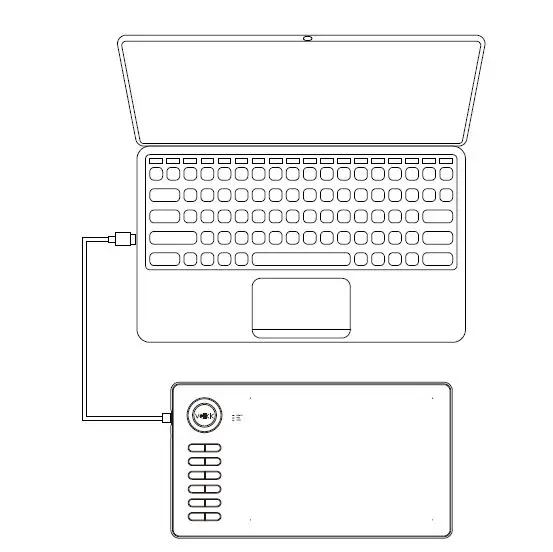
<li>Take out the A15 from the package, and connect the tablet to your computer with a USB cable.</li>
<li>Open the driver interface, the upper left corner shows the device is connected, indicating that the tablet has been successfully mounted to the driver, you can start using your tablet now.<img decoding="async" src="https://usemanuals.com/wp-content/uploads/2023/04/VEIKK-A15-Graphic-Pen-Tablet-FIG-5.webp" /></li>
</ol>
<h4>Replacing the Nibs</h4>
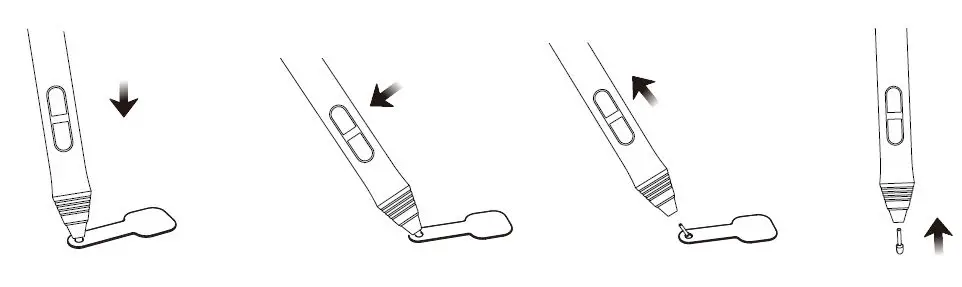
<p>When the pen nib is heavily worn, please replace the nib with the nib removal.<img decoding="async" src="https://usemanuals.com/wp-content/uploads/2023/04/VEIKK-A15-Graphic-Pen-Tablet-FIG-6.webp" /></p>
<ol>
<li>Insert the pen nib into the pen holder hole</li>
<li>Tilt the pan so that the pen holder can fully catch the pen nib</li>
<li>Pull out the nib</li>
<li>Insert a new nib into the pen and push it straightly until it stops</li>
</ol>
<h4>Specifications</h4>
<table width="749">
<tbody>
<tr>
<td width="196"><strong>Model</strong></td>
<td width="424">A15</td>
</tr>
<tr>
<td width="196"><strong>Dimension</strong></td>
<td width="424">358mm x 200mm x 9mm</td>
</tr>
<tr>
<td width="196"><strong>Working Area</strong></td>
<td width="424">10 x 6 inch</td>
</tr>
<tr>
<td width="196"><strong>Pressure Sensitivity</strong></td>
<td width="424">8192 levels</td>
</tr>
<tr>
<td width="196"><strong>Report Rate</strong></td>
<td width="424">250 PPS</td>
</tr>
<tr>
<td width="196"><strong>Resolution</strong></td>
<td width="424">5080 LPI</td>
</tr>
<tr>
<td width="196"><strong>Reading Height</strong></td>
<td width="424">10 mm</td>
</tr>
<tr>
<td width="196"><strong>Interface</strong></td>
<td width="424">Type-C</td>
</tr>
<tr>
<td width="196"><strong>Keys</strong></td>
<td width="424">12 Hotkeys</td>
</tr>
</tbody>
</table>
<h4>Driver Settings</h4>
<h5><strong>Windows:</strong></h5>
<p><strong>Pen:<img decoding="async" src="https://usemanuals.com/wp-content/uploads/2023/04/VEIKK-A15-Graphic-Pen-Tablet-FIG-7.webp" /></strong></p>
<ol>
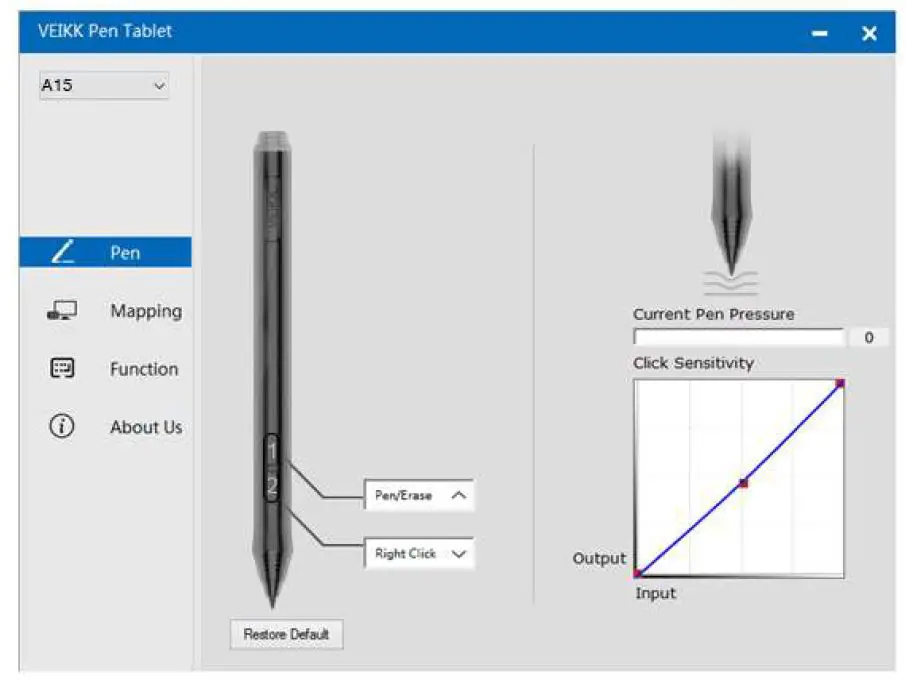
<li>Pen Function Settings<br />
You may customize the functions of your tablet pen’s barrel buttons here. Use the<br />
“Function Key” option to program custom keystrokes.<img decoding="async" src="https://usemanuals.com/wp-content/uploads/2023/04/VEIKK-A15-Graphic-Pen-Tablet-FIG-8.webp" /></li>
<li>Current Pen Pressure<br />
Current Pen Pressure shows the current pressure level being exerted on your tablet and can be used to test pen pressure.<img decoding="async" src="https://usemanuals.com/wp-content/uploads/2023/04/VEIKK-A15-Graphic-Pen-Tablet-FIG-9.webp" /></li>
<li>Click Sensitivity<br />
You can adjust pen pressure to “Output” or “Press” sensitivity on here.</li>
</ol>
<p><strong>Mapping</strong><br />
Define the tablet area that will be mapped to the screen area.<img decoding="async" src="https://usemanuals.com/wp-content/uploads/2023/04/VEIKK-A15-Graphic-Pen-Tablet-FIG-10.webp" /></p>
<ol>
<li><strong>Screen Mapping</strong><br />
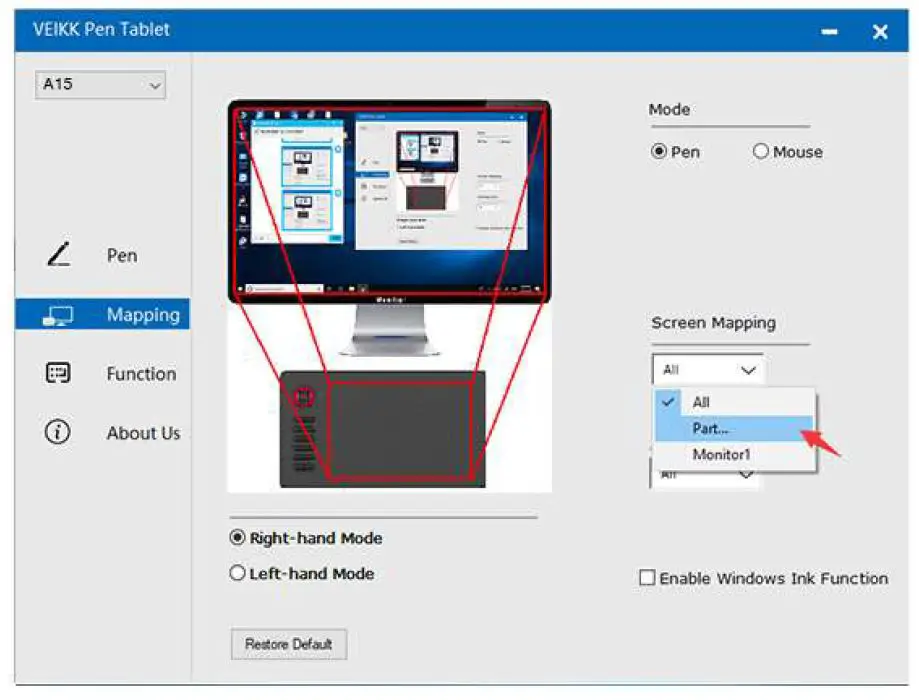
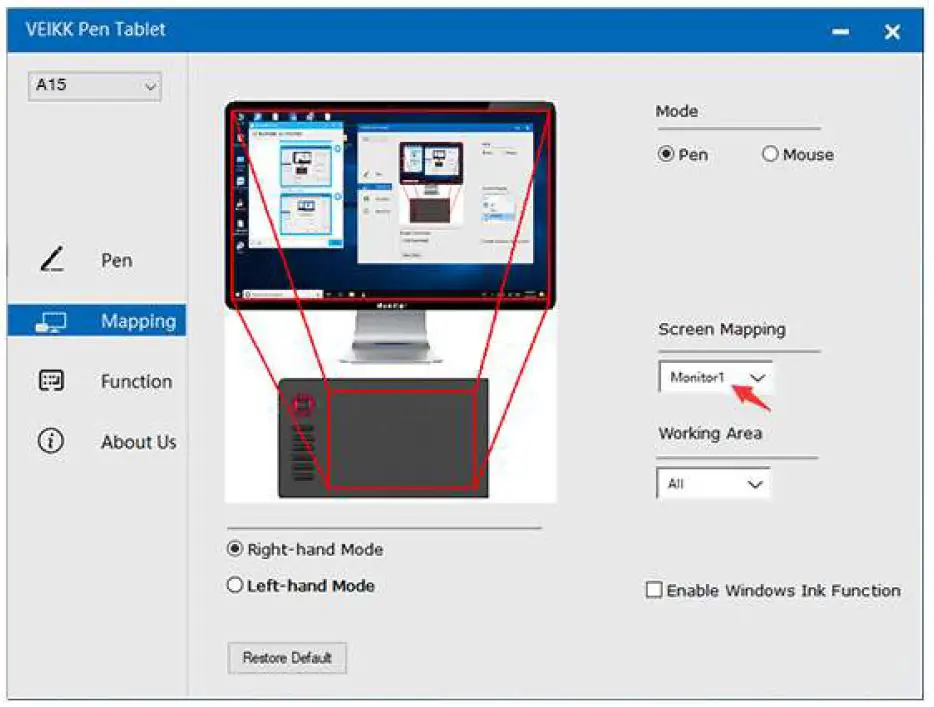
All Area: the entire active area of the tablet. This is the default setting<img decoding="async" src="https://usemanuals.com/wp-content/uploads/2023/04/VEIKK-A15-Graphic-Pen-Tablet-FIG-11.webp" /><br />
Part Area: Click Part<img decoding="async" src="https://usemanuals.com/wp-content/uploads/2023/04/VEIKK-A15-Graphic-Pen-Tablet-FIG-12.webp" /><br />
Then go to the next page, select one of the following three ways to define the screen range.<img decoding="async" src="https://usemanuals.com/wp-content/uploads/2023/04/VEIKK-A15-Graphic-Pen-Tablet-FIG-13.webp" /><br />
Monitor1: If more than one monitor is in use and you are in extended mode, you need to choose the related monitor on the driver interface which you are going to map to. If your monitors are in mirror mode(All monitors display the same content), the tablet maps to the entire space on each monitor and the screen cursor is displayed on each monitor simultaneously.<img decoding="async" src="https://usemanuals.com/wp-content/uploads/2023/04/VEIKK-A15-Graphic-Pen-Tablet-FIG-14.webp" /></li>
<li>Working Area<br />
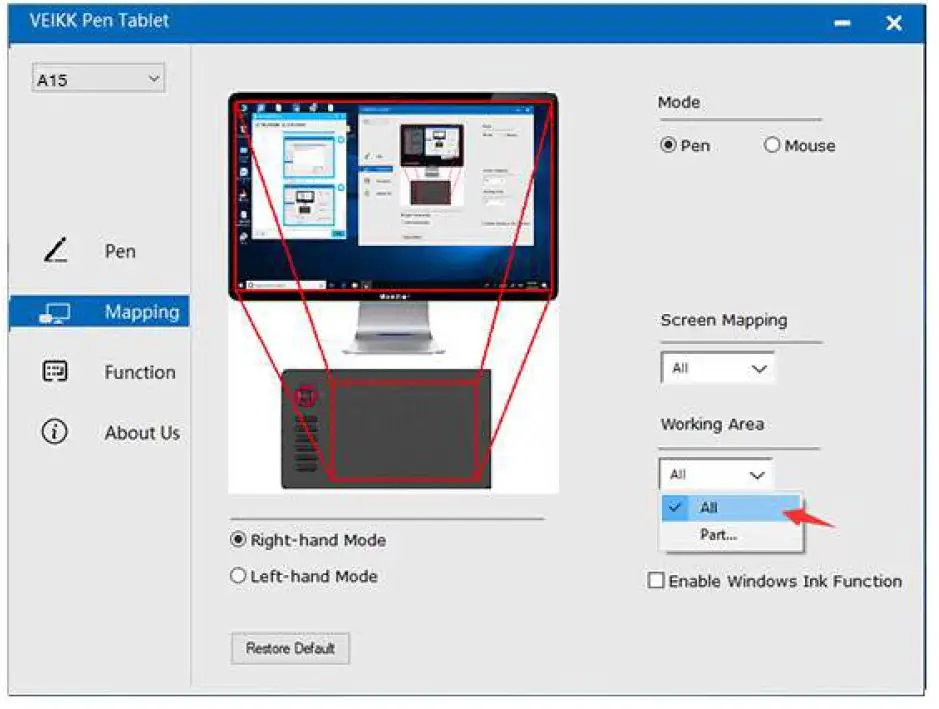
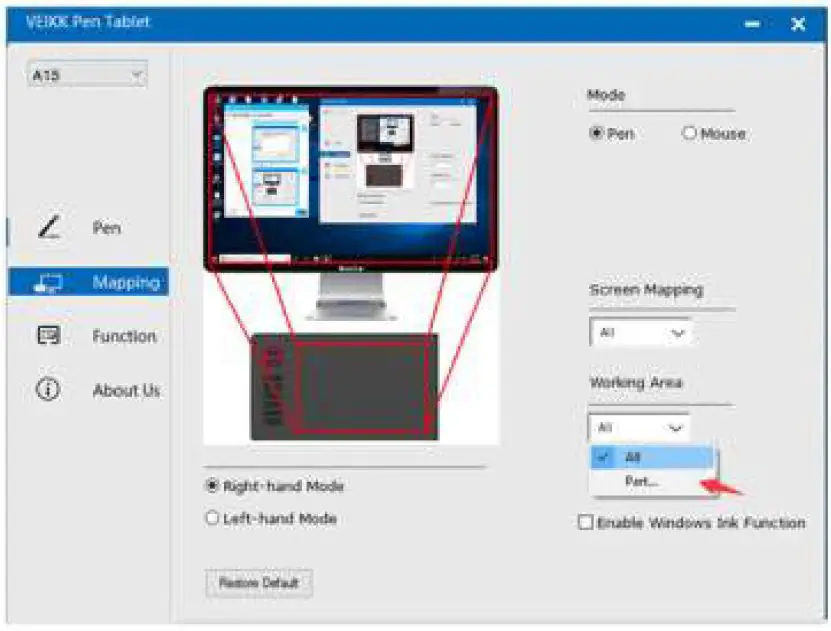
All Area:the entire active area of the tablet.This is the default setting<img decoding="async" src="https://usemanuals.com/wp-content/uploads/2023/04/VEIKK-A15-Graphic-Pen-Tablet-FIG-15.webp" /><br />
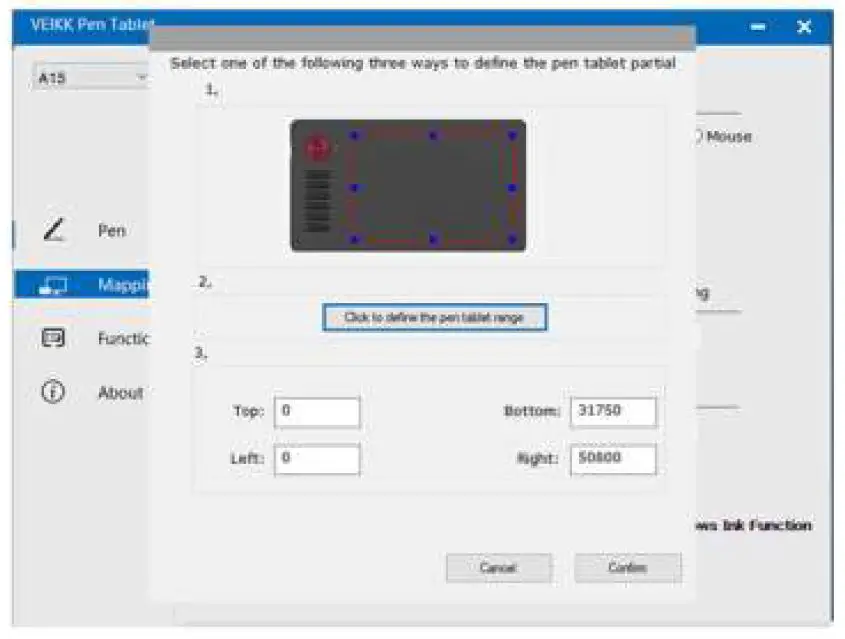
Part Area:Click Part<img decoding="async" src="https://usemanuals.com/wp-content/uploads/2023/04/VEIKK-A15-Graphic-Pen-Tablet-FIG-16.webp" /><br />
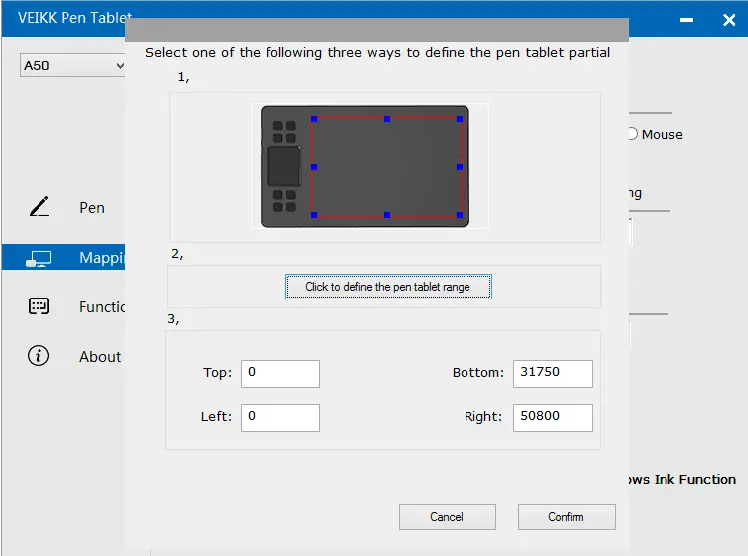
Then go to the next page, select one of the following three ways to define the pen tablet partial. <img decoding="async" src="https://usemanuals.com/wp-content/uploads/2023/04/VEIKK-A15-Graphic-Pen-Tablet-FIG-17.webp" /></li>
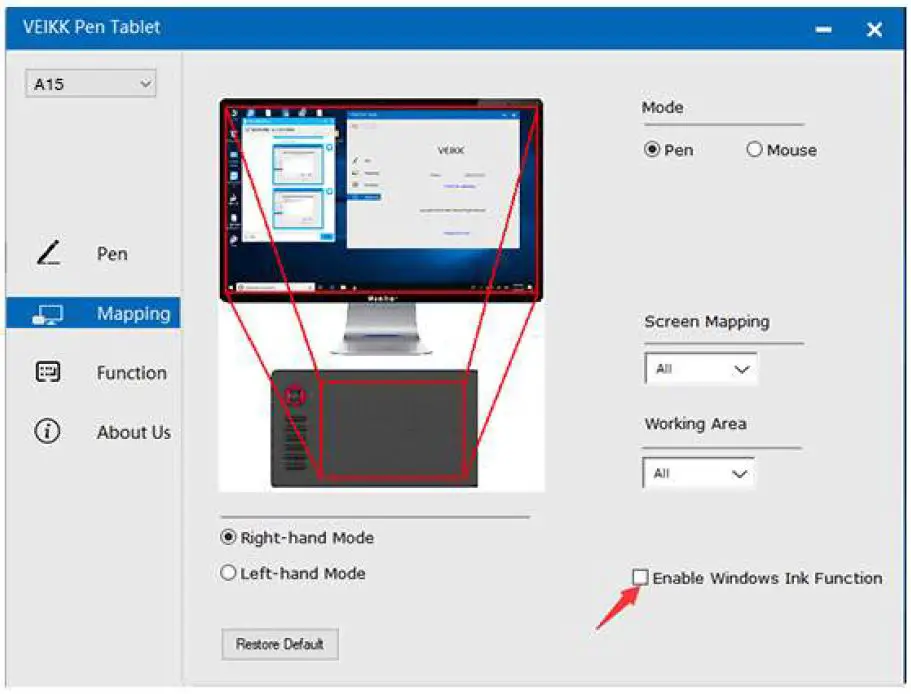
<li>Enable Windows Ink Function<br />
Microsoft Windows provides extensive support for pen input.Pen features are supported in such as Microsoft Office,Adobe Photoshop CC,AI and so on.<img decoding="async" src="https://usemanuals.com/wp-content/uploads/2023/04/VEIKK-A15-Graphic-Pen-Tablet-FIG-18.webp" /></li>
</ol>
<h4><strong>Function</strong></h4>
<p>Customize the Touch Keys</p>
<ol>
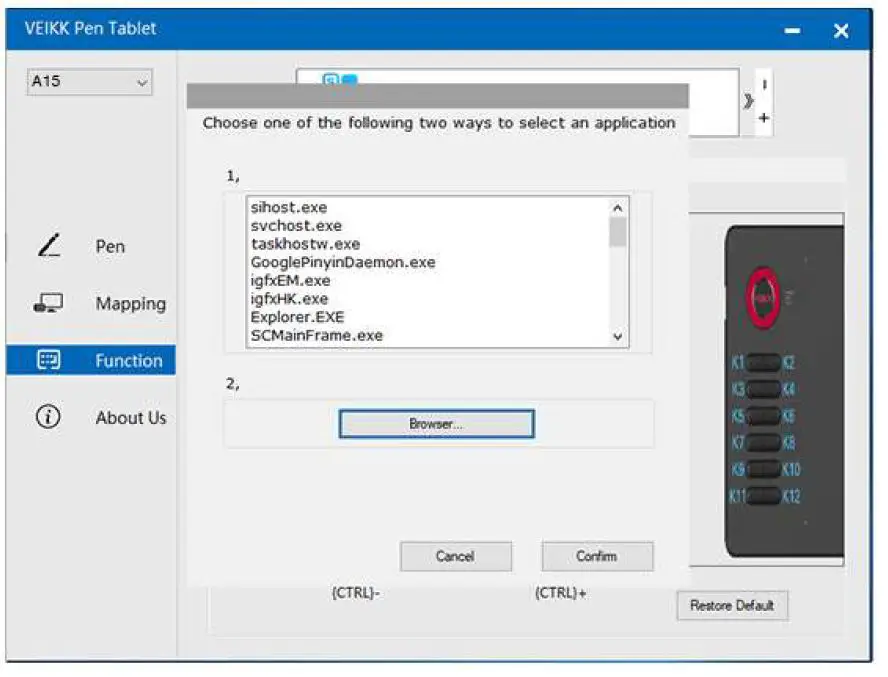
<li>Application List：You can add or remove software by “+”or “-”<img decoding="async" src="https://usemanuals.com/wp-content/uploads/2023/04/VEIKK-A15-Graphic-Pen-Tablet-FIG-19.webp" /><br />
“+”: Click “+” to add softwares, you have two ways to select an application,<br />
1、Choose from the dropdown<br />
2、Choose from the browser<img decoding="async" src="https://usemanuals.com/wp-content/uploads/2023/04/VEIKK-A15-Graphic-Pen-Tablet-FIG-20.webp" /><br />
“-”: Click “-” to remove the software you added before.</li>
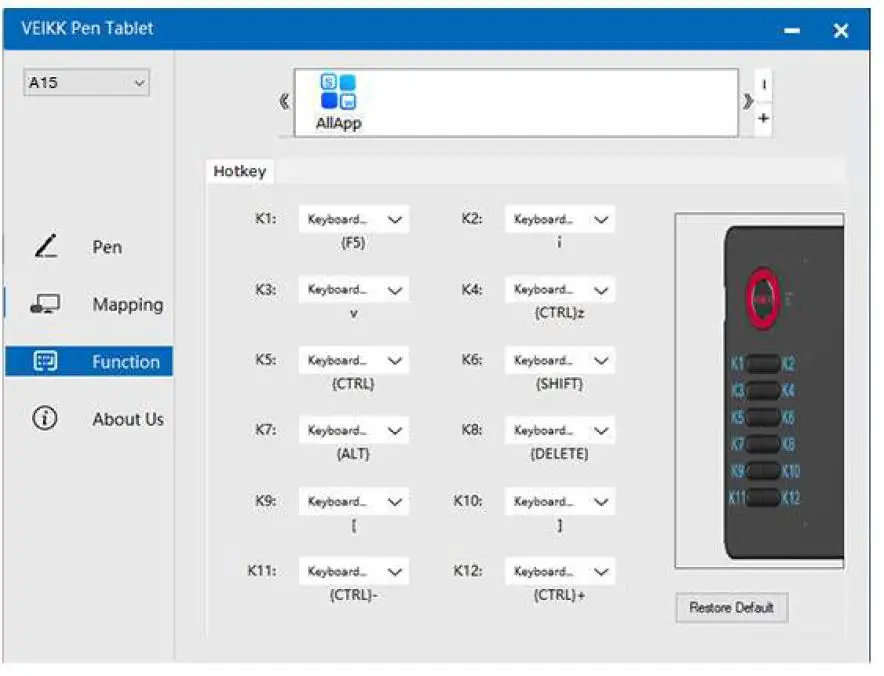
<li><strong>Hotkey</strong><br />
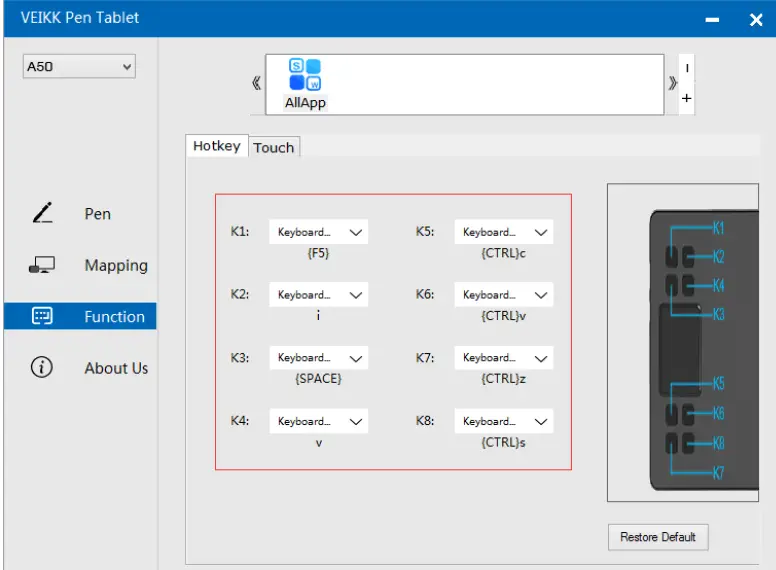
Redefine Hotkey: Click on the title of the button. A dropdown menu will appear with a list of tool options. Choose the one you want to use.<img fetchpriority="high" decoding="async" class="ezlazyload aligncenter wp-image-3068167" src="data:;base64,<svg xmlns="http://www.w3.org/2000/svg" width="824" height="629"></svg>&#8221; sizes=&#8221;(max-width: 713px) 100vw, 713px&#8221; alt=&#8221;VEIKK-A15-Graphic-Pen-Tablet-FIG-21&#8243; width=&#8221;713&#8243; height=&#8221;544&#8243; data-ezsrcset=&#8221;https://manuals.plus/wp-content/uploads/2022/05/VEIKK-A15-Graphic-Pen-Tablet-FIG-21.jpg 824w,https://manuals.plus/wp-content/uploads/2022/05/VEIKK-A15-Graphic-Pen-Tablet-FIG-21-550&#215;420.jpg 550w,https://manuals.plus/wp-content/uploads/2022/05/VEIKK-A15-Graphic-Pen-Tablet-FIG-21-768&#215;586.jpg 768w&#8221; data-ezsrc=&#8221;https://manuals.plus/wp-content/uploads/2022/05/VEIKK-A15-Graphic-Pen-Tablet-FIG-21.jpg&#8221; /></li>
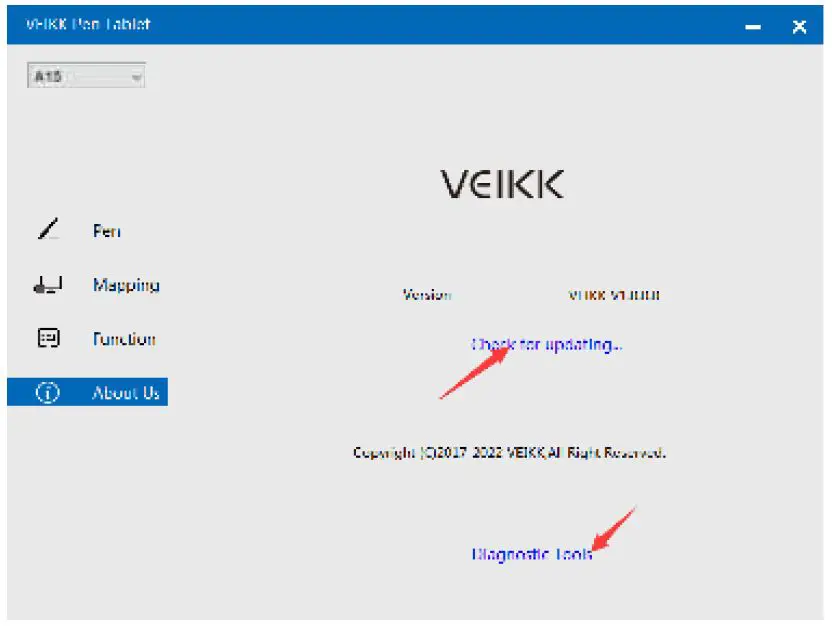
<li>About Us<img decoding="async" src="https://usemanuals.com/wp-content/uploads/2023/04/VEIKK-A15-Graphic-Pen-Tablet-FIG-22.webp" /><br />
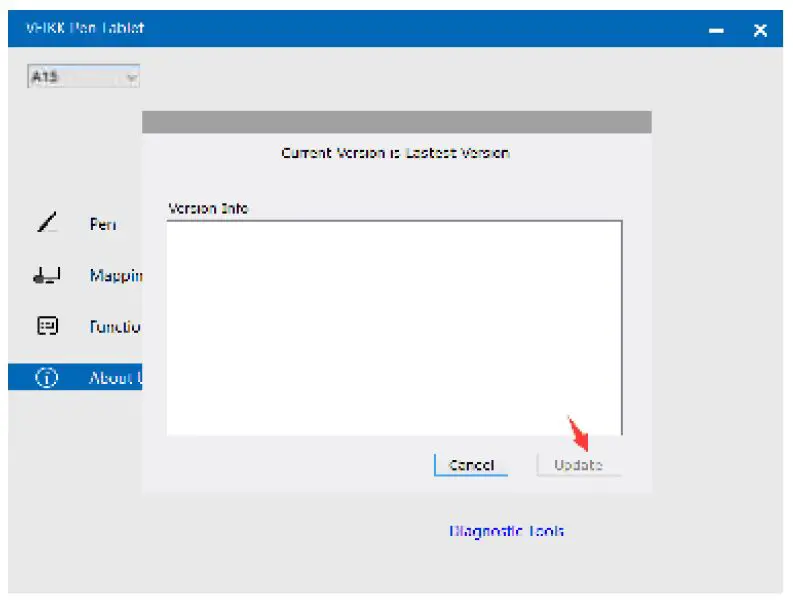
Check for updating:If you want to install the newest driver,click”Check for updating”, if there is no response,that means the driver you installed is the newest;if you find newest driver in the list,you just need to update.<img decoding="async" src="https://usemanuals.com/wp-content/uploads/2023/04/VEIKK-A15-Graphic-Pen-Tablet-FIG-23.webp" /><br />
Diagnostic Tools:Check for missing key files<img decoding="async" src="https://usemanuals.com/wp-content/uploads/2023/04/VEIKK-A15-Graphic-Pen-Tablet-FIG-24.webp" /></li>
</ol>
<p><strong>Mac:</strong><br />
Note:Driver settings in Mac system are the same in Windows system. Users who use Mac system can take reference to Windows system.</p>
<h4>FAQ</h4>
<ol>
<li>The stylus can’t control the cursor.<br />
A. Whether the tablet’s status indicator light turn on when the stylus is in contact with the working area? If yes, uninstall the A15 driver and reboot, then connect the tablet to your computer and test your stylus.If the cursor responds to your pen input, the tablet’s hardware is functional.Go to our official website<br />
<a href="http://www.veikk.com/download/" target="_blank" rel="noopener">http://www.veikk.com/download/</a> download the newest driver and re-install.<br />
B. Connect the tablet then run the driver installation, complete the installation, then reboot.</li>
<li>How do i know that the A15 driver was installed successfully?<br />
A. After installing the driver, the A15 driver icon would be visible in your system tray on the bottom-right corner of your screen(Windows OS) and desktop.<br />
B. Or open the driver interface, the upper left corner shows the A15, indicating that the tablet has been successfully mounted to the driver, you can start using your tablet now.</li>
<li>How do i determine if a problem is a software or hardware related?<br />
A. Connect and install the A15 on a different computer. If the tablet functions properly on the new computer, you are experiencing a software problem. Please uninstall all tablet drivers(including A15 driver)from your computer, download the newest driver from our official website <a href="http://www.veikk.com/download/" target="_blank" rel="noopener">http://www.veikk.com/download/</a> and then re-install.<br />
B. The A15 indicator lights will help you determine if an issue is hardware-related. When functioning properly, the blue status indicator light will light up when the stylus pen is in range of or touching the tablet’s working area.</li>
<li>There is no pressure in the graphics software, but the cursor moves.<br />
You may have installed other tablet drivers or opened the drawing software when installing the driver. Please uninstall all drivers and close the drawing software, then re-install A15 driver.That is better to restart your computer after completing the installation.</li>
<li>The stylus pen does not work.<br />
A. Make sure you are using the pen that originally came with your tablet.<br />
B. Make sure you installed the driver correctly.</li>
<li>The computer can’t recognize the tablet.<br />
Make sure the USB port is functional, if not, please change to another USB port.</li>
</ol>
<p><strong>Any questions, please contact us</strong></p>
<p>Beijing Veikk E-commerce Co., Ltd.</p>
<ul>
<li>Email:<a href="service@veikk.com"> service@veikk.com</a></li>
<li>Skype: veikk service</li>
<li>Website : <a href="http://www.veikk.com" target="_blank" rel="noopener">www.veikk.com</a></li>
</ul>
<form id="commentform" class="comment-form" action="https://manuals.plus/wp-comments-post.php" method="post" novalidate="">
<p class="form-submit"><input id="comment_post_ID" name="comment_post_ID" type="hidden" value="3066543" /><br />
<input id="comment_parent" name="comment_parent" type="hidden" value="0" /></p>
</form>
]]></content:encoded>


			</item>
		<item>
		<title>VEIKK S640 Digital Drawing Battery-Free Graphic Pen Tablet Manual</title>
		<link>https://usemanuals.com/veikk/s640-digital-tablet/</link>
		
		<dc:creator><![CDATA[ItsManual]]></dc:creator>
		<pubDate>Sat, 24 Jun 2023 12:34:31 +0000</pubDate>
				<category><![CDATA[VEIKK]]></category>
		<guid isPermaLink="false">https://usemanuals.com/?p=119092</guid>

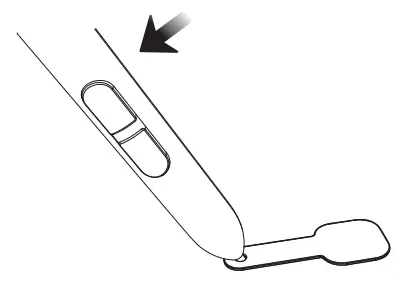
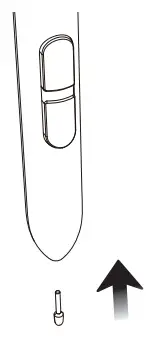
					<description><![CDATA[&#160; User Manual BATTERY-FREE PEN TABLET S640 for OSU! Game Playing &#38; Drawing www.veikk.com Safety Precautions WARNING Do not use this product in a control system that requires a high degree of safety and reliability. In such a system, this product could negatively affect other electronic devices and could malfunction due to the effect of those devices. Turn the power off in areas where the use of electronic devices is prohibited. Onboard an aircraft or in any other location where the use of electronic devices is prohibited, this product, if left on, could negatively affect other electronic devices. Do not use this product in a location frequented by little children. Make sure that a child does not put the pen or pen tip in his/her mouth. The pen tip or side switch cover could be detached and be accidentally swallowed. CAUTION Do not place this product on an unstable surface. Placing this product or an unstable or tilted surface or in a location exposed to excessive vibrations could cause it to fall off resulting in injury. Do not place heavy objects on top of this product. Do not step or place heavy objects on this product as this could damage it. WARNING Avoid high or low-temperature locations for storage. Do not store this product in a location where the temperature drops below 5¥ or goes above 40¥and in locations subject to excessive temperature fluctuations. Failure to heed this caution could result in damage to the product and its components. Do not disassemble. Do not disassemble or modify this product as this could expose you to heat, fire, electric shock and injury. Disassembling the product will also void your warranty. Do not use alcohol for cleaning. Never use alcohol, thinner, benzene or other mineral solvents as they could discolor or cause deterioration to the product. Do not expose to water. Do not place glasses or vases filled with water or other liquids near this product. Exposure to water or liquid could damage the product. CAUTION Do not place metal objects on this product during operation. Placing metal objects on this product during operation could cause it to malfunction or damage it. Do not strike the pen against hard objects. Striking the pen against a hard object could damage it. Do not handle the pen with soiled hands. The pen is a high-precision instrument. Handling it with soiled hands or using it in locations exposed to dust or strong odors may cause the entry of foreign matter which will result in a breakdown. Limitation of Liability VEIKK shall in no event be liable for damages resulting from fires or earthquakes, those caused by third parties, and those arising from user misuse, abuse, or neglect. VEIKK shall in no event be liable for incidental damages-including but not limited to loss of business income, interruption of business activities, corruption, or loss of data-that arising out of the use or failure to use this product. VEIKK shall in no event be liable for damages resulting from uses not documented in this manual. VEIKK shall in no event be liable for damages from malfunction caused by connection to other devices or use of third-party software. Product Overview LED Indicator Upper Marking Line Active Area Lower Marking Line Pen Note: The passive pen requires neither battery nor charging. Packing List 3.1 OS Support Windows 11/10/8/7(32/64 bits) / Mac OS 10.12 or later Linux OS / Chrome 88 or later Android 6.0 or later (Except Samsung Android device) 3.2 Installation For Mac OS, Windows, and Linux OS computers: Before installing the driver, please uninstall all tablet drivers from your computer and keep all antivirus programs and the drawing software closed. Connect the tablet to your computer before installation (Please refer to 4. Tablet Connection). Please download the driver from www.veikk.com. Click Set up.exe and follow onscreen instructions. Restart your computer after installation. For Chrome OS computer and the Android mobile phone: No need to install the VEIKK driver on the Chrome OS computer and the Android mobile phone. Tablet Connection For Mac OS, Windows, and Linux OS computers: Connect the tablet to your computer with a USB cable. Open the driver interface. If the product model shows in the upper left corner, this indicates that the tablet has been connected successfully. You can start using your tablet. For Chrome OS computer: Connect the tablet to your Chrome OS computer with the USB cable, then you can start using your tablet Note: The shortcut keys of the pen and tablet can’t work on the Chrome OS computer. For Android mobile phones: Please connect the tablet to your phone with the OTG adapter. Rotate the tablet as shown in Figure1, then you can start using your tablet. Note1: Works in mobile phone vertical screen mode only. Note2: For some mobile phones, you need to enable the OTG function manually in the phone’s settings. Note3: The shortcut keys of the pen can’t work on an Android mobile phone. Replacing the Nibs Insert the pen nib into the penholder hole Tilt the pen so that the pen holder can fully catch the pen nib Pull out the nib Insert a new nib into the pen and push it straightly until it stops Specifications Model S640 Dimension 218mm x 130mm x 9mm Working Area 6 x 4 inch Pressure Sensitivity 8192 levels Resolution 5080 LPI Reading Height 10 mm Interface USB Driver Settings Windows: 7.1 Pen:7.1.1 Pen Function Settings You may customize the functions of pen buttons. Use the “Pen” option to program custom keystrokes. 7.1.2 Current Pen Pressure Current Pen Pressure shows the current pressure level being exerted on your tablet and can be used to test pen pressure.7.1.3 Click Sensitivity You can adjust pen pressure to “Output” or “Press” sensitivity on here. 7.2 Mapping Define the tablet area that will be mapped to the screen area. 7.2.1 Screen Mapping Full Area: the entire active area of the tablet. This is the default setting. Part Area: Click PartThen go to the next page, select one of the following three ways to define the screen range.Monitor1:If more than one monitor is in use and you are in extended mode, you need to choose the related monitor on the driver interface which you are going to map to. If your monitors are in mirror mode(All monitors display the same content), the tablet maps to the entire space on each monitor and the screen cursor is displayed on each monitor simultaneously.7.2.2 Working Area Full Area: the entire active area of the tablet. This is the default setting. Part Area: Click Part Then go to the next page, and select one of the following three ways to define the pen tablet partial. 7.2.3 Enable Windows Ink Function Microsoft Windows provides extensive support for pen input. Pen features are supported in such as Microsoft Office Adobe Photoshop CC AI and so on.7.3 About Us Check for updating: If you want to install the newest driver, click”Check for updating”. If there is no response, that means the driver you installed is the newest. If you find the newest driver in the list, you just need to update it. Diagnostic Tools: Check for missing key files. Any questions, please contact us Beijing Veikk E-commerce Co., Ltd. Email: service@veikk.com Skype: like service Website: www.veikk.com [...]<p><a class="btn btn-secondary understrap-read-more-link" href="https://usemanuals.com/veikk/s640-digital-tablet/">Read More...</a></p>]]></description>
										<content:encoded><![CDATA[<p>&nbsp;</p>
<p><strong>User Manual</strong><br />
<strong>BATTERY-FREE PEN TABLET</strong><br />
<strong>S640 for OSU! Game Playing &amp; Drawing</strong><br />
<strong><a href="http://www.veikk.com/" target="_blank" rel="noopener">www.veikk.com</a></strong><img decoding="async" src="https://usemanuals.com/wp-content/uploads/2023/06/VEIKK-S640-Digital-Drawing-Battery-Free-Graphic-Pen-Tablet.webp" /></p>
<h4>Safety Precautions</h4>
<p><strong>WARNING</strong><br />
<strong>Do not use this product in a control system that requires a high degree of safety and reliability.</strong><br />
In such a system, this product could negatively affect other electronic devices and could malfunction due to the effect of those devices.<br />
<strong>Turn the power off in areas where the use of electronic devices is prohibited.</strong><br />
Onboard an aircraft or in any other location where the use of electronic devices is prohibited, this product, if left on, could negatively affect other electronic devices.<br />
<strong>Do not use this product in a location frequented by little children.<br />
</strong>Make sure that a child does not put the pen or pen tip in his/her mouth.<br />
The pen tip or side switch cover could be detached and be accidentally swallowed.<br />
<strong>CAUTION</strong><br />
<strong>Do not place this product on an unstable surface</strong>.<br />
Placing this product or an unstable or tilted surface or in a location exposed to excessive vibrations could cause it to fall off resulting in injury.<br />
<strong>Do not place heavy objects on top of this product.</strong><br />
Do not step or place heavy objects on this product as this could damage it.<br />
<strong>WARNING</strong><br />
<strong>Avoid high or low-temperature locations for storage.</strong><br />
Do not store this product in a location where the temperature drops below 5¥ or goes above 40¥and in locations subject to excessive temperature fluctuations. Failure to heed this caution could result in damage to the product and its components.<br />
<strong>Do not disassemble</strong>.<br />
Do not disassemble or modify this product as this could expose you to heat, fire, electric shock and injury.<br />
Disassembling the product will also void your warranty.<br />
<strong>Do not use alcohol for cleaning.<br />
</strong>Never use alcohol, thinner, benzene or other mineral solvents as they could discolor or cause deterioration to the product.<br />
<strong>Do not expose to water.</strong><br />
Do not place glasses or vases filled with water or other liquids near this product. Exposure to water or liquid could damage the product.<br />
<strong>CAUTION</strong><br />
<strong>Do not place metal objects on this product during operation.</strong><br />
Placing metal objects on this product during operation could cause it to malfunction or damage it.<br />
<strong>Do not strike the pen against hard objects</strong>.<br />
Striking the pen against a hard object could damage it.<br />
<strong>Do not handle the pen with soiled hands.<br />
</strong>The pen is a high-precision instrument. Handling it with soiled hands or using it in locations exposed to dust or strong odors may cause the entry of foreign matter which will result in a breakdown.<br />
<strong>Limitation of Liability</strong><br />
<strong>VEIKK</strong> shall in no event be liable for damages resulting from fires or earthquakes, those caused by third parties, and those arising from user misuse, abuse, or neglect.<br />
<strong>VEIKK</strong> shall in no event be liable for incidental damages-including but not limited to loss of business income, interruption of business activities, corruption, or loss of data-that arising out of the use or failure to use this product.<br />
<strong>VEIKK</strong> shall in no event be liable for damages resulting from uses not documented in this manual.<br />
<strong>VEIKK</strong> shall in no event be liable for damages from malfunction caused by connection to other devices or use of third-party software.</p>
<h4>Product Overview</h4>
<ol>
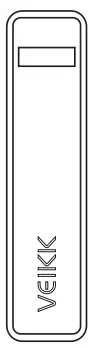
<li>LED Indicator</li>
<li>Upper Marking Line</li>
<li>Active Area</li>
<li>Lower Marking Line</li>
</ol>
<p><strong>Pen</strong><img decoding="async" src="https://usemanuals.com/wp-content/uploads/2023/06/VEIKK-S640-Digital-Drawing-Battery-Free-Graphic-Pen-Tablet-fig-4.webp" /></p>
<p><strong>Note:</strong> The passive pen requires neither battery nor charging.</p>
<h4>Packing List</h4>
<p><strong>3.1 OS Support<br />
</strong>Windows 11/10/8/7(32/64 bits) / Mac OS 10.12 or later<br />
Linux OS / Chrome 88 or later<br />
Android 6.0 or later (Except Samsung Android device)<br />
<strong>3.2 Installation<br />
</strong>For Mac OS, Windows, and Linux OS computers:</p>
<ol>
<li>Before installing the driver, please uninstall all tablet drivers from your computer and keep all antivirus programs and the drawing software closed.</li>
<li>Connect the tablet to your computer before installation (Please refer to 4. Tablet Connection).</li>
<li>Please download the driver from <a href="http://www.veikk.com/" target="_blank" rel="noopener">www.veikk.com</a>.</li>
<li>Click Set up.exe and follow onscreen instructions.</li>
<li>Restart your computer after installation.</li>
</ol>
<p>For Chrome OS computer and the Android mobile phone: No need to install the VEIKK driver on the Chrome OS computer and the Android mobile phone.</p>
<h4>Tablet Connection</h4>
<p><strong>For Mac OS, Windows, and Linux OS computers:</strong></p>
<ol>
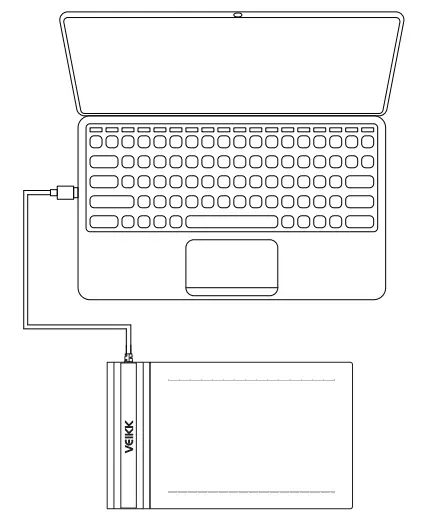
<li>Connect the tablet to your computer with a USB cable.</li>
<li>Open the driver interface. If the product model shows in the upper left corner, this indicates that the tablet has been connected successfully. You can start using your tablet.</li>
</ol>
<p><img decoding="async" src="https://usemanuals.com/wp-content/uploads/2023/06/VEIKK-S640-Digital-Drawing-Battery-Free-Graphic-Pen-Tablet-fig-2.webp" /></p>
<p>For Chrome OS computer: Connect the tablet to your Chrome OS computer with the USB cable, then you can start using your tablet<br />
<strong>Note:</strong> The shortcut keys of the pen and tablet can’t work on the Chrome OS computer.<br />
<strong>For Android mobile phones:</strong></p>
<ol>
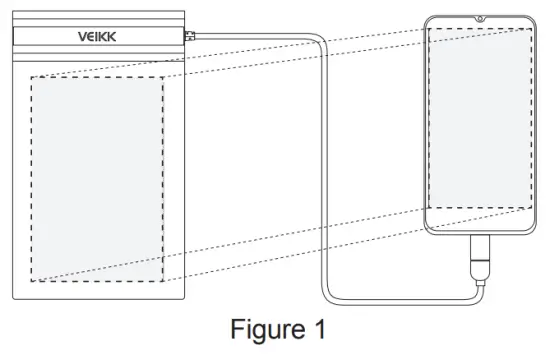
<li>Please connect the tablet to your phone with the OTG adapter.</li>
<li>Rotate the tablet as shown in Figure1, then you can start using your tablet.</li>
</ol>
<p><img decoding="async" src="https://usemanuals.com/wp-content/uploads/2023/06/VEIKK-S640-Digital-Drawing-Battery-Free-Graphic-Pen-Tablet-fig-1.webp" /></p>
<p><strong>Note1:</strong> Works in mobile phone vertical screen mode only.<br />
Note2: For some mobile phones, you need to enable the OTG function manually in the phone’s settings.<br />
Note3: The shortcut keys of the pen can’t work on an Android mobile phone.<br />
<strong>Replacing the Nibs</strong><img decoding="async" src="https://usemanuals.com/wp-content/uploads/2023/06/VEIKK-S640-Digital-Drawing-Battery-Free-Graphic-Pen-Tablet-fig.webp" /></p>
<ol>
<li>Insert the pen nib into the penholder hole</li>
<li>Tilt the pen so that the pen holder can fully catch the pen nib</li>
<li>Pull out the nib</li>
<li>Insert a new nib into the pen and push it straightly until it stops</li>
</ol>
<h4>Specifications</h4>
<table width="820">
<tbody>
<tr>
<td width="193">Model</td>
<td width="447">S640</td>
</tr>
<tr>
<td width="193">Dimension</td>
<td width="447">218mm x 130mm x 9mm</td>
</tr>
<tr>
<td width="193">Working Area</td>
<td width="447">6 x 4 inch</td>
</tr>
<tr>
<td width="193">Pressure Sensitivity</td>
<td width="447">8192 levels</td>
</tr>
<tr>
<td width="193">Resolution</td>
<td width="447">5080 LPI</td>
</tr>
<tr>
<td width="193">Reading Height</td>
<td width="447">10 mm</td>
</tr>
<tr>
<td width="193">Interface</td>
<td width="447">USB</td>
</tr>
</tbody>
</table>
<h4>Driver Settings</h4>
<p><strong>Windows:</strong><br />
<strong>7.1 Pen:</strong><img decoding="async" src="https://usemanuals.com/wp-content/uploads/2023/06/VEIKK-S640-Digital-Drawing-Battery-Free-Graphic-Pen-Tablet-app-14.webp" /><strong>7.1.1 Pen Function Settings</strong><br />
You may customize the functions of pen buttons. Use the “Pen” option to program custom keystrokes.<br />
<img decoding="async" src="https://usemanuals.com/wp-content/uploads/2023/06/VEIKK-S640-Digital-Drawing-Battery-Free-Graphic-Pen-Tablet-app-13.webp" /><strong>7.1.2 Current Pen Pressure</strong><br />
Current Pen Pressure shows the current pressure level being exerted on your tablet and can be used to test pen pressure.<img decoding="async" src="https://usemanuals.com/wp-content/uploads/2023/06/VEIKK-S640-Digital-Drawing-Battery-Free-Graphic-Pen-Tablet-app-12.webp" /><strong>7.1.3 Click Sensitivity</strong><br />
You can adjust pen pressure to “Output” or “Press” sensitivity on here.</p>
<p><img decoding="async" src="https://usemanuals.com/wp-content/uploads/2023/06/VEIKK-S640-Digital-Drawing-Battery-Free-Graphic-Pen-Tablet-app-11.webp" /><strong>7.2 Mapping</strong><br />
Define the tablet area that will be mapped to the screen area.<br />
<img decoding="async" src="https://usemanuals.com/wp-content/uploads/2023/06/VEIKK-S640-Digital-Drawing-Battery-Free-Graphic-Pen-Tablet-app-10.webp" /><strong>7.2.1 Screen Mapping</strong><br />
Full Area: the entire active area of the tablet. This is the default setting.<img decoding="async" src="https://usemanuals.com/wp-content/uploads/2023/06/VEIKK-S640-Digital-Drawing-Battery-Free-Graphic-Pen-Tablet-app-9.webp" /></p>
<p><strong>Part Area: Click Part</strong><img decoding="async" src="https://usemanuals.com/wp-content/uploads/2023/06/VEIKK-S640-Digital-Drawing-Battery-Free-Graphic-Pen-Tablet-app-8.webp" />Then go to the next page, select one of the following three ways to define the screen range.<img decoding="async" src="https://usemanuals.com/wp-content/uploads/2023/06/VEIKK-S640-Digital-Drawing-Battery-Free-Graphic-Pen-Tablet-app-7.webp" />Monitor1:If more than one monitor is in use and you are in extended mode, you need to choose the related monitor on the driver interface which you are going to map to. If your monitors are in mirror mode(All monitors display the same content), the tablet maps to the entire space on each monitor and the screen cursor is displayed on each monitor simultaneously.<img decoding="async" src="https://usemanuals.com/wp-content/uploads/2023/06/VEIKK-S640-Digital-Drawing-Battery-Free-Graphic-Pen-Tablet-app-6.webp" /><strong>7.2.2 Working Area</strong><br />
Full Area: the entire active area of the tablet. This is the default setting.<img decoding="async" src="https://usemanuals.com/wp-content/uploads/2023/06/VEIKK-S640-Digital-Drawing-Battery-Free-Graphic-Pen-Tablet-app-5.webp" /></p>
<p><strong>Part Area: Click Part</strong></p>
<p><img decoding="async" src="https://usemanuals.com/wp-content/uploads/2023/06/VEIKK-S640-Digital-Drawing-Battery-Free-Graphic-Pen-Tablet-app-4.webp" />Then go to the next page, and select one of the following three ways to define the pen tablet partial.<br />
<strong><img decoding="async" src="https://usemanuals.com/wp-content/uploads/2023/06/VEIKK-S640-Digital-Drawing-Battery-Free-Graphic-Pen-Tablet-app-3.webp" />7.2.3 Enable Windows Ink Function</strong><br />
Microsoft Windows provides extensive support for pen input. Pen features are supported in such as Microsoft Office Adobe Photoshop CC AI and so on.<img decoding="async" src="https://usemanuals.com/wp-content/uploads/2023/06/VEIKK-S640-Digital-Drawing-Battery-Free-Graphic-Pen-Tablet-app-1.webp" /><strong>7.3 About Us Check for updating:</strong><br />
If you want to install the newest driver, click”Check for updating”. If there is no response, that means the driver you installed is the newest. If you find the newest driver in the list, you just need to update it.<br />
<img decoding="async" src="https://usemanuals.com/wp-content/uploads/2023/06/VEIKK-S640-Digital-Drawing-Battery-Free-Graphic-Pen-Tablet-app-2.webp" />Diagnostic Tools: Check for missing key files.<br />
<img decoding="async" src="https://usemanuals.com/wp-content/uploads/2023/06/VEIKK-S640-Digital-Drawing-Battery-Free-Graphic-Pen-Tablet-app.webp" /></p>
<p><strong>Any questions, please contact us</strong><br />
Beijing Veikk E-commerce Co., Ltd.<br />
Email: <a href="mailto:service@veikk.com">service@veikk.com</a><br />
Skype: like service<br />
Website: <a href="http://www.veikk.com/" target="_blank" rel="noopener">www.veikk.com</a></p>
<form id="commentform" class="comment-form" action="https://manuals.plus/wp-comments-post.php" method="post" novalidate="">
<p class="form-submit">
</form>
]]></content:encoded>


			</item>
	</channel>
</rss>

<!--
Performance optimized by W3 Total Cache. Learn more: https://www.boldgrid.com/w3-total-cache/

Page Caching using Disk: Enhanced 

Served from: usemanuals.com @ 2026-05-31 07:31:58 by W3 Total Cache
-->