<?xml version="1.0" encoding="UTF-8"?><rss version="2.0"
	xmlns:content="http://purl.org/rss/1.0/modules/content/"
	xmlns:wfw="http://wellformedweb.org/CommentAPI/"
	xmlns:dc="http://purl.org/dc/elements/1.1/"
	xmlns:atom="http://www.w3.org/2005/Atom"
	xmlns:sy="http://purl.org/rss/1.0/modules/syndication/"
	xmlns:slash="http://purl.org/rss/1.0/modules/slash/"
	>

<channel>
	<title>TENVIS &#8211; UseManuals</title>
	<atom:link href="http://usemanuals.com/tenvis/feed/" rel="self" type="application/rss+xml" />
	<link>https://usemanuals.com</link>
	<description>Owner&#039;s manuals for all sorts of products</description>
	<lastBuildDate>Thu, 27 Apr 2023 11:39:09 +0000</lastBuildDate>
	<language>en-US</language>
	<sy:updatePeriod>
	hourly	</sy:updatePeriod>
	<sy:updateFrequency>
	1	</sy:updateFrequency>
	<generator>https://wordpress.org/?v=6.7.2</generator>

<image>
	<url>https://usemanuals.com/wp-content/uploads/2025/02/favicon-32x32-2.png</url>
	<title>TENVIS &#8211; UseManuals</title>
	<link>https://usemanuals.com</link>
	<width>32</width>
	<height>32</height>
</image> 
	<item>
		<title>TENVIS TH661 WiFi HD P2P Pan IP Camera manual</title>
		<link>https://usemanuals.com/tenvis/th661-camera/</link>
		
		<dc:creator><![CDATA[ItsManual]]></dc:creator>
		<pubDate>Thu, 27 Apr 2023 11:39:09 +0000</pubDate>
				<category><![CDATA[TENVIS]]></category>
		<guid isPermaLink="false">https://usemanuals.com/?p=93011</guid>

					<description><![CDATA[&#160; TENVIS TH661 WiFi HD P2P Pan IP Camera Package contents Following shown product is for reference only , goods in kind prevail. 1 PT Camera 2 Wall mounting bracket 3 100V~240V AC 50~60Hz mains adaptor / 5V DC 1A 4 Screws for attaching the base 5 Wall plugs for attaching the base 6 Quick Start Guide 7 Reset Pin Attention: If anything is missing or damaged, please contact the dealer immediately for replacement. IP Camera Overview Operating System Requirement The app is compatible with Android 4.0+ and IOS 8.0+. App Setup Before setup, please connect your phone to Wi-Fi ﬁrstly. Download App There are two ways to download App: Method 1: Download “TENVISTY” from the app Store or Google Play Store. Method 2: Scan the corresponding QR code to download the app. To our lovely customers Once you finish downloading the TENVISTY, please register on the app ASAP. After the registration, there is a few great advantages for you guys. 24/7 live customer service (professional and customized) Register for extended warranty (quality recommended) Support for multi-user sharing (more secure for joyful moment sharing) Register Account and Login App When using TENVISTY for the first time, please register and login in the following steps. Add IP Camera to App Before you start： If you want to set the IP camera via Wi-Fi, please refer to Method 1; If you want to set the IP camera via Ethernet cable, please refer to Method 2; If you want to set the IP camera via AP, please refer to Method 3. Method 1. Add camera via Wi-Fi Plug the camera, wait for a while until camera beep sound. Attention: If there is no beeping sound, press the reset button and hold it for approximately 10 seconds until there is a successful music. After the camera is powered on,please add New camera as following steps Method 2. Add camera via Ethernet cable Power the camera and connect it via network cable the camera, the camera’s yellow light and green light will ﬂick after its self-test. (Only camera with Ethernet port can be used by this way)Add the camera to App After running the “TENVISTY” app, please add the camera as following steps. Method 3. Connection to power, AP add camera Power the camera and wait it’s self-test. Press the Reset button for 4s-6s, beep sound will stop. The camera is in AP mode. During it’s AP mode, camera will open it’s Wi-Fi, named after IPC- X(X represents for the middle numbers of camera UID). The camera Wi-Fi password is 01234567. When camera is in AP mode, please connect your phone to camera Wi-Fi and configure it to your home Wi-Fi as following steps. Once adding camera successfully by App, many other functions can be operated. Kindly check IP camera User manual in our website. If t h e r e i s a n y a d v i c e o f U s e r m a u n a l , p l e a s e e m a i l u s a t support@tenvis.com. Download instruction manual The user manual for your camera is available on the website:www.tenvis.com Download these instructions for more details about setting up and using your TENVIS IP camera. Technology Support The instruction doesn’t include all problems during IP camera operation. If you meet any other question and don’t know how to solve it, please oﬀer following information to our support email. The model and system version of mobile phone The version of TENVISTY App The picture of camera label The firmware version of the camera Description, screen snapshots or video of the problem. We will deal with it according to your description and inform you the progress of it by email. Copyright @2020 T ENVIS. all right reserved. All text instructions on product information and services are protected by copyright or other intellectual property, any use of the test instructions without TENVIS’s authorization is illegal. Here TENVIS stated, without the license of TENVIS, everyone is prohibited copying the instruction in any way by any means, for transcription electronic, mechanical, optical and other commercial purposes. Disclaimer All information included in the instruction are wrote for reference. Here it asserts that TENVIS Technology Co.,Ltd. won’t be held responsible for any inaccuracy. Welcome Thanks for your support to TENVIS IP camera, if you have good suggestions or question to our products, please contact us in time. It’s our pleasure to oﬀer you a good service. TENVIS Technology Co.,LTD E-mail: support@tenvis.com Tel: +1(833)438-9277 (EST 9:00AM-17:00PM Monday-Friday) http://www.tenvis.com [...]<p><a class="btn btn-secondary understrap-read-more-link" href="https://usemanuals.com/tenvis/th661-camera/">Read More...</a></p>]]></description>


										<content:encoded><![CDATA[<p>&nbsp;</p>
<h4><img decoding="async" src="https://usemanuals.com/wp-content/uploads/2023/04/TENVIS-logo-e1639689172914.jpg" /></h4>
<h4>TENVIS TH661 WiFi HD P2P Pan IP Camera</h4>
<p><img decoding="async" src="https://usemanuals.com/wp-content/uploads/2023/04/TENVIS-TH661-WiFi-HD-P2P-Pan-IP-Camera-image.webp" /></p>
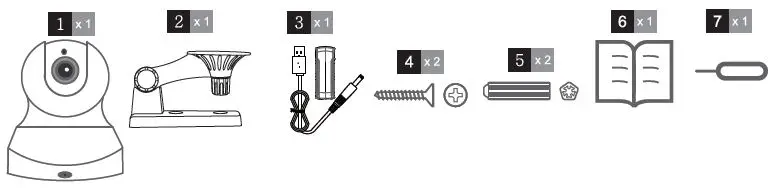
<h4>Package contents</h4>
<p>Following shown product is for reference only , goods in kind prevail.<img decoding="async" src="https://usemanuals.com/wp-content/uploads/2023/04/TENVIS-TH661-WiFi-HD-P2P-Pan-IP-Camera-fig1.webp" /></p>
<table width="1056">
<tbody>
<tr>
<td width="21">1</td>
<td width="197">PT Camera</td>
</tr>
<tr>
<td width="21">2</td>
<td width="197">Wall mounting bracket</td>
</tr>
<tr>
<td width="21">3</td>
<td width="197">100V~240V AC 50~60Hz mains adaptor / 5V DC 1A</td>
</tr>
<tr>
<td width="21">4</td>
<td width="197">Screws for attaching the base</td>
</tr>
<tr>
<td width="21">5</td>
<td width="197">Wall plugs for attaching the base</td>
</tr>
<tr>
<td width="21">6</td>
<td width="197">Quick Start Guide</td>
</tr>
<tr>
<td width="21">7</td>
<td width="197">Reset Pin</td>
</tr>
</tbody>
</table>
<p><strong>Attention:</strong><br />
If anything is missing or damaged, please contact the dealer immediately for replacement.</p>
<h4>IP Camera Overview</h4>
<h4>Operating System Requirement</h4>
<p>The app is compatible with Android 4.0+ and IOS 8.0+.</p>
<p><strong>App Setup<br />
</strong>Before setup, please connect your phone to Wi-Fi ﬁrstly.<br />
<strong>Download App<br />
</strong>There are two ways to download App:<br />
Method 1: Download “TENVISTY” from the app Store or Google Play Store.<br />
Method 2: Scan the corresponding QR code to download the app.<img decoding="async" src="https://usemanuals.com/wp-content/uploads/2023/04/TENVIS-TH661-WiFi-HD-P2P-Pan-IP-Camera-fig3.jpg" /><strong><br />
</strong></p>
<p><strong>To our lovely customers</strong><br />
Once you finish downloading the TENVISTY, please register on the app ASAP. After the registration, there is a few great advantages for you guys.</p>
<ol>
<li>24/7 live customer service (professional and customized)</li>
<li>Register for extended warranty (quality recommended)</li>
<li>Support for multi-user sharing (more secure for joyful moment sharing)</li>
</ol>
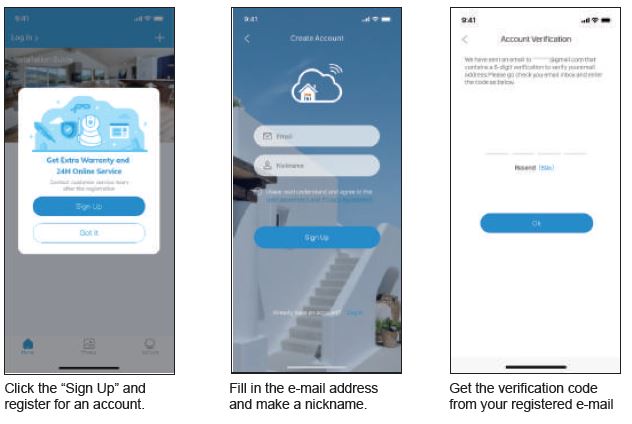
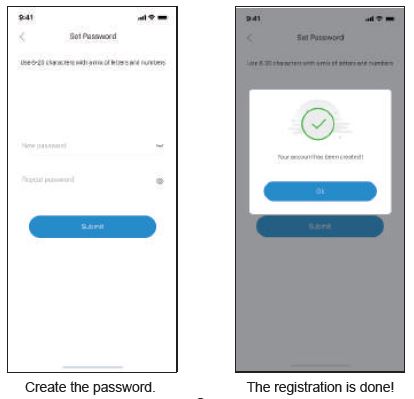
<h4>Register Account and Login App</h4>
<p>When using TENVISTY for the first time, please register and login in the following steps.<img decoding="async" src="https://usemanuals.com/wp-content/uploads/2023/04/TENVIS-TH661-WiFi-HD-P2P-Pan-IP-Camera-fig4.jpg" /><img decoding="async" src="https://usemanuals.com/wp-content/uploads/2023/04/TENVIS-TH661-WiFi-HD-P2P-Pan-IP-Camera-fig5.jpg" /></p>
<h4>Add IP Camera to App</h4>
<p>Before you start：</p>
<ul>
<li>If you want to set the IP camera via Wi-Fi, please refer to Method 1;</li>
<li>If you want to set the IP camera via Ethernet cable, please refer to Method 2;</li>
<li>If you want to set the IP camera via AP, please refer to Method 3.</li>
</ul>
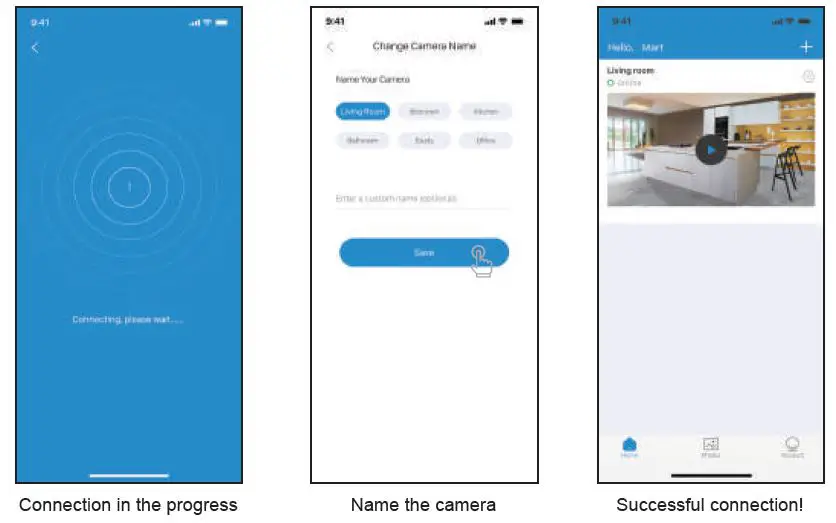
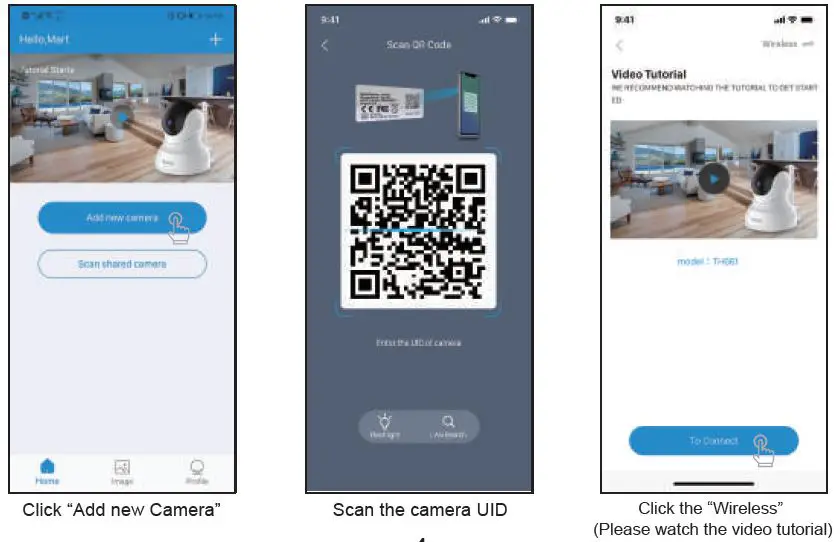
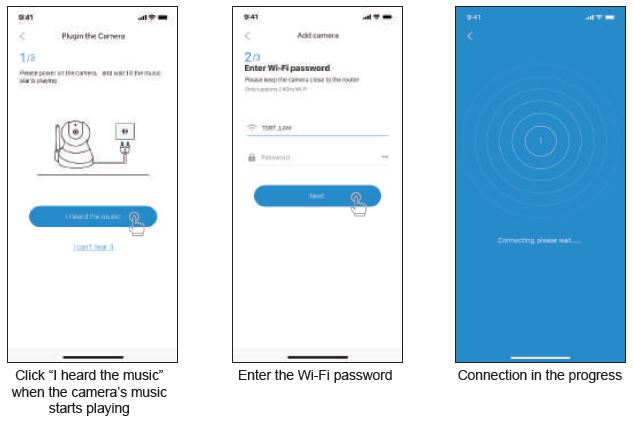
<p><strong>Method 1. Add camera via Wi-Fi</strong><br />
Plug the camera, wait for a while until camera beep sound.<br />
<strong>Attention:</strong> If there is no beeping sound, press the reset button and hold it for approximately 10 seconds until there is a successful music.</p>
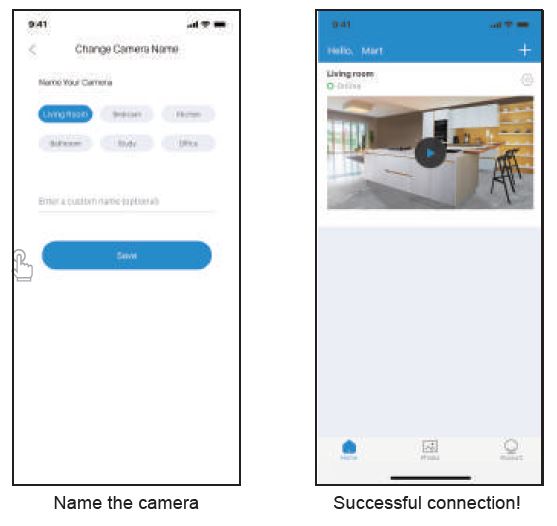
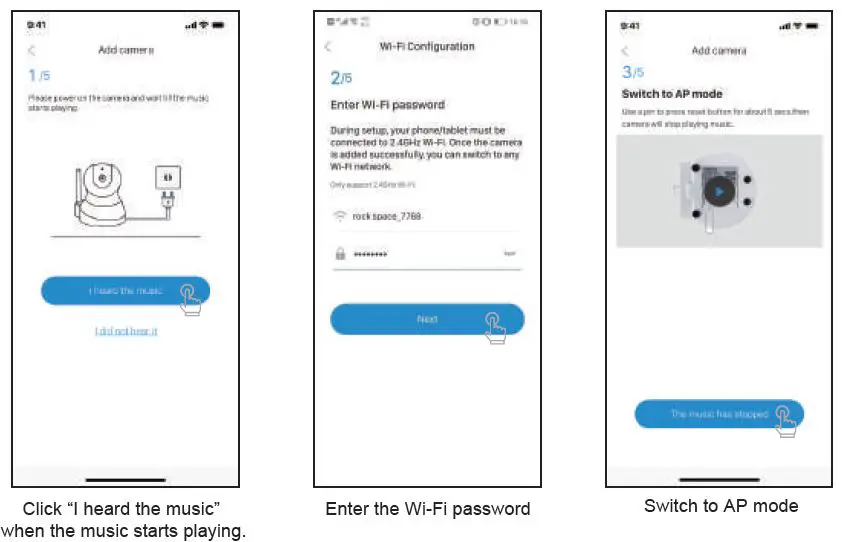
<p>After the camera is powered on,please add New camera as following steps<img decoding="async" src="https://usemanuals.com/wp-content/uploads/2023/04/TENVIS-TH661-WiFi-HD-P2P-Pan-IP-Camera-fig6.webp" /><img decoding="async" src="https://usemanuals.com/wp-content/uploads/2023/04/TENVIS-TH661-WiFi-HD-P2P-Pan-IP-Camera-fig7.jpg" /><img decoding="async" src="https://usemanuals.com/wp-content/uploads/2023/04/TENVIS-TH661-WiFi-HD-P2P-Pan-IP-Camera-fig8.jpg" /></p>
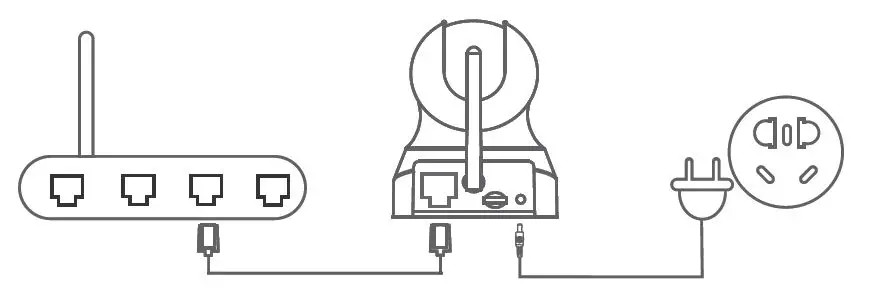
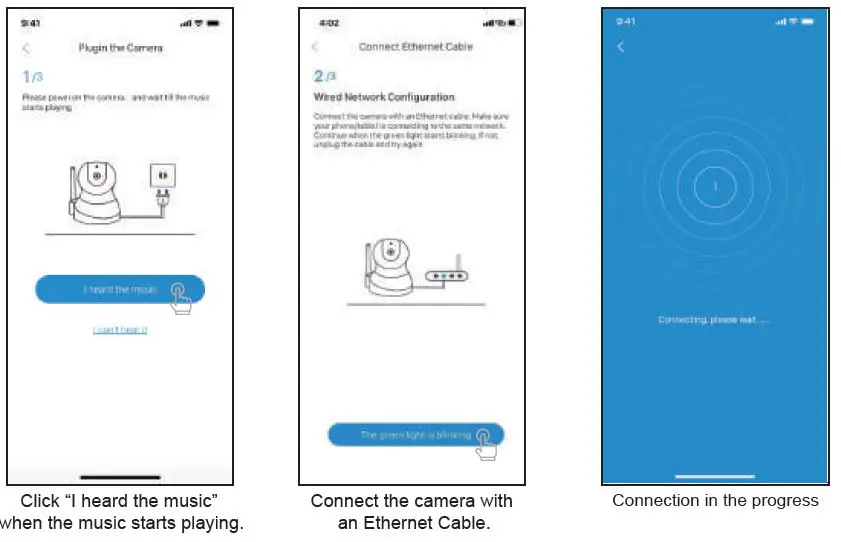
<p><strong>Method 2. Add camera via Ethernet cable</strong><br />
Power the camera and connect it via network cable the camera, the camera’s yellow light and green light will ﬂick after its self-test.<br />
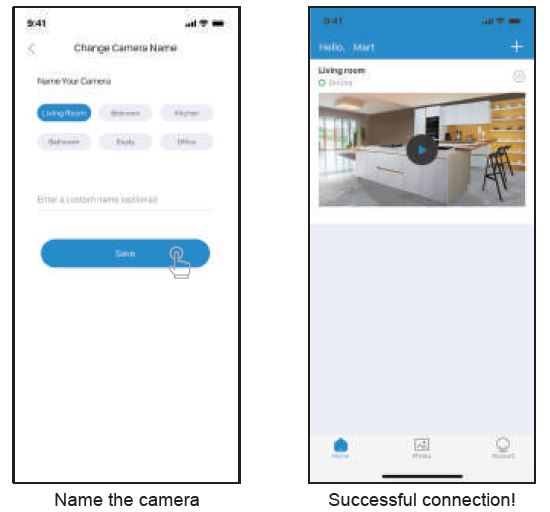
(Only camera with Ethernet port can be used by this way)<img decoding="async" src="https://usemanuals.com/wp-content/uploads/2023/04/TENVIS-TH661-WiFi-HD-P2P-Pan-IP-Camera-fig9.webp" /><strong>Add the camera to App</strong><br />
After running the “TENVISTY” app, please add the camera as following steps.<img decoding="async" src="https://usemanuals.com/wp-content/uploads/2023/04/TENVIS-TH661-WiFi-HD-P2P-Pan-IP-Camera-fig11.webp" /><img decoding="async" src="https://usemanuals.com/wp-content/uploads/2023/04/TENVIS-TH661-WiFi-HD-P2P-Pan-IP-Camera-fig12.jpg" /></p>
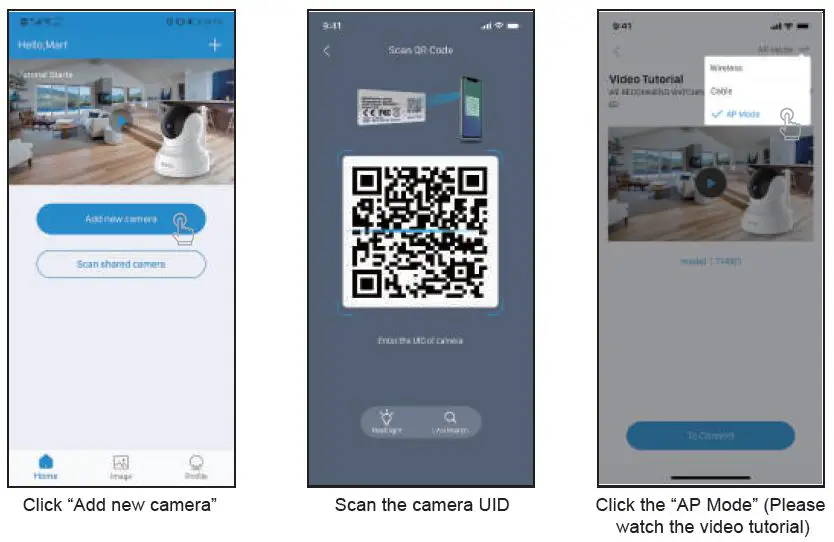
<p><strong>Method 3. Connection to power, AP add camera</strong></p>
<ol>
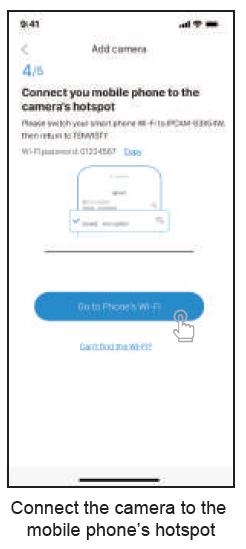
<li>Power the camera and wait it’s self-test. Press the Reset button for 4s-6s, beep sound will stop. The camera is in AP mode.</li>
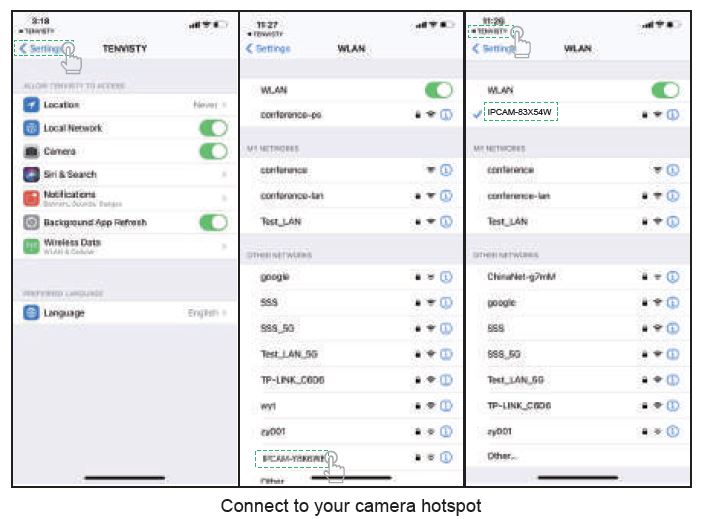
<li>During it’s AP mode, camera will open it’s Wi-Fi, named after IPC-<br />
X(X represents for the middle numbers of camera UID). The camera Wi-Fi password is 01234567.<br />
When camera is in AP mode, please connect your phone to camera Wi-Fi and configure it to your home Wi-Fi as following steps.</li>
</ol>
<p><img decoding="async" src="https://usemanuals.com/wp-content/uploads/2023/04/TENVIS-TH661-WiFi-HD-P2P-Pan-IP-Camera-fig13.webp" /><img decoding="async" src="https://usemanuals.com/wp-content/uploads/2023/04/TENVIS-TH661-WiFi-HD-P2P-Pan-IP-Camera-fig14.webp" /><img decoding="async" src="https://usemanuals.com/wp-content/uploads/2023/04/TENVIS-TH661-WiFi-HD-P2P-Pan-IP-Camera-fig15.jpg" /><img decoding="async" src="https://usemanuals.com/wp-content/uploads/2023/04/TENVIS-TH661-WiFi-HD-P2P-Pan-IP-Camera-fig16.jpg" /><img decoding="async" src="https://usemanuals.com/wp-content/uploads/2023/04/TENVIS-TH661-WiFi-HD-P2P-Pan-IP-Camera-fig17.webp" /></p>
<p>Once adding camera successfully by App, many other functions can be operated. Kindly check IP camera User manual in our website. If t h e r e i s a n y a d v i c e o f U s e r m a u n a l , p l e a s e e m a i l u s a t <a href="http://support@tenvis.com." target="_blank" rel="noopener">support@tenvis.com.</a></p>
<p><strong>Download instruction manual</strong><br />
The user manual for your camera is available on the website:www.tenvis.com Download these instructions for more details about setting up and using your TENVIS IP camera.</p>
<p><strong>Technology Support</strong><br />
The instruction doesn’t include all problems during IP camera operation. If you meet any other question and don’t know how to solve<br />
it, please oﬀer following information to our support email.</p>
<ul>
<li>The model and system version of mobile phone</li>
<li>The version of TENVISTY App</li>
<li>The picture of camera label</li>
<li>The firmware version of the camera</li>
<li>Description, screen snapshots or video of the problem.<br />
We will deal with it according to your description and inform you the progress of it by email.</li>
</ul>
<p><strong>Copyright</strong><br />
@2020 T ENVIS. all right reserved. All text instructions on product information and services are protected by copyright or other intellectual property, any use of the test instructions without TENVIS’s authorization is illegal.<br />
Here TENVIS stated, without the license of TENVIS, everyone is prohibited copying the instruction in any way by any means, for transcription electronic, mechanical, optical and other commercial purposes.</p>
<h4>Disclaimer</h4>
<p>All information included in the instruction are wrote for reference. Here it asserts that TENVIS Technology Co.,Ltd. won’t be held responsible for any inaccuracy.</p>
<p><strong>Welcome</strong></p>
<p>Thanks for your support to TENVIS IP camera, if you have good suggestions or question to our products, please contact us in time. It’s our pleasure to oﬀer you a good service.</p>
<p>TENVIS Technology Co.,LTD<br />
E-mail: <a href="mailto:support@tenvis.com">support@tenvis.com</a><br />
Tel: +1(833)438-9277<br />
(EST 9:00AM-17:00PM Monday-Friday)<br />
<a href="http://www.tenvis.com" target="_blank" rel="noopener">http://www.tenvis.com</a></p>
<form id="commentform" class="comment-form" action="https://manuals.plus/wp-comments-post.php" method="post" novalidate="">
<p class="form-submit"><input id="comment_post_ID" name="comment_post_ID" type="hidden" value="1301861" /><br />
<input id="comment_parent" name="comment_parent" type="hidden" value="0" /></p>
</form>
]]></content:encoded>


			</item>
	</channel>
</rss>

<!--
Performance optimized by W3 Total Cache. Learn more: https://www.boldgrid.com/w3-total-cache/

Page Caching using Disk: Enhanced 

Served from: usemanuals.com @ 2026-06-13 02:39:06 by W3 Total Cache
-->