<?xml version="1.0" encoding="UTF-8"?><rss version="2.0"
	xmlns:content="http://purl.org/rss/1.0/modules/content/"
	xmlns:wfw="http://wellformedweb.org/CommentAPI/"
	xmlns:dc="http://purl.org/dc/elements/1.1/"
	xmlns:atom="http://www.w3.org/2005/Atom"
	xmlns:sy="http://purl.org/rss/1.0/modules/syndication/"
	xmlns:slash="http://purl.org/rss/1.0/modules/slash/"
	>

<channel>
	<title>NANOXIA &#8211; UseManuals</title>
	<atom:link href="http://usemanuals.com/nanoxia/feed/" rel="self" type="application/rss+xml" />
	<link>https://usemanuals.com</link>
	<description>Owner&#039;s manuals for all sorts of products</description>
	<lastBuildDate>Fri, 31 Mar 2023 18:11:19 +0000</lastBuildDate>
	<language>en-US</language>
	<sy:updatePeriod>
	hourly	</sy:updatePeriod>
	<sy:updateFrequency>
	1	</sy:updateFrequency>
	<generator>https://wordpress.org/?v=6.7.2</generator>

<image>
	<url>https://usemanuals.com/wp-content/uploads/2025/02/favicon-32x32-2.png</url>
	<title>NANOXIA &#8211; UseManuals</title>
	<link>https://usemanuals.com</link>
	<width>32</width>
	<height>32</height>
</image> 
	<item>
		<title>NANOXIA Ncore Retro Aluminum Mechanical keyboard Manual</title>
		<link>https://usemanuals.com/nanoxia/ncore-retro-keyboard/</link>
		
		<dc:creator><![CDATA[ItsManual]]></dc:creator>
		<pubDate>Fri, 31 Mar 2023 18:11:19 +0000</pubDate>
				<category><![CDATA[NANOXIA]]></category>
		<guid isPermaLink="false">https://usemanuals.com/?p=43990</guid>

					<description><![CDATA[&#160; NANOXIA Ncore Retro Aluminum Mechanical keyboard Introduction Congratulations on the purchase of your new Ncore Retro Aluminum. We are confident that you will be delighted by your new keyboard for many years to come. The Ncore Retro Aluminum is a high-class mechanical keyboard made of alu-minum with a layout that will easily catch the eye of anyone looking at it, due to the extravagant layout that is oriented on a classical typewriter. That way we combine old-school design with high tech. All keys are equipped with white LEDs; a variety of light-modes is available for customers. The keys of the Ncore Retro Aluminum are fully modular and can simply be removed. By using an FN-key, we added a variety of multimedia-keys to the classic layout. The FN keys also allows the user to switch between different lighting-modes. If you should have any questions regarding your new product, please send an email to: customersupport@nanoxiausa.com Package contents Nanoxia Ncore Retro Aluminum keyboard Manual system requirements PC with one free USB-connector Windows® 10 / Windows® 8 / Windows® 7 / Windows Vista® / Windows® XP specifications Layout: US Color: Black Key Color: Black/Silver encased Number of keys: 104 Switch: Kaihl White Life expectancy: 50 million keystrokes Storing temperature: -20°C bis 85°C Working temperature: 0°C – 70°C Connector: USB Cable length: 1.80 m Weight: 1,390 g Dimensions product: approx. 436.5 x 133.5 x 41.9 mm Features Function Keys with Preset Multimedia Actions Anti-Ghosting-Keys N-Key-Rollover Support 1000 Hz-Ultrapolling Arrow Keys Functions Are Interchangeable with the WASD keys Windows-Taste can be deactivated All keys removable Water resistant Keyboard layout fn + f1 Home page fn + f2 My computer fn + f3 Calculator fn + f4 Media player fn + f5 Prev. title fn + f6 Next title fn + f7 Play/Pause fn + f8 Stop fn + f9 Mute fn + f10 Volume – fn + f11 Volume + fn + WIn Lock Windows-Taste (LED Indicator W) fn + W Switch functionality of W S A D and arrow keys fn + Prtsc Switch 6-key rollover and N-key-rollover detailed look at your ncore retro a) FN function key A variety of the keys of your Ncore Retro keyboard are preset with additional functions. To activate these functions, please press both the FN key and the appropriate function key. b) Lock Windows-key If you want to lock the Windows key, press the FN key + the Windows key. To unlock the Windows key, press this combination again. c) Switch functionality of W S A D and arrow keys If you want to swap the functions of the arrows and WASD keys, please press the FN key + the W-key. To undo this functions swap, press this combination again. d) Preprogrammed Multimedia-keys The F1 – F12 keys are preset with multimedia actions and quick access to the media player. In order to use this function, please press both the FN key and the appropriate F-key at the same time. e) Switch N-Key and 6-Key rollover mode The default rollover mode of your keyboard is 6-Key. If you want to switch to N- Key rollover, please press the FN &#38; ScrLck. To switch back to 6-Key rollover, please press the FN &#38; PrtScrn keys Lighting effect modes By pressing the FN + INS keys together, you can switch through a variety of pre-programmed lighting effect modes: Standard –&#62; Touch –&#62; Breath –&#62; Gaming –&#62; Scale –&#62; Flower –&#62; Suspension –&#62; Wave –&#62; Spread Effect –&#62; Standard By pressing the FN &#38; ↑↓, you can adjust the brightness of the LEDs in three steps; by pressing the FN &#38; ←→, you can adjust the time for the effects in 5 steps. Game mode &#38; custom key light settings a) Pre-programmed Game Modes Your new Ncore Retro Aluminum keyboard offers eight pre-programmed game modes, in which a selection of keys will light up, depending on the mode. You can switch between the modes by pressing the FN + 1 through 8 keys. Game Mode 1 fn+1 Game Mode 2 fn+2 Game Mode 3 fn+3 Game Mode 4 fn+4 Game Mode 5 fn+5 Game Mode 6 fn+6 Game Mode 7 fn+7 Game Mode 8 fn+8 b) Custom Game Modes You can also program two custom modes, by using the FN &#38; 9 or the FN &#38; 0 keys. To program your own mode, first switch to one of the custom modes and then hit the FN &#38; Home button to start recording. Hit the keys you want to light up in this mode and when you are done, press FN &#38; End to stop the recording. Connecting The ncore retro To your Pc/laptop Please connect the Ncore Retro to a free USB port of your PC/Laptop. The ope-rating system will automatically recognize the keyboard and install the driver. If by chance this does not work, please remove the cable and connect it to another port. legal disclaimer: For potential loss of data, especially due to inappropriate handling, Nanoxia assumes no liability. All named products and descriptions are trademarks and /or registered trademarks of the respective manufacturers and are accepted as protected. As a continuing policy of product improvement at Nanoxia, the design and specifications are subject to change without prior notice. National product specifications may vary. The legal rights of the enclosed software belong to the respective owner. All rights reserved especially (also in extracts) for translation, reprinting, reproduction by copying or other technical means. Infringements will lead to compensation. All rights reserved especially in case of assignation of patent or utility patent. Means of delivery and technical modifications reserved. Nanoxia is a registered trademark of: PC-Cooling GmbH Eichenallee 3 24589 Nortorf Germany © Nanoxia 2017 info@nanoxia-world.com www.nanoxia-world.com [...]<p><a class="btn btn-secondary understrap-read-more-link" href="https://usemanuals.com/nanoxia/ncore-retro-keyboard/">Read More...</a></p>]]></description>
										<content:encoded><![CDATA[<p>&nbsp;</p>
<h3><img decoding="async" src="https://usemanuals.com/wp-content/uploads/2023/02/Nanoxia.webp" /></h3>
<h4>NANOXIA Ncore Retro Aluminum Mechanical keyboard</h4>
<p><img decoding="async" src="https://usemanuals.com/wp-content/uploads/2023/02/product-212.webp" /></p>
<h4>Introduction</h4>
<p>Congratulations on the purchase of your new Ncore Retro Aluminum. We are confident that you will be delighted by your new keyboard for many years to come.<br />
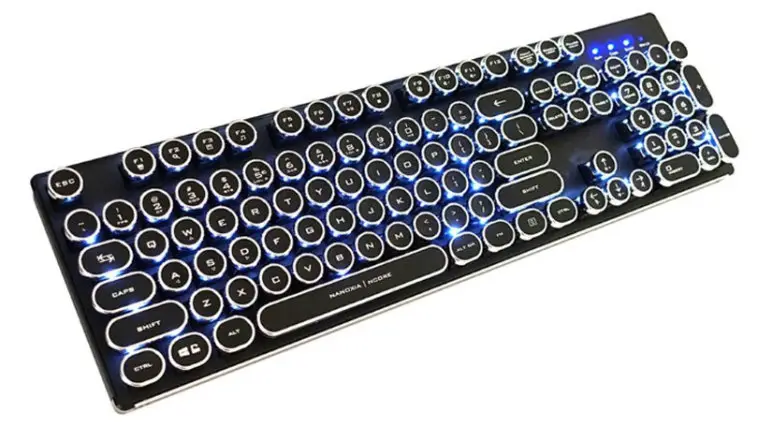
The Ncore Retro Aluminum is a high-class mechanical keyboard made of alu-minum with a layout that will easily catch the eye of anyone looking at it, due to the extravagant layout that is oriented on a classical typewriter. That way<br />
we combine old-school design with high tech. All keys are equipped with white LEDs; a variety of light-modes is available for customers.<br />
The keys of the Ncore Retro Aluminum are fully modular and can simply be removed. By using an FN-key, we added a variety of multimedia-keys to the classic layout. The FN keys also allows the user to switch between different lighting-modes.<br />
If you should have any questions regarding your new product, please send an email to: <a href="mailto:customersupport@nanoxiausa.com">customersupport@nanoxiausa.com</a></p>
<p><strong>Package contents</strong></p>
<ul>
<li>Nanoxia Ncore Retro Aluminum keyboard</li>
<li>Manual</li>
</ul>
<p><b>system </b><b>requirements</b></p>
<ul>
<li>PC with one free USB-connector</li>
<li>Windows® 10 / Windows® 8 / Windows® 7 / Windows Vista® / Windows® XP</li>
</ul>
<h4>specifications</h4>
<ul>
<li>Layout: US</li>
<li>Color: Black</li>
<li>Key Color: Black/Silver encased</li>
<li>Number of keys: 104</li>
<li>Switch: Kaihl White</li>
<li>Life expectancy: 50 million keystrokes</li>
<li>Storing temperature: -20°C bis 85°C</li>
<li>Working temperature: 0°C – 70°C</li>
<li>Connector: USB</li>
<li>Cable length: 1.80 m</li>
<li>Weight: 1,390 g</li>
<li>Dimensions product: approx. 436.5 x 133.5 x 41.9 mm</li>
</ul>
<h4>Features</h4>
<ul>
<li>Function Keys with Preset Multimedia Actions</li>
<li>Anti-Ghosting-Keys</li>
<li>N-Key-Rollover Support</li>
<li>1000 Hz-Ultrapolling</li>
<li>Arrow Keys Functions Are Interchangeable with the WASD keys</li>
<li>Windows-Taste can be deactivated</li>
<li>All keys removable</li>
<li>Water resistant</li>
</ul>
<h4>Keyboard layout</h4>
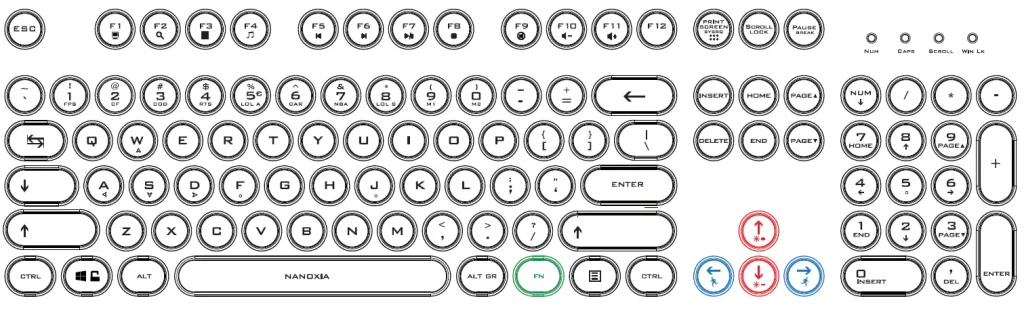
<p><img decoding="async" src="https://usemanuals.com/wp-content/uploads/2023/02/Layout-2.webp" /></p>
<p>fn + f1 Home page<br />
fn + f2 My computer<br />
fn + f3 Calculator<br />
fn + f4 Media player<br />
fn + f5 Prev. title<br />
fn + f6 Next title<br />
fn + f7 Play/Pause<br />
fn + f8 Stop<br />
fn + f9 Mute<br />
fn + f10 Volume –<br />
fn + f11 Volume +<br />
fn + WIn Lock Windows-Taste (LED Indicator W)<br />
fn + W Switch functionality of W S A D and arrow keys<br />
fn + Prtsc Switch 6-key rollover and N-key-rollover</p>
<h4>detailed look at your ncore retro</h4>
<p><strong>a) FN function key</strong><br />
A variety of the keys of your Ncore Retro keyboard are preset with additional functions. To activate these functions, please press both the FN key and the appropriate function key.<br />
<strong>b) Lock Windows-key</strong><br />
If you want to lock the Windows key, press the FN key + the Windows key. To unlock the Windows key, press this combination again.<br />
<strong>c) Switch functionality of W S A D and arrow keys</strong><br />
If you want to swap the functions of the arrows and WASD keys, please press the FN key + the W-key. To undo this functions swap, press this combination again.<br />
<strong>d) Preprogrammed Multimedia-keys</strong><br />
The F1 – F12 keys are preset with multimedia actions and quick access to the media player. In order to use this function, please press both the FN key and the appropriate F-key at the same time.<br />
<strong>e) Switch N-Key and 6-Key rollover mode</strong><br />
The default rollover mode of your keyboard is 6-Key. If you want to switch to N- Key rollover, please press the FN &amp; ScrLck. To switch back to 6-Key rollover, please press the FN &amp; PrtScrn keys</p>
<h4>Lighting effect modes</h4>
<p>By pressing the FN + INS keys together, you can switch through a variety of pre-programmed lighting effect modes:<br />
Standard –&gt; Touch –&gt; Breath –&gt; Gaming –&gt; Scale –&gt; Flower –&gt; Suspension –&gt; Wave –&gt; Spread Effect –&gt; Standard<br />
By pressing the FN &amp; ↑↓, you can adjust the brightness of the LEDs in three steps; by pressing the FN &amp; ←→, you can adjust the time for the effects in 5 steps.</p>
<p><img decoding="async" src="https://usemanuals.com/wp-content/uploads/2023/02/Modes.webp" /></p>
<h4>Game mode &amp; custom key light settings</h4>
<h5>a) Pre-programmed Game Modes</h5>
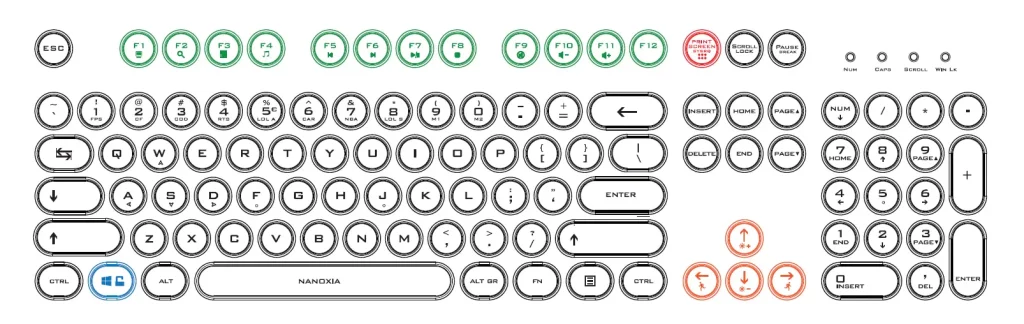
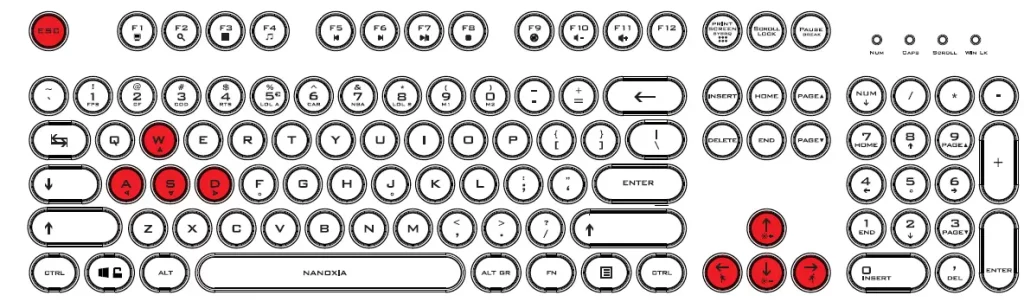
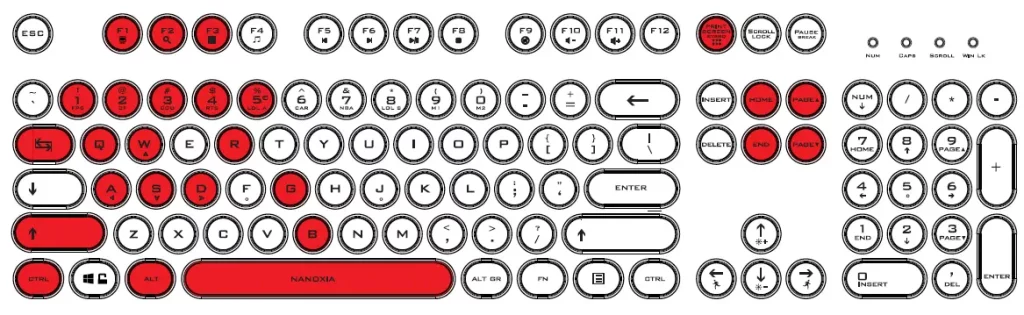
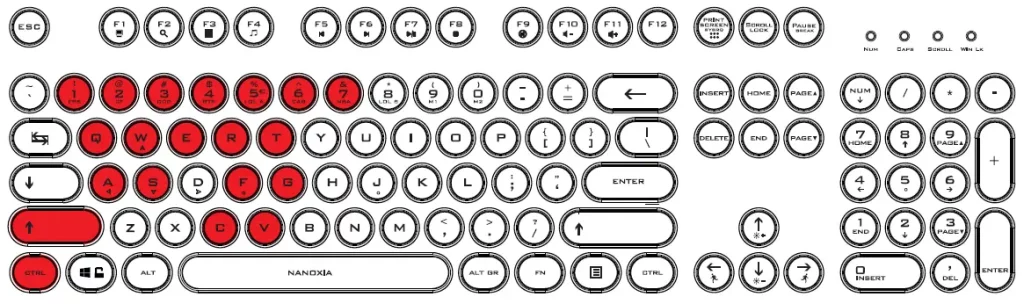
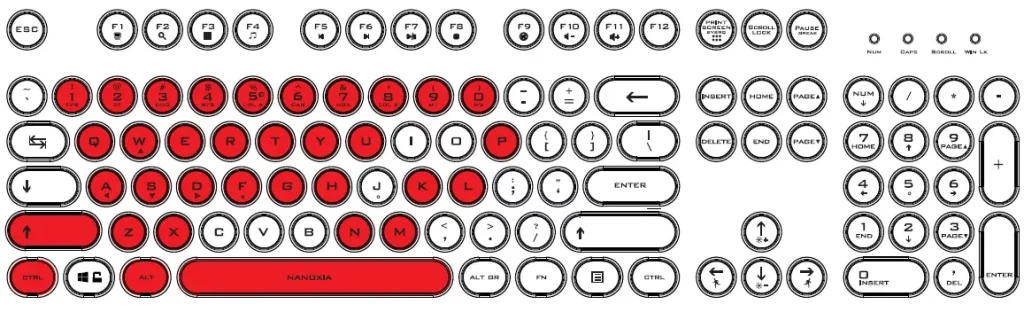
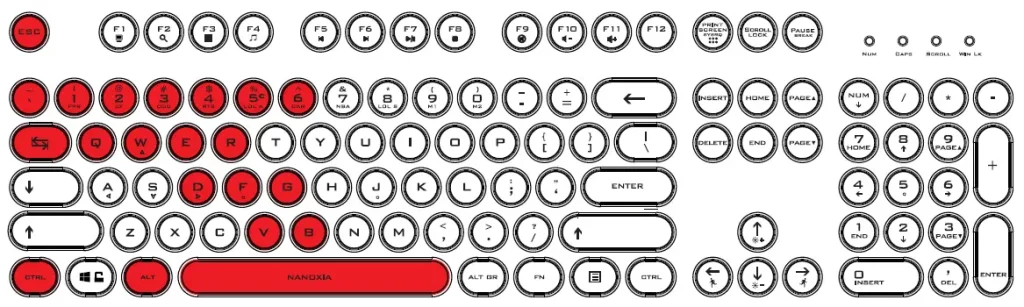
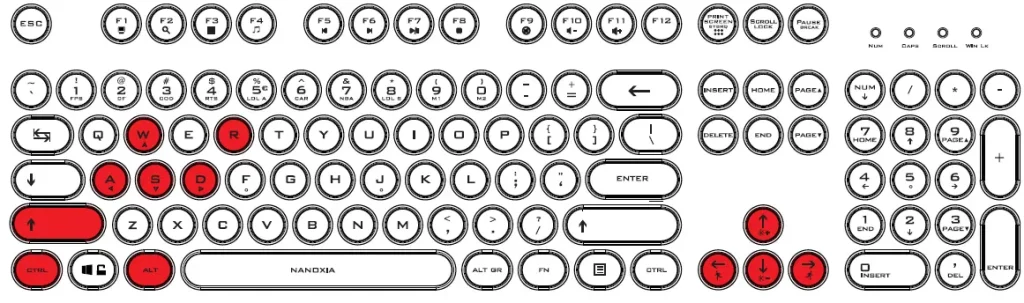
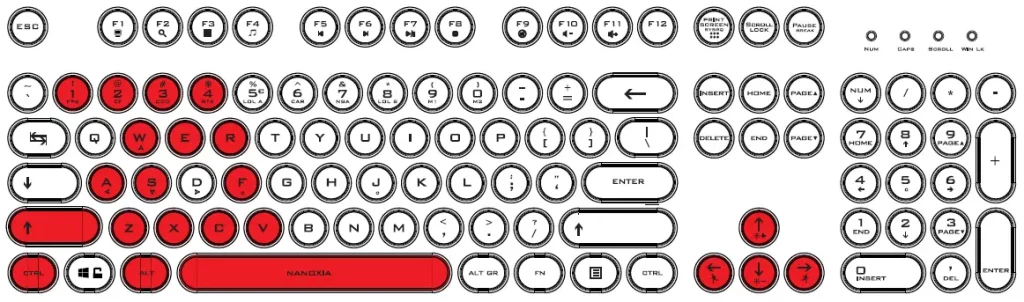
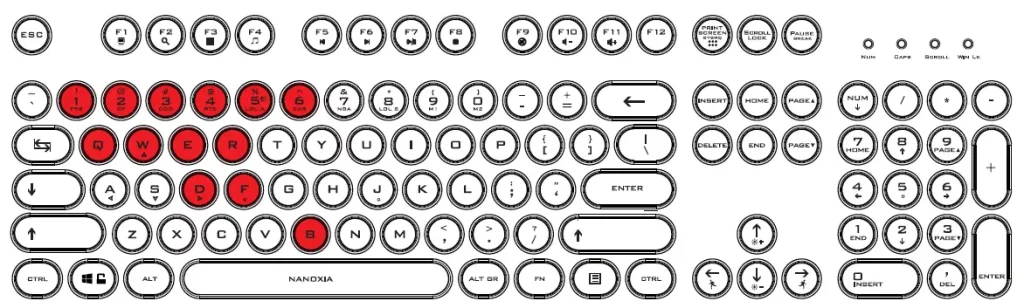
<p>Your new Ncore Retro Aluminum keyboard offers eight pre-programmed game modes, in which a selection of keys will light up, depending on the mode. You can switch between the modes by pressing the FN + 1 through 8 keys.</p>
<p><strong>Game Mode 1<br />
fn+1<img decoding="async" src="https://usemanuals.com/wp-content/uploads/2023/02/Setting-2-2.webp" /></strong></p>
<p><strong>Game Mode 2<br />
fn+2</strong></p>
<p><img decoding="async" src="https://usemanuals.com/wp-content/uploads/2023/02/Setting-2-1-1.webp" /></p>
<p><strong>Game Mode 3<br />
fn+3</strong></p>
<p><img decoding="async" src="https://usemanuals.com/wp-content/uploads/2023/02/Setting-3-1.webp" /></p>
<p><strong>Game Mode 4<br />
fn+4</strong></p>
<p><img decoding="async" src="https://usemanuals.com/wp-content/uploads/2023/02/Setting-4-1.webp" /></p>
<p><strong>Game Mode 5<br />
fn+5</strong></p>
<p><img decoding="async" src="https://usemanuals.com/wp-content/uploads/2023/02/Setting-5.webp" /></p>
<p><strong>Game Mode 6</strong><br />
<strong>fn+6</strong></p>
<p><img decoding="async" src="https://usemanuals.com/wp-content/uploads/2023/02/Setting-6.webp" /></p>
<p><strong>Game Mode 7</strong><br />
<strong>fn+7</strong></p>
<p><img decoding="async" src="https://usemanuals.com/wp-content/uploads/2023/02/Setting-7.webp" /></p>
<p><strong>Game Mode 8</strong><br />
<strong>fn+8</strong></p>
<p><img decoding="async" src="https://usemanuals.com/wp-content/uploads/2023/02/Setting-8.webp" /></p>
<h5>b) Custom Game Modes</h5>
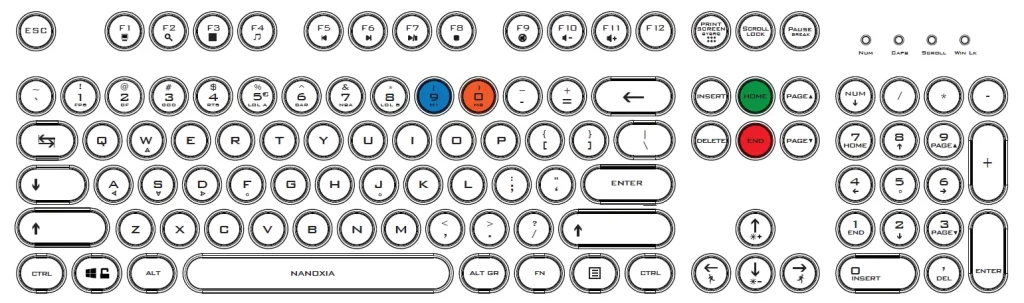
<p>You can also program two custom modes, by using the FN &amp; 9 or the FN &amp; 0 keys. To program your own mode, first switch to one of the custom modes and then hit the FN &amp; Home button to start recording. Hit the keys you want to light up in this mode and when you are done, press FN &amp; End to stop the recording.</p>
<p><img decoding="async" src="https://usemanuals.com/wp-content/uploads/2023/02/Setting-9.webp" /></p>
<p><strong>Connecting The ncore retro To your Pc/laptop</strong></p>
<p>Please connect the Ncore Retro to a free USB port of your PC/Laptop. The ope-rating system will automatically recognize the keyboard and install the driver.<br />
If by chance this does not work, please remove the cable and connect it to another port.</p>
<h4>legal disclaimer:</h4>
<p>For potential loss of data, especially due to inappropriate handling, Nanoxia assumes no liability. All named products and descriptions are trademarks and /or registered trademarks of the respective manufacturers and are accepted as protected. As a continuing policy of product improvement at Nanoxia, the design and specifications are subject to change without prior notice. National product specifications may vary. The legal rights of the enclosed software belong to the respective owner. All rights reserved especially (also in extracts) for translation, reprinting, reproduction by copying or other technical means. Infringements will lead to compensation. All rights reserved especially in case of assignation of patent or utility patent. Means of delivery and technical modifications reserved.</p>
<p><img decoding="async" src="https://usemanuals.com/wp-content/uploads/2023/02/Nanoxia.webp" /></p>
<p>Nanoxia is a registered trademark of:<br />
PC-Cooling GmbH<br />
Eichenallee 3 24589 Nortorf Germany<br />
© Nanoxia 2017<br />
<a href="mailto:info@nanoxia-world.com">info@nanoxia-world.com</a><br />
<a href="http://www.nanoxia-world.com" target="_blank" rel="noopener">www.nanoxia-world.com</a></p>
<form id="commentform" class="comment-form" action="https://manuals.plus/wp-comments-post.php" method="post" novalidate="">
<p class="form-submit"><input id="comment_post_ID" name="comment_post_ID" type="hidden" value="361557" /><br />
<input id="comment_parent" name="comment_parent" type="hidden" value="0" /></p>
</form>
]]></content:encoded>


			</item>
	</channel>
</rss>

<!--
Performance optimized by W3 Total Cache. Learn more: https://www.boldgrid.com/w3-total-cache/

Page Caching using Disk: Enhanced 

Served from: usemanuals.com @ 2026-06-13 01:56:53 by W3 Total Cache
-->