<?xml version="1.0" encoding="UTF-8"?><rss version="2.0"
	xmlns:content="http://purl.org/rss/1.0/modules/content/"
	xmlns:wfw="http://wellformedweb.org/CommentAPI/"
	xmlns:dc="http://purl.org/dc/elements/1.1/"
	xmlns:atom="http://www.w3.org/2005/Atom"
	xmlns:sy="http://purl.org/rss/1.0/modules/syndication/"
	xmlns:slash="http://purl.org/rss/1.0/modules/slash/"
	>

<channel>
	<title>DELTACO &#8211; UseManuals</title>
	<atom:link href="http://usemanuals.com/deltaco/feed/" rel="self" type="application/rss+xml" />
	<link>https://usemanuals.com</link>
	<description>Owner&#039;s manuals for all sorts of products</description>
	<lastBuildDate>Sun, 23 Jul 2023 16:50:04 +0000</lastBuildDate>
	<language>en-US</language>
	<sy:updatePeriod>
	hourly	</sy:updatePeriod>
	<sy:updateFrequency>
	1	</sy:updateFrequency>
	<generator>https://wordpress.org/?v=6.7.2</generator>

<image>
	<url>https://usemanuals.com/wp-content/uploads/2025/02/favicon-32x32-2.png</url>
	<title>DELTACO &#8211; UseManuals</title>
	<link>https://usemanuals.com</link>
	<width>32</width>
	<height>32</height>
</image> 
	<item>
		<title>DELTACO SH-OP01 Smart Mini Plug Manual</title>
		<link>https://usemanuals.com/deltaco/sh-op01-mini-plug/</link>
		
		<dc:creator><![CDATA[ItsManual]]></dc:creator>
		<pubDate>Tue, 27 Jun 2023 09:38:14 +0000</pubDate>
				<category><![CDATA[DELTACO]]></category>
		<guid isPermaLink="false">https://usemanuals.com/?p=127445</guid>

					<description><![CDATA[&#160; SH-OP01 Smart Mini Plug User Manual Thank you for choosing Deltaco! On/off/reset button LED indicator for on/off status Safety instructions Additional safety instructions are included in the AC adapter manual. For the IP rating to be ensured, products with matching IP ratings must be used. I.E. the IP44 connector should be used with another IP44 connector and not an IP20. That way the connection gets sealed properly. Reset Press and hold about 5 seconds for reset. LED flashes quickly. Install and use Download and install the app “Deltaco smart home” from Apple App Store or Google Play Store on your mobile device. Launch the app “Deltaco smart home“. Create a new account or log in to your existing account. Tap “+” to add the device. Choose a category and then the type of product from the list. Connect the device to power. If the LED/lamp does not flash: Reset the device. If the status indicator flashes: Confirm in the app. Confirm the Wi-Fi network and password. Enter the device name. If you want to add the product to Google Home or Amazon Alexa, search for “Deltaco Smart Home” in the Google Home or Amazon Alexa app and log in to your Deltaco Smart Home account. You might need to choose “discover devices” or add the product manually in the Google Home or Amazon Alexa app before you can use it. Add service to Google home Add the device to google home. Add the service “Deltaco Smart Home”. Add device to Amazon Alexa Use the menu “Skills &#38; Games” and search for “Deltaco Smart Home”. Enable the app and log in. Use discover to add the device. Cleaning and maintenance Do not use cleaning solvents or abrasives. Do not clean the inside of the device. Do not attempt to repair the device. If the device does not operate correctly, replace it with a new device. Clean the outside of the device using a soft cloth. Support More product information can be found at www.deltaco.eu. Contact us by e-mail: help@deltaco.eu. SweDeltaco AB, Glasfibergatan 8, 125 45 Älvsjö, Sweden [...]<p><a class="btn btn-secondary understrap-read-more-link" href="https://usemanuals.com/deltaco/sh-op01-mini-plug/">Read More...</a></p>]]></description>

										<content:encoded><![CDATA[<p>&nbsp;</p>
<p><strong>SH-OP01 Smart Mini Plug<br />
User Manual</strong></p>
<p><img decoding="async" src="https://usemanuals.com/wp-content/uploads/2023/06/DELTACO-SH-OP01-Smart-Mini-Plug.webp" /></p>
<p>Thank you for choosing Deltaco!</p>
<ol>
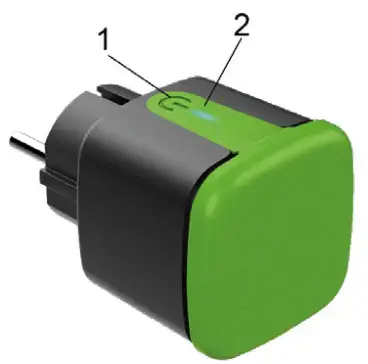
<li>On/off/reset button</li>
<li>LED indicator for on/off status</li>
</ol>
<p><strong>Safety instructions</strong><br />
Additional safety instructions are included in the AC adapter manual.</p>
<ol>
<li>For the IP rating to be ensured, products with matching IP ratings must be used. I.E. the IP44 connector should be used with another IP44 connector and not an IP20.</li>
</ol>
<p>That way the connection gets sealed properly.</p>
<p><strong>Reset</strong><br />
Press and hold about 5 seconds for reset. LED flashes quickly.<br />
<strong>Install and use</strong></p>
<ol>
<li>Download and install the app “Deltaco smart home” from Apple App Store or Google Play Store on your mobile device.</li>
<li>Launch the app “Deltaco smart home“.</li>
<li>Create a new account or log in to your existing account.</li>
<li>Tap “+” to add the device.</li>
<li>Choose a category and then the type of product from the list.</li>
<li>Connect the device to power.</li>
<li>If the LED/lamp does not flash: Reset the device.<br />
If the status indicator flashes: Confirm in the app.</li>
<li>Confirm the Wi-Fi network and password.</li>
<li>Enter the device name.</li>
</ol>
<p>If you want to add the product to Google Home or Amazon Alexa, search for “Deltaco Smart Home” in the Google Home or Amazon Alexa app and log in to your Deltaco Smart Home account. You might need to choose “discover devices” or add the product manually in the Google Home or Amazon Alexa app before you can use it.<br />
<strong>Add service to Google home</strong><br />
Add the device to google home.<br />
Add the service “Deltaco Smart Home”.<br />
<strong>Add device to Amazon Alexa</strong><br />
Use the menu “Skills &amp; Games” and search for<br />
“Deltaco Smart Home”. Enable the app and log in.<br />
Use discover to add the device.<br />
<strong>Cleaning and maintenance</strong><br />
Do not use cleaning solvents or abrasives.<br />
Do not clean the inside of the device.<br />
Do not attempt to repair the device. If the device does not operate correctly, replace it with a new device.<br />
Clean the outside of the device using a soft cloth.<br />
<strong>Support<br />
</strong>More product information can be found at <a href="http://www.deltaco.eu/" target="_blank" rel="noopener">www.deltaco.eu</a>.<br />
Contact us by e-mail: <a href="mailto:help@deltaco.eu">help@deltaco.eu</a>.<br />
<img decoding="async" src="https://usemanuals.com/wp-content/uploads/2023/06/manufacture-icon.webp" />SweDeltaco AB, Glasfibergatan 8, 125 45 Älvsjö, Sweden</p>
<form id="commentform" class="comment-form" action="https://manuals.plus/wp-comments-post.php" method="post" novalidate="">
<p class="form-submit">
</form>
]]></content:encoded>


			</item>
		<item>
		<title>DELTACO SH-P01M Smart Mini Plug Manual</title>
		<link>https://usemanuals.com/deltaco/sh-p01m-plug/</link>
		
		<dc:creator><![CDATA[ItsManual]]></dc:creator>
		<pubDate>Sat, 01 Jul 2023 08:51:12 +0000</pubDate>
				<category><![CDATA[DELTACO]]></category>
		<guid isPermaLink="false">https://usemanuals.com/?p=135866</guid>

					<description><![CDATA[DELTACO SH-P01M Smart Mini Plug &#160; Thank you for choosing Deltaco! Product Overview On/off/reset button LED indicator for on/off status Reset Press and hold about 5 seconds for reset. LED flashes quickly. Install and use Download and install the app “Deltaco smart home” from Apple App Store or Google Play Store on your mobile device. Launch the app “Deltaco smart home”. Create a new account or log in to your existing account. Tap “+” to add the device. Choose category and then the type of product from the list. Connect the device to power. If the LED/lamp does not flash: Reset the device. If the status indicator flashes: Confirm in the app. Confirm the Wi-Fi network and password. Enter the device name. If you want to add the product to Google Home or Amazon Alexa, search for “Deltaco Smart Home” in the Google Home or Amazon Alexa app and login to your Deltaco Smart Home account. You might need to choose “discover devices” or add the product manually in the Google Home or Amazon Alexa app before you can use it. Add service to Google home Add the device to google home. Add the service “Deltaco Smart Home”. Add device to Amazon Alexa Use the menu “Skills &#38; Games” and search for “Deltaco Smart Home”. Enable the app and login. Use discover to add the device. Cleaning and maintenance Do not use cleaning solvents or abrasives. Do not clean the inside of the device. Do not attempt to repair the device. If the device does not operate correctly, replace it with a new device. Clean the outside of the device using a soft cloth. Support More product information can be found at www.deltaco.eu. Contact us by e-mail: help@deltaco.eu. [...]<p><a class="btn btn-secondary understrap-read-more-link" href="https://usemanuals.com/deltaco/sh-p01m-plug/">Read More...</a></p>]]></description>
										<content:encoded><![CDATA[<p><strong>DELTACO SH-P01M Smart Mini Plug</strong></p>
<p>&nbsp;</p>
<p>Thank you for choosing Deltaco!</p>
<h4>Product Overview</h4>
<ol>
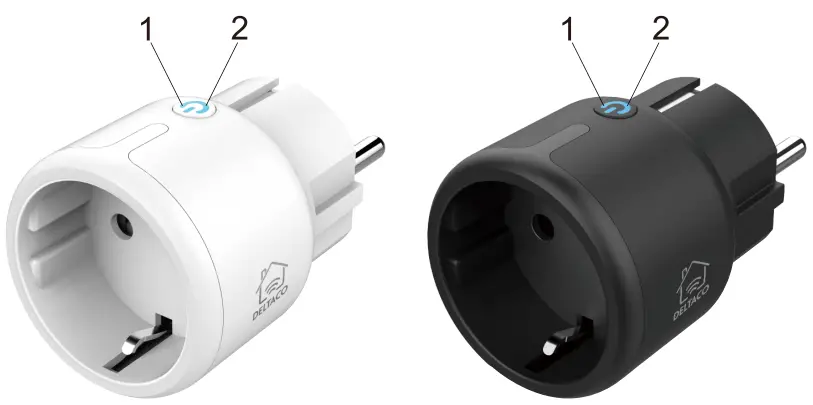
<li>On/off/reset button</li>
<li>LED indicator for on/off status<br />
<img decoding="async" src="https://usemanuals.com/wp-content/uploads/2023/07/2-558-550x274-1.webp" /></li>
</ol>
<h4>Reset</h4>
<p>Press and hold about 5 seconds for reset. LED flashes quickly.</p>
<h4>Install and use</h4>
<ol>
<li>Download and install the app “Deltaco smart home” from Apple App Store or Google Play Store on your mobile device.</li>
<li>Launch the app “Deltaco smart home”.</li>
<li>Create a new account or log in to your existing account.</li>
<li>Tap “+” to add the device.</li>
<li>Choose category and then the type of product from the list.</li>
<li>Connect the device to power.</li>
<li>If the LED/lamp does not flash: Reset the device. If the status indicator flashes: Confirm in the app.</li>
<li>Confirm the Wi-Fi network and password.</li>
<li>Enter the device name.<br />
If you want to add the product to Google Home or Amazon Alexa, search for “Deltaco Smart Home” in the Google Home or Amazon Alexa app and login to your Deltaco Smart Home account. You might need to choose “discover devices” or add the product manually in the Google Home or Amazon Alexa app before you can use it.</li>
</ol>
<h4>Add service to Google home</h4>
<p>Add the device to google home.<br />
Add the service “Deltaco Smart Home”.</p>
<h4>Add device to Amazon Alexa</h4>
<p>Use the menu “Skills &amp; Games” and search for “Deltaco Smart Home”.<br />
Enable the app and login. Use discover to add the device.</p>
<h4>Cleaning and maintenance</h4>
<p>Do not use cleaning solvents or abrasives.<br />
Do not clean the inside of the device.<br />
Do not attempt to repair the device.<br />
If the device does not operate correctly, replace it with a new device.<br />
Clean the outside of the device using a soft cloth.</p>
<h4>Support</h4>
<p>More product information can be found at <a href="http://www.deltaco.eu/" target="_blank" rel="noopener">www.deltaco.eu</a>.<br />
Contact us by e-mail: <a href="mailto:help@deltaco.eu">help@deltaco.eu</a>.</p>
<p><img decoding="async" src="https://usemanuals.com/wp-content/uploads/2023/07/1-575.webp" /></p>
<form id="commentform" class="comment-form" action="https://manuals.plus/wp-comments-post.php" method="post" novalidate="">
<p class="form-submit">
</form>
]]></content:encoded>


			</item>
		<item>
		<title>DELTACO SW3067 Wireless Charging Mousepad Manual</title>
		<link>https://usemanuals.com/deltaco/sw3067-mousepad/</link>
		
		<dc:creator><![CDATA[ItsManual]]></dc:creator>
		<pubDate>Sun, 23 Jul 2023 16:50:04 +0000</pubDate>
				<category><![CDATA[DELTACO]]></category>
		<guid isPermaLink="false">https://usemanuals.com/?p=172065</guid>

					<description><![CDATA[DELTACO SW3067 Wireless Charging Mousepad User Guide Extra wide 900*400*4 mm PRODUCT DATA LOGISTICS DATA PACKAGING Package contents: Mousepad, micro-B charging cable and manual -Image may differ from the actual package WWW.DELTACO.SE [...]<p><a class="btn btn-secondary understrap-read-more-link" href="https://usemanuals.com/deltaco/sw3067-mousepad/">Read More...</a></p>]]></description>

										<content:encoded><![CDATA[<p><img decoding="async" src="https://usemanuals.com/wp-content/uploads/2023/07/DELTACO-logo.webp" /></p>
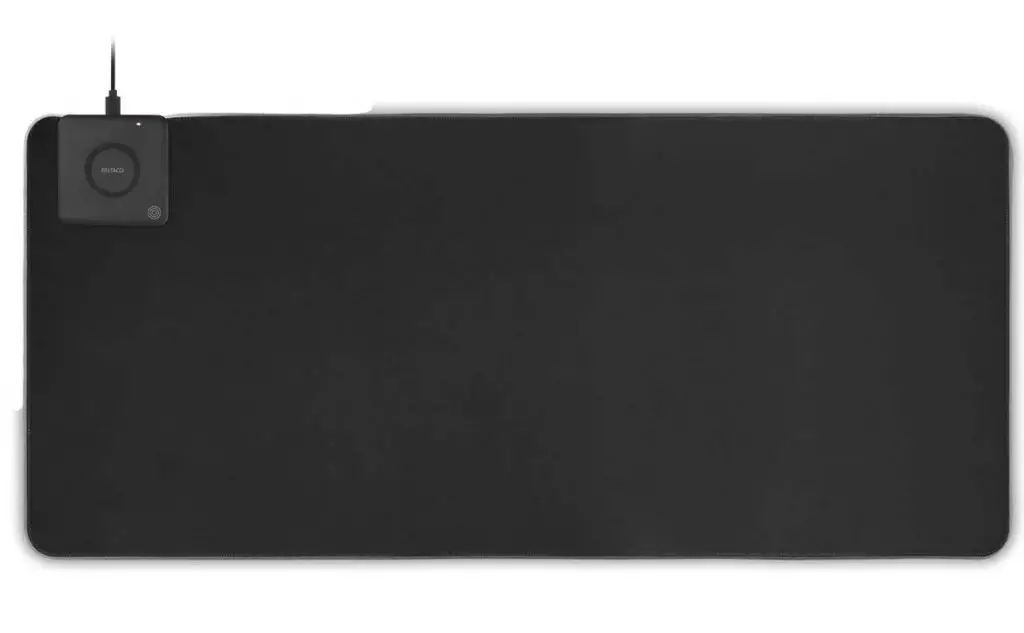
<h3>DELTACO SW3067 Wireless Charging Mousepad User Guide</h3>
<p><img decoding="async" src="https://usemanuals.com/wp-content/uploads/2023/07/DELTACO-SW3067-Wireless-Charging-Mousepad-300x185-1.webp" /></p>
<p><strong>Extra wide 900*400*4 mm</strong></p>
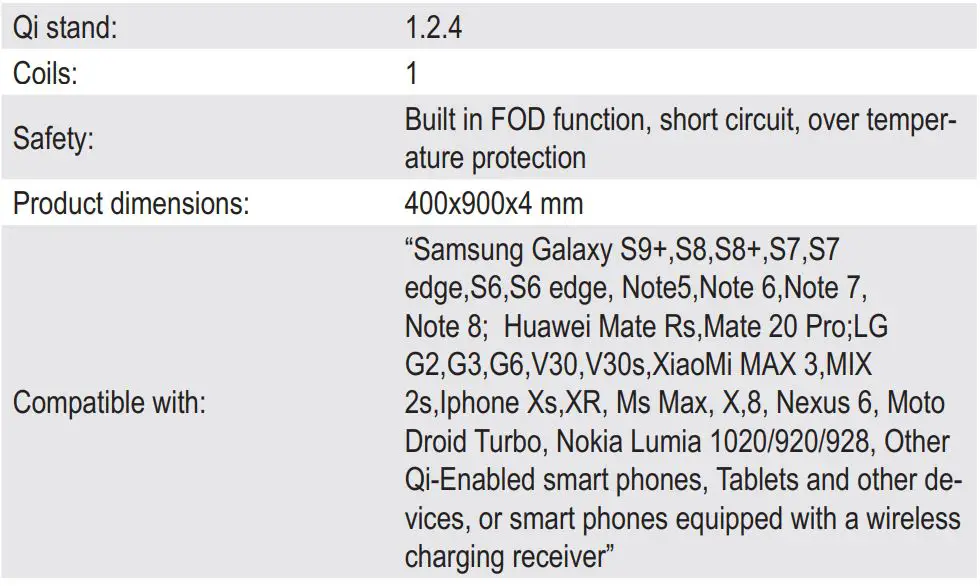
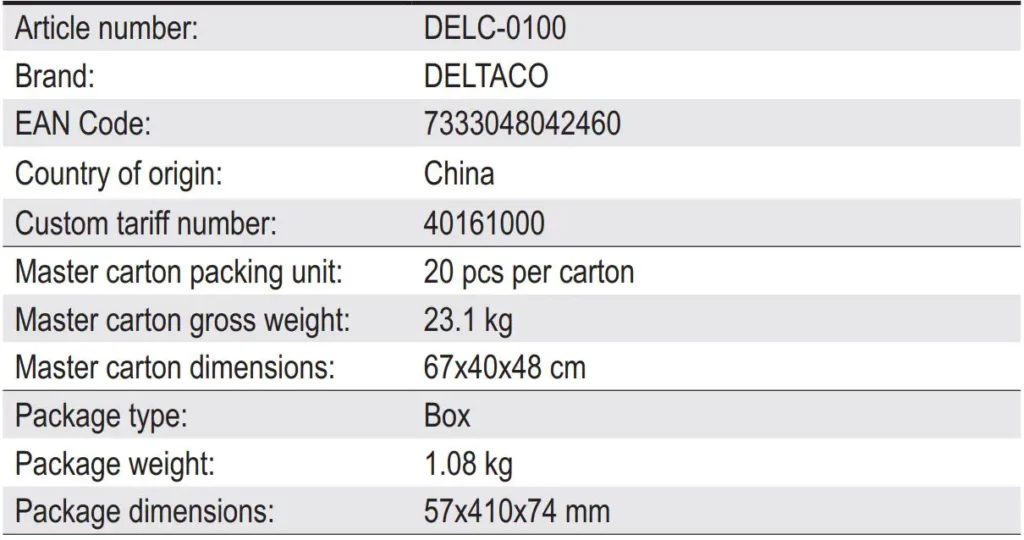
<h3>PRODUCT DATA</h3>
<p><img decoding="async" src="https://usemanuals.com/wp-content/uploads/2023/07/FIG-1-PRODUCT-DATA-300x203-1.webp" /></p>
<p><img decoding="async" src="https://usemanuals.com/wp-content/uploads/2023/07/FIG-2-PRODUCT-DATA-300x179-1.webp" /></p>
<h3>LOGISTICS DATA</h3>
<p><img decoding="async" src="https://usemanuals.com/wp-content/uploads/2023/07/FIG-3-LOGISTICS-DATA-300x158-1.webp" /></p>
<h3>PACKAGING</h3>
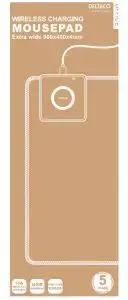
<p><strong>Package contents:</strong> Mousepad, micro-B charging cable and manual</p>
<p><img decoding="async" src="https://usemanuals.com/wp-content/uploads/2023/07/FIG-4-PACKAGING-128x300-1.webp" /></p>
<p><img decoding="async" src="https://usemanuals.com/wp-content/uploads/2023/07/Deltaco-Warranty.webp" /></p>
<p>-Image may differ from the actual package</p>
<p><img decoding="async" src="https://usemanuals.com/wp-content/uploads/2023/07/FIG-5-Contacts-300x56-1.webp" /></p>
<p><img decoding="async" src="https://usemanuals.com/wp-content/uploads/2023/07/FIG-6-Contacts-300x111-1.webp" /></p>
<p><a href="http://www.deltaco.se/" target="_blank" rel="noopener">WWW.DELTACO.SE</a></p>
<form id="commentform" class="comment-form" action="https://manuals.plus/wp-comments-post.php" method="post" novalidate="">
<p class="form-submit">
</form>
]]></content:encoded>


			</item>
	</channel>
</rss>

<!--
Performance optimized by W3 Total Cache. Learn more: https://www.boldgrid.com/w3-total-cache/

Page Caching using Disk: Enhanced 

Served from: usemanuals.com @ 2026-06-13 01:55:16 by W3 Total Cache
-->