<?xml version="1.0" encoding="UTF-8"?><rss version="2.0"
	xmlns:content="http://purl.org/rss/1.0/modules/content/"
	xmlns:wfw="http://wellformedweb.org/CommentAPI/"
	xmlns:dc="http://purl.org/dc/elements/1.1/"
	xmlns:atom="http://www.w3.org/2005/Atom"
	xmlns:sy="http://purl.org/rss/1.0/modules/syndication/"
	xmlns:slash="http://purl.org/rss/1.0/modules/slash/"
	>

<channel>
	<title>Dahua &#8211; UseManuals</title>
	<atom:link href="http://usemanuals.com/dahua/feed/" rel="self" type="application/rss+xml" />
	<link>https://usemanuals.com</link>
	<description>Owner&#039;s manuals for all sorts of products</description>
	<lastBuildDate>Mon, 21 Aug 2023 16:26:17 +0000</lastBuildDate>
	<language>en-US</language>
	<sy:updatePeriod>
	hourly	</sy:updatePeriod>
	<sy:updateFrequency>
	1	</sy:updateFrequency>
	<generator>https://wordpress.org/?v=6.7.2</generator>

<image>
	<url>https://usemanuals.com/wp-content/uploads/2025/02/favicon-32x32-2.png</url>
	<title>Dahua &#8211; UseManuals</title>
	<link>https://usemanuals.com</link>
	<width>32</width>
	<height>32</height>
</image> 
	<item>
		<title>dahua Eyeball Network Camera Manual</title>
		<link>https://usemanuals.com/dahua/eyeball-camera/</link>
		
		<dc:creator><![CDATA[ItsManual]]></dc:creator>
		<pubDate>Mon, 21 Aug 2023 16:26:17 +0000</pubDate>
				<category><![CDATA[Dahua]]></category>
		<guid isPermaLink="false">https://usemanuals.com/?p=203076</guid>

					<description><![CDATA[dahua Eyeball Network Camera User Guide ZHEJIANG DAHUA VISION TECHNOLOGY CO., LTD. Foreword General This manual introduces the functions, installation and operations of the camera. Safety Instructions The following categorized signal words with defined meaning might appear in the manual. Revision History Protect Privacy Notice As the device user or data controller, you might collect personal data of others such as face, fingerprints, car plate number, Email address, phone number, GPS and so on. You need to be in compliance with the local privacy protection laws and regulations to protect the legitimate rights and interests of other people by implementing measures include but not limited to: providing clear and visible identification to inform data subject the existence of surveillance area and providing related contact. About the Manual The manual is for reference only. If there is inconsistency between the manual and the actual product, the actual product shall prevail. We are not liable for any loss caused by the operations that do not comply with the manual. The manual would be updated according to the latest laws and regulations of related regions. For detailed information, see the paper manual, CD-ROM, QR code or our official website. If there is inconsistency between paper manual and the electronic version, the electronic version shall prevail. All the designs and software are subject to change without prior written notice. The product updates might cause some differences between the actual product and the manual. Please contact the customer service for the latest program and supplementary documentation. There still might be deviation in technical data, functions and operations description, or errors in print. If there is any doubt or dispute, please refer to our final explanation. Upgrade the reader software or try other mainstream reader software if the manual (in PDF format) cannot be opened. All trademarks, registered trademarks and the company names in the manual are the properties of their respective owners. Please visit our website, contact the supplier or customer service if there is any problem occurred when using the device. If there is any uncertainty or controversy, please refer to our final explanation. Important Safeguards and Warnings Electrical Safety All installation and operation should conform to your local electrical safety codes. The power source shall conform to the Safety Extra Low Voltage (SELV) standard, and supply power with rated voltage which conforms to Limited power Source requirement according to IEC60950-1. Please note that the power supply requirement is subject to the device label. Make sure the power supply is correct before operating the device. A readily accessible disconnect device shall be incorporated in the building installation wiring. Prevent the power cable from being trampled or pressed, especially the plug, power socket and the junction extruded from the device. Environment Do not aim the device at strong light to focus, such as lamp light and sun light; otherwise it might cause over brightness or light marks, which are not the device malfunction, and affect the longevity of Complementary Metal-Oxide Semiconductor (CMOS). Do not place the device in a damp or dusty environment, extremely hot or cold temperatures, or the locations with strong electromagnetic radiation or unstable lighting. Keep the device away from any liquid to avoid damage to the internal components. Keep the indoor device away from rain or damp to avoid fire or lightning. Keep sound ventilation to avoid heat accumulation. Transport, use and store the device within the range of allowed humidity and temperature. Heavy stress, violent vibration or water splash are not allowed during transportation, storage and installation. Pack the device with standard factory packaging or the equivalent material when transporting the device. Install the device in the location where only the professional staff with relevant knowledge of safety guards and warnings can access. The accidental injury might happen to the non-professionals who enter the installation area when the device is operating normally. Operation and Daily Maintenance Do not touch the heat dissipation component of the device to avoid scald. Carefully follow the instructions in the manual when performing any disassembly operation about the device; otherwise, it might cause water leakage or poor image quality due to unprofessional disassemble. Please contact after-sale service for desiccant replacement if there is condensed fog found on the lens after unpacking or when the desiccant turns green. (Not all models are included with the desiccant). It is recommended to use the device together with lightning arrester to improve lightning protection effect. It is recommended to ground the device to enhance reliability. Do not touch the image sensor (CMOS) directly. Dust and dirt could be removed with air blower, or you can wipe the lens gently with soft cloth that moistened with alcohol. Device body can be cleaned with soft dry cloth, which can also be used to remove stubborn stains when moistened with mild detergent. To avoid possible damage on device body coating which could cause performance decrease, do not use volatile solvent such as alcohol, benzene, diluent and so on to clean the device body, nor can strong, abrasive detergent be used. Dome cover is an optical component, do not touch or wipe the cover with your hands directly during installation or operation. For removing dust, grease or fingerprints, wipe gently with moisten oil-free cotton with diethyl or moisten soft cloth. You can also air blower to remove dust. Please strengthen the protection of network, device data and personal information by adopting measures which include but not limited to using strong password, modifying password regularly, upgrading firmware to the latest version, and isolating computer network. For some device with old firmware versions, the ONVIF password will not be modified automatically along with the modification of the system password, and you need to upgrade the firmware or manually update the ONVIF password. Use standard components or accessories provided by manufacturer and make sure the device is installed and maintained by professional engineers. The surface of the image sensor should not be exposed to laser beam radiation in an environment where a laser beam device is used. Do not provide two or more power supply sources for the device unless otherwise specified. A failure to follow this instruction might cause damage to the device. Regulatory Information The regulatory information herein might vary according to the model you purchased. Some information is only applicable for the country or region where the product is sold. FCC Information CAUTION Changes or modifications not expressly approved by the party responsible for compliance could void the user’s authority to operate the equipment. FCC conditions: This device complies with part 15 of the FCC Rules. Operation is subject to the following two conditions: This device may not cause harmful interference. This device must accept any interference received, including interference that may cause undesired operation. FCC compliance: This equipment has been tested and found to comply with the limits for a digital device, pursuant to part 15 of the FCC Rules. This equipment generate, uses and can radiate radio frequency energy and, if not installed and used in accordance with the instructions, may cause harmful interference to radio communication. For class A device, these limits are designed to provide reasonable protection against harmful interference in a commercial environment. Operation of this equipment in a residential area is likely to cause harmful interference in which case the user will be required to correct the interference at his own expense. For class B device, these limits are designed to provide reasonable protection against harmful interference in a residential installation. However, there is no guarantee that interference will not occur in a particular installation. If this equipment does cause harmful interference to radio or television reception, which can be determined by turning the equipment off and on, the user is encouraged to try to correct the interference by one or more of the following measures: Reorient or relocate the receiving antenna. Increase the separation between the equipment and receiver. Connect the equipment into an outlet on a circuit different from that to which the receiver is connected. Consult the dealer or an experienced radio/TV technician for help. 1. Cable Cable type might vary with different devices, and the actual product shall prevail. Waterproof all the cable joints with insulating tape and waterproof tape to avoid short circuit and water damage. For the detailed operation, see the FAQ Manual. For more information about cable ports, see Table 1-1. Table 1-1 Cable information 2. Network Configuration Device initialization and IP address setting can be finished with the “ConfigTool” or in web interface. For more information, see the Web Operation Manual. Device initialization is available on select models, and it is required at first use or after the device being reset. Device initialization is available only when the IP addresses of the device (192.168.1.108 by default) and the PC stay in the same network segment. Plan useable network segment properly to connect the device to the network. The following figures and interfaces are for reference only, and the actual product shall prevail. 2.1 Initializing Device Step 1 Double-click “Config Tool.exe” to open the tool. Step 2 Click . The Modify IP interface is displayed. See Figure 2-1. Figure 2-1 Modify IP Step 3 Click Search setting. The Setting interface is displayed. Step 4 Enter the start IP address and end IP address of the network segment in which you want to search devices, and then click OK. All the devices found in the network segment are listed. Step 5 Select one or several devices with Status shows Uninitialized, and then click Initialize. The Device initialization interface is displayed. Select the devices that need initialization, Step 6 and then click Initialize. The password setting interface is displayed. See Figure 2-2. Figure 2-2 Password setting Step 7 Set and confirm the password of the devices, then enter a valid email address, and then click Next. The final setting interface is displayed. Password can be modified or reset in System Settings. Step 8 Select the options according to your needs, and then click OK. The Initialization interface is displayed after initialization is completed. Click the success icon ( ) or the failure icon ( ) for the details. Step 9 Click Finish. The device status in the Modify IP interface (Figure 2-1) turns to Initialized. 2.2 Modifying Device IP Address You can modify IP address of one or multiple devices in one time. This section is based on modifying IP addresses in batch. Modifying IP addresses in batch is available only when the corresponding devices have the same login password. Step 1: Do “Step 1” to “Step 4” in “2.1 Initializing Device” to search devices in your network segment. After clicking Search setting, enter the username and password, and please make sure they are the same as what you set during initialization, otherwise there will be “wrong password” notice. Step 2: Select the devices which IP addresses need to be modified, and then click Modify IP. The Modify IP Address interface is displayed. See Figure 2-3. Figure 2-3 Modify IP address interface Step 3: Select Static mode, and then enter start IP, subnet mask, and gateway.  IP addresses of multiple devices will be set to the same if you select the Same IP checkbox. If DHCP server is available in the network, devices will automatically obtain IP addresses from DHCP server when you select DHCP. Step 4: Click OK. 2.3 Logging in Web Interface Step 1: Open IE browser, then enter the IP address of the device in the address bar, and then press Enter. If the setup wizard is displayed, finish the settings as instructed. Step 2: Enter the user name and password in the login box, and then click Login. Step 3: For first time login, click Click Here to Download Plugin, and then install the plugin as instructed. The main interface is displayed when the installation is finished. See Figure 2-4. Figure 2-4 Main interface 3. Installation 3.1 Packing List The tool required for the installation such as electric drill is not provided in the packing. The operation manual and related tool are contained in the disk or the QR code, and the actual packing shall prevail. 3.2 Dimension Following figures are for reference only, and the actual product shall prevail. (Unit: mm [inch]) 3.3 Installing Device 3.3.1 Installation Direction 3.3.2 Installation Method 3.3.3 Detaching the Device 3.3.4 Installing SD Card (Optional) Pull the power plug off before installing or removing the SD card. Press and hold the RESET button for 10 s to reset the camera. 3.3.5 Attaching Device   Make sure the mounting surface is strong enough to hold at least three times of the weight of the device and bracket. Cable going through the mounting surface Cable going through the side cable tray 3.3.6 Installing Waterproof Connector (Optional) This part is needed only when there is waterproof connector come with the device and the device is used outdoor. 3.3.7 Adjusting Lens Angle ZHEJIANG DAHUA VISION TECHNOLOGY CO., LTD. Address: No.1199, Bin’an Road, Binjiang District, Hangzhou, P.R. China Postcode: 310053 Tel: +86-571-87688883 Fax: +86-571-87688815 Email: overseas@dahuatech.com Website: www.dahuasecurity.com [...]<p><a class="btn btn-secondary understrap-read-more-link" href="https://usemanuals.com/dahua/eyeball-camera/">Read More...</a></p>]]></description>

										<content:encoded><![CDATA[<p><img decoding="async" src="https://usemanuals.com/wp-content/uploads/2023/08/dahua-logo-300x90-1.webp" /></p>
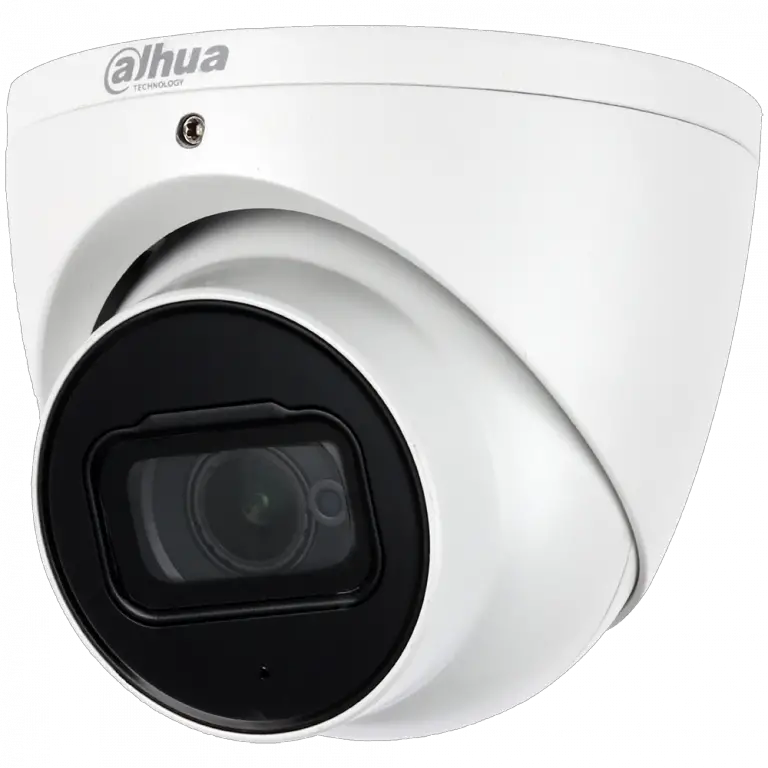
<h3>dahua Eyeball Network Camera User Guide</h3>
<p><img decoding="async" src="https://usemanuals.com/wp-content/uploads/2023/08/dahua-Eyeball-Network-Camera-300x300-1.webp" /></p>
<p><strong>ZHEJIANG DAHUA VISION TECHNOLOGY CO., LTD.</strong></p>
<h3>Foreword</h3>
<p><strong>General</strong><br />
This manual introduces the functions, installation and operations of the camera.</p>
<p><strong>Safety Instructions</strong><br />
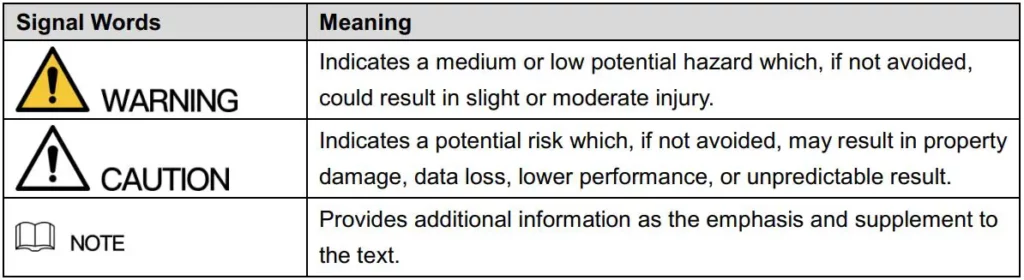
The following categorized signal words with defined meaning might appear in the manual.</p>
<p><img decoding="async" src="https://usemanuals.com/wp-content/uploads/2023/08/FIG-1-Safety-Instructions-300x82-1.webp" /></p>
<p><strong>Revision History</strong></p>
<p><img decoding="async" src="https://usemanuals.com/wp-content/uploads/2023/08/FIG-2-Revision-History-300x31-1.webp" /></p>
<p><strong>Protect Privacy Notice</strong><br />
As the device user or data controller, you might collect personal data of others such as face, fingerprints, car plate number, Email address, phone number, GPS and so on. You need to be in compliance with the local privacy protection laws and regulations to protect the legitimate rights and interests of other people by implementing measures include but not limited to: providing clear and visible identification to inform data subject the existence of surveillance area and providing related contact.</p>
<p><strong>About the Manual</strong></p>
<ul>
<li>The manual is for reference only. If there is inconsistency between the manual and the<br />
actual product, the actual product shall prevail.</li>
<li>We are not liable for any loss caused by the operations that do not comply with the manual.</li>
<li>The manual would be updated according to the latest laws and regulations of related regions. For detailed information, see the paper manual, CD-ROM, QR code or our official<br />
website. If there is inconsistency between paper manual and the electronic version, the<br />
electronic version shall prevail.</li>
<li>All the designs and software are subject to change without prior written notice. The product<br />
updates might cause some differences between the actual product and the manual. Please<br />
contact the customer service for the latest program and supplementary documentation.</li>
<li>There still might be deviation in technical data, functions and operations description, or<br />
errors in print. If there is any doubt or dispute, please refer to our final explanation.</li>
<li>Upgrade the reader software or try other mainstream reader software if the manual (in PDF<br />
format) cannot be opened.</li>
<li>All trademarks, registered trademarks and the company names in the manual are the properties of their respective owners.</li>
<li>Please visit our website, contact the supplier or customer service if there is any problem<br />
occurred when using the device.</li>
<li>If there is any uncertainty or controversy, please refer to our final explanation.</li>
</ul>
<h3>Important Safeguards and Warnings</h3>
<p><strong>Electrical Safety</strong></p>
<ul>
<li>All installation and operation should conform to your local electrical safety codes.</li>
<li>The power source shall conform to the Safety Extra Low Voltage (SELV) standard, and supply power with rated voltage which conforms to Limited power Source requirement according to IEC60950-1. Please note that the power supply requirement is subject to the device label.</li>
<li>Make sure the power supply is correct before operating the device.</li>
<li>A readily accessible disconnect device shall be incorporated in the building installation wiring.</li>
<li>Prevent the power cable from being trampled or pressed, especially the plug, power socket<br />
and the junction extruded from the device.</li>
</ul>
<p><strong>Environment</strong></p>
<ul>
<li>Do not aim the device at strong light to focus, such as lamp light and sun light; otherwise it<br />
might cause over brightness or light marks, which are not the device malfunction, and<br />
affect the longevity of Complementary Metal-Oxide Semiconductor (CMOS).</li>
<li>Do not place the device in a damp or dusty environment, extremely hot or cold<br />
temperatures, or the locations with strong electromagnetic radiation or unstable lighting.</li>
<li>Keep the device away from any liquid to avoid damage to the internal components.</li>
<li>Keep the indoor device away from rain or damp to avoid fire or lightning.</li>
<li>Keep sound ventilation to avoid heat accumulation.</li>
<li>Transport, use and store the device within the range of allowed humidity and temperature.</li>
<li>Heavy stress, violent vibration or water splash are not allowed during transportation,<br />
storage and installation.</li>
<li>Pack the device with standard factory packaging or the equivalent material when transporting the device.</li>
<li>Install the device in the location where only the professional staff with relevant knowledge<br />
of safety guards and warnings can access. The accidental injury might happen to the<br />
non-professionals who enter the installation area when the device is operating normally.</li>
</ul>
<p><strong>Operation and Daily Maintenance</strong></p>
<ul>
<li>Do not touch the heat dissipation component of the device to avoid scald.</li>
<li>Carefully follow the instructions in the manual when performing any disassembly operation<br />
about the device; otherwise, it might cause water leakage or poor image quality due to unprofessional disassemble. Please contact after-sale service for desiccant replacement if<br />
there is condensed fog found on the lens after unpacking or when the desiccant turns green. (Not all models are included with the desiccant).</li>
<li>It is recommended to use the device together with lightning arrester to improve lightning<br />
protection effect.</li>
<li>It is recommended to ground the device to enhance reliability.</li>
<li>Do not touch the image sensor (CMOS) directly. Dust and dirt could be removed with air<br />
blower, or you can wipe the lens gently with soft cloth that moistened with alcohol.</li>
<li>Device body can be cleaned with soft dry cloth, which can also be used to remove stubborn stains when moistened with mild detergent. To avoid possible damage on device body coating which could cause performance decrease, do not use volatile solvent such as alcohol, benzene, diluent and so on to clean the device body, nor can strong, abrasive detergent be used.</li>
<li>Dome cover is an optical component, do not touch or wipe the cover with your hands<br />
directly during installation or operation. For removing dust, grease or fingerprints, wipe<br />
gently with moisten oil-free cotton with diethyl or moisten soft cloth. You can also air blower to remove dust.</li>
</ul>
<p><img decoding="async" src="https://usemanuals.com/wp-content/uploads/2023/08/Warning-3-1-2.webp" /></p>
<ul>
<li>Please strengthen the protection of network, device data and personal information by<br />
adopting measures which include but not limited to using strong password, modifying<br />
password regularly, upgrading firmware to the latest version, and isolating computer<br />
network. For some device with old firmware versions, the ONVIF password will not be<br />
modified automatically along with the modification of the system password, and you need<br />
to upgrade the firmware or manually update the ONVIF password.</li>
<li>Use standard components or accessories provided by manufacturer and make sure the device is installed and maintained by professional engineers.</li>
<li>The surface of the image sensor should not be exposed to laser beam radiation in an environment where a laser beam device is used.</li>
<li>Do not provide two or more power supply sources for the device unless otherwise specified. A failure to follow this instruction might cause damage to the device.</li>
</ul>
<h3>Regulatory Information</h3>
<p>The regulatory information herein might vary according to the model you purchased. Some information is only applicable for the country or region where the product is sold.</p>
<p><strong>FCC Information</strong></p>
<p><img decoding="async" src="https://usemanuals.com/wp-content/uploads/2023/08/behringer-24-Bit-192-kHz-Digital-40-20-Watt-Stereo-Near-Field-Monitors-User-Guide-Warning-or-Caution-icon-1.webp" /><strong>CAUTION</strong></p>
<p>Changes or modifications not expressly approved by the party responsible for compliance<br />
could void the user’s authority to operate the equipment.</p>
<p><strong>FCC conditions:</strong><br />
This device complies with part 15 of the FCC Rules. Operation is subject to the following two<br />
conditions:</p>
<ul>
<li>This device may not cause harmful interference.</li>
<li>This device must accept any interference received, including interference that may cause<br />
undesired operation.</li>
</ul>
<p><strong>FCC compliance:</strong><br />
This equipment has been tested and found to comply with the limits for a digital device, pursuant to part 15 of the FCC Rules. This equipment generate, uses and can radiate radio frequency energy and, if not installed and used in accordance with the instructions, may cause harmful interference to radio communication.</p>
<p>For class A device, these limits are designed to provide reasonable protection against<br />
harmful interference in a commercial environment. Operation of this equipment in a<br />
residential area is likely to cause harmful interference in which case the user will be<br />
required to correct the interference at his own expense.</p>
<p>For class B device, these limits are designed to provide reasonable protection against harmful interference in a residential installation. However, there is no guarantee that interference will not occur in a particular installation. If this equipment does cause harmful interference to radio or television reception, which can be determined by turning the equipment off and on, the user is encouraged to try to correct the interference by one or more of the following measures:</p>
<ul>
<li>Reorient or relocate the receiving antenna.</li>
<li>Increase the separation between the equipment and receiver.</li>
<li>Connect the equipment into an outlet on a circuit different from that to which the receiver is connected.</li>
<li>Consult the dealer or an experienced radio/TV technician for help.</li>
</ul>
<h3>1. Cable</h3>
<ul>
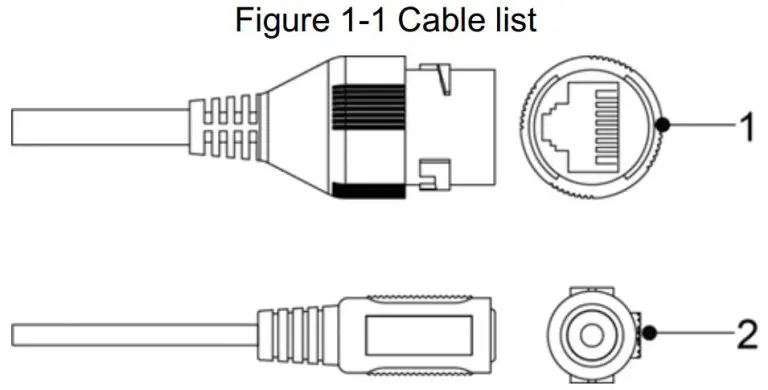
<li>Cable type might vary with different devices, and the actual product shall prevail.</li>
<li>Waterproof all the cable joints with insulating tape and waterproof tape to avoid short circuit and water damage. For the detailed operation, see the FAQ Manual.</li>
</ul>
<p><img decoding="async" src="https://usemanuals.com/wp-content/uploads/2023/08/FIG-3-Cable-300x152-1.webp" /></p>
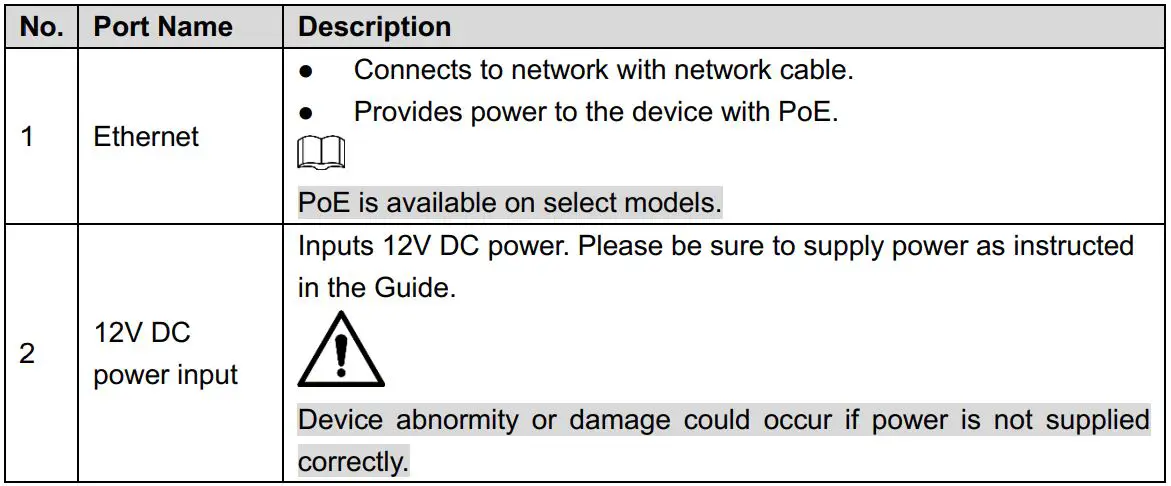
<p>For more information about cable ports, see Table 1-1.</p>
<p><strong>Table 1-1 Cable information</strong></p>
<p><img decoding="async" src="https://usemanuals.com/wp-content/uploads/2023/08/FIG-4-Cable-information-300x125-1.webp" /></p>
<h3>2. Network Configuration</h3>
<p>Device initialization and IP address setting can be finished with the “ConfigTool” or in web<br />
interface. For more information, see the Web Operation Manual.</p>
<ul>
<li>Device initialization is available on select models, and it is required at first use or after the<br />
device being reset.</li>
<li>Device initialization is available only when the IP addresses of the device (192.168.1.108 by default) and the PC stay in the same network segment.</li>
<li>Plan useable network segment properly to connect the device to the network.</li>
<li>The following figures and interfaces are for reference only, and the actual product shall prevail.</li>
</ul>
<h4>2.1 Initializing Device</h4>
<p><strong>Step 1</strong> Double-click “Config Tool.exe” to open the tool.<br />
<strong>Step 2</strong> Click <img decoding="async" src="https://usemanuals.com/wp-content/uploads/2023/08/Config-Tool.webp" />.<br />
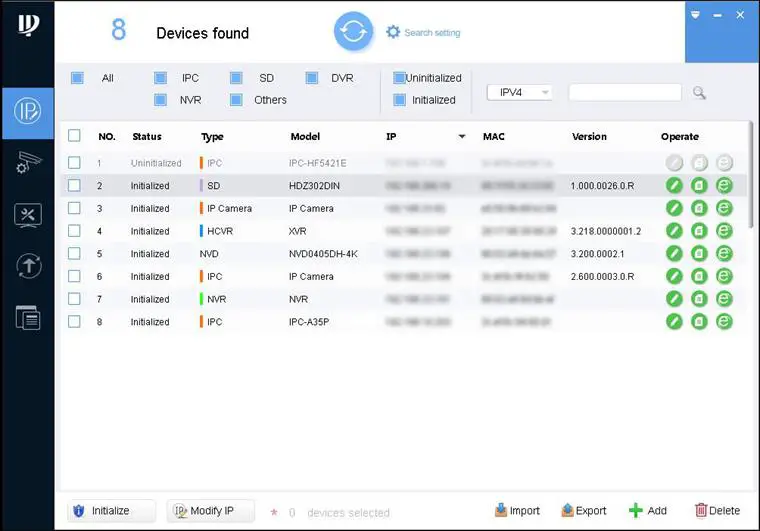
The Modify IP interface is displayed. See Figure 2-1.</p>
<p><strong>Figure 2-1 Modify IP</strong></p>
<p><img decoding="async" src="https://usemanuals.com/wp-content/uploads/2023/08/FIG-5-Initializing-Device-300x210-1.webp" /></p>
<p><strong>Step 3</strong> Click <strong>Search setting.</strong><br />
The <strong>Setting</strong> interface is displayed.<br />
<strong>Step 4</strong> Enter the start IP address and end IP address of the network segment in which you<br />
want to search devices, and then click <strong>OK</strong>.<br />
All the devices found in the network segment are listed.<br />
<strong>Step 5</strong> Select one or several devices with <strong>Status</strong> shows <strong>Uninitialized</strong>, and then click <strong>Initialize</strong>.</p>
<p>The Device initialization interface is displayed.<br />
Select the devices that need initialization,</p>
<p><strong>Step 6</strong> and then click Initialize.<br />
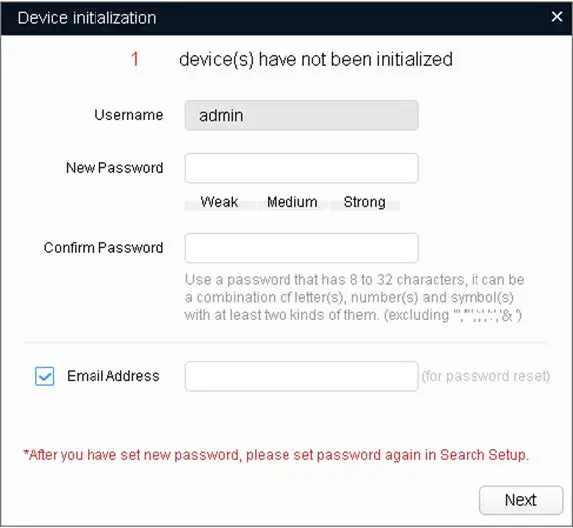
The password setting interface is displayed. See Figure 2-2.</p>
<p><strong>Figure 2-2 Password setting</strong></p>
<p><img decoding="async" src="https://usemanuals.com/wp-content/uploads/2023/08/FIG-6-Initializing-Device-300x276-1.webp" /></p>
<p><strong>Step 7</strong> Set and confirm the password of the devices, then enter a valid email address, and then click <strong>Next</strong>. The final setting interface is displayed.<br />
Password can be modified or reset in<strong> System Settings.</strong></p>
<p><strong>Step 8</strong> Select the options according to your needs, and then click OK. The <strong>Initialization</strong> interface is displayed after initialization is completed. Click the <strong>success icon</strong> ( <img decoding="async" src="https://usemanuals.com/wp-content/uploads/2023/08/701-7015112_tick-mark-symbol-icon-check-mark-symbol-transparent-294x300-1.webp" />) or the failure icon (<img decoding="async" src="https://usemanuals.com/wp-content/uploads/2023/08/ABUS-Nexello-3I-3O-Hybrid-Module-User-Manual-Warning-or-Caution-icon-2.webp" /> ) for the details.</p>
<p><strong>Step 9</strong> Click <strong>Finish</strong>.<br />
The device status in the Modify IP interface (Figure 2-1) turns to Initialized.</p>
<h4>2.2 Modifying Device IP Address</h4>
<ul>
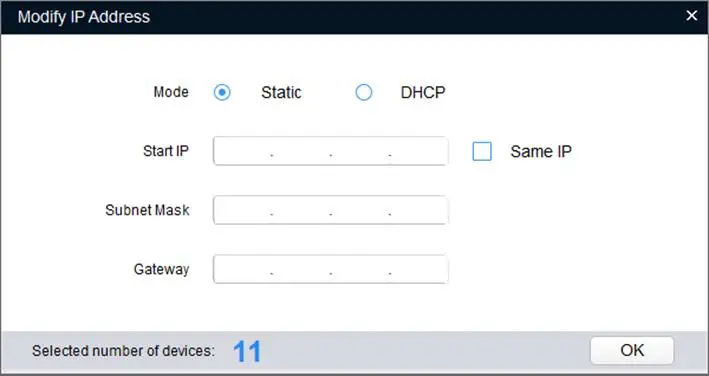
<li>You can modify IP address of one or multiple devices in one time. This section is based on<br />
modifying IP addresses in batch.</li>
<li>Modifying IP addresses in batch is available only when the corresponding devices have the<br />
same login password.</li>
</ul>
<p><strong>Step 1:</strong> Do “Step 1” to “Step 4” in “2.1 Initializing Device” to search devices in your network<br />
segment.</p>
<p>After clicking Search setting, enter the username and password, and please make sure they are the same as what you set during initialization, otherwise there will be “wrong password” notice.</p>
<p><strong>Step 2:</strong> Select the devices which IP addresses need to be modified, and then click Modify IP.<br />
The Modify IP Address interface is displayed. See Figure 2-3.</p>
<p><strong>Figure 2-3 Modify IP address interface</strong></p>
<p><img decoding="async" src="https://usemanuals.com/wp-content/uploads/2023/08/FIG-7-Modifying-Device-IP-Address-300x159-1.webp" /></p>
<p><strong>Step 3:</strong> Select Static mode, and then enter start IP, subnet mask, and gateway.</p>
<ul>
<li> IP addresses of multiple devices will be set to the same if you select the Same IP checkbox.</li>
<li>If DHCP server is available in the network, devices will automatically obtain IP addresses from DHCP server when you select DHCP.</li>
</ul>
<p><strong>Step 4:</strong> Click OK.</p>
<h4>2.3 Logging in Web Interface</h4>
<p><strong>Step 1:</strong> Open IE browser, then enter the IP address of the device in the address bar, and then<br />
press Enter.<br />
If the setup wizard is displayed, finish the settings as instructed.</p>
<p><strong>Step 2:</strong> Enter the user name and password in the login box, and then click Login.</p>
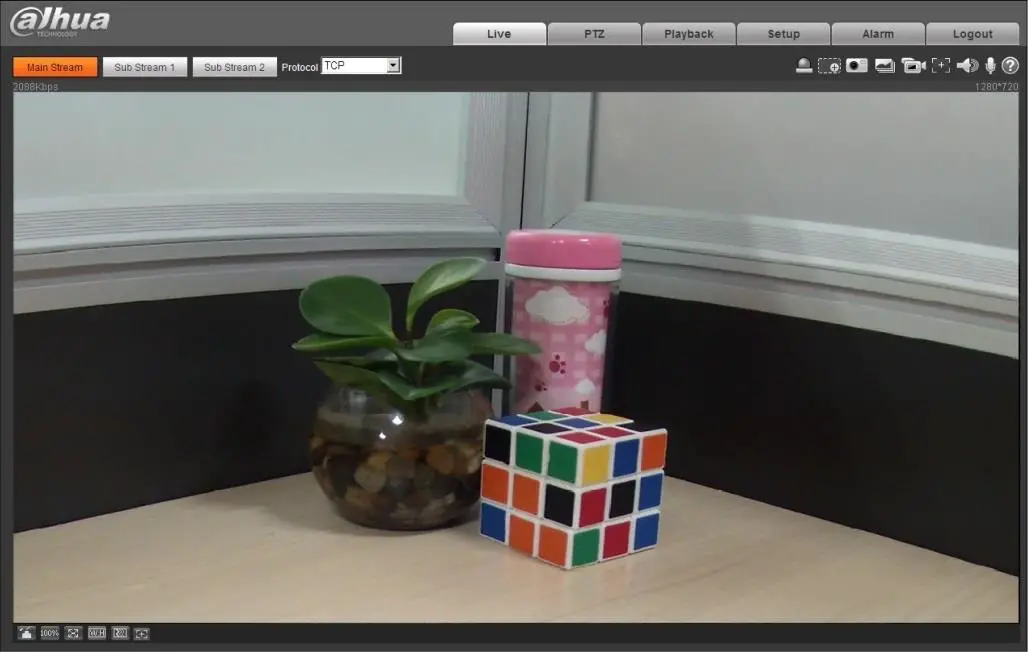
<p><strong>Step 3:</strong> For first time login, click Click Here to Download Plugin, and then install the plugin as<br />
instructed.<br />
The main interface is displayed when the installation is finished. See Figure 2-4.</p>
<p><strong>Figure 2-4 Main interface</strong></p>
<p><img decoding="async" src="https://usemanuals.com/wp-content/uploads/2023/08/FIG-8-Logging-in-Web-Interface-300x190-1.webp" /></p>
<h3>3. Installation</h3>
<h4>3.1 Packing List</h4>
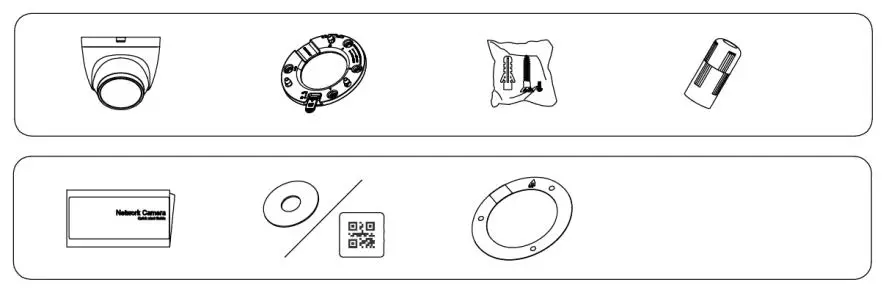
<ul>
<li>The tool required for the installation such as electric drill is not provided in the packing.</li>
<li>The operation manual and related tool are contained in the disk or the QR code, and the<br />
actual packing shall prevail.</li>
</ul>
<p><img decoding="async" src="https://usemanuals.com/wp-content/uploads/2023/08/FIG-9-Packing-List-300x99-1.webp" /></p>
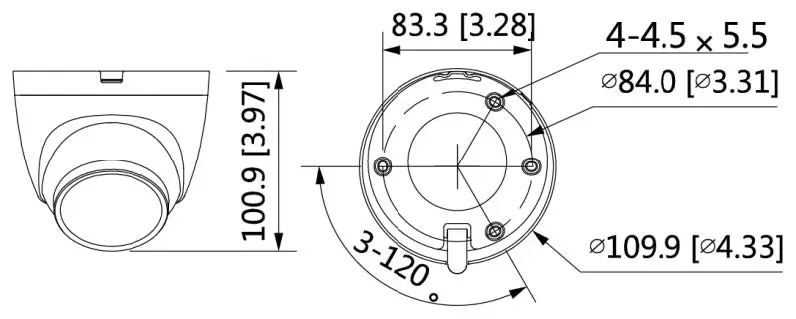
<h4>3.2 Dimension</h4>
<p>Following figures are for reference only, and the actual product shall prevail.</p>
<p>(Unit: mm [inch])</p>
<p><img decoding="async" src="https://usemanuals.com/wp-content/uploads/2023/08/FIG-10-Dimension-300x120-1.webp" /></p>
<h4>3.3 Installing Device</h4>
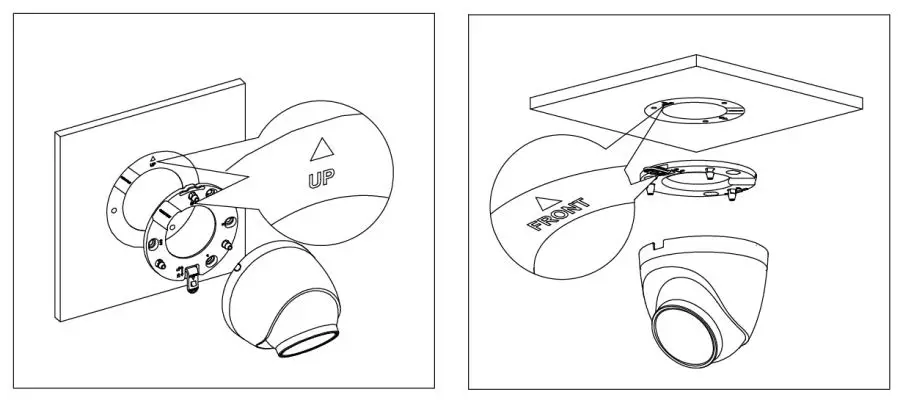
<p><strong>3.3.1 Installation Direction</strong></p>
<p><img decoding="async" src="https://usemanuals.com/wp-content/uploads/2023/08/FIG-11-Installation-Direction-300x134-1.webp" /></p>
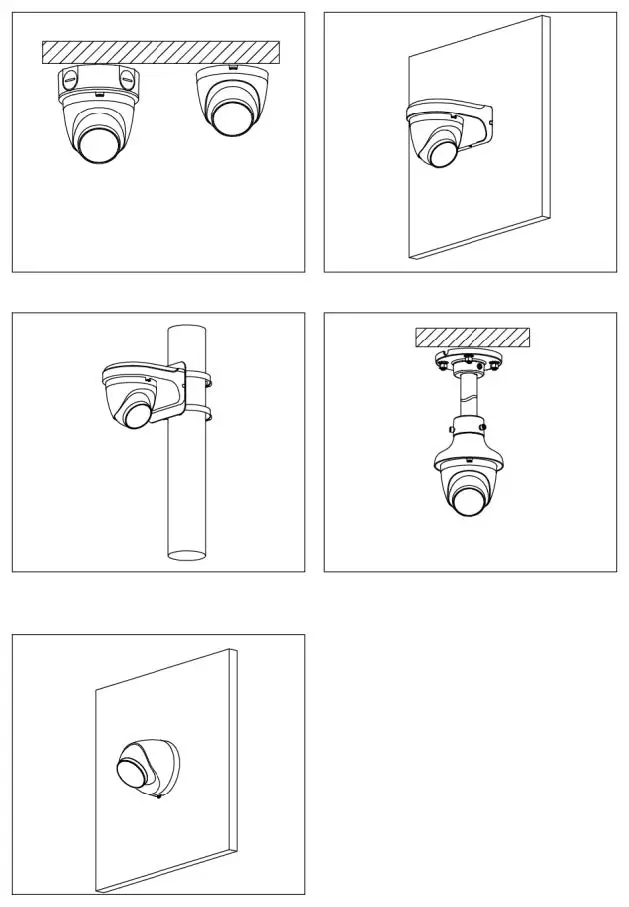
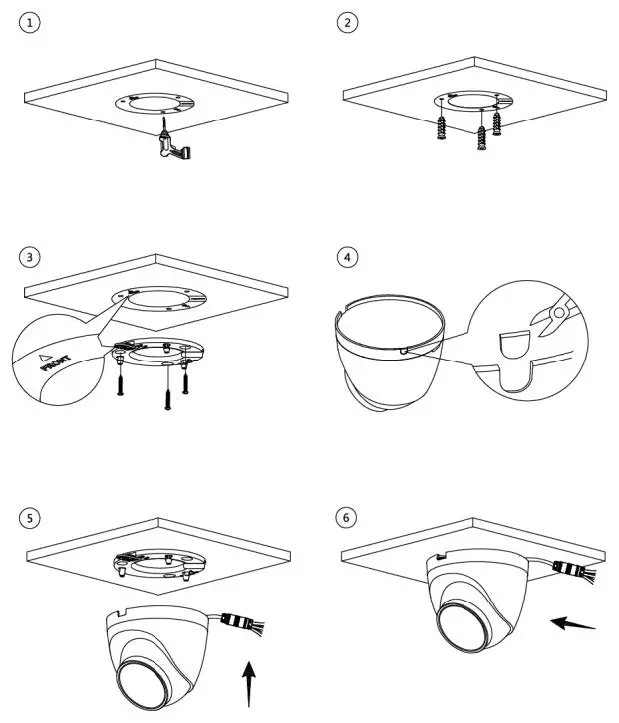
<p><strong>3.3.2 Installation Method</strong></p>
<p><img decoding="async" src="https://usemanuals.com/wp-content/uploads/2023/08/FIG-12-Installation-Method-208x300-1.webp" /></p>
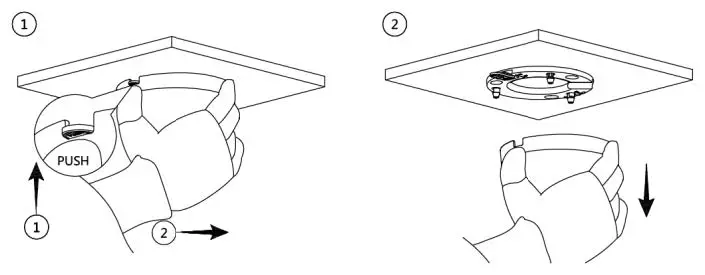
<p><strong>3.3.3 Detaching the Device</strong></p>
<p><img decoding="async" src="https://usemanuals.com/wp-content/uploads/2023/08/FIG-13-Detaching-the-Device-300x117-1.webp" /></p>
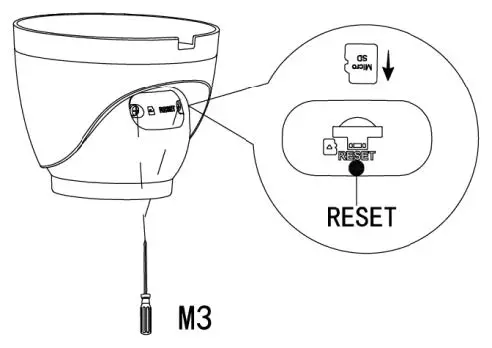
<p><strong>3.3.4 Installing SD Card (Optional)</strong><br />
Pull the power plug off before installing or removing the SD card.</p>
<p><img decoding="async" src="https://usemanuals.com/wp-content/uploads/2023/08/FIG-14-Installing-SD-Card-300x212-1.webp" /></p>
<p>Press and hold the RESET button for 10 s to reset the camera.</p>
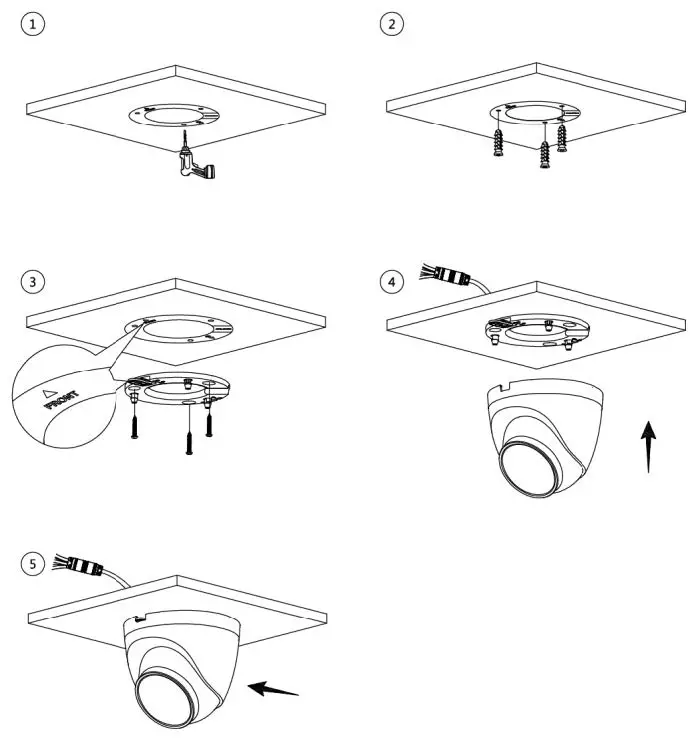
<p><strong>3.3.5 Attaching Device</strong></p>
<p><img decoding="async" src="https://usemanuals.com/wp-content/uploads/2023/08/behringer-24-Bit-192-kHz-Digital-40-20-Watt-Stereo-Near-Field-Monitors-User-Guide-Warning-or-Caution-icon-1.webp" />  Make sure the mounting surface is strong enough to hold at least three times of the weight of the device and bracket.</p>
<p><strong>Cable going through the mounting surface</strong></p>
<p><img decoding="async" src="https://usemanuals.com/wp-content/uploads/2023/08/FIG-15-Cable-going-through-the-mounting-surface-283x300-1.webp" /></p>
<p><strong>Cable going through the side cable tray</strong></p>
<p><img decoding="async" src="https://usemanuals.com/wp-content/uploads/2023/08/FIG-16-Cable-going-through-the-side-cable-tray-257x300-1.webp" /></p>
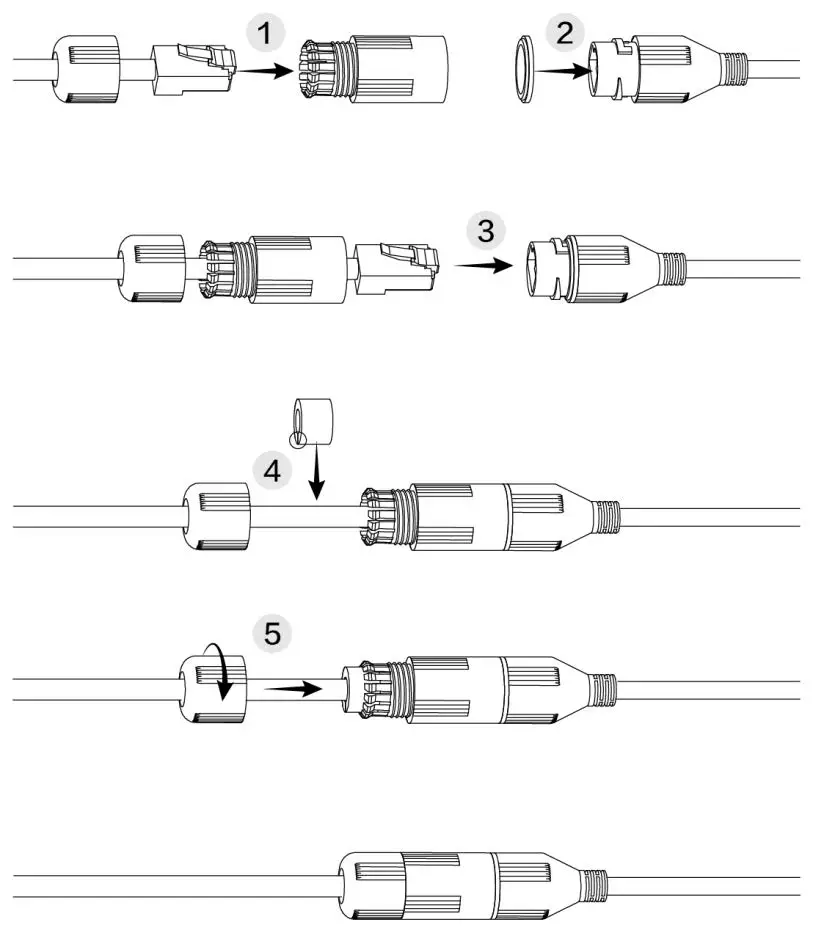
<p><strong>3.3.6 Installing Waterproof Connector (Optional)</strong><br />
This part is needed only when there is waterproof connector come with the device and the<br />
device is used outdoor.</p>
<p><img decoding="async" src="https://usemanuals.com/wp-content/uploads/2023/08/FIG-17-Installing-Waterproof-Connector-261x300-1.webp" /></p>
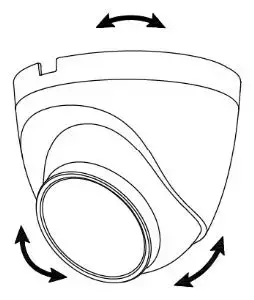
<p><strong>3.3.7 Adjusting Lens Angle</strong></p>
<p><img decoding="async" src="https://usemanuals.com/wp-content/uploads/2023/08/FIG-18-Adjusting-Lens-Angle.webp" /></p>
<p><strong>ZHEJIANG DAHUA VISION TECHNOLOGY CO., LTD.</strong><br />
Address: No.1199, Bin’an Road, Binjiang District, Hangzhou, P.R. China<br />
Postcode: 310053<br />
Tel: +86-571-87688883<br />
Fax: +86-571-87688815<br />
Email: overseas@dahuatech.com<br />
Website: <a href="http://www.dahuasecurity.com/" target="_blank" rel="noopener">www.dahuasecurity.com</a></p>
<form id="commentform" class="comment-form" action="https://manuals.plus/wp-comments-post.php" method="post" novalidate="">
<p class="form-submit">
</form>
]]></content:encoded>


			</item>
	</channel>
</rss>

<!--
Performance optimized by W3 Total Cache. Learn more: https://www.boldgrid.com/w3-total-cache/

Page Caching using Disk: Enhanced 

Served from: usemanuals.com @ 2026-06-13 02:16:43 by W3 Total Cache
-->