<?xml version="1.0" encoding="UTF-8"?><rss version="2.0"
	xmlns:content="http://purl.org/rss/1.0/modules/content/"
	xmlns:wfw="http://wellformedweb.org/CommentAPI/"
	xmlns:dc="http://purl.org/dc/elements/1.1/"
	xmlns:atom="http://www.w3.org/2005/Atom"
	xmlns:sy="http://purl.org/rss/1.0/modules/syndication/"
	xmlns:slash="http://purl.org/rss/1.0/modules/slash/"
	>

<channel>
	<title>Blitzwolf &#8211; UseManuals</title>
	<atom:link href="http://usemanuals.com/blitzwolf/feed/" rel="self" type="application/rss+xml" />
	<link>https://usemanuals.com</link>
	<description>Owner&#039;s manuals for all sorts of products</description>
	<lastBuildDate>Sun, 06 Aug 2023 18:52:53 +0000</lastBuildDate>
	<language>en-US</language>
	<sy:updatePeriod>
	hourly	</sy:updatePeriod>
	<sy:updateFrequency>
	1	</sy:updateFrequency>
	<generator>https://wordpress.org/?v=6.7.2</generator>

<image>
	<url>https://usemanuals.com/wp-content/uploads/2025/02/favicon-32x32-2.png</url>
	<title>Blitzwolf &#8211; UseManuals</title>
	<link>https://usemanuals.com</link>
	<width>32</width>
	<height>32</height>
</image> 
	<item>
		<title>BliTZWOLF BW-KB1 Mechanical Gaming Keyboard Manual</title>
		<link>https://usemanuals.com/blitzwolf/bw-kb1-keyboard/</link>
		
		<dc:creator><![CDATA[ItsManual]]></dc:creator>
		<pubDate>Tue, 04 Apr 2023 04:58:49 +0000</pubDate>
				<category><![CDATA[Blitzwolf]]></category>
		<guid isPermaLink="false">https://usemanuals.com/?p=52889</guid>

					<description><![CDATA[&#160; User Manual BW-KB1 Connect the computer through USB Connect the computer through Bluetooth Hold down [Fn]+[Q]/[E]/[R]/[T] for 3 seconds, until [Q]/[W]/E]/[R]/[T] flashing Hold down [Fn]+[Tab] for 3 seconds, press [FN] while hold down [Q]/[Q]/[E]/[R]/[T] to connect the host that has been bounded by Bluetooth Specification Model BW-KB1 Layout 63 Key Connection Type C Battery Capacity 1900mAh Bluetooth Version Bluetooth 5.0 Key Cap ABS Double Shot Back Light Effect Full RGB Back Light Mechanical Switch Gateron (Red /Brown/Blue Switch) Support System Win?/8/10, Android, 10S, Mac Size 11.4 * 3.9 * 1.5in / 290 * 100 * 39mm Package Contents Keyboard, USB Cable, Key Puller, User Manual Function Key Function Key Function FN + Tab Wired / Bluetooth switch FN + Y/U/I Print Scr/Scroll Lock/Pause Break FN + ]}/[{ Back light effect brightness increase / brightness decrease FN + I 19 groups of back light effect switching FN + H/J/K Insert/Home/Page Up FN + N/M/,&#60; DEL/End/Page Down FN + ;:/’ “ Back light effect speed increase and decrease, five gears, with memory FN + ↓ APP key, the right mouse button EN + &#62; Cut back light effect color FN + WIN Lock WIN FN + Space Bar Reset, long press the 3s keyboard to restore the factory EN + A/ S Win system / MAC system FN + CTRL Press the first time: Change “ESC … =+” to “.~… F12”,”Y U I H J K N M ,&#60; Down Left Right’ to “PrtSc SorLk Pause Insert Home PgUp Del End PgDn ALT-R APP CTRL-R” Press the second time: Change “PrtSc SorLk Pause Insert Home PgUp Del End PgDn ALT-R APP CTRL-R” to “Y U I H J K N M , &#60;“ Press the third time: Back to default Indicator light Function Instruction Caps LED The light indicator under the Caps key.Light is on, off when it runs with the light effect. Lock WIN The light indicator under the WIN key.Light is on, off when it runs with the light effect. Charge The light indicator Next to the space bar.Charge when light, off when it fully charged. Low Battery The light indicator under the FN key.The lamp blinks when the voltage is lower than 3.5V. Note The back light tums off after 1 minute of inactivity. Enter deep sleep after 30 minutes of no operation. Bluetooh disconnected, press the button to automatically reconnect. Company: Lotus NL B.V. Address: Koningin Julianaplein 10, 1e Verd, 2595AA, The Hague, Netherlands. E-mail: peter@lotusn.com Tel: +31644168999 [...]<p><a class="btn btn-secondary understrap-read-more-link" href="https://usemanuals.com/blitzwolf/bw-kb1-keyboard/">Read More...</a></p>]]></description>
										<content:encoded><![CDATA[<p>&nbsp;</p>
<p><img decoding="async" src="https://usemanuals.com/wp-content/uploads/2023/03/BliTZWOLF-Logo-10.jpg" /></p>
<p><strong>User Manual</strong><br />
<strong>BW-KB1</strong></p>
<h4>Connect the computer through USB</h4>
<p><img decoding="async" src="https://usemanuals.com/wp-content/uploads/2023/03/BliTZWOLF-BW-KB1-Mechanical-Gaming-Keyboard-Connect-the-computer-through-USB.jpg" /></p>
<h4>Connect the computer through Bluetooth</h4>
<p><img decoding="async" src="https://usemanuals.com/wp-content/uploads/2023/03/BliTZWOLF-BW-KB1-Mechanical-Gaming-Keyboard-Connect-the-computer-through-Bluetooth.jpg" /></p>
<h4>Hold down [Fn]+[Q]/[E]/[R]/[T] for 3 seconds, until [Q]/[W]/E]/[R]/[T] flashing</h4>
<p><img decoding="async" src="https://usemanuals.com/wp-content/uploads/2023/03/BliTZWOLF-BW-KB1-Mechanical-Gaming-Keyboard-Switch-host.jpg" /></p>
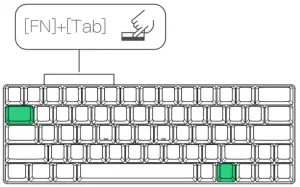
<p>Hold down [Fn]+[Tab] for 3 seconds, press [FN] while hold down [Q]/[Q]/[E]/[R]/[T] to connect the host that has been bounded by Bluetooth</p>
<p><img decoding="async" src="https://usemanuals.com/wp-content/uploads/2023/03/BliTZWOLF-BW-KB1-Mechanical-Gaming-Keyboard-Switch-host-2.jpg" /></p>
<h4>Specification</h4>
<table width="688">
<tbody>
<tr>
<td width="266">Model</td>
<td width="422">BW-KB1</td>
</tr>
<tr>
<td width="266">Layout</td>
<td width="422">63 Key</td>
</tr>
<tr>
<td width="266">Connection</td>
<td width="422">Type C</td>
</tr>
<tr>
<td width="266">Battery Capacity</td>
<td width="422">1900mAh</td>
</tr>
<tr>
<td width="266">Bluetooth Version</td>
<td width="422">Bluetooth 5.0</td>
</tr>
<tr>
<td width="266">Key Cap</td>
<td width="422">ABS Double Shot</td>
</tr>
<tr>
<td width="266">Back Light Effect</td>
<td width="422">Full RGB Back Light</td>
</tr>
<tr>
<td width="266">Mechanical Switch</td>
<td width="422">Gateron (Red /Brown/Blue Switch)</td>
</tr>
<tr>
<td width="266">Support System</td>
<td width="422">Win?/8/10, Android, 10S, Mac</td>
</tr>
<tr>
<td width="266">Size</td>
<td width="422">11.4 * 3.9 * 1.5in / 290 * 100 * 39mm</td>
</tr>
<tr>
<td width="266">Package Contents</td>
<td width="422">Keyboard, USB Cable, Key Puller, User Manual</td>
</tr>
</tbody>
</table>
<h4>Function Key</h4>
<table width="1291">
<tbody>
<tr>
<td width="130">Function Key</td>
<td width="557">Function</td>
</tr>
<tr>
<td width="130">FN + Tab</td>
<td width="557">Wired / Bluetooth switch</td>
</tr>
<tr>
<td width="130">FN + Y/U/I</td>
<td width="557">Print Scr/Scroll Lock/Pause Break</td>
</tr>
<tr>
<td width="130">FN + ]}/[{</td>
<td width="557">Back light effect brightness increase / brightness decrease</td>
</tr>
<tr>
<td width="130">FN + I</td>
<td width="557">19 groups of back light effect switching</td>
</tr>
<tr>
<td width="130">FN + H/J/K</td>
<td width="557">Insert/Home/Page Up</td>
</tr>
<tr>
<td width="130">FN + N/M/,&lt;</td>
<td width="557">DEL/End/Page Down</td>
</tr>
<tr>
<td width="130">FN + ;:/’ “</td>
<td width="557">Back light effect speed increase and decrease, five gears, with memory</td>
</tr>
<tr>
<td width="130">FN + ↓</td>
<td width="557">APP key, the right mouse button</td>
</tr>
<tr>
<td width="130">EN + &gt;</td>
<td width="557">Cut back light effect color</td>
</tr>
<tr>
<td width="130">FN + WIN</td>
<td width="557">Lock WIN</td>
</tr>
<tr>
<td width="130">FN + Space Bar</td>
<td width="557">Reset, long press the 3s keyboard to restore the factory</td>
</tr>
<tr>
<td width="130">EN + A/ S</td>
<td width="557">Win system / MAC system</td>
</tr>
<tr>
<td rowspan="3" width="130">FN + CTRL</td>
<td width="557">Press the first time: Change “ESC … =+” to “.~… F12”,”Y U I H J K N M ,&lt; Down Left Right’ to “PrtSc SorLk Pause Insert Home PgUp Del End PgDn ALT-R APP CTRL-R”</td>
</tr>
<tr>
<td width="557">Press the second time: Change “PrtSc SorLk Pause Insert Home PgUp Del End PgDn ALT-R APP CTRL-R” to “Y U I H J K N M , &lt;“</td>
</tr>
<tr>
<td width="557">Press the third time: Back to default</td>
</tr>
</tbody>
</table>
<h4>Indicator light</h4>
<table width="1058">
<tbody>
<tr>
<td width="130">Function</td>
<td width="558">Instruction</td>
</tr>
<tr>
<td width="130">Caps LED</td>
<td width="558">The light indicator under the Caps key.Light is on, off when it runs with the light effect.</td>
</tr>
<tr>
<td width="130">Lock WIN</td>
<td width="558">The light indicator under the WIN key.Light is on, off when it runs with the light effect.</td>
</tr>
<tr>
<td width="130">Charge</td>
<td width="558">The light indicator Next to the space bar.Charge when light, off when it fully charged.</td>
</tr>
<tr>
<td width="130">Low Battery</td>
<td width="558">The light indicator under the FN key.The lamp blinks when the voltage is lower than 3.5V.</td>
</tr>
</tbody>
</table>
<p><strong>Note<br />
</strong>The back light tums off after 1 minute of inactivity.</p>
<p>Enter deep sleep after 30 minutes of no operation. Bluetooh disconnected, press the button to automatically reconnect.</p>
<p><img decoding="async" src="https://usemanuals.com/wp-content/uploads/2023/03/BliTZWOLF-icon-1.jpg" /><br />
Company: Lotus NL B.V.<br />
Address: Koningin Julianaplein 10, 1e Verd, 2595AA, The Hague, Netherlands.<br />
E-mail: <a href="mailto:peter@lotusn.com">peter@lotusn.com</a><br />
Tel: +31644168999<br />
<img decoding="async" src="https://usemanuals.com/wp-content/uploads/2023/03/BliTZWOLF-FC-icon.jpg" /></p>
<form id="commentform" class="comment-form" action="https://manuals.plus/wp-comments-post.php" method="post" novalidate="">
<p class="form-submit"><input id="comment_post_ID" name="comment_post_ID" type="hidden" value="1642096" /><br />
<input id="comment_parent" name="comment_parent" type="hidden" value="0" /></p>
</form>
]]></content:encoded>


			</item>
		<item>
		<title>Blitzwolf Gaming Keyboard BW-KB1 Manual</title>
		<link>https://usemanuals.com/blitzwolf/bw-kb1-gaming-keyboard/</link>
		
		<dc:creator><![CDATA[ItsManual]]></dc:creator>
		<pubDate>Tue, 04 Apr 2023 07:54:18 +0000</pubDate>
				<category><![CDATA[Blitzwolf]]></category>
		<guid isPermaLink="false">https://usemanuals.com/?p=55356</guid>

					<description><![CDATA[Learn how to setup your Blitzwolf Gaming Keyboard (model number BW-KB1) using these handy instructions. [...]<p><a class="btn btn-secondary understrap-read-more-link" href="https://usemanuals.com/blitzwolf/bw-kb1-gaming-keyboard/">Read More...</a></p>]]></description>
										<content:encoded><![CDATA[<p><strong>BliTZWOlF BW-KB1 Gaming Keyboard</strong></p>
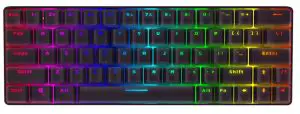
<p><img decoding="async" class="alignnone" src="https://usemanuals.com/wp-content/uploads/2023/03/0-25-300x114-1.webp" alt="Blitzwolf Gaming Keyboard BW-KB1 photo" width="300" height="114" /></p>
<h2>Setup</h2>
<p><img decoding="async" class="alignnone" src="https://usemanuals.com/wp-content/uploads/2023/03/1-206-300x44-1.webp" alt="Plugging keybaord in" width="300" height="44" /></p>
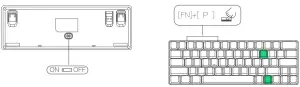
<p>Turn off the switch at the bottom of the keyboard, and the toggle switch displays the 0 symbol<br />
<img decoding="async" class="alignnone" src="https://usemanuals.com/wp-content/uploads/2023/03/2-196-300x51-1.webp" alt="Location of switch" width="300" height="51" /></p>
<h4></h4>
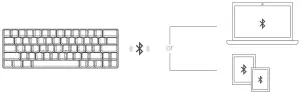
<p><img loading="lazy" decoding="async" class="alignnone" src="https://usemanuals.com/wp-content/uploads/2023/03/3-166-300x93-1.webp" alt="Bluetooth connection example" width="300" height="93" /></p>
<p>Turn on the switch at the bottom of the keyboard, toggle the switch to display the-symbol After the Bluetooth channel is selected, the FN+P key enters the pairing mode, the P key light flashes during the pairing, and the pairing succeeds and returns to the normal mode</p>
<p><img loading="lazy" decoding="async" class="alignnone" src="https://usemanuals.com/wp-content/uploads/2023/03/4-145-300x87-1.webp" alt="Power switch location" width="300" height="87" /></p>
<h4></h4>
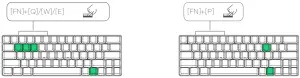
<p>FN+Q or W or E pairing: In the Bluetooth state, press FN+Q or W or E to select a channel, the Q or W or E key flashes, then press FN+P to enter the pairing mode, the P key light flashes, pairing Success, the light returns to normal mode. Back- to- back: FN+Q or W or E key for device back- to- back<br />
<img loading="lazy" decoding="async" class="alignnone" src="https://usemanuals.com/wp-content/uploads/2023/03/5-130-300x78-1.webp" alt="Location of direction keys" width="300" height="78" /></p>
<h4></h4>
<p>FN+ Tab switch to Bluetooth, TAB key white light display, wired normal display</p>
<p><img loading="lazy" decoding="async" class="alignnone" src="https://usemanuals.com/wp-content/uploads/2023/03/6-123-300x187-1.webp" alt="Switching to Bluetooth" width="300" height="187" /></p>
]]></content:encoded>


			</item>
		<item>
		<title>Blitzwolf True Wireless Earbuds BW-FYE4 Manual</title>
		<link>https://usemanuals.com/blitzwolf/earbuds-bw-fye4/</link>
		
		<dc:creator><![CDATA[ItsManual]]></dc:creator>
		<pubDate>Tue, 04 Apr 2023 17:13:17 +0000</pubDate>
				<category><![CDATA[Blitzwolf]]></category>
		<guid isPermaLink="false">https://usemanuals.com/?p=59580</guid>

					<description><![CDATA[&#160; Blitzwolf True Wireless Earbuds BW-FYE4 User Manual Packing lists BW-FYE4 ×1 3 pairs of Silicone Eartips (size: S/M/L, M pair is already attached.) User manual*1 Micro USB Charging Cable×1 Product Diagram Long press Short press Microphone Press for twice Press for three times Charging box switch key(front) Battery case/Storage compartment port Silicone Ear Caps Selection For the best audio experience and comfort, please choose the right ear cap size to wear. Specifications Model name — BW-FYE4 Chip — RTL8763BFR Frequency Range — 2.402-2.480GHz Support Protocol — HSP/HFP/A2DP/AVRCP Transmission Range — 10m Sensitivity — 98dB Frequency Response — 20~20000Hz Charging Input Standard — Touch spot, DC 5V/0.5-1.0A Battery Type — 3.7V lithium battery (Headsets and Charging Box) earbud Charging Time — About 1.5hours Working Time — About 4.5 hours Electricity supply times of charging box — 4 Charging Charging the earbuds Simply put the earbuds into the charging box and close the lid. The indicator light of the earbud is red during charging. When charging is complete the indicator will turn blue and then turn off in 1 minute. The charging box will turn off when the 2 earbuds are fully charged. Charging the charging box To charge, connect the USB cable to the BW-FYE4 and a USB power source. The remain battery is indicated by the the four white lights on the charging box. Operating Instructions Power on: Automatically powers on when taken out of the charging box/Long press the Multi-function button for 4 seconds if they are not in the charging box. Power off: Automatically powers off when placed into the charging box./Long press the Multi-function button for 4 seconds if they are not in the charging box. Play/Pause: Short press either of the Multi-function buttons. Wake up Siri: Long press the Multi-function button of any earbud for 1.5 seconds. Answer Call: Short press the Multi-function button once when receiving an incoming call Reject Call: Long press the Multi-function button for 1.5 seconds when receiving an incoming call Hang up: Short press the Multi-function button once during a call Next song: Short press the Multi-function button on the earbud for twice. Previous song: Short press the Multi-function button on the earbud for three times. Stereo Pairing Take both earbuds out of the charging box. The earbuds will automatically power on. The left earbud will pair to the right earbud automatically. The light of the left earbud will flash red and blue alternately and the right earbud’s indicator light remains off. The right earbud “BW-FYE4 ” is the earbud you need to pair your device to for stereo sound. Activate Bluetooth mode on your device, search for nearby devices, and then pair to “BW-FYE4.” Mono Pairing If you only want to use one earbud, take out the L or R earbud and Bluetooth pair your device to the corresponding side, “BW-FYE4” or “BW-FYE4 R”. Troubleshooting The earbud won’t pair with my device. Confirm that the earbuds are powered on. If they are not powered on, put them back into the charging box and take them out again. Confirm that the earbuds are in pairing mode. In stereo mode, the indicator light of the left earbud flashes red and blue alternately, and the indicator light of the left earbud flashes blue slowly. In mono mode, the indicator of the earbud flashes red and blue alternately. If not in pairing mode, please check whether the earbud has automatically paired to another device. If it is paired to another device, turn Bluetooth mode off or unpair the “BW-FYE4 /R” from the already paired device. Confirm that the earbud is within the range of 10 meters. Sound is only playing from one earbud in stereo mode. Check that both earbuds have battery power remaining. Long press to power off both earbuds. Then long press to power on both the earbuds simultaneously. Hold the Multi-function button until you hear a second audible tone. The process takes about 20s and completely clears the pairing list. Then, put the earbuds back into the charging box, and try the pairing process again. If there are any other signal abnormalities, do as above to reset the earbuds. (Waste Electrical&#38; Electronic Equipment) This Marking indicates that it should not be disposed with other household wastes or commercial wastes. To prevent possible harm to the environment or human health, please separate this from other types of wastes and recycle it. [...]<p><a class="btn btn-secondary understrap-read-more-link" href="https://usemanuals.com/blitzwolf/earbuds-bw-fye4/">Read More...</a></p>]]></description>
										<content:encoded><![CDATA[<p>&nbsp;</p>
<pre><strong>Blitzwolf True Wireless Earbuds
BW-FYE4 User Manual</strong></pre>
<h4>Packing lists</h4>
<p>BW-FYE4 ×1<br />
3 pairs of Silicone Eartips (size: S/M/L, M pair is already attached.)<br />
User manual*1<br />
Micro USB Charging Cable×1</p>
<h4>Product Diagram</h4>
<p>Long press<br />
Short press<br />
Microphone<br />
Press for twice<br />
Press for three times<br />
Charging box switch key(front)<br />
Battery case/Storage compartment port<br />
Silicone Ear Caps Selection<br />
For the best audio experience and comfort, please choose the right ear cap size to wear.</p>
<h4>Specifications</h4>
<ul>
<li>Model name — BW-FYE4</li>
<li>Chip — RTL8763BFR</li>
<li>Frequency Range — 2.402-2.480GHz</li>
<li>Support Protocol — HSP/HFP/A2DP/AVRCP</li>
<li>Transmission Range — 10m</li>
<li>Sensitivity — 98dB</li>
<li>Frequency Response — 20~20000Hz</li>
<li>Charging Input Standard — Touch spot, DC 5V/0.5-1.0A</li>
<li>Battery Type — 3.7V lithium battery (Headsets and Charging Box)</li>
<li><strong>earbud<br />
</strong></p>
<ul>
<li>Charging Time — About 1.5hours<strong><br />
</strong></li>
<li>Working Time — About 4.5 hours</li>
</ul>
</li>
<li>Electricity supply times of charging box — 4</li>
</ul>
<h4>Charging</h4>
<p><strong>Charging the earbuds</strong><br />
Simply put the earbuds into the charging box and close the lid. The indicator light of the earbud is red during charging. When charging is complete the indicator will turn blue and then turn off in 1 minute. The charging box will turn off when the 2 earbuds are fully charged.</p>
<p><strong>Charging the charging box</strong><br />
To charge, connect the USB cable to the BW-FYE4 and a USB power source. The remain battery is indicated by the the four white lights on the charging box.</p>
<h4>Operating Instructions</h4>
<ul>
<li><strong>Power on</strong>: Automatically powers on when taken out of the charging box/Long press the Multi-function button for 4 seconds if they are not in the charging box.</li>
<li><strong>Power off</strong>: Automatically powers off when placed into the charging box./Long press the Multi-function button for 4 seconds if they are not in the charging box.</li>
<li><strong>Play/Pause</strong>: Short press either of the Multi-function buttons.</li>
<li><strong>Wake up Siri</strong>: Long press the Multi-function button of any earbud for 1.5 seconds.</li>
<li><strong>Answer Call</strong>: Short press the Multi-function button once when receiving an incoming call</li>
<li><strong>Reject Call</strong>: Long press the Multi-function button for 1.5 seconds when receiving an incoming call</li>
<li><strong>Hang up</strong>: Short press the Multi-function button once during a call</li>
<li><strong>Next song</strong>: Short press the Multi-function button on the earbud for twice.</li>
<li><strong>Previous song</strong>: Short press the Multi-function button on the earbud for three times.</li>
</ul>
<h4>Stereo Pairing</h4>
<ol>
<li>Take both earbuds out of the charging box. The earbuds will automatically power on. The left earbud will pair to the right earbud automatically. The light of the left earbud will flash red and blue alternately and the right earbud’s indicator light remains off.</li>
<li>The right earbud “BW-FYE4 ” is the earbud you need to pair your device to for stereo sound. Activate Bluetooth mode on your device, search for nearby devices, and then pair to “BW-FYE4.”</li>
</ol>
<h4>Mono Pairing</h4>
<p>If you only want to use one earbud, take out the L or R earbud and Bluetooth pair your device to the corresponding side, “BW-FYE4” or “BW-FYE4 R”.</p>
<h4>Troubleshooting</h4>
<p><strong>The earbud won’t pair with my device.</strong></p>
<ol>
<li>Confirm that the earbuds are powered on. If they are not powered on, put them back into the charging box and take them out again.</li>
<li>Confirm that the earbuds are in pairing mode.<br />
In stereo mode, the indicator light of the left earbud flashes red and blue alternately, and the indicator light of the left earbud flashes blue slowly.<br />
In mono mode, the indicator of the earbud flashes red and blue alternately. If not in pairing mode, please check whether the earbud has automatically paired to another device. If it is paired to another device, turn Bluetooth mode off or unpair the “BW-FYE4 /R” from the already paired device.</li>
<li>Confirm that the earbud is within the range of 10 meters.</li>
</ol>
<p><strong>Sound is only playing from one earbud in stereo mode.</strong></p>
<ol>
<li>Check that both earbuds have battery power remaining.</li>
<li>Long press to power off both earbuds. Then long press to power on both the earbuds simultaneously. Hold the Multi-function button until you hear a second audible tone. The process takes about 20s and completely clears the pairing list. Then, put the earbuds back into the charging box, and try the pairing process again. If there are any other signal abnormalities, do as above to reset the earbuds.</li>
</ol>
<h4><img decoding="async" src="https://usemanuals.com/wp-content/uploads/2023/03/Recycle-ICON.webp" /></h4>
<p>(Waste Electrical&amp; Electronic Equipment) This Marking indicates that it should not be disposed with other household wastes or commercial wastes. To prevent possible harm to the environment or human health, please separate this from other types of wastes and recycle it.</p>
<hr />
<h2 class="comments-title" aria-hidden="true"></h2>
]]></content:encoded>


			</item>
		<item>
		<title>BLITZWOLF BW-GS3 Computer Game Speakers with RGB Light Manual</title>
		<link>https://usemanuals.com/blitzwolf/bw-gs3-speakers/</link>
		
		<dc:creator><![CDATA[ItsManual]]></dc:creator>
		<pubDate>Sat, 01 Jul 2023 08:57:16 +0000</pubDate>
				<category><![CDATA[Blitzwolf]]></category>
		<guid isPermaLink="false">https://usemanuals.com/?p=135948</guid>

					<description><![CDATA[BLITZWOLF BW-GS3 Computer Game Speakers with RGB Light Product Overview Mic socket Power switch, Volume, LED mode Long press on/ off Rotate main volume+/- Short press LED light mode switch Headphone socket Audio/Headphone Switch LED lamp USB 5V Green 3.5mm audio cable Pink 3.5mm microphone cable Product Parameters Model BW-GS3 Power 5W*2 Speaker Unit 2 inch*2 Power Supply DC 5V Product Size W479*D66*H51 mm Company: Lotus NL B.V. EC R E P Address: Koningin Julianaplein 1 0, 1 e Verd, 2595AA, The Hague, Netherlands. E-mail: peter@lotusnl.com Tel: +31644168999 [...]<p><a class="btn btn-secondary understrap-read-more-link" href="https://usemanuals.com/blitzwolf/bw-gs3-speakers/">Read More...</a></p>]]></description>
										<content:encoded><![CDATA[<h3><img decoding="async" src="https://usemanuals.com/wp-content/uploads/2023/07/blitzwoif-logo.webp" /></h3>
<h4>BLITZWOLF BW-GS3 Computer Game Speakers with RGB Light</h4>
<p><img decoding="async" src="https://usemanuals.com/wp-content/uploads/2023/07/BLITZWOLF-BW-GS3-Computer-Game-Speakers-with-RGB-Light.webp" /></p>
<h4>Product Overview</h4>
<ol>
<li>Mic socket</li>
<li>Power switch, Volume, LED mode
<ol>
<li>Long press on/ off</li>
<li>Rotate main volume+/-</li>
<li>Short press LED light mode switch</li>
</ol>
</li>
<li>Headphone socket</li>
<li>Audio/Headphone Switch</li>
<li>LED lamp</li>
<li>USB 5V</li>
<li>Green 3.5mm audio cable</li>
<li>Pink 3.5mm microphone cable</li>
</ol>
<h4>Product Parameters</h4>
<ul>
<li>Model BW-GS3</li>
<li>Power 5W*2</li>
<li>Speaker Unit 2 inch*2</li>
<li>Power Supply DC 5V</li>
<li>Product Size W479*D66*H51 mm</li>
</ul>
<p>Company: Lotus NL B.V.<br />
EC R E P Address: Koningin Julianaplein 1 0, 1 e Verd, 2595AA, The Hague, Netherlands.<br />
<strong>E-mail: peter@lotusnl.com</strong><br />
<strong>Tel: +31644168999</strong></p>
<form id="commentform" class="comment-form" action="https://manuals.plus/wp-comments-post.php" method="post" novalidate="">
<p class="form-submit">
</form>
]]></content:encoded>


			</item>
		<item>
		<title>BliTZWOlF BW-MPC1 Intel Celeron J4125 8G+128G Mini PC Manual</title>
		<link>https://usemanuals.com/blitzwolf/bw-mpc1-mini-pc/</link>
		
		<dc:creator><![CDATA[ItsManual]]></dc:creator>
		<pubDate>Tue, 18 Jul 2023 04:52:11 +0000</pubDate>
				<category><![CDATA[Blitzwolf]]></category>
		<guid isPermaLink="false">https://usemanuals.com/?p=164578</guid>

					<description><![CDATA[BliTZWOlF BW-MPC1 Intel Celeron J4125 8G+128G Mini PC User Manual Product Information Power Button Power indicator’ US82.0 US82.0 US83.0 US83.0 TF Card LAN AV VGA HD DC Connected Device Tum on the TV or monitor and change the video output to be HD Connect the PC to the HD connector of the TV or monitor with a HD cab e Connect the power adapter into the wall socket. and the other” end into the DC port on the PC Toe, the device starts md LED light on the box is on How To Enter BIOS Configuration Keep pressing the ESG button when Turing power ON, you can enter BIOS con1iguratlon How To Install The Hard Disk Standard 2.5 inch SATA hard drive supported, up to 2TB. Take out ~he two screws at the bottor1 of Ire hard drive expansion box. install e 2.5-irmh HOD or SSD (support up to 2TB) to the expansion bay. Screw the two screws back. Others Specifications Package List Mark.Zhang@sohcufor.oom Vincent.feng@vish-tec.com [...]<p><a class="btn btn-secondary understrap-read-more-link" href="https://usemanuals.com/blitzwolf/bw-mpc1-mini-pc/">Read More...</a></p>]]></description>

										<content:encoded><![CDATA[<pre><em><strong>BliTZWOlF BW-MPC1 Intel Celeron J4125 
8G+128G Mini PC User Manual</strong></em></pre>
<p><img decoding="async" src="https://usemanuals.com/wp-content/uploads/2023/07/BliTZWOlF-BW-MPC1-Intel-Celeron-J4125-8G128G-Mini-PC-User-Manual.webp" /></p>
<h4>Product Information</h4>
<p><img decoding="async" src="https://usemanuals.com/wp-content/uploads/2023/07/BliTZWOlF-BW-MPC1-Intel-Celeron-J4125-8G128G-Mini-PC-User-Manual-Product-Information.webp" /></p>
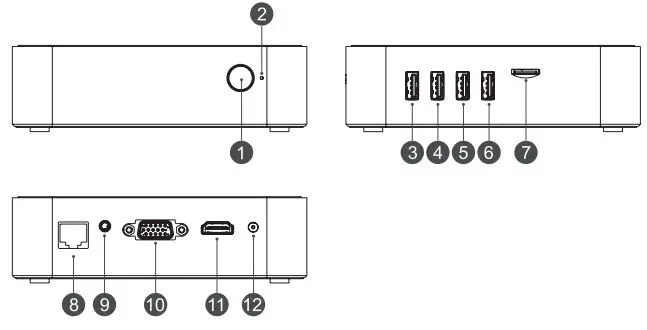
<ol>
<li>Power Button</li>
<li>Power indicator’</li>
<li>US82.0</li>
<li>US82.0</li>
<li>US83.0</li>
<li>US83.0</li>
<li>TF Card</li>
<li>LAN</li>
<li>AV</li>
<li>VGA</li>
<li>HD</li>
<li>DC</li>
</ol>
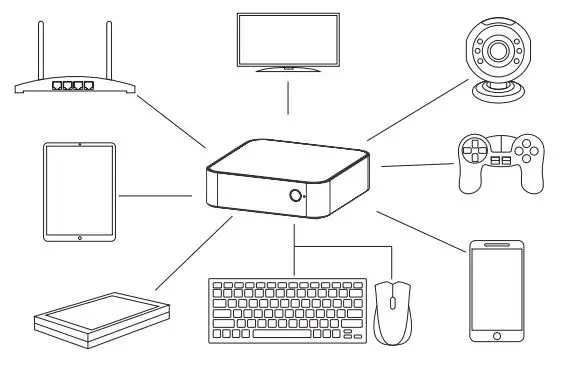
<h4>Connected Device</h4>
<p><img loading="lazy" decoding="async" class="aligncenter size-full wp-image-1274345 ezlazyloaded" src="images/6.webp" sizes="auto, " srcset="" alt="BliTZWOlF BW-MPC1 Intel Celeron J4125 8G+128G Mini PC User Manual - Connected Device" width="566" height="365" data-ezsrcset="https://manuals.plus/wp-content/uploads/2021/12/BliTZWOlF-BW-MPC1-Intel-Celeron-J4125-8G128G-Mini-PC-User-Manual-Connected-Device.jpg?ezimgfmt=ng:webp/ngcb1 566w,https://manuals.plus/wp-content/uploads/2021/12/BliTZWOlF-BW-MPC1-Intel-Celeron-J4125-8G128G-Mini-PC-User-Manual-Connected-Device-300x193.jpg?ezimgfmt=ng:webp/ngcb1 300w" data-ezsrc="https://manuals.plus/wp-content/uploads/2021/12/BliTZWOlF-BW-MPC1-Intel-Celeron-J4125-8G128G-Mini-PC-User-Manual-Connected-Device.jpg?ezimgfmt=rs:566x365/rscb1/ng:webp/ngcb1" /></p>
<ol>
<li>Tum on the TV or monitor and change the video output to be HD</li>
<li>Connect the PC to the HD connector of the TV or monitor with a HD cab e</li>
<li>Connect the power adapter into the wall socket. and the other” end into the DC port on the PC</li>
<li>Toe, the device starts md LED light on the box is on</li>
</ol>
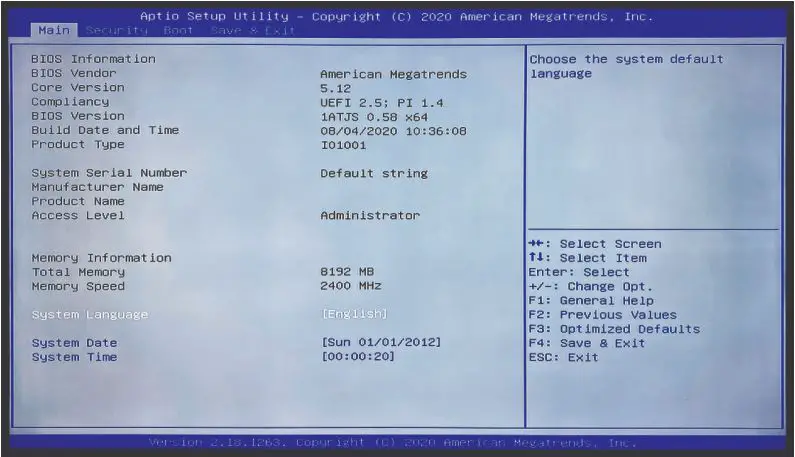
<h4>How To Enter BIOS Configuration</h4>
<p>Keep pressing the ESG button when Turing power ON, you can enter BIOS con1iguratlon</p>
<p><img decoding="async" src="https://usemanuals.com/wp-content/uploads/2023/07/BliTZWOlF-BW-MPC1-Intel-Celeron-J4125-8G128G-Mini-PC-User-Manual-How-to-Enter-BIOS-Configuration.webp" /></p>
<h4>How To Install The Hard Disk</h4>
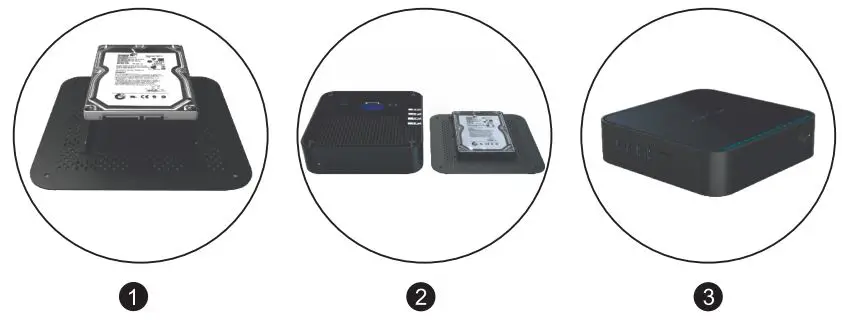
<p>Standard 2.5 inch SATA hard drive supported, up to 2TB.</p>
<p><img decoding="async" src="https://usemanuals.com/wp-content/uploads/2023/07/BliTZWOlF-BW-MPC1-Intel-Celeron-J4125-8G128G-Mini-PC-User-Manual-How-to-Install-the-Hard-Disk.webp" /></p>
<ol>
<li>Take out ~he two screws at the bottor1 of Ire hard drive expansion box.</li>
<li>install e 2.5-irmh HOD or SSD (support up to 2TB) to the expansion bay.</li>
<li>Screw the two screws back.</li>
</ol>
<h4>Others</h4>
<p><img decoding="async" src="https://usemanuals.com/wp-content/uploads/2023/07/BliTZWOlF-BW-MPC1-Intel-Celeron-J4125-8G128G-Mini-PC-User-Manual-Others.webp" /></p>
<h4>Specifications</h4>
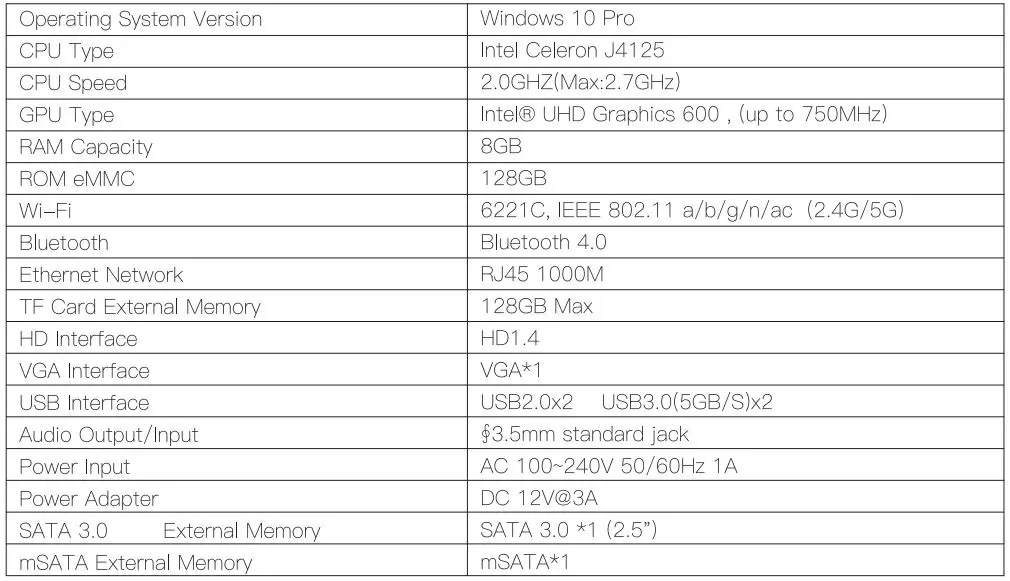
<p><img decoding="async" src="https://usemanuals.com/wp-content/uploads/2023/07/BliTZWOlF-BW-MPC1-Intel-Celeron-J4125-8G128G-Mini-PC-User-Manual-Specifications-1.webp" /><img decoding="async" src="https://usemanuals.com/wp-content/uploads/2023/07/BliTZWOlF-BW-MPC1-Intel-Celeron-J4125-8G128G-Mini-PC-User-Manual-Specifications-2.webp" /></p>
<h4>Package List</h4>
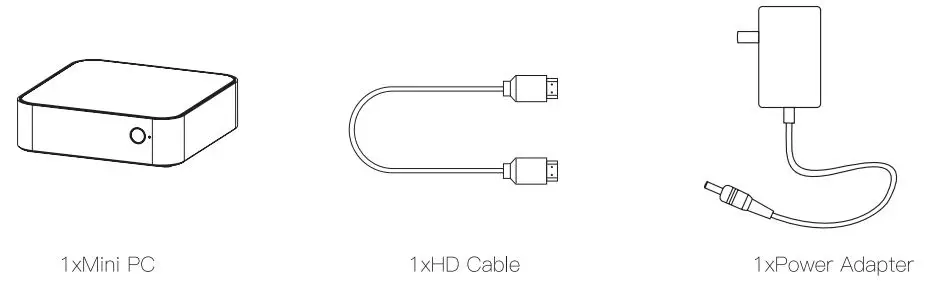
<p><img decoding="async" src="https://usemanuals.com/wp-content/uploads/2023/07/BliTZWOlF-BW-MPC1-Intel-Celeron-J4125-8G128G-Mini-PC-User-Manual-Package-List.webp" /></p>
<p><img decoding="async" src="https://usemanuals.com/wp-content/uploads/2023/07/BliTZWOlF-BW-MPC1-Intel-Celeron-J4125-8G128G-Mini-PC-User-Manual-Address.webp" /></p>
<p><a href="mailto:Mark.Zhang@sohcufor.oom">Mark.Zhang@sohcufor.oom</a></p>
<p><a href="mailto:Vincent.feng@vish-tec.com">Vincent.feng@vish-tec.com</a></p>
<p><img decoding="async" src="https://usemanuals.com/wp-content/uploads/2023/07/BliTZWOlF-BW-MPC1-Intel-Celeron-J4125-8G128G-Mini-PC-User-Manual-Certified-icon.webp" /></p>
<form id="commentform" class="comment-form" action="https://manuals.plus/wp-comments-post.php" method="post" novalidate="">
<p class="form-submit">
</form>
]]></content:encoded>


			</item>
	</channel>
</rss>

<!--
Performance optimized by W3 Total Cache. Learn more: https://www.boldgrid.com/w3-total-cache/

Page Caching using Disk: Enhanced 

Served from: usemanuals.com @ 2026-06-10 05:06:41 by W3 Total Cache
-->